
Kullanım kılavuzunuz SAMSUNG DVD-E360
|
|
|
- Emine Dalman
- 10 yıl önce
- İzleme sayısı:
Transkript


1 Bu kullanım kılavuzunda önerileri okuyabilir, teknik kılavuz veya için kurulum kılavuzu. Bu kılavuzdaki tüm sorularınızı (bilgi, özellikler, güvenlik danışma, boyut, aksesuarlar, vb) cevaplarını bulacaksınız. Detaylı kullanım talimatları kullanım kılavuzunun içindedir. Kullanım kılavuzu Kullanma kılavuzu Kullanma talimati Kullanıcı kılavuzu Kullanıcı el kitabı
2 Manuel özet: Do not push the disc tray in by hand. - Do not stack components. - Be sure to turn all components off before moving the player. - Before connecting other components to this player, be sure to turn them off. - Be sure to remove the disc and turn off the player after use, especially if you are not going to use it for a long time. - The mains plug is used as a disconnect device and shall stay readily operable at any time. the player may not operate correctly. If this occurs, leave the player at room tempera- ture until the inside of the player becomes dry and operational. Table of contens Precautions... Setup General Features Description... Tour of the Remote Control Connections Choosing a Connection... Basic Functions Playing a Disc..... Using the Search and Skip Functions Using the Display Function..... Using the Disc and Title Menu... Repeat Play Slow Play.... Advanced Functions Adjusting the Aspect Ratio (EZ View)... Selecting the Audio Language... Selecting the Subtitle Language.. Changing the Camera Angle Using the Bookmark Function... Using the Zoom Function.. Clips Menu for MP3/WMA/JPEG/MPEG4/ CD Audio Folder Selection MP3/WMA/CD Audio Playback.
3 . 7 MPEG4 8 CD Ripping (Only DVD-E360K, E360).. 9 Picture CD Playback Karaoke Functions (Only DVD-E360K) Karaoke Functions Changing Setup Menu Using the Setup Menu Setting Up the Display Options Setting Up the Audio Options Setting Up the System Options. 11 Setting Up the Language Features Setting Up the Security Options. 11 Setting Up the General Options Setting Up the Support Options Reference Troubleshooting Do not touch the disc s bottom. Hold by the edges or by one edge and the hole in the of controls or adjustments or performance of procedures other than those specified herein may result in hazardous radiation exposure. - Do not open covers and do not repair your self. Refer servicing to qualified personal. 3. Caution - Your player is not intended for industrial use but for domestic purposes. Use of this product is for personal use only. - Apparatus shall not be exposed to dripping or splashing and no objects filled with liquids, such as vases, shall be placed on the apparatus. - Exterior influences such as lightning and static electricity can affect normal operation of this player. If this occurs, turn theplayer off and on again with the POWER button, or disconnect and then reconnect the AC power cord to the AC power outlet. The player will operate normally. - When condensation forms inside the player due to sharp changes in temperature, The product unit accomparied this user manual is licenced under certain intellectual property rights of certain third parties. This licence is limited to private non-commercial use by end-user consumers for licenced contents. No rights are granted for commercial use. The licence does not cover any product unit other than this product unit and the licence does not extend to any unlicenced product unit or pro-cess conforming to ISO/OUR or ISO/OUR used or sold in combination with this product unit. The licence only covers the use of this product unit to encode and/or decode audio files conforming to the ISO/ OUR or ISO/OUR No rights are granted under this licence for product features or functions that do not conform to the ISO/OUR or ISO/OUR CAUTION: USE OF ANY CONTROLS, ADJUSTMENTS, OR PROCEDURES OTHER THAN SPECIFIED HEREIN MAY RESULT IN HAZARDOUS RADIATION EXPOSURE Setup General Features Excellent Sound Dolby Digital, a technology developed by Dolby Laboratories, provides crystal clear sound reproduction. Screen Both regular and widescreen(16:9) pictures can be viewed. Slow Motion An important scene can be viewed in slow motion. Parental Control (DVD) The parental control allows users to set the neces-sary level to prohibit children from viewing harmful movies such as those with violence, adult subject matter, etc. Various On-Screen Menu Functions You can select various languages (Audio/ Subtitle) and screen angles while enjoying movies. EZ VIEW (DVD) Easy View enables picture adjustment to match your TV s screen size (16:9 or 4:3). Digital Photo Viewer (JPEG) You can view Digital Photos on your TV. Repeat You can repeat a song or movie simply by press-ing the REPEAT button MP3/WMA This unit can play discs contain MP3/WMA files. MPEG4 This unit can play MPEG4 formats within an avi file. CD Ripping (Only DVD-E360K, E360) to copy audio files from disc to USB device into MP3 format. (Only Audio CD (CD DA)). 2 Note - Discs which cannot be played with this player. DVD-ROM DVD-RAM CD-ROM CDV CDI CVD - Ability to play back may depend on recording conditions. DVD-R, +R CD-RW DVD+RW, -RW (V mode) - The unit may not play certain CD-R, CD-RW and DVD-R due to the disc type or recording conditions. COPY PROTECTION Many DVD discs are encoded with copy protection. Because of this, you should only connect your DVD player directly to your TV, not to a VCR. Connecting to a VCR results in a distorted picture from copyprotected DVD discs. This item incorporates copy protection technology that is protected by U.S. patents and other intellectual property rights of Rovi Corporation.
4 Reverse engineering and disassembly are prohibited. CLASS 1 LASER PRODUCT This Compact Disc player is classified as a CLASS 1 LASER product. Use of controls, adjustments or performance of procedures other than those specified herein may result in hazardous radiation exposure. CAUTION : CLASS 3B VISIBLE AND INVISIBLE LASER RADIATION WHEN OPEN. AVOID EXPOSURE TO THE BEAM (IEC ). THIS PRODUCT UTILIZES A LASER. USE OF CONTROLS OR ADJUSTMENTS OR PERFORMANCE OF PROCEDURES OTHER THAN THOSE SPECIFIED HEREIN MAY RESULT IN HAZARDOUS RADIATION EXPOSURE. DO NOT OPEN COVER AND DO NOT REPAIR YOURSELF. REFER SERVICING TO QUALIFIED PERSONNEL. CLASS 1 KLASSE 1 LUOKAN 1 KLASS 1 PRODUCTO LASER PRODUCT LASER PRODUKT LASER LAITE LASER APPARAT LÁSER CLASE 1 Disc Markings ~ Description Front Panel Controls DVD-E360K Play Region Number PAL broadcast system in U.K, France, Germany, etc. Dolby Digital disc PAL 7 STEREO DIGITAL SOUND STEREO Stereo disc Digital Audio disc MP3 disc DVD-E360 Region Number Both the DVD player and the discs are coded by region.
5 These regional codes must match in order for the disc to play. If the codes do not match, the disc will not play. The Region Number for this player is described on the rear panel of the player. DivX Certification DivX, DivX Certified and associated logos are trademarks of Rovi Coorporation or its subsidiaries and are used under license. ABOUT DIVX VIDEO : DivX is a digital video format created by DivX, LLC, a subsidiary of Rovi Corporation. This is an official DivX Certified device that plays DivX video. Visit for more information and software tools to convert your files into DivX video. ABOUT DIVX VIDEO-ON- DEMAND : This DivX Certified device must be registered in order to play purchased DivX Video-on-Demand (VOD) movies. To obtain your registration code, locate the DivX VOD section in your device setup menu. Go to vod.divx. com for more information on how to complete your registration. DivX Certified to play DivX video, including premium content. Covered by one or more of the following U.S patents : 7,295,673; 7,460,668; 7,515,710; 7,519, DISC TRAY Place the disc here. 2. DISPLAY Operation indicators are displayed here. 3. OPEN/CLOSE ( ) Press to open and close the disc tray. 4. PLAY/PAUSE ( ) Play or pause the disc. 5. POWER ON/OFF ( ) Turn on/off and the player is turned on/ off. 6. USB HOST (Only DVD-E360K,E360) Connect digital still camera, MP3 player, memory stick, Card reader other removable storage devices. MIC (Only DVD-E360K) Connect Microphone for karaoke functions. DVD-E Tour of the Remote Control DVD-E360K DVD-E360 DVD-E350 Connections Choosing a Connection The following shows examples of connections commonly used to connect the DVD player with a TV and other components. Before Connecting the DVD Player Always turn off the DVD player, TV, and other components before you connect or disconnect any cables. Refer to the user s manual of the additional components you are connecting for more informa tion on those particular components. A. Connecting to a TV (For Video) 1. Using video/audio cables, connect the VIDEO (yellow)/audio (red and white) OUT terminals on the rear of the DVD player to the VIDEO (yellow)/audio (red and white) IN terminals of TV. 2. Turn on the DVD player and TV. 3. Press the input selector on your TV remote control until the Video signal from the DVD player appears on the TV screen. Note - Noise may be generated if the audio cable is too close to the power cable. - If you want to connect to an Amplifier, please refer to the Amplifier connection page. - The position of terminals can vary depending on your TV set. Please refer to the user s manual of the TV. - If there is one audio input terminal on the TV, connect it to the [AUDIO OUT][left] (white) terminal of the DVD player. - If you press the VIDEO SEL. button when DVD Player is in stop mode or no disc is inserted, the Video Output mode changes in the following sequence: (SCART-RGB SCART-CVBS). B. Connection to an Audio System (2 Channel Amplifier, Dolby Digital, MPEG2) 1. Using the audio cables, connect the AUDIO (red and white) OUT terminals on the rear of the DVD player to the AUDIO (red and white) IN terminals of the Amplifier. If using a coaxial cable, connect the DIGITAL AUDIO OUT (COAXIAL) terminal on the rear of the DVD player to the DIGITAL AUDIO IN (COAXIAL) terminal of the Amplifier. 2. Using the video signal cable(s), connect the VIDEO terminals on the rear of the DVD player to the VIDEO terminals of your TV 3. Turn on the DVD player, TV, and Amplifier. 4. Press the input select button of the Amplifier to select external input in order to hear sound from the DVD player. Refer to your Amplifier's user manual to set the Amplifierhe TOOLS button on the remote control. Press the π/ buttons to select the desired item. Press the / buttons to make the desired setup. To make the screen disappear, press the TOOLS button again. The Tool Button Display functions are listed in the table below. To access the desired title when there is more than one in the disc. For example, if there is more than one movie on a DVD, each movie will be identified. Most DVD discs are recorded in chapters (similar to tracks on an audio CD). Select tat function may not work. Slow Play This feature allows you slowly to repeat scenes con-taining sports, dancing, musical instruments being played etc., so you can study them more closely. When playing a DVD 1. During play, press the PLAY ( ) button. 2. Press the SEARCH (k/k) button to choose the play speed between 1/2, 1/4, 1/8,1/16 and so on. If you want to go normal play press PLAY button. Selecting the Subtitle Language You can select a desired subtitle quickly and easily with the SUBTITLE/(π) button. Using the SUBTITLE (π) button (DVD/MPEG4) 1. During play, Press the SUBTITLE (π) button. 2. Press the SUBTITLE (π) or π/ button to change the language. Each time you press the SUBTITLE (π) or π/ button, the language changes. 3. To remove the SUBTITLE icon, press the RETURN button. 6 Note - The subtitle languages are represented by abbreviations. - You have to change the desired subtitle in the Disc Menu, according to discs. Press the DISC MENU button. - This function depends on what subtitles are encoded on the disc and may not work on all DVDs. - A DVD disc can contain up to 32 subtitle languages. Clips Menu for MP3/WMA/JPEG/MPEG4/CD Audio CD Audio or discs with MP3/WMA/JPEG/MPEG4 contain individual songs and/or pictures that can be organized into folders as shown below. They are similar to how you use your computer to put files into different folders. To go access these folders and the files in them, follow these steps : Videos \ 1/2 Pages Changing the Camera Angle When a DVD contains multiple angles of a particular scene, you can use the ANGLE function. Using the ANGLE function (DVD) If the disc contains multiple angles, the ANGLE appears on the screen. 1. During play, press the TOOLS button on the remote control. 2. Press the π/ buttons to select icon. When the angle screen is displayed, press the / buttons on the remote control to select the desired angle option Open the disc tray. Place the disc on the tray. Close the tray. The tray closes and the Parent Folder Menu screen appears (top screen image.) Parent folders contain all the Peer folders that have the same kind of content: music, video, photos, etc. Press the / buttons to select the Parent folder of your choice, and then press the ENTER. A screen displaying the Peer folders appears. The Peer folders contain all the fol ders with the same kind of content (video, music, photos, etc.) that are in the Parent folder. CD Pages Move Return Using the Bookmark Function This feature lets you bookmark sections of a DVD or VCD (Menu Off mode) so you can quickly find them at a later time.
6 Using the Bookmark Function (DVD/VCD) 1. During play, press the MARKER button on the remote control. 2. When you reach the scene you want to mark, press the / or π/ buttons, and then press MARKER button. Up to 12 scenes may be marked at a time. Note - Depending on a disc, the Bookmark function may not work. Recalling a Marked Scene 1. During play, press the MARKER button on the remote control. 2. Press the / orπ/ buttons to select a marked scene. 3. Press the PLAY ( ) button to skip to the marked scene. Clearing a Bookmark 1. During play, press the MARKER button on the remote control. 2. Press the / orπ/ buttons to select the bookmark number you want to delete. 3. Press the ENTER button to delete a bookmark number. Folder Selection The folder can be selected both in Stop or Play mode. - To select the Parent Folder Press the RETURN button to go to parent folder, or press the π/ buttons to select.. and press ENTER to go to the parent folder. - To select the Peer Folder Press the π/ buttons to select the desired folder, then press ENTER. - To select the Sub-Folder Press the π/ buttons to select the desired folder, then press ENTER. MP3/WMA/CD Audio Playback 1. Open the disc tray. Place the disc on the tray. Close the tray. 2. Press the / buttons to select a Music folder, and then press ENTER. Press the π/ buttons to select a song file, and then press the ENTER to begin playback of the song. Repeat/Random playback Press the REPEAT button to change the playback mode. There are four modes, such as Off, Track, Folder1and Random. - Off ( ): Normal Playback 1 - Track ( 1 ): Repeats the current song file. - Folder ( ): Repeats the song files which have the same extension in the current folder. 1 - Random ( ): Song files which have the same extension will be played in random order. To resume normal play, press the REPEAT button until the Repeat : Off. CD-R MP3/WMA file When you record MP3 or WMA files on CD-R, please refer to the following. - Your MP3 or WMA files should be ISO 9660 or JOLIET format. ISO 9660 format and Joliet MP3 or WMA files are compatible with Microsoft s DOS and Windows, and with Apple s Mac. This format is the most widely used. - When naming your MP3 or WMA files, do not exceed 8 characters, and enter.mp3,.wma as the file extension. General name format : Title. mp3. or Title.wma. When composing your title, make sure that you use 8 char- Using the Zoom Function - Using the Zoom Function (DVD-E350) 1. During play or pause mode, press the ZOOM button on the remote control. - Using the Zoom Function (DVD-E360,E360K) 1. During play or pause mode, press the TOOLS buttons on the remote control. icon, then press the ENTER button. 2. Press the π/ buttons to select - During DVD play, press ENTER to zoom in 1X/2X/3X/4X/ Normal in order. 7 acters or less, have no spaces in the name, and avoid the use of special characters including: (.,/,\,=,+). - Use a decompression transfer rate of at least 128 Kbps when recording MP3 files. Sound quality with MP3 files basically depends on the rate of compression/decompression you choose. Getting CD audio sound requires an analog/digital sampling rate, that is conversion to MP3 format, of at least 128 Kbps and up to 160 Kbps. However, choosing higher rates, like 192 Kbps or more, only rarely give better sound quality. Conversely, files with decompression rates below 128 Kbps will not be played properly. - Use a decompression transfer rate of at least 64Kbps when recording WMA files. Sound quality with WMA files basically depends on the rate of compression/decompression you choose. Getting CD audio sound requires an analog/digital sampling rate, that is conversion to WMA format, of at least 64Kbps and up to 192Kbps. Conversely, files with decompression rates below 64Kbps or over 192Kbps will not be played properly. Sampling rate that can be supported for WMA files is > 30Khz. - Do not try recording copyright protected MP3 files. Certain secured files are encrypted and code protected to prevent illegal copying. These files are of the following types: Windows MediaTM (registered trade mark of Microsoft Inc) and SDMITM (registered trade mark of The SDMI Foundation). You cannot copy such files. - Important: The above recommendations cannot be taken as a guarantee that the DVD player will play MP3 recordings, or as an assurance of sound quality. You should note that certain technologies and methods for MP3 file recording on CD-Rs prevent optimal playback of these files on your DVD player (degraded sound quality and in some cases, inability of the player to read the files). - This unit can play a maximum of 500 files and 500 folders per disc. - To return to normal play, press the REPEAT A-B button until the display shows Repeat : Off. Note - A-B REPEAT allow you to set point (B) directly after point (A) has been set. MPEG4 Function Description Function Skip ( k or K ) Search (k or K) Slow Motion Play ZOOM Description During play, press the k or K button, it moves to next or previous track. During play, press the SEARCH (k or K) button and press again to search at a faster speed. Allows you to search at a faster speed in an AVI file. (2X, 4X, 8X, 16X, 32X) During play, press the PLAY ( ( ) button, and then press the SEARCH (K) button to view video at a slower speed. (1/2, 1/4, 1/8, 1/16) X1/X2/X3/X4/Normal in order Possible warning messages that may appear when trying to play DivX/AVI files are : 1. No Authorization - File with bad registration code. 2. Unsupported Codec - Files with certain Codec Types, Versions (ex. MP4, AFS and other proprietary codecs) are not suppoerted by this player. 3. Unsupported Resolution - Files containing resolutions higher than the player s specification are not supported. Note The resolution that can be supported by DVD-D530/D530K model up to 720 x frames/ 720 x frames. This unit supports CD-R/RW written in MPEG4 in accordance with the ISO9660 format. - These functions may not work depending on MPEG4 file. CD-R AVI filethis unit can play the following video compression formats within the AVI file format: - ivx 3.11 contents D - ivx 4 contents (Based on MPEG-4 Simple D Profile) - ivx 5 contents (MPEG-4 simple profile plus D additional features such as bi-directional frames. Qpel and GMC are also supported.) DVD- RW & DVD+R Format that support for DivX file : - asic DivX format DivX3.11 / 4. 12/ 5.x B - DivX Pro - File format : *.avi, *.div, *.divx. This unit supports all resolutions up to maximum below. MPEG4 Playback MPEG4 Play Function AVI files are used to contain the audio and video data. Only AVI format files with the.avi extensions can be played. 1. Open the disc tray. Place the disc on the tray. Close the tray. 2. Press the / buttons to select a Videos Menu, then press the ENTER.
7 Press the π/ to select an avi file (DivX) then press the ENTER. Repeat and Repeat A-B playback 1. Press the REPEAT button, then press REPEAT or π/ buttons to change playback mode. There are 3 modes, such as Off, Title and Folder. - Off : No Repeat mode. - Title : repeats the title that is playing. - Folder : epeats the AVI files which have the same extension in the current folder. r - Repeat A-B Repeat A-B playback (Only DVD-E360K) 1. Press 2. Press 3. Press 4. Press the the the the REPEAT button on the remote control. The repeat screen appears. π/ button to select the REPEAT A-B and then press ENTER. ENTER at the point where you want repeat play to start (A). ENTER at the point where you want repeat play to start (B). DivX5 720 x 720 x Maximum bitrate : 4Mbps Playing Media Files Using the USB Host feature (Only DVD-E360K, E360) You can enjoy the media files such as pictures, movies and tunes saved in an MP3 player, USB memory or digital camera in high audio by connecting the storage device to the USB port of the DVD Player. Using the USB HOST feature 1. Connect the USB device to the USB port on the front of the unit. Repeat A-B playback (Only DVD-E360, E350) 1. Press the REPEAT A-B button on the remote control. 2.Press the REPEAT A-B button at the point where you want repeat play to start (A). 3.Press the REPEAT A-B button at the point where you want the repeat play to stop (B) 8 2. The USB Menu screen appears. Press the / button to select Menu, and then press ENTER. 3. Press the π/ buttons to select a file in the USB device. Press ENTER to open the file. Switching Between DVD and USB If you have a disk in the player, and you are viewing or listening to files on a USB device, or the USB Menu is on the screen, you can switch from the USB device to the disc by pressing the USB button on the remote. Also, you can switch from the disc to the USB device by pressing the USB button on the remote. USB loading... appears on the screen, and then the USB Menu appears. Note - Depending on the file size and clip duration, loading time for a USB device may take longer than a CD or DVD. Safe USB Removal 1. Press the USB button to return to disc mode or the main screen. 2. Press the STOP ( ) button 3. emove the USB cable/device. R Skip Forward/Back During playback, press the ( k/k ) button. W hen there is more than one file, when you press the K button, the next file is selected. W hen there is more than one file, when you press the k button, the previous file is selected. Fast playback To play back the disc at a faster speed, press (k/k) during playback. Each time you press either button, the playback speed will change as follows : 2X 4X 8X 16X 32X. Compatible Devices 1. SB devices that support USB Mass Storage v1.0.(usb devices that operate as a removable U disk in Windows (2000 or later) without additional driver installation.) 2. MP3 Player: Flash type MP3 player. 3. igital camera: Cameras that support USB Mass Storage v1. 0. D Cameras that operate as a removable Disc in Windows (2000 or later) without additional driver installation. 4. SB Flash Drive: Devices that support USB2.0 or USB1.1. U You may experience a difference in playback quality when you connect a USB1.1 device. 5. SB card Reader: One slot USB card reader and Multi slot USB card reader U Depending on the manufacturer. the USB card reader may not be supported. If you install multiple memory devices into a multi card reader, you may experience problems. 6. f you use a USB extension cable, the USB device might not be recognized. I Note CBI (Control/Bulk/Interrupt) is not supported. Digital Cameras that use PTP protocol or require additional program installation when connected to a PC are not supported. A device using NTFS file system is not supported. (Only FAT 16/32 (File Allocation Table 16/32) file system is supported.) Some MP3 players, when connected to this product,may not operate depending on the sector size of their file system. The USB HOST function is not supported if a product that transfers media files by its manufacturerspecific program is connected. Does not operate with Janus enabled MTP(Media Transfer Protocol) devices. The USB host function of this product does not support all USB devices. The USB Host does not support USB Hard Disc Drives (HDD). CD Ripping (Only DVD-E360K, E360) This feature lests you to copy audio files from a CD onto a USB device in MP3 format. Open the dics tray. Place the Audio CD (CD DA) disc on the tray, and close the tray. Connect the USB device to the USB port on the front of the unit. Press the USB button. 1. Press the TOOLS button to display the Ripping screen. 2. Press the π/ buttons, then press the ENTER button to select files for ripping. - To deselect files, press ENTER button again. 3. Press the and button to select START, then press the ENTER button begin ripping. The Ripping menu contain the following buttons : - Mode (Fast/Normal) - Bitrate, press ENTER to change : 128kbps 192kbps 128kbps. Standard : 128kbps Better Quality : 192kbps - Device selection, press ENTER to change between partitions on the USB device (max 4). - Select - Unselect, press ENTER to change from Select all (files) or Select none. Note - To cancel copying in progress, press the ENTER button. - To return to CDDA screen, press the TOOLS button again. - When the CD ripping being processed the player will automatic in play mode. - Ripping process is 2.6 times of normal speed. - Only the Audio CD(CD DA) dics can be ripping. - The USB button does not work while you re in the Ripping menu. - CD ripping function may not supported for some MP3 players device. Picture CD Playback 1. Select the desired folder. 2. Press the π/ buttons to select a Picture file in the clips menu and then press the ENTER button. Note - ress the STOP button to return to the clips menu. P - hen playing a Kodak Picture CD, the unit displays the Photo directly, not the clips menu. W Rotation Press the TOOLS button to select Rotate, and then press the ENTER button. Each time the / buttons are pressed, the picture rotates 90 degrees clockwise. Each time the π button is pressed, the picture will reverse to the upside down to show a mirror image. Each time the button is pressed, the picture will reverse to the right side to show a mirror image. Zoom - Press the TOOLS button to select Zoom, and then press the ENTER button. - Each time ENTER button is pressed, the picture is enlarged. Zoom mode : X1-X2-X3-X4-X1. - Press the / /π/ buttons to move the enlarged picture so you can view different portions. Slide Show - When you press the PLAY at JPEG file, it will go to full screen mode and automatically slide show.
8 9 CD-R JPEG Disc - Only files with the.jpg and.jpg extensions can be played. - If the disc is not closed, it will take longer to start playing and not all of the recorded files may be played. - Only CD-R discs with JPEG files in ISO 9660 or Joliet format can be played. - The name of the JPEG file may not be longer than 8 characters and should contain no blank spaces or special characters (. / = +). - Only a consecutively written multi-session disc can be played. If there is a blank segment in the multisession disc, the disc can be played only up to the blank segment. - A maximum of 500 images can be stored on a single CD. - Kodak Picture CDs are recommended. - When playing a Kodak Picture CD, only the JPEG files in the pictures folder can be played. - Kodak Picture CD: The JPEG files in the pictures folder can be played automatically. - Konica Picture CD: If you want to see the Picture, select the JPEG files in the clips menu. - Fuji Picture CD: If you want to see the Picture, select the JPEG files in the clips menu. - QSS Picture CD: The unit may not play QSS Picture CD. - If the number of files in 1 Disc is over 500, only 500 JPEG files can be played. - If the number of folders in 1 Disc is over 500, only JPEG files in 500 folders can be played. Note - If you hear feedback(squealing or howling) while using the karaoke feature, move the microphone away from the speakers or turn down the microphone volume or the speaker volume. - When playing MP3, WMA and LPCM disc, the karaoke functions will not operate. - When the MIC is connected, Digital Out does not work. - The MIC sound outputs only from Analog Audio Out. - If MIC is connected to the MIC jack on the front panel, 5.1CH audio will be changed in to 2 CH audio automatically, this condition can t be change unless the MIC is plugged out. MY KARAOKE My Karaoke is the feature that makes non karaoke VCD/DVD can be used like karaoke disc, by removing lead singer vocal sound. Using the My Karaoke feature : 1. Connect the microphone. 2. Choose My Karaoke setting in Setting --> Audio --> My Karaoke and then select one of three enable mode : - Original Vocal : This setting will keep the original vocal sound. - Min. Reduction : this setting reduce the main vocals sound sligthly. - Max. Reduction : This setting will reduce the main vocals sound greatly 3. Insert and play DVD or VCD media, this feature only for VCD/DVD non karaoke type. Note 1. Feature will disabled when : - Removing the microphone, or - Changing My Karaoke settings to Original Vocals or - Playing Karaoke audio, or - Playing non supported file type (ex : *.avi: *.mp3; *.divx; etc) 2. No pop-up notification when feature disabled. Karaoke functions (Only DVD-E360K) Karaoke Functions Operation Sequence 1. Connect the terminals Mixed Audio Out to TV or Amplifier. 2. Connect the microphone plug to Mic (microphone) and set Karaoke score to On. When MIC is connected and Karaoke score is On, the karaoke functions can be used. Echo/Microphone Volume/Key Control (Tone control) 1. Play the karaoke disc containing the songs you want. Press the KARAOKE ( ) button, and then press π/ to select ECHO, VOL or KEY. 2. Press the / buttons to change the desired item. Karaoke Scoring (Score) The scoring will appear as : 1. The microphone is connected and Karaoke score is On. 2. At the end of each chapter/title of karaoke disc. - If the DVD karaoke have any information on the scoring drive. - In case of VCD, the device can not differentiate between hard karaoke or movies, then the scoring will always appear. 3. Karaoke score will appear at the end of time for each chapter/title for about 6s. Karaoke Sound Recording Insert USB storage media into USB jack and then connected the microphone plug to Mic. To star karaoke recording, choose one of VCD/DVD/SVCD file, then press RECORD button. When recording, user can only press STOP button and PAUSE button to cancel the recording. If user do cancelation, then file result will be saved. 10 Changing setup menu Using the Setup Menu The Setup menu lets you customize your DVD player by allowing you to select various language preferences, set up a parental level, even adjust the player to the type of television screen you have. 1. With the unit in Stop mode, press the MENU button on the remote control. Press the / buttons to select SettingS, then press the ENTER button. 2. Press the π/ buttons to select a Setup Menu, then press the or ENTER to bring up the sub-menu. 3. Press the π/ buttons to select a sub-menu option, then press the or ENTER. 4. To make the setup screen disappear after setting up, press the RETURN button. Manufactured under license from Dolby Laboratories. Dolby and the double-d symbol are trademarks of Dolby Laboratories. Setting Up the System Options 1. With the unit in Stop mode, press the MENU button. Press the / buttons to select SettingS, then press the ENTER button. 2. Press the π/ buttons to select System, then press the or ENTER button. 3. Press the π/ buttons to select the desired item, then press the or ENTER button. Setting Up the Language Features If you set the player menu, disc menu, audio and subtitle language in advance, they will come up automatically every time you watch a movie. 1. With the unit in Stop mode, press the MENU button. Press the / buttons to select SettingS, then press the ENTER button. 2. Press the π/ buttons to select Language, then press the or ENTER button. 3. Press the π/ buttons to select the desired language, then press the or ENTER button. Note - The language is selected and the screen returns to Language Setup menu. - To make the setup menu disappear, press the MENU button. - If the selected language is not recorded on the disc, the original pre-recorded language is selected. - Select Original if you want the defaultsoundtrack language to be the original language the disc is recorded in. - Select Automatic if you want the subtitle language to be the same as the language selected as the audio language. - Some discs may not contain the language you select as your initial language; in that case the disc will use its original language setting. Setting Up the Display Options Display options enable you to set various video functions of the player. 1. With the unit in Stop mode, press the MENU button. Press the / buttons to select SettingS, then press the ENTER button. 2. Press the π/ buttons to select DIsplay, then press the or ENTER button. 3. Press the π/ buttons to select the desired item, then press the or ENTER button. Note Consult your TV User s Manual to find out if your TV supports Progressive Scan. If Progressive Scan is supported, follow the TV User s Manual regarding Progressive Scan settings in the TV s menu system.
9 If Video Output is set incorrectly, the screen may be blocked. When the resolution is changed during playback, it may take a few seconds for a normal image to appear. Setting Up the Audio Options Audio Options allows you to setup the audio device and sound status settings depending on the audio system in use. 1. With the unit in Stop mode, press the MENU button. Press the / buttons to select Setting, then press the ENTER button. 2. Press the π/ buttons to select Audio, then press the or ENTER button. 3. Press the π/ buttons to select the desired item, then press the or ENTER button. Note : - When play a disc that has MPEG Audio and you have Bitstream selected in the Audio Options menu, the Digital Audio jack may not output audio - There is no analogue audio output when you play a sound disc. - Even when PCM Down sampling is Off Some discs will only output down sampled audio through the digital outputs. Setting Up the Security Options The Parental Control function works in conjunction with DVDs that have been assigned a rating, which helps you control the types of DVDs that your family watches. There are up to 8 rating levels on a disc. Setting Up the Rating Level 1. With the unit in Stop mode, press the MENU button. Press the / buttons to select SETTINGS, and then press the ENTER button. 2. Press the π/ buttons to select SECURITY, and then press the or ENTER button. 3. The first time you access security, you must enter the default password: To enter the default password, highlight 0 on the screen and press the ENTER button 4 times. To change the default password. 4. Press the π/ buttons to select PARENTAL, and then press the or ENTER button. 5. Press the π/ buttons to select the rating level you want, and then press the ENTER button. The higher the rating level, the more mature the allowable content. - If you select the Kid Safe level, discs rated level 2 or higher will not play unless you enter the password. 11 Security Levels : ❶ KID SAFE ❷ G (General Audiences) : All Ages Admitted ❸ PG (Parental Guidance suggested) : Some material may not be suitable for young children. ❹ PG 13 (PG-13 Parents strongly cautioned) : Some material may be inapproriate for children under 13. ❺ PGR (Parental Guidance Recommended) : These are not necessarily unsuitable for children, but viewer discretion is advised, and parents and guardians are encouraged to supervise younger viewers. ❻ R (Restricted) : Under 17 requires accompanying adult ❼ NC17 (NC-17) : No one 17 and under admitted. ❽ ADULT Note: - If you have forgotten your password, see Forgot Password in the Troubleshooting Guide. Changing the Password To change the password, follow these steps: 1. On the Settings Menu, Select Security, and then press the ENTER button. 2. Enter the current 4 digit password. If you have never changed the password, enter the default password: To enter a number, use the / /π/ buttons to highlight a number, and then press the ENTER button. 3. Select Change Password, and then press the ENTER button. 4. Enter the new 4 digit password. Use the / /π/ buttons to select a number, and then press the ENTER button. Repeat 4 times. 5. Re-enter the new password in the same manner to confirm. The Security menu re-appears. Reference Troubleshooting Before requesting service (troubleshooting), please check the following. Problem The screen is blocked. Action Press the button (in front panel) for more than 5 seconds under no disc inside. All setting will revert to factory settings. Press the button (in front panel) for more than 5 seconds under no disc inside. All setings including the password will revert to the factory settings. Don't use this unless absolutely necessary. Forgot password. Setting Up the General Options 1. With the unit in Stop mode, press the MENU button. Press the / buttons to select SettingS, then press the ENTER button. 2. Press the π/ buttons to select General, then press the or ENTER button. 3. Press the π/ buttons to select the desired item, then press the or ENTER button. Setting Up the Support Options Support option enable you to check your DVD player information such as the model code, Software Version, The serial and version numbers can be found on the back side of your DVDPlayer. 1. With the unit in Stop mode, press the MENU button. Press the / buttons to select SETTINGS, then press the ENTER button. 2. Press the π/ buttons to select SUPPORT, then press the or ENTER button. 3. Select PRODUCT INFORMATION, then press the or ENTER button. 12 Spesifications Power Requirements Power Comsumption General AC110~240V, 50/60Hz For the power supply and power consumption, refer to the label attached to the product 1.10 Kg 300mm(W) X 208mm(D) X 42mm(H) +5ºC to +35ºC 10 % to 75 % 1 channel : 1.0 Vp-p (75 Ω load) R(Red) : 0.7 Vp-p (75 Ω load) G(Green) : 0.7 Vp-p (75 Ω load) B(Blue) : 0.7 Vp-p (75 Ω load) Composite Video : 1.0 Vp-p (75 Ω load) Luminance Signal : 1.0 Vp-p (75 Ω load) Color Signal : 0. 3 Vp-p (75 Ω load) 2 CH 2Vrms 20 Hz to 20 khz Coaxial terminal (S/PDIF) Weight Dimensions Operating Temperature Range Operating Humidity Range Composite Video Video Output Scart Jack Output terminal Audio Output Maximum Output Level Frequency Response Digital Audio Out 13 Memo 14 Memo Correct Disposal of This Product (Waste Electrical & Electronic Equipment) (Applicable in the European Union and other European countries with separate collection systems) This marking on the product, accessories or literature indicates that the product and its electronic accessories (e.g. charger, headset, USB cable) should not be disposed of with other household waste at the end of their working life. To prevent possible harm to the environment or human health from uncontrolled waste disposal, please separate these items from other types of waste and recycle them responsibly to promote the sustainable reuse of material resources. Household users should contact either the retailer where they purchased this product, or their local government office, for details of where and how they can take these items for environmentally safe recycling. Business users should contact their supplier and check the terms and conditions of the purchase contract. This product and its electronic accessories should not be mixed with other commercial wastes for disposal. Contact SAMSUNG WORLD WIDE If you have any questions or comments relating to Samsung products, please contact the SAMSUNG customer care center. ` Asia Pacific Area Contact Centre SAMSUNG ( ) (852) SAMSUNG( ) for PLDT SAMSUNG( ) for Digitel SAMSUNG( ) for Globe SAMSUNG( ) SAMSUNG ( ) 800-SAMSUNG( ) SAMSUNG( ) Web Site www.
10 samsung. com com com www. samsung.com com com com www. samsung.com com AUSTRALIA NEW ZEALAND CHINA HONG KONG INDIA INDONESIA MALAYSIA PHILIPPINES SINGAPORE THAILAND TAIWAN VIETNAM Correct disposal of batteries in this product (Applicable in the European Union and other European countries with separate battery return systems.) This marking on the battery, manual or packaging indicates that the batteries in this product should not be disposed of with other household waste at the end of their working life. Where marked, the chemical symbols Hg, Cd or Pb indicate that the battery contains mercury, cadmium or lead above the reference levels in EC Directive 2006/66. If batteries are not properly disposed of, these substances can cause harm to human health or the environment. To protect natural resources and to promote material reuse, please separate batteries from other types of waste and recycle them through your local, free battery return system. U.A.E OMAN KUWAIT BAHRAIN Egypt JORDAN IRAN Morocco Saudi Arabia ` Middle East ` Africa NIGERIA Ghana Cote D Ivoire Senegal Cameroon KENYA UGANDA TANZANIA SOUTH AFRICA AK A-00 AK T DVD-E360K DVD-E360 DVD-E350 DVD Oynatıcı Kullanım kılavuzu yapabileceklerinizi hayal edin Bu Samsung ürününü tercih ettiiniz için teğekkür ederiz. Hizmetlerimizin tamamından faydalanmak için lütfen ürününüzü aşağıdaki adresten kayıt ettiriniz: com/register Turkish Önlemler 1. Kurulum - Uygun çalışma gerilimini ğrenmekiçin,oynatı cınızın arkasında yer alan etikete bakınız. - Oynatıcınızı, yeterli miktarda havalandırma deliği olan bir kabine yerleştiriniz (7~10cm). Hava dolaşımı ile ilgili parçaların üzerindeki havalandırma deliklerini kapatmayınız. - Disk tepsisini elle itmeyiniz. - Cihazları birbiri üzerine yışmayınız. - Oynatıcıyı taşımadan önce hiçbir parçanın açık (çalışır durumda) - Başka cihazları bu oynatıcıya bağlamadan önce, açık (çalışır durumda) olmadıklarından emin olunuz. - Kullanımdan sonra diski çıkartıp oynatıcıyı kapatınız; oynatıcıyı uzun süreli kullanmayacaksanız, buna özellikle dikkat ediniz. - Elektrik fişi cihaz bağlantısını kesmek için ullanılır, bu yüzden her zaman kullanıma müsait durumda bulunmalıdır. çekip tekrar takın. Oynatıcı normal olarak çalışacaktır. - Bu durumda, oynatıcı içindeki nem kuruyana ve oynatıcı çalışır duruma gelene dek oda sıcaklışında tutunuz. İçindekiler Önlemler..... Kurulum Genel Özellikler.... Tanımlama Uzaktan Kumanda Turu... Bağlantılar Bir Başlantı Seçmek Temel Fonksiyonlar Bir Diskin Oynatılması..... Arama ve Atlama Fonksiyonlarının Kullanımı.. Ekran Fonksiyonunun Kullanımı. Disk ve Başlık Menüsünün Kullanımı Oynatımı Tekrarlama. Oynatımı Yavaşlatma İleri Fonksiyonlar Görüntü Oranının Ayarlanması (EZ View)..... Ses Için Dil Seçimi
11 .. Altyazı Için Dil Seçimi..... Kamera Açısının Değiştirilmesi... Işaretleme Fonksiyonunun Kullanımı... Zoom Fonksiyonunun Kullanımı.. MP3/WMA/JPEG/MPEG4/CD Audio Için Klip Menüsü Disk - Diski, yüzeyine zarar verebilecek plak tem- izleme spreyleri, benzen, inceltici veya başka uçucu çözücülerle temizlemeyiniz. - Diskin sinyallerin okunduğu yüzeyine dokunmayınız. Kenarlarından veya, bir kenarı ve ortasındaki deliğinden tutunuz. - Kiri nazikçe siliniz; diski ASLA, bezi ileri geri hareket ettirerek temizlemeyiniz. 5. Çevresel Bilgi Bu üründe kullanılan pil, çevreye zararlı kimyasallariçermektedir. Bu yüzden, pilleri bölgenizdeki yasalara uygun şekilde çöpe atınız. 2. Güvenlişiniz Için - Bu üründe lazer teknolojisi kullanılmaktadır. Kılavuzda belirtilenlerden başka kontrollerin, ayarların veya işlem performanslarının kullanılması, tehlikeli radyasyon yayılımına neden olabilir. - Kapakları açıp oynatıcıyı tamir etmeye çalışmayın. Teknik servis için uzman personele başvurun. 3. Dikkat - Oynatıcınız endüstriyel değil, ev kullanımına yönelik tasarımlanmıştır. Bu ürünü yalnızca kişisel amaçlı kullanınız. - Cihaza sıvı damlatılmamalı veya dökülme- melidir; ayrıca, vazo gibi sıvıyla dolu nesneler cihaz yakınında bulundurulmamalıdır. - Aydınlatma veya durgun elektrik gibi dış etkiler, bu oynatıcının normal çalışmasını etkiler. Bu durumda, POWER düşmesine basarak oynatıcıyı kapatıp açın veya fişini Bu kullanma kılavuzuna sahip olan cihaz, bazı üçüncü şahısların bir takım mülk hakları altında lisanslanmıştır. Bu lisansın, lisanslı içerişin özel, ticari olmayan amaçla kullanması için son kullanıcıları sınırlar. Ticari kullanım hakkı yoktur. Söz konusu lisans, bu ürün dışındaki herhangi bir ürünü kapsamaz ve lisans, bu ürünle birlikte kullanılan veya satılan, ISO/OUR veya ISO/OUR 'e uyan lisanslanmamış herhangi bir ürün veya işlem için geçerli değildir. Lisans sadece; bu ürünün, ISO/OUR veya ISO/ OUR 'e uyan ses dosyalarını kodlamak veya kodunu çözmek için kullanımını kapsar. ISO/ OUR veya ISO/OUR 'e uymayan ürün özellikleri ve işlevler için bu lisans altında bir hak iddia edilemez. DİKKAT: BU KILAVUZDA BELİRTİLENLERDEN BAŞKA KONTROLLERİN, AYARLARIN VEYA İŞLEMLERIN KULLANILMASI, TEHLİKELİ RADYASYON YAYILIMINA NEDEN OLABİLİR. Klasör Seçimi MP3/WMA/CD Audio Çalma.....
12 7 MPEG4 Oynatım USB Host özelliği ile Medya Dosyalarının Oynatılması (Sadece DVD-E360K. E360) CD Dönüştürme (Ripping) (Sadece DVD-E360K. E360) Resim CD'sinin Oynatımı Karaoke İşlevleri (Sadece DVD-E360K) Karaoke İşlevleri Ayar Menüsünü Değiştirmek Ayar Menüsünün Kullanımı Ekran Seçeneklerinin Ayarlanması Ses Seçeneklerinin Ayarlanması Sistem Seçenekleri Kurulumu Dil Seçeneklerinin Ayarlanması.. 11 Güvenlik Seçenekleri Kurulumu. 12 Genel Seçenekler Kurulumu Destek Seçenekleri Kurulumu Başvuru Arıza Giderme Teknik Özellikler Kurulum Genel Özellikler Muhteşem Ses Dolby Laboratuarları tarafından geliştirilmiş bir teknoloji olan Dolby Digital, kristal netliğinde bir ses sağlar. Ekran Hem normal hem de geniş ekran (16:9) görüntüler izlenebilir. Ağır Çekim Önemli bir sahne, yavaşlatılarak seyredilebilir. Ebeveyn Kontrolü (DVD) Çocukların şiddet, erişkinlere özel vb. zararlı filmleri izlemesini engellemek için, kullanıcıların gerekli seviyeyi ayarlamalarını sağlar. Çeşitli Ekran Menüsü Işlevleri Filmleri izlerken, farklı dilleri (Ses/Altyazı) ve ekran açılarını seçebilirsiniz. EZ VIEW (DVD) Görüntünün TV'nizin ekran formatına (16:9 veya 4:3) uyması için ayarlama yapabilmeyi sağlar. Dijital Fotoğraf Gösterimi (JPEG) Dijital fotoşraflarınızı televizyondan izleyebilirsiniz. Tekrar REPEAT tuşuna basarak bir şarkı veya filmi avi dosyasındaki MPEG4 formatlarını Ses CD si KORUMA Çoğu DVD disk, kopya mühendislik veya parçalarına ayırmak MARUZ KALMAKTAN KAÇININ (IEC ). BU ÜRÜN LAZER AÇMAYIN VE KENDİNİZ TAMİR Certified cihazlar, premium içerik de dahil olmak üzere ye kadar DivX videoları oynatabilir. Aşağıdaki ABD patentlerinden bir veya daha fazlasına sahiptir: 7,295,673; 7,460,668; 7,515,710; 7,519,274 Disk Işaretleri ~ Oynatma Bölge Numarası PAL Yayın Sistemi İngiltere, Almanya, Türkiye Dolby Digital Disk Tanımlama Ön Panel Kontrolleri DVD-E360K PAL 7 STEREO DIGITAL SOUND STEREO Stereo Disk Digital Audio Disk MP3 Disk DVD-E360 Bölge Numarası DVD oynatıcı ve diskler bölgelere göre kodlanmıştır. Diski oynatmak için bu bölgesel kodlara uygun olması gerekmektedir. Eğer kodlar uygun değilse diski Operasyon göstergeleri burada DVD oynatıcıyı ve TV'yi DVD oynatıcı, TV ve amplifikatörü çalıştırınız. 4. DVD oynatıcıdan ses duymak amacıyla, harici girişi (external input) seçmek için amplifikatörün giriş seçimi tuşuna basınız. Amplifikatörün ses girişini ayarlamak için, amplifikatörünüzün kullanma kılavuzuna bakınız. C. TV Balantısı (SKART) 1. SKART ı kullanarak, DVD oynatıcının arkasındaki SKART (EXT) terminalini TV nizin SKART (IN) termina-line balayın DVD GÜÇ Düğmesi Gücü açar ya da kapatır. TEKRAR Tuşu Bir başlık, bölüm, parça ya da diski tekrar oynatmanıza izin verir. 3. DİSK MENÜ Tuşu Disk menüsünü ekrana getirir. 4. RECORD Tuşu (Sadece DVD-E360K) Karaoke kaydı için kullanılır. 5. ARAMA Tuşları (k/k) Diskte ileri ya da geri arama yapmanıza izin verir. 6. DURDURMA Tuşu ( ) 7. ATLAMA Tuşları ( k/k ) Başlık, Bölüm ya da Parça atlamak için kullanabilirsiniz. 8. MENÜ Düğmesi DVD oynatıcının menüsünü açar. 9. GiRiŞ/π/, / Düğmeleri Bu düğme geçiş anahtarı olarak çalışır. 10. SES Tuşu ( ) Diskteki çeşitli ses fonksiyonlarına erişmek için bu tuşu kullanın. 11. TOOLS Tuşu Geçerli disk modunu görüntüler. Kayıttan yürütme bilgisi başlığına görüntülemek için kullanılır. 12. AÇMA/KAPAMA Düğmesi ( ) Disk tepsisini açmak ya da kapamak için. 13. VIDEO SEL. Tuşu Video çıkış formatını seçer. 14. USB Tuşu (Sadece DVD-E360K, E360) DVD görüntüsünü büyütür. 15. MARKER (Yer imi) Düğmesi 16. OYNATMA Tuşu ( ) Disk oynatmayı Başlatır. 17. ALTYAZI (π) Tuşu 18. GERİ DÖNME Tuşu Bir önceki menüye geri döner. 19. Başlık MENÜ Tuşu ( ) Başlık menüsünü ekrana getirir. 20.
13 KARAOKE Tuşu ( ) (Sadece DVD-E360K) Karaoke menüsüne erişmek için (anahtar kontrolü, mikrofon ses düzeyi, esnasında, uzaktan kumandanızdaki TOOLS tuşuna ayarı yapmak için / tuşlarına basın. Ekran görüntüsünü yok etmek için tekrar TOOLS tuşuna basın. Temel fonksiyonlar Bir Diskin Oynatılması - TV'nizi açın ve televizyonun uzaktan kumandasındaki doğru görüntü girişine ayarlayın. - Harici bir ses sistemi bağladıysanız, ses sisteminizi açın ve doğru ses girişine ayarlayın. Oynatıcıyı fişe taktıktan sonra ilk defa DVD güç düğmesine bastığınızda, dil seçimi için π/ tuşuna basınız tuşuna ya da ENTER ekranını göreceksiniz. (Bu ekran yalnızca, oynatıcıyı ilk defa fişe taktığınız zaman ortaya çıkacaktır.) Başlatma ekranında dil seçimi yapılmazsa, DVD oynatıcıyı açıp kapattığınız her zaman için ayarlar değişebilir. Sonuçta, istediğiniz dili seçtiğinizden emin olunuz. Menü dilini seçtikten sonra dilerseniz, ünitede disk yokken ünitenin ön panelindeki tuşuna 5 saniyeden uzun bir süre basarak bu seçimi değiştirebilirsiniz. Bu işlemi yaptıktan sonra, tercih ettiğiniz dili yeniden ayarlayabileceğiniz SELECT MENU LANGUAGE penceresi ekranda tekrar belirecektir. Ekran fonksiyonu kullanılırken geçerli fonksiyonlar aşağıdaki tabloda listelenmiştir : Bir diskte birden fazla başlık olduğunda, istenen başlığı oynatmak için.
14 Powered by TCPDF ( Örneğin, bir DVD'de birden fazla film varsa, her bir film tanımlanacaktır. Çoğu DVD disk, bölümler hâlinde kaydedilir; bu sayede özel bir bölümü çabucak bulabilirsiniz. İstenen dakikadan filmi oynatma imkânı. Filmin başlayacağı zamanı girmeniz gerekir.zaman arama işlevi, bazı disklerde çalışmayabilir. Film müziğinin dilini gösterir. Örnekteki film müziği, İngilizce 5. 1 kanal çalınmaktadır. Bir DVD disk, en çok sekiz farklı film müziği içerebilir. Diskte bulunan altyazı dil seçeneklerini gösterir Altyazı dillerini seçebilir veya altyazıyı ekranda göstermeyebilirsiniz. Bir DVD diskte en çok 32 farklı alt yazı olabilir. EZ Arama ve Atlama Fonksiyonlarının Kullanımı Oynatım sırasında, bir bölüm ya da parçada hızlı bir şekilde arama yapabilirsiniz ve bir sonraki seçime geçmek için atlama fonksiyonunu kullanabilirsiniz. Bir Bölüm ya da Parçada Arama Yapmak Oynatma işlemi sırasında uzaktan kumanda üzerindeki SEARCH (k veya K) tuşlarına 1 saniyeden fazla basın. EZ Görüntü işlevi DVD deki en-boy oranını değiştirmek için kullanılır. Zoom işlevi DVD görüntüsünü büyütür. Zoom işlevini etkinleştirmek için ENTER tuşuna basın. İstenen Angle işlevine ulaşmak için Bazı DVD diskleri resimler için daha fazla Angle işlevi içerir. DVD CD VCD 2X, 4X, 8X, 16X, 32X 2X, 4X, 8X, 16X, 32X 4X, 8X Not - Bu fonksiyon için işaretlenmiş hız gerçek oynatım hızından farklı olabilir. - Arama modu esnasında ses duyulmaz. (CD Hariç). Disk ve Başlık Menüsünün Kullanımı Bir DVD diski oynatırken uzaktan kumanda üzerindeki Disc Menu/Title Menu tuşuna basın. Not - Diske bağlı olarak, Disk Menüsü/ Başlık Menüsü çalışmayabilir. - Uzaktan kumandanın üzerindeki DISC MENU tuşuna basarak da Disk Menüsünü kullanabilirsiniz. - Başlık Menüsü sadece diskte en az iki başlık var ise görüntülenir. 5 Oynatımı Tekrarlama Mevcut parçayı, bölümü, başlığı, seçilmiş bir bölgeyi (A-B) ya da diskin tamamını tekrarlayabilirsiniz. Bir DVD/VCD Oynatırken 1. Uzaktan kumanda üzerindeki REPEAT tuşuna basın. Tekrarlama ekranı görünecektir. 2. Çalma modunu değiştirmek için REPEAT tuşuna ya da π/ tuşuna basın. DVD oynatımı bölüm ya da başlık olarak tekrarlar. - Off (Kapalı). - Title (Başlık) : oynayan başlığı tekrar eder. - Chapter (Bölüm) : oynayan bölümü tekrar eder. - Repeat A-B (Tekrar oynat). A-B Tekrarlama Fonksiyonunun Kullanımı (Sadece DVD-E360K) 1. Oynatım esnasında uzaktan kumanda üzerindeki REPEAT tuşuna basın. 2. π/ tuğlarına basarak REPEAT A-B ı seçin, ardından tuşuna ENTER düğmesine basın 2. Tekrar oynatımın başlamasını istediğiniz noktada ENTER tuşuna basın (A). 3. Tekrar oynatımın durmasını istediğiniz noktada ENTER tuşuna basın (B). A-B Tekrarlama Fonksiyonunun Kullanımı (Sadece DVD-E360, E350) 16:9 TV Kullanıyorsanız 16:9 formatındaki diskler için - WIDE SCREEN - SCREEN FIT - ZOOM FIT 4:3 formatındaki diskler için - Normal Wide - SCREEN FIT - ZOOM FIT - Vertical Fit 4:3 TV Kullanıyorsanız 16:9 formatındaki diskler için - 4:3 Letter Box - 4:3 Pan Scan - SCREEN FIT - ZOOM FIT 4:3 formatındaki diskler için - Normal Screen - SCREEN FIT - ZOOM FIT Not Diskin tipine bağlı olarak, bu işlev farklı şekilde çalışabilir. Ses Için Dil Seçimi AUDIO (SES) tuşu ile istediğiniz ses dilini hızlı ve kolay bir şekilde seçebilirsiniz. AUDIO ( ) Tuşunun Kullanımı (DVD/VCD/MPEG4) 1. Oynatım esnasında, AUDIO ( ) tuşuna basın. π/ düğmesine basarak seslendirme dilini değiştirin. - Her bir dil kısaltmalarla ifade edilir. 2. AUDIO ikonunu için, RETURN tuşuna basın. Not - Bu fonksiyon diske kodlanmış ses dili seçeneklerine bağlıdır ve çalışmayabilir. - Bir DVD disk maksimum 8 adet dil seçeneği içerir. 1. Oynatım esnasında uzaktan kumanda üzerindeki REPEAT A-B tuşuna basın. 2. Tekrar oynatımın başlamasını istediğiniz noktada REPEAT A-B tuşuna basın (A). 3. Tekrar oynatımın durmasını istediğiniz noktada REPEAT A-B tuşuna basın (B). 3. Normal oynatıma geri dönmek için, ekran Tekrar (Repeat) mesajını görüntüleyene kadar REPEAT A-B düğmesine basın: Kapalı (Off). Not - TEKRAR A-B (REPEAT A-B) düğmesi (A) noktasını belirledikten hemen sonra (B) noktasını belirlemenize imkan sağlar. - Diske başlı olarak, Tekrarlama fonksiyonu çalışmayabilir. Altyazı Için Dil Seçimi SUBTITLE (ALTYAZI) tuşu ile istediğiniz altyazı dilini hızlı ve kolay bir şekilde seçebilirsiniz. SUBTITLE (π) Tuşunun Kullanımı (DVD/MPEG4) 1. Oynatım esnasında, SUBTITLE (π) tuşuna basın. 2. Dili değiştirmek için SUBTITLE (π) ya da π/ düğmesine basın. SUBTITLE (π) ya da π/ düğmelerine her basışınızda dil değişir. 3. SUBTITLE ikonunu silmek için, RETURN tuşuna basın. Not - Altyazı dilleri kısaltmalarla gösterimektedir. - DVD'lere bağlı olarak, istediğiniz altyazıyı Disk Menüsünde değiştirebilirsiniz. DISC MENU tuşuna basınız. - Bu fonksiyon diske kodlanmış altyazı seçeneklerine bağlıdır ve çalışmayabilir. - Bir DVD disk maksimum 32 adet altyazı dili seçeneği içerir. Oynatımı Yavaşlatma Bu özellik, spor, dans, çalınan müzik aletleri gibi içeriğe sahip sahneleri yavaş çekimde tekrar oynatmanıza izin verir. Böylece, bunları daha yakından izleyerek üzerinde çalışma yapabilirsiniz. Bir DVD Oynatırken 1. Oynatım esnasında, PLAY ( ) tuşuna basın. 2. PAUSE modunda iken normal oynatım hızının 1/2, 1/4, 1/8 ve 1/16 'si olarak seçim yapmak için SEARCH (k/k) tuşuna basın ve basılı tutun. Normal çalmaya geçmek için PLAY düğmesine basın, İleri fonksiyonlar EZ Kamera Açısının Değiştirilmesi DVD, belirli bir sahne için çoklu açı içeriyorsa, ANGLE (AÇI) fonksiyonunu kullanabilirsiniz. ANGLE Tuşunun Kullanımı (DVD) Eğer disk çoklu kamera açısı içeriyorsa, ekranda ANGLE görüntülenecektir. 1. Oynatım esnasında uzaktan kumanda üzerindeki TOOLS tuşuna basın. 2. 'ı seçmek içinπ/ tuşlarına basın.
DVD Player user manual
 DVD-1080P9 DVD-1080PR DVD Player user manual imagine the possibilities Thank you for purchasing this Samsung product. To receive more complete service, please register your product at www.samsung.com/global/register
DVD Player. user manual. imagine the possibilities DVD-H1080 DVD-H1080R DVD-H1080W.
 DVD-H1080 DVD-H1080R DVD-H1080W DVD Player user manual imagine the possibilities Thanks you for purchasing this Samsung product. To receive more complete service, please register your product at www.samsung.com/global/register
Teknoloji Servisleri; (Technology Services)
 Antalya International University Teknoloji Servisleri; (Technology Services) Microsoft Ofis Yazılımları (Microsoft Office Software), How to Update Office 365 User Details How to forward email in Office
D-Link DSL 500G için ayarları
 Celotex 4016 YAZILIM 80-8080-8081 İLDVR HARDWARE YAZILIM 80-4500-4600 DVR2000 25 FPS YAZILIM 5050-5555-1999-80 EX-3004 YAZILIM 5555 DVR 8008--9808 YAZILIM 80-9000-9001-9002 TE-203 VE TE-20316 SVDVR YAZILIM
IDENTITY MANAGEMENT FOR EXTERNAL USERS
 1/11 Sürüm Numarası Değişiklik Tarihi Değişikliği Yapan Erman Ulusoy Açıklama İlk Sürüm IDENTITY MANAGEMENT FOR EXTERNAL USERS You can connect EXTERNAL Identity Management System (IDM) with https://selfservice.tai.com.tr/
Virtualmin'e Yeni Web Sitesi Host Etmek - Domain Eklemek
 Yeni bir web sitesi tanımlamak, FTP ve Email ayarlarını ayarlamak için yapılması gerekenler Öncelikle Sol Menüden Create Virtual Server(Burdaki Virtual server ifadesi sizi yanıltmasın Reseller gibi düşünün
AKE Bulaşık Yıkama Makinası Kontrol Kartı Kullanım Kılavuzu Dishwasher Controller User Manual TR EN
 Bulaşık Yıkama Makinası Kontrol Kartı Kullanım Kılavuzu Dishwasher Controller User Manual Bulaşık Yıkama Makinası Kontrol Kartı Kullanım Kılavuzu (7 SEG SIMPLE YATAY TİP) AKE-BYM-102 Lütfen bu kullanım
e-tartı LTR3 Firmware Upgrade Yazılım Güncelleme Moduler Connection LTR3 Firmware Upgrade / LTR3 Yazılım Güncelleme v1.0.
 e-tartı LTR3 Firmware Upgrade Yazılım Güncelleme Moduler Connection www.etarti.com LTR3 Firmware Upgrade / LTR3 Yazılım Güncelleme v1.0.0 1 LTR3 Firmware Upgrade / LTR3 Yazılım Güncelleme v1.0.0 2 Contents
Lenovo A369i. Quick Start Guide v1.0. English/Türkçe
 Lenovo A369i Quick Start Guide v1.0 English/Türkçe English Read this guide carefully before using your smartphone. Electronic emission notices European Union conformity Radio and Telecommunications Terminal
CNC MACH breakout board user manual V8 type
 CNC MACH breakout board user manual V8 type 1 Catalogue CNC Router breakout board V8 type user manual... Hata! Yer işareti tanımlanmamış. 1) Brief introduction:...3 2) Breakout board drawing:...4 3) Wiring:...5
PCC 6505 PROFILE CUTTING LINE
 PCC 6505 PROFILE CUTTING LINE 1.DESCRIPTION PCC 6505 is a servo controlled machine which is specifically designed for the serial cutting of any kind of PVC and aluminum s in the market. The machine is
BOXER. Contents TANITIM GÜVENLİK NAKİNEYİ KULLANMADAN ÖNCE, BU TALİMATLARI DİKKATLİCE OKUYUNUZ. UYARI
 User manual Contents TANITIM Boks makinesi, bilgisayarla donatılmış, güç ölçmek için dizayn edilmiş bir makinedir. Boks makinesi, eğlence mekanlarında, oyun salonlarında ve eğlenceye yönelik mekanlarda
Hızlı kurulum. Klavyeyi bilgisayara bağlama. Klavyenizi bilgisayarınızdaki USB portlarına bağlayın. Her iki çıkış da USB portlarına bağlanmalıdır.
 Türkçe Q Klavye Beyaz (FK104-TR) Hızlı kurulum 1 Klavyeyi bilgisayara bağlama Klavyenizi bilgisayarınızdaki USB portlarına bağlayın. Her iki çıkış da USB portlarına bağlanmalıdır. Klavye ve USB Hub çıkışı
U3000/U3100 Mini (Linux İşletim Sistemi Yüklü. Eee PC için) Hızlı Başlangıç Kılavuzu
 U3000/U3100 Mini (Linux İşletim Sistemi Yüklü Eee PC için) Hızlı Başlangıç Kılavuzu ASUS_U3000_U3100_mini.indd 1 2/2/08 4:11:37 PM TR3656 Birinci Basım Ocak 2008 Copyright 2008 ASUSTeK Computers, Inc.
K12NET ÖĞRENCİ-VELİ PORTALI KULLANIMI USE OF K12NET STUDENT-PARENT PORTAL
 K12NET ÖĞRENCİ-VELİ PORTALI KULLANIMI USE OF K12NET STUDENT-PARENT PORTAL 1. K12NET i İnternet Explorer 7, 8 ya da 9 sürümlerinde kullanınız. Firefox, Google Chrome vb. tarayıcılarda açmayınız. Use K12NET
Seri kablo bağlantısında Windows95/98/ME'ten Windows 2000'e bağlantı Windows95/98/ME - NT4 bağlantısına çok benzer.
 Seri kablo bağlantısında Windows95/98/ME'ten Windows 2000'e bağlantı Windows95/98/ME NT4 bağlantısına çok benzer. Direkt Kablo desteğini Windows95/98'e yükledikten sonra, Windows95 for Direct Cable Client
Clear omegle ban on puffin
 Clear omegle ban on puffin How to Get Unbanned from Omegle. Omegle can be a rowdy place, but bans can come when you least expect them. If you don't have the patience to wait out. You can use Unban Omee
Arýza Giderme. Troubleshooting
 Arýza Giderme Sorun Olasý Nedenler Giriþ Gerilimi düþük hata mesajý Þebeke giriþ gerilimi alt seviyenin altýnda geliyor Þebeke giriþ gerilimi tehlikeli derecede Yüksek geliyor Regülatör kontrol kartý hatasý
HIGH SPEED PVC DOOR INSTALLATION BOOK
 HIGH SPEED PVC DOOR INSTALLATION BOOK HIZLI PVC KAPI MONTAJ KLAVUZU MODEL FUD 2015.01 MONTAJ KLAVUZU/INSTALLATION BOOK INTRODUCTION The information contained in this manual will allow you to install your
Yüz Tanımaya Dayalı Uygulamalar. (Özet)
 4 Yüz Tanımaya Dayalı Uygulamalar (Özet) Günümüzde, teknolojinin gelişmesi ile yüz tanımaya dayalı bir çok yöntem artık uygulama alanı bulabilmekte ve gittikçe de önem kazanmaktadır. Bir çok farklı uygulama
INSTRUCTIONS. Panel Function
 Panel Function 1. PWR/MOD (power & mode switch) After the unit gets connected to the power supply, short press the button to turn the unit on, long press it to turn the unit off. When the power is on,
1.0 Y 1.1 Y 2.0 Y 3.0 N FAT 16 (standard) FAT 32 exfat
 GenelBilgi USB Standart Dosya Sistemi USB Hiz Bilgisi USB Güç Tüketimi USB 1.0 1.1 2.0 3.0 FAT 16 (standard) FAT 32 exfat TFS HPFS ext2, ext3, ext4 Low_Speed, 1,5 Mbit/s (187,5 KB/s) Full_Speed, 12 Mbit/s
24kV,630A Outdoor Switch Disconnector with Arc Quenching Chamber (ELBI) IEC IEC IEC 60129
 24kV,630 Outdoor Switch Disconnector with rc Quenching Chamber (ELBI) IEC265-1 IEC 694 IEC 129 Type ELBI-HN (24kV,630,normal) Closed view Open view Type ELBI-HS (24kV,630,with fuse base) Closed view Open
econn (Supplier Portal) of the MANN+HUMMEL Group
 econn (Supplier Portal) of the MANN+HUMMEL Group October 2016 1 econn CONNECTED FOR SUCCESS Support If you have any questions or technical issues during the registration please contact: Teknik sorularınız
Start Streamin. now! MiniPod Bluetooth Streamin speakers
 Start Streamin now! MiniPod Bluetooth Streamin speakers Streamin PodSpeakers True stereo great design P3-4 P5-6 P7-8 MicroPod Bluetooth Great sounding stereo streamed from your Bluetooth device SmallPod
AKE.ZR Yıkama Durulama Zaman Rölesi Kullanım Kılavuzu Washing and Rinse Time Relay User Manual TR EN
 Yıkama Durulama Zaman Rölesi Kullanım Kılavuzu Washing and Rinse Time Relay User Manual YIKAMA DURULAMA ZAMAN RÖLESİ Kullanım Kılavuzu Lütfen bu kullanım kılavuzunu cihazın montajını yapmadan ve cihazı
CHARACTERISTICS UNITY KENAR KONTROL CİHAZI (UEC01) KULLANIM KLAVUZU GENEL ÖZELLİKLER UNITY EDGE CONTROL DEVICE (UEC01) USER S MANUAL
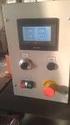 UNITY KENAR KONTROL CİHAZI (UEC01) KULLANIM KLAVUZU UNITY EDGE CONTROL DEVICE (UEC01) USER S MANUAL GENEL ÖZELLİKLER Mikroişlemci tabanlı Yüksek hassasiyet Otomatik merkezleme özelliği Sabit hız, sensöre
Delta Pulse 3 Montaj ve Çalıstırma Kılavuzu. www.teknolojiekibi.com
 Delta Pulse 3 Montaj ve Çalıstırma Kılavuzu http:/// Bu kılavuz, montajı eksiksiz olarak yapılmış devrenin kontrolü ve çalıştırılması içindir. İçeriğinde montajı tamamlanmış devrede çalıştırma öncesinde
ZTM112 BİLGİSAYAR DESTETEKLİ ÇİZİM TEKNİĞİ
 ZTM112 BİLGİSAYAR DESTETEKLİ ÇİZİM TEKNİĞİ Yrd.Doç.Dr.Caner KOÇ Ankara Üniversitesi Ziraat Fakültesi Tarım Makinaları ve Teknolojileri Mühendisliği Bölümü [email protected] Teknik çizim nedir? Bir çizim
A20 KULLANIM KILAVUZU
 1. Kullanım Kılavuzu 1:Montaj ve Besleme Fingerprint Access Control A20 KULLANIM KILAVUZU 2:Yönetici Şifresi doğrulama ve değiştirme. Kullanıcı parmakizi, kart ve şifre kaydı 3: Erişim ( access control)
DECLARATION OF PERFORMANCE No CPD-1958 REV 1.02
 DECLARATION OF PERFORMANCE No. According to Construction Products Regulation EU No. 305/2011 This declaration is available in the following languages: English Declaration of Performance Page 2-3 Turkish
HP CA340. Digital Camera. Dijital Kamera. Quick Start Guide. Kullanım Kılavuzu
 HP CA40 Digital Camera Quick Start Guide Dijital Kamera Kullanım Kılavuzu Getting Started Full User Manual located on installation CD. File name: CA40 Manual_ENG Parts of the Camera 1. Shutter Button.
Ardunio ve Bluetooth ile RC araba kontrolü
 Ardunio ve Bluetooth ile RC araba kontrolü Gerekli Malzemeler: 1) Arduino (herhangi bir model); bizim kullandığımız : Arduino/Geniuno uno 2) Bluetooth modül (herhangi biri); bizim kullandığımız: Hc-05
UYARI: NOT: UYARI: UYARI: FCC Bildirimi. edilir:
 UYARI: UYARI: UYARI: FCC Bildirimi edilir: - - - - - - - 1 1 2 3 4 Navigasyon sistemini kullanmadan önce bu - 5 - 6 Dokunmatik Ekran PDA (Personel Digital Assistant) veya Cep - Disk Modu GPS Navigasyon
AB surecinde Turkiyede Ozel Guvenlik Hizmetleri Yapisi ve Uyum Sorunlari (Turkish Edition)
 AB surecinde Turkiyede Ozel Guvenlik Hizmetleri Yapisi ve Uyum Sorunlari (Turkish Edition) Hakan Cora Click here if your download doesn"t start automatically AB surecinde Turkiyede Ozel Guvenlik Hizmetleri
WI-FI USB ADAPTER. Televizyon için kablosuz USB dongle Wireless USB dongle for TV. www.vestel.com.tr
 WI-FI USB ADAPTER Televizyon için kablosuz USB dongle Wireless USB dongle for TV www.vestel.com.tr Güvenlik Bilgileri Bu ürünün küçük parçaları, bebekler veya çocuklar tarafında yutulabilir. Bu küçük parçaları,
TEST RESULTS UFED, XRY and SIMCON
 TEST RESULTS UFED, XRY and SIMCON Test material : SIM card Tested software : UFED 3.6, XRY 6.5, SIMcon v1.2 Expected results : Proper extraction of SMS messages Date of the test : 02.04.2013 Note : The
KULLANMA KLAVUZU / USER'S GUIDE GTİP/HS Code:
 MOTORLU ÇOKLU ASTAR KESME MAKİNESİ MOTOR DRIVEN LINING CUTTING MACHINE KULLANMA KLAVUZU / USER'S GUIDE GTİP/HS Code: 8461.90.00.00.00 Çelik Kuyumculuk Kalıp Makine San. Ve Tic. Ltd. Şti. Adres: Atatürk
Hi-Res Audio/DNC Headset MDR-NC750
 Kullanım kılavuzu Hi-Res Audio/DNC Headset MDR-NC750 İçindekiler Başlarken... 3 Giriş... 3 Genel bakış... 3 Temel konuları öğrenme...4 Mikrofonlu kulaklık setini takma... 4 Mikrofonlu kulaklık setinizi
MM103 E COMPUTER AIDED ENGINEERING DRAWING I
 MM103 E COMPUTER AIDED ENGINEERING DRAWING I ORTHOGRAPHIC (MULTIVIEW) PROJECTION (EŞLENİK DİK İZDÜŞÜM) Weeks: 3-6 ORTHOGRAPHIC (MULTIVIEW) PROJECTION (EŞLENİK DİK İZDÜŞÜM) Projection: A view of an object
Hızlı kullanım kılavuzu
 LX7500R Sağlanan Aksesuarlar Hızlı kullanım kılavuzu 1 1 1 1 Türkçe 2 1 3 3 3 3 3 3 4 5 6 7 9! 8 0 DVD kayıt sisteminiz ile birlikte aşağıdaki aksesuarlar teslim edilir: 1 2 ön, 1 merkez ve 2 arka hoparlör
VRE SERS ELEKTRONK TERMK RÖLELER VRE SERIES ELECTRONIC THERMAL OVERLOAD RELAY
 VRE SERS ELEKTRONK TERMK RÖLELER VRE SERIES ELECTRONIC THERMAL OVERLOAD RELAY Teknik Özellikler 1.Standartlar : IEC 60947-4-1, TS EN 60947-4-1 2.Depolama Sıcaklıı : - 40 0 C +70 0 C 3.Çalıma Sıcaklıı :
SmartBox. Kullanım Kılavuzu. Televizyonunuzu Akıllı Televizyona Çeviriniz! Plug n play. Wireless Dual Band
 SmartBox Kullanım Kılavuzu Televizyonunuzu Akıllı Televizyona Çeviriniz! Wireless Dual Band Plug n play Televizyon Kumanda Rehberi 5 4 1. ON/Beklemede 1 6 2 3 7 2. 3. 4. Paket seçimi Favori kanallar listesi
PocketRest Kullanımı
 PocketRest Kullanımı El Terminalinden ayarlanan parametreler sayesinde Adisyon basılabilir, İade alınabilir, Masa değiştirilebilir, Hesap alınabilir Ödeme alınabilir gibi birçok işlem yapılabilmesi mümkündür.
isbank.com.tr İşCep İşWap İşPad 0850 724 0 724 Türkiye ş Bankas A.Ş.
 isbank.com.tr İşCep İşWap İşPad 0850 724 0 724 Türkiye ş Bankas A.Ş. Say n Müşterimiz, i-anahtar ınızı kullanıma açmak için: 1. İnternet Şubemizde Güvenlik / i-anahtar / İlk Kullanıma Açma menüsünü kullanınız.
Do not open the exam until you are told that you may begin.
 ÖRNEKTİR ÖRNEKTİR ÖRNEKTİR ÖRNEKTİR ÖRNEKTİR OKAN ÜNİVERSİTESİ FEN EDEBİYAT FAKÜLTESİ MATEMATİK BÖLÜMÜ 03.11.2011 MAT 461 Fonksiyonel Analiz I Ara Sınav N. Course ADI SOYADI ÖĞRENCİ NO İMZA Do not open
Çelik Kuyumculuk Kalıp Makine San. Ve Tic. Ltd. Şti.
 Çelik Kuyumculuk Kalıp Makine San. Ve Tic. Ltd. Şti. Fabrika Adres: Atatürk Mahallesi Marmara Sanayi Sitesi L Blok No: 3 İkitelli / İstanbul Türkiye Telefon: +90 212 494 44 60 Fax: +90 212 494 44 61 E-mail
Solaris 7980g. Hızlı Başlangıç Kılavuzu. Sunum Alanı Görüntüleyici. 7980-TRTR-QS Rev A 1/16
 Solaris 7980g Sunum Alanı Görüntüleyici Hızlı Başlangıç Kılavuzu 7980-TRTR-QS Rev A 1/16 Not: Cihazınızın temizliği hakkında bilgi edinmek için lütfen kullanıcı kılavuzuna başvurun. Bu belgenin farklı
BC-M150. Battery Charger. Genel Bakış
 BC-M150 Battery Charger Genel Bakış Versatile battery charger with the ability to charge conventional Li-ion, large capacity BPM100 and Ni-MH batteries (suitable for use with BP-M50, BP-M100 and BP-IL75).
Learn how to get started with Dropbox: Take your stuff anywhere. Send large files. Keep your files safe. Work on files together. Welcome to Dropbox!
 Learn how to get started with Dropbox: 1 2 3 4 Keep your files safe Take your stuff anywhere Send large files Work on files together Welcome to Dropbox! 1 Keep your files safe Dropbox lets you save photos,
a, ı ı o, u u e, i i ö, ü ü
 Possessive Endings In English, the possession of an object is described by adding an s at the end of the possessor word separated by an apostrophe. If we are talking about a pen belonging to Hakan we would
İndikatörler & Pick-to-Light Çözümleri
 İndikatörler & Pick-to-Light Çözümleri Çok Renkli İndikatörler Vidalı Montaj Silindirik M18 S18L S18DLH S22L S22DLH S22L Klemens Bağlantılı Vidalı Montaj T Şeklinde T8L T18 T30 Tabandan Montaj TL30F K50FL
KALE ÜSTTEN KAPAKLI KASA KULLANIM KILAVUZU KALE TOP OPENING STEEL SAFE USER MANUAL
 Atatürk Caddesi Başaklı Sokak No:24 TOP OPENING STEEL SAFE KALE ÜSTTEN KAPAKLI KASA KULLANIM KILAVUZU KALE TOP OPENING STEEL SAFE USER MANUAL 34610 Güngören İstanbul - TURKEY +90 (212) 705 80 00 +90 (212)
Zest. : Shower Unit (Flat) Kompakt Duş Ünitesi (Flat) Description Tan m. : 90x90. Size / Ebat (cm) : 2.5. Depth / Derinlik (cm) Weight / A rl k (kg)
 Zest Description Tan m : Shower Unit (Flat) Kompakt Duş Ünitesi (Flat) Left/Sol Right/Sağ Size / Ebat (cm) : 90x90 Depth / Derinlik (cm) : 2.5 Weight / A rl k (kg) : min. 75 max. 90 Height / Yükseklik
Website review m.iyibahis.net
 Website review m.iyibahis.net Generated on September 14 2017 12:04 PM The score is 54/100 SEO Content Title Best10 Canlı Bahis Sitesi, Best 10 Canlı Casino Oyunları ve Poker Length : 73 Ideally, your title
SONY VEGAS PRO 9 DİSK'E YAZMA (DISC BURN) Mehmet Mutallip GCGI IEng MIET
 SONY VEGAS PRO 9 DİSK'E YAZMA (DISC BURN) Mehmet Mutallip GCGI IEng MIET Her türlü yayın ve telif hakkı yazara aittir. Muhteviyatın bütününün veya bir kısmının mekanik, elektronik veya fotokopi yoluyla
Newborn Upfront Payment & Newborn Supplement
 TURKISH Newborn Upfront Payment & Newborn Supplement Female 1: Bebeğim yakında doğacağı için bütçemi gözden geçirmeliyim. Duyduğuma göre, hükümet tarafından verilen Baby Bonus ödeneği yürürlükten kaldırıldı.
Mobile Surveillance Vehicle
 Tecnical Specificca ons OIS is a mobile system which enables to observed related area. How it Works? Thanks to its highly productive solar panels, according to high ef ciency panelling can serve the purpose
ENTES RS-USB2 RS485 / USB CONVERTER
 ENTES RS-USB2 RS485 / USB CONVERTER Entes RS-USB2 Converter connects the computer to the devices, which communicate on RS485 communication port via USB port. In this case, you can use your USB port as
Do not open the exam until you are told that you may begin.
 OKAN ÜNİVERSİTESİ MÜHENDİSLİK-MİMARLIK FAKÜLTESİ MÜHENDİSLİK TEMEL BİLİMLERİ BÖLÜMÜ 2015.11.10 MAT461 Fonksiyonel Analiz I Arasınav N. Course Adi: Soyadi: Öğrenc i No: İmza: Ö R N E K T İ R S A M P L E
MPID MPID MOISTURE PROBE INDICATOR NEM PROBU İNDİKATÖR EKRANI DISPLAY NEM PROBU İNDİKATÖR EKRANI MOISTURE PROBE INDICATOR DISPLAY
 MPID MPID NEM PROBU İNDİKATÖR NEM PROBU İNDİKATÖR EKRANI EKRANI MOISTURE PROBE INDICATOR MOISTURE PROBE INDICATOR DISPLAY DISPLAY Döküman Kodu: Document Code: OZB.M.MPID Revizyon No-Tarih: Revision No-Date:
1.0 Y 1.1 Y 2.0 Y 3.0 N FAT 16 (standard) FAT 32 exfat
 GenelBilgi USB Standart Dosya Sistemi USB Hiz Bilgisi USB Güç Tüketimi USB 1.0 1.1 2.0 3.0 FAT 16 (standard) FAT 32 exfat TFS HPFS ext2, ext3, ext4 Low_Speed, 1,5 Mbit/s (187,5 KB/s) Full_Speed, 12 Mbit/s
Argumentative Essay Nasıl Yazılır?
 Argumentative Essay Nasıl Yazılır? Hüseyin Demirtaş Dersimiz: o Argumentative Essay o Format o Thesis o Örnek yazı Military service Outline Many countries have a professional army yet there is compulsory
X-107 KULLANMA KILAVUZU
 X-107 KULLANMA KILAVUZU Ekran ölçüsü 7inç Çözünürlülük 480 X ( RGB) X 234 Parlaklık 350cd/m2 Kontrast 300 : 1 Görüntü açısı ( L/R / T / B) : 60/ 60/40/60 Güç kaynağı 8~17V ( tipik DV 12V) Güç sarfiyatı
Cases in the Turkish Language
 Fluentinturkish.com Cases in the Turkish Language Grammar Cases Postpositions, circumpositions and prepositions are the words or morphemes that express location to some kind of reference. They are all
VHR ER ENERJİ GERİ KAZANIM CİHAZLARI VHR ER ENERGY RECOVERY UNITS
 ER ENERJİ GERİ KAZANIM CİHAZLARI ER ENERGY RECOVERY UNITS AKSESUARLAR ACCESSORIES Sayfa/Page 9~ VENCO ER enerji geri kazanım cihazları, rotorlu tip eşanjörü sayesinde, yüksek enerji tasarrufu sağlamak
TAŞIMA PROFİLİ Yekpare yapısı sayesinde yüksek taşıma kapasitesine sahiptir. Kapalı kablo kanalı, yoğun kablo akışında avantaj sağlar.
 ÜRÜNLER Products SEGMENT SEÇİMİ Choosing Segment OPKOL OPK. 9010 SERİ Series TAŞIMA PROFİLİ Yekpare yapısı sayesinde yüksek taşıma kapasitesine sahiptir. Kapalı kablo kanalı, yoğun kablo akışında avantaj
M03 SRG 100. Sliding Systems Decorative Ventilation Door Hardware. Teknik Detaylar / Installation Guide.
 Teknik Detaylar / Installation Guide Sliding Systems Decorative Ventilation Door Hardware Sürgü Sistemler Kapı Donanımları Dekoratif Menfezler Ürün Bilgilendirme Product Information M03 SRG 100 60 KG
: Shower Unit (Flat) : Kompakt Duș Ünitesi (Flat)
 Veo Description Tanım : Shower Unit (Flat) : Kompakt Duș Ünitesi (Flat) Left/Sol Right/Sağ Size / Ebat (cm) : 190x90 Depth / Derinlik (cm) : 3,5 Height / Yükseklik (cm) : 215 Weight / Ağırlık (kg) : min.
YAPI ATÖLYESİ. make difference.. DESIGN & CONSTRUCTION ENGINEERING ARCHITECTURE CONTRACTING. Design & Construction
 ENGINEERING ARCHITECTURE CONTRACTING Design & Construction DESIGN & CONSTRUCTION make difference.. ABOUT US Our company is specialized in four main subjects; CONSTRUCTION, INTERNATIONAL TRADE, NATURAL
TÜM ÖĞRENCİ DEĞİŞİM PROGRAMLARI (ERASMUS-MEVLANA-FARABİ) BAŞVURU AŞAMALARI AYNI SÜRECİ TAKİP ETMEKTEDİR.
 TÜM ÖĞRENCİ DEĞİŞİM PROGRAMLARI (ERASMUS-MEVLANA-FARABİ) BAŞVURU AŞAMALARI AYNI SÜRECİ TAKİP ETMEKTEDİR. ELİNİZDEKİ KLAVUZDA ÖRNEK OLARAK ERASMUS+ BAŞVURU SÜRECİ BELİRTİLMİŞTİR. ALL STUDENT WHO WILL APPLY
Inventory of LCPs in Turkey LCP Database explained and explored
 Inventory of LCPs in Turkey LCP Database explained and explored Hakan Hatipoglu Antalya, 9 October 2015 Requirements and specifications (TOR) Web based database application that will: Support Inventory
Exercise 2 Dialogue(Diyalog)
 Going Home 02: At a Duty-free Shop Hi! How are you today? Today s lesson is about At a Duty-free Shop. Let s make learning English fun! Eve Dönüş 02: Duty-free Satış Mağazasında Exercise 1 Vocabulary and
Unlike analytical solutions, numerical methods have an error range. In addition to this
 ERROR Unlike analytical solutions, numerical methods have an error range. In addition to this input data may have errors. There are 5 basis source of error: The Source of Error 1. Measuring Errors Data
ERASMUS+ ÖĞRENCİ DEĞİŞİM PROGRAMI BAŞVURU SİSTEMİ KULLANIM KILAVUZU USERS GUIDE FOR THE ERASMUS+ STUDENT EXCHANGE PROGRAM APPLICATION SYSTEM
 ERASMUS+ ÖĞRENCİ DEĞİŞİM PROGRAMI BAŞVURU SİSTEMİ KULLANIM KILAVUZU USERS GUIDE FOR THE ERASMUS+ STUDENT EXCHANGE PROGRAM APPLICATION SYSTEM GİRİŞ YAPABİLMENİZ İÇİN ÜYE OLMALISINIZ! / YOU HAVE TO FIRST
1. Bölüm: Giriş. 1.1 Ürün Ambalajının İçindekiler. 1.2 Sistem Gereklilikleri. Türkçe
 1. Bölüm: Giriş 1.1 Ürün Ambalajının İçindekiler TVGo A03 ünüzü aldığınız zaman, aşağıdaki ögelerin USB TV Süper Mini paketinde bulunduğundan emin olunuz. TVGo A03 Sürücü CD si Uzaktan Kumanda Hızlı Kılavuz
Elektrikli Aktütör Bağlantı Şemaları
 Elektrikli Aktütör Bağlantı Şemaları Elektrik Şeması / Wiring Diagram O / OFF Type for 0 / 220 V AC O.. FB CS Tam açık uyarı (lamba) Fully open indicator (lamp) Tam kapalı uyarı (lamba) Fully closed indicator
ÇEVRESEL TEST HİZMETLERİ 2.ENVIRONMENTAL TESTS
 ÇEVRESEL TEST HİZMETLERİ 2.ENVIRONMENTAL TESTS Çevresel testler askeri ve sivil amaçlı kullanılan alt sistem ve sistemlerin ömür devirleri boyunca karşı karşıya kalabilecekleri doğal çevre şartlarına dirençlerini
7.1CH Blu-ray Home Entertainment System
 HT-E6750W 7.1CH Blu-ray Home Entertainment System user manual imagine the possibilities Thank you for purchasing this Samsung product. To receive more complete service, please register your product at
Çözüm Merkezi: Aygıt Yöneticisi Hata Kodları Cumartesi, 09 Eylül 2006 14:59 - Son Güncelleme Cuma, 11 Eylül 2009 16:32
 Control-Panel>System>Device-Manager ile aygıt yöneticisine girdiğinizde problemli aygıtları yanlarında sarı bir ünlem işareti kırmızı bir çarpı işareti ile görürsünüz. veya 1 / 53 de Q1251740 açıklanıyor
Suyun Kalite ile Dansı. Gömme Rezervuar Concealed Cistern
 Suyun Kalite ile Dansı Gömme Rezervuar Concealed Cistern Banyonuzdaki Şıklık Ar-Ge çalışmalarımız sonucunda oluşturduğumuz yüksek kalite ve estetiğe sahip çevre dostu GREZ gömme rezervuarlarımızı 8 farklı
Get started with Google Drive
 Get started with Google Drive 1 Store any file Use Drive s 15GB of free Google storage to keep anything you want. Learn how to add a file Share files and folders Everyone can see and edit files at the
 GENERAL INFORMATION 3 Main Features For your Safety Unpacking General Operation RCU Front Panel Rear Panel 3 4 5 5 6 7 7 INSTALLATION 8 Connecting to TV& VCR using SCART support Connecting to Digital Amplifier
HP LaserJet 5200 Series printers
 HP LaserJet 500 Series printers Getting Started Guide Başlangıç Kılavuzu Copyright and License 005 Copyright Hewlett-Packard Development Company, L.P. Reproduction, adaptation or translation without prior
ABONELİK AVANTAJLARINI KEŞFEDİN
 ABONELİK AVANTAJLARINI KEŞFEDİN ABONELİK MERKEZİNE KAYDOLMA Bu rehber Abonelik Merkezi ne kaydolurken izlemeniz gerekenleri adım adım göstermektedir. ABONELİK MERKEZİ www.autodesk.com/subscriptionlogin
Ege Üniversitesi Elektrik Elektronik Mühendisliği Bölümü Kontrol Sistemleri II Dersi Grup Adı: Sıvı Seviye Kontrol Deneyi.../..
 Ege Üniversitesi Elektrik Elektronik Mühendisliği Bölümü Kontrol Sistemleri II Dersi Grup Adı: Sıvı Seviye Kontrol Deneyi.../../2015 KP Pompa akış sabiti 3.3 cm3/s/v DO1 Çıkış-1 in ağız çapı 0.635 cm DO2
SA3MXX02 SA3MXX04 SA3MXX08
 www.philips.com/welcome SA3MXX02 SA3MXX04 SA3MXX08 1 Önemli güvenlik bilgileri 4 6 Müzik 22 7 Ayarlar 23 8 Philips Device Manager ile bellenimi 9 Sorun giderme 26 10 Teknik veriler 27 www.philips.com/welcome
H48.33b FILTER DRIER SHELLS KARTUŞ KOVANLARI. H48.33b.54.1
 H48.33b H48.33b.54.1 Introduction Filter drier shells are important equipments for refrigeration and air conditioning systems. They are designed to be used in the suction line and liquid line. Filter drier
Neyzen olabilmek için en önemli özellik; sabretmeyi bilmektir. In order to be a neyzen the most important thing is to be patient.
 www.neyzen.com NEY METODU SAYFA 033 NEY METHOD PAGE 033 Yücel Müzik İKİNCİ DEVRE SESLER Öğreneceğimiz NEVÂ, NÎM HİCÂZ, ÇÂRGÂH, SEGÂH, KÜRDÎ, DÜGÂH ve RAST seslerinin tümünü üflerken, aşîrân perdesinin
SAYISAL FORMAT RESİM KAYIT VE OKUMA CİHAZLARI TEKNİK ŞARTNAMESİ
 1. AMAÇ SAYISAL FORMAT RESİM KAYIT VE OKUMA CİHAZLARI TEKNİK ŞARTNAMESİ Bu şartnamenin amacı HD ve SD XDCAM Sayısal Format Resim Kayıt ve Okuma Cihazları, HD Sayısal Format Resim Kayıt ve Okuma Cihazları,
If you have any issue in outlook mail account like spam mail, mail send or receive issues, mail delivery problem, mail sending too late and.
 Sign in oturum aç If you have any issue in outlook mail account like spam mail, mail send or receive issues, mail delivery problem, mail sending too late Sign in others oturum problem aç then call our
Cosmo M6. Kullanma Klavuzu User Manual
 Cosmo M6 Kullanma Klavuzu User Manual ÇİFT KOKU ÜNİTESİ / DUAL SCENTING CHAMBER Çift koku desteği ile tek makinede 2 farklı kokulandırma sağlayabilme özelliği Thanks to its dual scent support it has the
TRANSFORMERS LV CURRENT LV VOLTAGE LV CURRENT LV VOLTAGE TRANSFORMERS
 LV CURRENT LV VOLTGE TRNSFORMERS LV CURRENT LV VOLTGE TRNSFORMERS LV CURRENT & VOLTGE TRNSFORMERS CONTENTS 0 02 /03 04 /05 06 /07 08 /09 0 / 2 /3 4 /5 6 /7 8 /9 20 /2 22 /23 24 /25 26 /27 28 /29 30 /3
TRANSFORMERS LV CURRENT LV VOLTAGE LV CURRENT LV VOLTAGE TRANSFORMERS
 LV CURRENT LV VOLTGE TRNSFORMERS LV CURRENT LV VOLTGE TRNSFORMERS LV CURRENT & VOLTGE TRNSFORMERS CONTENTS 0 /02 03 /04 05 /06 07 /08 09 /0 /2 3 /4 6 7 8 8 /9 20 /2 22 /23 24 LV CURRENT TRNSFORMERS LV
VITRUM. Mutfak Terazisi Electronic Kitchen Scale. Instruction Manual Kullan m K lavuzu
 VITRUM Mutfak Terazisi Electronic Kitchen Scale Instruction Manual Kullan m K lavuzu 2 G R fi Uzun y llar sorunsuz çal flmas için tasarlanan ve üretilen Fakir Vitrum Elektronik Mutfak Tart s n sat n alm
ELDAŞ Elektrik Elektronik Sanayi ve Tic.A.Ş.
 Sayfa (Page): 2/9 LVD Deney Raporu LVD Testing Report İÇİNDEKİLER (Contents) 1 Dokümantasyon Sayfa (Documentation) 1.1 DGC, Çevre Koşulları ve Sembollerin Tanımları 3 (Conditions/Power Utilized,Description
CHANGE GUIDE BSP Turkey
 IATA TRAVEL AGENT CHANGE GUIDE BSP Turkey CHECKLIST - IATA TRAVEL AGENT CHECK LIST Please note that as of 4 th of October 2016 all Change requests should only be submitted via IATA customer portal at www.iata.org/cs.
SAYISAL FORMAT RESĐM KAYIT VE OKUMA CĐHAZLARI TEKNĐK ŞARTNAMESĐ
 1. AMAÇ SAYISAL FORMAT RESĐM KAYIT VE OKUMA CĐHAZLARI TEKNĐK ŞARTNAMESĐ BTDB/-14-IH-44682 Bu şartnamenin amacı Sayısal Format Resim Kayıt ve Okuma Cihazlarına ilişkin teknik özellikleri ve fonksiyonel
First Stage of an Automated Content-Based Citation Analysis Study: Detection of Citation Sentences
 First Stage of an Automated Content-Based Citation Analysis Study: Detection of Citation Sentences Zehra Taşkın, Umut Al & Umut Sezen {ztaskin, umutal, u.sezen}@hacettepe.edu.tr - 1 Plan Need for content-based