
Smart Baby Monitor. DE Für iphone, ipad, ipod touch, PC oder MAC
|
|
|
- Coskun Nazmi
- 10 yıl önce
- İzleme sayısı:
Transkript
1 Smart Baby Monitor DE Für iphone, ipad, ipod touch, PC oder MAC B For iphone, ipad, ipod touch, PC or MAC TR iphone, ipad, ipod touch, PC veya MAC için Art ! ebrauchsanweisung Instruction Manual Kullanım kılavuzu Bitte sorgfältig lesen! Please read carefully! Lütfen dikkatli okuyun!

2 DE ebrauchsanweisung 1 Sicherheitshinweise... 1 DE 2 Wissenswertes... 4 DE 3 Inbetriebnahme... 5 DE 4 Betrieb mit Apple erät... 6 DE 5 Betrieb mit PC DE 6 Betrieb mit MAC DE 7 Das Web-Interface DE 8 Betrieb über Internet (WAN) DE 9 Zurücksetzen auf Werkseinstellung.. 29 DE 10 Verschiedenes DE 11 arantie DE B Instruction manual 1 Safety Information... 1 B 2 Useful Information... 4 B 3 etting Started... 5 B 4 Operation with Apple device... 6 B 5 Operation with PC B 6 Operation with MAC B 7 The web-interface B 8 Operation via internet (WAN) B 9 Reset to factory default settings B 10 Miscellaneous B 11 Warranty B TR Kullanım kılavuzu 1 üvenlik Bilgisi... 2 Yararlı Bilgiler... 3 Başlarken... 4 Apple cihazı ile çalışma... 5 PC ile Çalışma... 6 MAC ile Çalışma... 7 Web Arayüzü... 8 İnternet üzerinden işlem (WAN)... 9 Fabrika varsayılan ayarlarına Sıfırla 10 Çeşitli... 1 TR 4 TR 5 TR 6 TR 13 TR 14 TR 15 TR 28 TR 29 TR 30 TR II

3 Smart Baby Monitor auf einen Blick Smart Baby Monitor at a glance Bir bakışta Akıllı Bebek Monitörü III

4 IV DE B Kameralinse Linsenfokussierrädchen Infrarot-LED (insgesamt sind 10 Stück vorhanden und um die Linse herum angeordnet) Status Indikator Anzeige des erätebetriebsstatus: LED blinkt langsam (ca. 2 Sekunden Intervall) = Das erät sucht nach einer Netzwerkverbindung LED blinkt normal (ca. 1 Sekunde Intervall) = Das erät ist über ein Netzwerkkabel verbunden LED blinkt schnell (ca. 2-3 mal je Sekunde) = Das erät ist per drahtloser Netzwerkverbindung verbunden Integriertes Mikrofon Antenne für Drahtlos-Netzwerkverbindung (Wireless LAN) Netzteilanschluss (Stromversorgung) 5V, 1.5A Antennenanschlussbuchse RJ45-Buchse für Ethernet-Netzwerkkabel (LAN Schnittstelle 10/100M) Anschlussbuchse Audioausgang, z.b. für Lautsprecher etc. Kunststofffuß Reset-Knopf (auf der Unterseite, 10 Sekunden gedrückt halten für Reset) Netzteil Ethernet-Netzwerkkabel ewindebuchse für die Befestigung des Kunststofffußes Camera lens Lens focussing wheel Infrared LED (totally 10 pcs., arranged around the camera lens) Status Indicator Indicates the camera operating status: LED flashes slowly (appr. once every 2 seconds) = The device is searching for a network connection LED flashes normally (appr. once per second) = The device is connected via cable network LED flashes quickly (appr. 2-3 times per second) = The device is connected via wireless network Integrated microphone Antenna for wireless LAN connection Adaptor connection (power input) 5V, 1.5A Jack for antenna RJ45-jack for ethernet cable (LAN ethernet socket self-adjust 10/100M) Audio output socket, e.g. for speakers etc. Plastic stand Reset button (on the underside, press & hold for 10 seconds to initiate a reset) Power adaptor Ethernet cable Tapped bushing for fixation of plastic stand

5 TR Kamera merceği Mercek odaklama tekerleği Kızılötesi LED (toplam 10 adet., Kamera lensi etrafında düzenlenir) Durum östergesi Kamera çalışma durumunu gösterir: LED = (her 2 saniyede bir yaklaşık) yavaş yavaş yanıp söner Cihazın ağ bağlantısı arıyor LED = (saniyede bir kez yaklaşık) normal yanıp söner Cihaz kablolu ağ üzerinden bağlı Hızlı LED yanıp söner (saniyede yak. 2-3 kez) = Cihaz kablosuz ağ üzerinden bağlı Mikrofon Kablosuz LAN bağlantısı için Anten Adaptör bağlantısı (güç girişi) 5V, 1.5A Anten bağlantı konnektörü Ethernet kablosu için RJ45 jak (LAN ethernet soket 10/100M) Ses çıkış soketi, örneğin hoparlör vs Plastik stant Reset düğmesi (altındadır, basın ve sıfırlamak için 10 saniye basılı tutun Bütün Değerler Silinir!-) üç adaptörü Ethernet kablosu Duvara tespit için Plastik stant V

6 VI

7 1 Sicherheitshinweise DE WICHTIE HINWEISE! UNBEDINT AUFBEWAHREN! Lesen Sie die ebrauchsanweisung, insbesondere die Sicherheitshinweise, sorgfältig durch, bevor Sie das erät einsetzen und bewahren Sie die ebrauchsanweisung für die weitere Nutzung auf. Wenn Sie das erät an Dritte weitergeben, geben Sie unbedingt diese ebrauchsanweisung mit. Zeichenerklärung Diese ebrauchsanweisung gehört zu diesem erät. Sie enthält wichtige Informationen zur Inbetriebnahme und Handhabung. Lesen Sie diese ebrauchsanweisung vollständig. Die Nichtbeachtung dieser Anweisung kann zu schweren Verletzungen oder Schäden am erät führen. WARNUN Diese Warnhinweise müssen eingehalten werden, um mögliche Verletzungen des Benutzers zu verhindern. ACHTUN Diese Hinweise müssen eingehalten werden, um mögliche Beschädigungen am erät zu verhindern. HINWEIS Diese Hinweise geben Ihnen nützliche Zusatzinformationen zur Installation oder zum Betrieb. LOT-Nummer Hersteller 1 DE

8 DE 1 Sicherheitshinweise 2 DE Sicherheitshinweise Bevor Sie das erät an Ihre Stromversorgung anschließen, achten Sie darauf, dass die auf dem Typenschild angegebene Netzspannung mit der Ihres Stromnetzes übereinstimmt. Benutzen Sie das erät nur entsprechend seiner Bestimmung laut ebrauchsanweisung. Bei Zweckentfremdung erlischt der arantieanspruch. Dieses erät ist für den Betrieb in Innenräumen vorgesehen. Ein Betrieb im Außenbereich kann zu Defekten und Stromschlag führen. Verletzungsgefahr! Dieses Produkt ist nicht dafür bestimmt, durch Personen (einschließlich Kinder) mit eingeschränkten physischen, sensorischen oder geistigen Fähigkeiten oder mangels Erfahrung und/oder mangels Wissen benutzt zu werden, es sei denn, sie werden durch eine für ihre Sicherheit zuständige Person beaufsichtigt oder erhielten von ihr Anweisungen, wie das erät zu benutzen ist. Kinder müssen beaufsichtigt werden, um sicherzustellen, dass sie nicht mit dem erät spielen. Benutzen Sie das erät nicht, wenn es nicht einwandfrei funktioniert, wenn es herunter- oder ins Wasser gefallen ist oder beschädigt wurde. Der Aufstellort sollte so gewählt werden, dass dort weder extreme Temperaturen noch extreme Luftfeuchtigkeit auftreten. Stellen Sie das Produkt so, dass keine direkte Sonneneinstrahlung auf den Bildaufnehmer (Linse) des erätes fallen kann. Halten Sie das erät von Feuchtigkeit fern! Vermeiden Sie folgende widrige Umgebungsbedingungen beim Betrieb des erätes: Extreme Kälte oder Hitze Nässe oder zu hohe Luftfeuchtigkeit Direkte Sonneneinstrahlung Staub oder brennbare ase, Dämpfe oder Lösungsmittel Starke Vibrationen Starke Magnetfelder, wie z. B. in der Nähe von Maschinen oder Lautsprechern Die Kamera darf nicht auf unbeständigen Flächen, sondern nur auf ebenem und rutschfestem Untergrund platziert werden. Führen Sie keine egenstände durch die Öffnungen in das eräteinnere. Vermeiden Sie Schläge und Erschütterungen des erätes. Durch den Fall aus bereits geringer Höhe kann das Produkt beschädigt werden. Versuchen Sie nicht, das erät zu zerlegen, andernfalls erlischt die arantie. Dieses erät enthält keine Teile, die vom Benutzer gewartet werden können. Reparieren Sie das erät bei Störungen nicht selbst, da dadurch jeglicher arantieanspruch erlischt. Lassen Sie Reparaturen nur von autorisierten Servicestellen durchführen. Reinigen Sie das erät nach dem ebrauch mit einem leicht angefeuchteten Tuch. Verwenden Sie keine Scheuermittel und tauchen Sie das erät nicht in Wasser. Benutzen Sie ausschließlich für das erät vorgesehene und vom Hersteller mitgelieferte Zubehörteile. Schließen Sie keine inkompatiblen Produkte an.

9 1 Sicherheitshinweise DE Bitte beachten Sie die Sicherheitshinweise und Bedienungsanleitungen der übrigen, angeschlossenen eräte. Überprüfen Sie vor Inbetriebnahme das erät auf Beschädigungen. Benutzen Sie das erät nicht, wenn Sie Zweifel an der Unversehrtheit des erätes haben. Kontaktieren Sie eine Servicestelle. Dieses erät ersetzt auf keinen Fall die Aufsicht durch erwachsene Personen. Beachten Sie beim Betrieb elektrischer eräte mit Netzteilen im Besonderen: reifen Sie nicht nach einem erät, welches ins Wasser gefallen ist. Ziehen Sie sofort den Netzstecker bzw. das Netzteil aus der Steckdose, wenn das erät mit Flüssigkeiten in Berührung gekommen ist. Wenn das Kabel oder das Netzteil beschädigt ist, darf das erät nicht weiterbenutzt werden. Aus Sicherheitsgründen dürfen diese Teile nur von einer autorisierten Servicestelle ausgewechselt werden. Das erät sowie das Kabel und das Netzteil dürfen keinesfalls in Wasser getaucht oder unter laufendes Wasser gehalten werden. Das Kabel darf nicht in der Nähe von Wärmequellen aufbewahrt oder über scharfe Kanten gezogen werden. Fassen Sie das Netzteil stets mit trockenen Händen an. Tragen, ziehen oder drehen Sie das Netzteil nie am Kabel und klemmen Sie das Kabel nie ein. Ziehen Sie das Netzteil aus der Steckdose, wenn das erät ausgeschaltet und nicht mehr in ebrauch ist. HINWEISE zur Software Stellen Sie sicher, dass Ihr Apple erät mit dem neuesten Betriebssystem arbeitet. Hinweise zu Software-Updates finden Sie in Ihrer Apple eräte-ebrauchsanweisung. Stellen Sie sicher, dass Ihre Smart Baby Monitor App regelmäßig aktualisiert wird. Hinweise zu Updates von Apps finden Sie in Ihrer Apple eräte-ebrauchsanweisung. Zur korrekten Funktion ist es erforderlich, dass das Apple erät ausreichend geladen ist. Nutzer sollten ein Netzteil bzw. eine Lademöglichkeit zur Verfügung haben. 3 DE

10 DE 2 Wissenswertes Herunterladen der Software Zum Auffinden des Smart Baby Monitors im Netzwerk laden Sie das aktuelle und kostenlose Programm für PC oder Mac von unserer Homepage im Bereich Software herunter. ( Herzlichen Dank! Vielen Dank für Ihr Vertrauen und herzlichen lückwunsch! Mit dem Smart Baby Monitor (im Folgenden SBM genannt) haben Sie ein Qualitätspro- dukt von MEDISANA erworben. In Verbindung mit Ihrem iphone, ipod touch, ipad, PC oder MAC haben Sie Ihr Baby in einem festgelegten, überwachten Bereich jederzeit und von überall im Blick - egal ob zu Hause oder wenn Sie unterwegs sind. Der SBM kann aus der Ferne in Neigung und Drehung verstellt werden. Damit Sie den gewünschten Erfolg erzielen und recht lange Freude an Ihrem SBM von MEDISANA haben, empfehlen wir Ihnen, die nachstehenden Hinweise zum ebrauch und zur Pflege sorgfältig zu lesen. 2.1 Lieferumfang und Verpackung Bitte prüfen Sie zunächst, ob der Lieferumfang vollständig ist und der Artikel keinerlei Beschädigungen aufweist. Im Zweifelsfall nehmen Sie das erät nicht in Betrieb und wenden Sie sich an Ihren Händler oder an Ihre Servicestelle. Zum Lieferumfang gehören: E 1 MEDISANA SBM 1 Kurzanleitung 1 Netzteil 5V 1 Kunststofffuß 1 Netzwerkkabel 1 Antenne 2 Befestigungsschrauben 2 Dübel Verpackungen sind wiederverwendbar oder können dem Rohstoffkreislauf zurückgeführt werden. Bitte entsorgen Sie nicht mehr benötigtes Verpackungsmaterial ordnungsgemäß. Sollten Sie beim Auspacken einen Transportschaden bemerken, setzen Sie sich bitte sofort mit Ihrem Händler in Verbindung. WARNUN Achten Sie darauf, dass die Verpackungsfolien nicht in die Hände von Kindern gelangen. Es besteht Erstickungsgefahr! 2.2 Verbindungsmöglichkeiten Je nach gewünschter Konnektivität können Sie den SBM mit Ihrem ios-erät oder dem PC oder dem MAC verbinden. Es ist aber auch möglich, z. B. über ios-erät und PC auf den SBM zuzugreifen. Dies richtet sich nach den bei Ihnen verfügbaren eräten und wie Sie diese einbinden möchten. Für jedes der eräte (ios-erät, PC und MAC) werden in den folgenden Kapiteln die Schritte beschrieben, wie eine Verbindung herzustellen ist. Je nachdem, ob Sie alle eräte oder nur eines mit dem SBM verbinden möchten, müssen Sie die entsprechenden Kapitel befolgen: SBM-Verbindung mit einem ios-erät: Kapitel 3 und 4 befolgen SBM-Verbindung mit einem PC: Abschnitt 3.1 und Kapitel 5 befolgen SBM-Verbindung mit einem MAC: Abschnitt 3.1 und Kapitel 6 befolgen 4 DE

11 3 Inbetriebnahme DE 3.1 Anschließen des SBM an Ihren Router 1. Schrauben Sie die Antenne an die Antennenbuchse des SBM. 2. Verbinden Sie das Netzwerkkabel mit Ihrem Router und dem SBM (Router nicht im Lieferumfang). 3. Schließen Sie das mitgelieferte Netzteil an. 3. Netzteil Internet 1. Antenne ipod touch iphone Modem Router ipad PC oder Mac Netzwerkkabel 2. Netzwerkkabel 3.2 Installieren der kostenlosen Smart Baby Monitor App Starten Sie auf Ihrem Apple-erät den Apple App Store, suchen Sie nach medisana und installieren Sie die Smart Baby Monitor App. Alternativ können Sie den folgenden QR-Code scannen, um direkt zur App zu gelangen: Nach der Installation erscheint das entsprechende App Symbol auf der Anzeige Ihres Apple-erätes: 3.3 Starten der App Stellen Sie sicher, dass sich Ihr iphone, ipad oder ipod touch im selben Netzwerk (WLAN) befindet wie Ihr SBM. Starten Sie die App und befolgen Sie die Anweisungen (Einrichtung des WLAN-Netzwerkes siehe Kapitel 4.2 Erster Start der App). 3.4 Trennen des Netzwerkkabels Nach Einrichtung der kabellosen Verbindung (WLAN) können Sie das Netzwerkkabel vom SBM trennen. Der SBM kann nun kabellos genutzt werden. HINWEISE Ihr Apple erät muss für die korrekte Funktion der App mindestens die ios-version 5.0 oder später besitzen. Für den Download der Software benötigen Sie eine Apple-ID mit -Adresse und Kennwort sowie eine aktive Internetverbindung. Durch das Herunterladen und Nutzen der Software können bei Ihrem Telefonanbieter ggf. ebühren anfallen. 5 DE

12 DE 4 Betrieb mit Apple-erät 4.1 App auf einen Blick Einstellungen des SBM Aktivieren und Deaktivieren des SBM Umschalten zwischen estensteuerung und Pfeilsteuerung (siehe Kapitel 4.5 App- Steuerung) Aktivitätsanzeige (grün = verbunden; rot = nicht verbunden) Name des SBM Steuerung (ausblendbar; siehe Kapitel 4.5 App-Steuerung) Audioüberwachung aktivieren / deaktivieren Schnappschuss: Schnappschüsse werden in der Fotos-App gespeichert egensprechfunktion: Sind Lautsprecher am Audioausgang angeschlossen, können Sie mit Ihrem ios-erät bei gedrückter Taste Ihr Baby mit Ihrer Stimme beruhigen. 4.2 Erster Start der App Nach dem Start der App werden Sie aufgefordert, die Verbindung zum SBM zu kontrollieren. Diese Anzeige kommt bei jedem Neustart der App - dieses können Sie durch Setzen eines Häkchens (Kästchen anklicken) bei "Nicht mehr anzeigen" unterbinden. Drücken Sie auf "Weiter". 6 DE

13 4 Betrieb mit Apple-erät DE Nachdem Sie auf "Weiter" gedrückt haben, wird automatisch nach vorhandenen SBMs gesucht. Wurde ein SBM erfolgreich gefunden, so wird automatisch nach verfügbaren WLAN-Netzwerken in Ihrer Umgebung gesucht. Folgen Sie nun Kapitel 4.3 Einstellen des WLAN. 4.3 Einstellen des WLAN Bei Erststart der App (Kapitel 4.2): Wählen Sie bei Ihrem WLAN "Verbinden" WLAN später einstellen: Folgen Sie dem Navigationspfad: Einstellungen -> Kameras -> "Meine Kamera" -> WLAN-Einrichtung Aktivieren Sie das WLAN des SBM mit dem Schiebeschalter und lassen Sie den SBM nach verfügbaren Netzwerken suchen, indem Sie auf "Suchen" tippen. 7 DE

14 DE 4 Betrieb mit Apple-erät eben Sie Ihren Netzwerkschlüssel ein. HINWEIS Schauen Sie dazu auf die Unterseite Ihres Routers, in dessen Handbuch oder Ihren Unterlagen, wo Sie Passwörter aufbewahren, nach. Zum Verbinden des SBM zu Ihrem WLAN ist ein Neustart des SBM erforderlich. Dieser wird automatisch ausgeführt. Entfernen Sie das Netzwerkkabel vom SBM. Nach dem Neustart kontrollieren Sie die Verbindung des SBM mit Hilfe des Status Indikators : LED blinkt schnell (ca. 2-3 mal je Sekunde) = das erät ist per drahtloser Netzwerkverbindung verbunden. HINWEIS Wird das Blinken des Indikators unterbrochen, kann die Verbindung zum WLAN nicht hergestellt werden. Häufigster Fall ist die fehlerhafte Eingabe des Passwortes. Schließen Sie das Netzwerkkabel wieder an den SBM an und folgen Sie den Anweisungen in Kapitel 4.2 Erster Start der App. 8 DE

15 4 Betrieb mit Apple-erät DE Nach dem Neustart des erätes wird sich die App automatisch mit dem erät verbinden. 4.4 App-Ansicht Folgen Sie dem Navigationspfad: Einstellungen -> Ansicht Flip Das angezeigte Videobild wird um 180 gedreht Spiegeln Das angezeigte Videobild wird gespiegelt Auflösung Auswahl zwischen 3 weboptimierten Auflösungen: 160 x 120 / 320 x 240 / 640 x 480 FPS Anzahl der zu übertragenden Bilder (Standardeinstellung: Maximum = 30 fps) Modus Bildwiederholrate des SBM LED Status Indikator an- oder ausschalten Helligkeit Einstellbar von 0 (dunkel) bis 15 (extrem hell) Kontrast Einstellbar von 0 (gering) bis 6 (sehr hoch) 9 DE

16 DE 4 Betrieb mit Apple-erät 4.5 App-Steuerung Folgen Sie dem Navigationspfad: Einstellungen -> Steuerung Ausblenden Einstellen der Ausblendzeit der Steuerung Ausblendzeit Vollbild Vollbild-Anzeige ein- oder ausschalten Talk-Back Ausblenden der Talk-Back-Funktion. Für die Nutzung der Talk-Back-Funktion müssen externe Lautsprecher am Audioausgang angeschlossen sein estensteuerung Die estensteuerung funktioniert wie in Ihrer Fotos-App, wenn Sie ein Bild betrachten möchten: Auf das Bild tippen und nach unten ziehen -> Kamera schwenkt nach oben. Auf das Bild tippen und nach oben ziehen -> Kamera schwenkt nach unten. Auf das Bild tippen und nach links ziehen -> Kamera dreht nach rechts. Auf das Bild tippen und nach rechts ziehen -> Kamera dreht nach links. Pfeilsteuerung Benutzen Sie die Pfeiltasten, um die Kameraausrichtung zu steuern. 10 DE

17 4 Betrieb mit Apple-erät DE Automatisches Hinzufügen weiterer SBMs Folgen Sie dem Navigationspfad: Einstellungen -> Kamera finden Ihnen wird eine Liste der verfügbaren SBMs angezeigt. Sollte dieses nicht der Fall sein, überprüfen Sie die korrekte Inbetriebnahme des SBM (Kapitel 3) und drücken Sie auf Suchen. Wählen Sie beim entsprechenden SBM Hinzufügen. Sie werden automatisch auf die WLAN- Einrichtung weitergeleitet. Folgen Sie nun Kapitel 4.3 Einstellen des WLAN Manuelles Hinzufügen weiterer SBMs Folgen Sie dem Navigationspfad: Einstellungen -> Kameras -> Kamera hinzufügen... eben Sie der Kamera einen Namen und stellen Sie die IP-Adresse der Kamera ein. Vergewissern Sie sich, dass Port, Benutzer und Passwort stimmen. HINWEIS Die Standardeinstellungen für Benutzername und Passwort befinden sich auf der Unterseite des SBM, z. B. "user name: admin, password: medisana". Tippen Sie auf Hinzufügen. Sie werden automatisch auf das SBM-Bild geleitet und eine Verbindung zum SBM wird hergestellt. Für eine sofortige Konfiguration des WLAN gehen Sie auf "WLAN-Einrichtung". Folgen Sie dem Kapitel 4.3 Einstellen des WLAN. Nach dem Neustart der Kamera tippen Sie auf die Schaltflächen Kamera Setup und Hinzufügen. Für eine nachträgliche Konfiguration des WLAN folgen Sie bitte Kapitel 4.3 Einstellen des WLAN Entfernen von SBMs Zum Entfernen eines SBM tippen Sie im Navigationspfad Einstellungen -> Kameras auf die Zeile mit der zu entfernenden Kamera. "Wischen" Sie nach links oder rechts, um die Schaltfläche "Löschen" sichtbar zu machen. Um die Kamera zu entfernen, tippen Sie auf die Schaltfläche "Löschen". 11 DE

18 DE 4 Betrieb mit Apple-erät Alarm-Einstellungen Folgen Sie dem Navigationspfad: Einstellungen Standardmäßig sind Bewegungs- und eräuschalarm aktiviert. Bei beiden Alarmmeldungen ist die Sensitivität auf 7 voreingestellt (1 = träge reagierend, 10 = schnell reagierend). Anzeige bei Bewegunsalarm (Beispiel): Anzeige bei eräuschalarm (Beispiel): Anzeige bei unterbrochener Verbindung: 12 DE

19 5 Betrieb mit PC DE Herunterladen der Software Zum Auffinden des Smart Baby Monitors im Netzwerk laden Sie das aktuelle und kostenlose Programm für PC von unserer Homepage im Bereich Software herunter. ( 2 auswählen Die IP-Adresse (3) sollte automatisch durch das DHCP bezogen werden und sollte gleich der unter "Local PC information" zu sehenden Adresse sein, mit Ausnahme der oben eingekreisten Ziffern. Wenn dies nicht der Fall ist, fahren Sie mit Punkt 3 fort, ansonsten mit Punkt eben Sie die Authentifizierungsdaten ein (4). Die Werkseinstellung für "Account for watching" lautet "admin" und für "Password for watching" = "medisana". Klicken Sie auf "Update (F5)" (5). 3 admin ****** 4 5 Beispiel für die Anzeige nach dem Klick auf eine gefundene Kamera (Punkt 1 unten) 1. Klicken Sie auf "Search (F3)" (1) und klicken Sie dann auf die erscheinende Kamera in der Liste (2). 4. Klicken Sie auf "Browse (F4)" (6). Das unten dargestellte Pop-up-Fenster erscheint. eben Sie die Werte für "User name" (Werkseinstellung = "admin") und "Password" (Werkseinstellung = "medisana") ein, um Zugriff auf die Netzwerkkamera zu erlangen. admin medisana Werte der Werkseinstellung 13 DE

20 DE 6 Betrieb mit MAC Herunterladen der Software Zum Auffinden des Smart Baby Monitors im Netzwerk laden Sie das aktuelle und kostenlose Programm für Mac von unserer Homepage im Bereich Software herunter. ( HINWEIS Bei Nutzung von Mac OSX 10.8 Mountain Lion oder höher gehen Sie unter: Systemeinstellungen -> Sicherheit -> Programme aus folgenden Quellen erlauben: und wählen Sie die Option Keine Einschränkungen aus. Nach kurzer Zeit erscheint die Kamera mit einer IP-Adresse in der Liste. Doppelklicken Sie auf den Eintrag. Ihr Standardbrowser wird geöffnet. Fahren Sie fort wie unter "7 Das Web- Interface" beschrieben. Sollten Sie keine IP-Adresse sehen, ist Ihr Router nicht für den DHCP-Service konfiguriert oder er arbeitet nicht korrekt. Starten Sie die Kamera neu oder vergeben Sie manuell eine IP-Adresse durch Doppelklick auf den Kameraeintrag. In diesem Fenster können Sie manuell eine IP, Subnet, ateway, DNS Server und den HTTP port zuweisen. eben Sie die Werte für "User" (Werkseinstellung = "admin") und "Password" (Werkseinstellung = "medisana") ein, um Zugriff auf die Netzwerkkamera zu erlangen. 14 DE

21 7 Das Web-Interface DE 7.1 Steuerung der Kamera über Internetbrowser Auf dem Willkommensbildschirm können Sie zwischen 3 verschiedenen Zugriffsarten wählen: - über Internet Explorer - über einen anderen Browser (z.b. FireFox oder Safari) - über einen Browser für mobile Endgeräte (Smartphones) Wir empfehlen die Verwendung des Internet Explorers, da so alle Funktionalitäten optimal genutzt werden können. Vor dem ersten Zugang mit dem Internet Explorer muss eine Videoabspiel-Software installiert werden. Sollte auf Ihrem Computer noch keine Software installiert sein, werden Sie automatisch nach der Installation gefragt. Zur Installation der Software klicken Sie auf "download and install player (first use)". Es erscheint ein Pop-Up Fenster ähnlich dem folgenden: Klicken Sie auf "RUN" bzw. "AUSFÜHREN". Es beginnt der automatische Download und die Installation. Bitte beachten Sie, dass Sie ggf. Ihre Browser- und Virenprogrammeinstellungen für eine vollständige Installation modifizieren müssen. Lässt der Browser keine Fortsetzung der Installation zu, öffnen Sie die Sicherheitseinstellungen und reduzieren Sie die Sicherheitsstufe oder wenden Sie sich an den IT- oder Netzwerk-Administrator. Nach der Installation der Videoabspiel-Software klicken Sie im Willkommensbildschirm auf "Ansicht - Modus 1 (Für Internet Explorer)", um mit dem Internet Explorer Browser auf die Kamera zuzugreifen. gf. muss der Internet Explorer nach der Installation der Videoabspiel-Software geschlossen und neu gestartet werden, damit ein Kamerabild zu sehen ist. 15 DE
22 DE 7 Das Web-Interface 7.2 Aktuelle Ansicht Kapitel 7.2 Aktuelle Ansicht Kapitel 7.3 LAN Kapitel 7.4 WLAN Kapitel 7.5 DDNS Kapitel 7.6 Alarm Einstellungen Kapitel 7.7 Einstellungen Kapitel 7.8 Benutzereinstellungen Kapitel 7.9 Andere Einstellungen Kapitel 7.10 eräte-information Kapitel 7.11 Benutzername Kapitel 7.12 Datum & Zeit Einstellungen Kapitel 7.13 Firmware aktualisieren Kapitel 7.14 Auslieferungszustand Kapitel 7.15 Log Zurück zur Ansichtsund Sprachauswahl Vertikales u. horizontales Patroullieren der Kamera Bewegen der Kamera 16 DE
23 7 Das Web-Interface DE 7.3 Netzwerk - LAN Standardmäßig bezieht der SBM seine IP-Adresse automatisch vom DHCP-Server im Router. Möchten Sie eine eigene Adresse vergeben, so entfernen Sie das Häkchen und geben Sie Ihre eigene IP-Adresse an. HINWEIS Kann Ihr Browser keine Verbindung zum SBM herstellen, wiederholen Sie bitte die Schritte in Kapitel 5 (Betrieb mit PC) bzw. Kapitel 6 (Betrieb mit MAC). Klicken Sie auf übernehmen, um die Einstellungen zu speichern. 17 DE
24 DE 7 Das Web-Interface 7.4 Netzwerk - WLAN Klicken Sie auf Scan. Nach Abschluss der Suche werden die verfügbaren WLAN-Netzwerke in der Liste aufgeführt. Wählen Sie Ihr Netzwerk aus, geben Sie im Eingabefeld Schlüssel Ihren Netzwerkschlüssel ein und bestätigen Sie die Eingabe mit übernehmen. Zum Verbinden des SBM zu Ihrem WLAN ist ein Neustart des SBM erforderlich und wird automatisch ausgeführt. Entfernen Sie das Netzwerkkabel vom SBM. Nach dem Neustart kontrollieren Sie die Verbindung des SBM mit Hilfe des Status Indikators : LED blinkt schnell (ca. 2-3 mal je Sekunde) = Das erät ist per drahtloser Netzwerkverbindung verbunden. HINWEIS Wird das Blinken des Indikators unterbrochen, kann die Verbindung zum WLAN nicht hergestellt werden. Häufigster Fall ist die fehlerhafte Eingabe des Passwortes. Schließen Sie das Netzwerkkabel wieder an den SBM an und folgen Sie dem Kapitel 3 und 5 bzw. 6. Klicken Sie auf übernehmen, um die Einstellungen zu speichern. 18 DE
25 7 Das Web-Interface DE 7.5 Netzwerk - DDNS Hersteller Domain Sie können Ihr SBM auch aus dem Internet (WAN, siehe Kapitel 8) erreichen, indem Sie einen dynamischen Domain-Name-System-Eintrag (DDNS) einrichten. Ab Werk ist bereits eine DDNS eingerichtet. Die Adresse finden Sie unter Hersteller-Domain im Webinterface und bei eräten ab LOT R1210CC79 auch auf der Unterseite des SBM. Drittanbieter Sie können auch einen DDNS-Service eines Drittanbieters auswählen. Benutzen Sie dazu das Auswahlmenü unter DDNS Service, tragen Sie Ihren Benutzernamen und Passwort sowie die Adresse ein. WARNUN Aus Sicherheitsgründen empfehlen wir Ihnen, bei einer WAN Konfiguration (Kaptiel 8), dass Sie das Passwort und ggf. den Namen des SBM Benutzers ( admin ) ändern. Des Weiteren sollten Sie bei einer Weitergabe der DDNS, z. B. an Verwandte, weitere Benutzer für den Zugriff konfigurieren und die Rechte auf ast limitieren. Dazu folgen Sie bitte Kapitel 7.8 Erweitert - Benutzereinstellungen. Klicken Sie auf übernehmen, um die Einstellungen zu speichern. 19 DE
26 DE 7 Das Web-Interface 7.6 Alarm - Alarm Einstellungen Standardmäßig sind Bewegungs- und eräuschalarm aktiviert. Bei beiden Alarmmeldungen ist die Sensitivität auf 7 voreingestellt (1 = träge reagierend, 10 = schnell reagierend). Wenn Sie die Alarmoption " verschicken" aktivieren, müssen Sie die Einstellungen vornehmen. Schauen Sie dazu in Kapitel 7.7 Alarm - - Einstellungen. Klicken Sie auf übernehmen, um die Einstellungen zu speichern. Anzeige bei Bewegungsalarm (Beispiel): Anzeige bei eräuschalarm (Beispiel): Anzeige bei unterbrochener Verbindung: 20 DE
27 7 Das Web-Interface DE 7.7 Alarm - Einstellungen Haben Sie aus Kapitel 7.6 Alarm - Alarm Einstellungen die Alarmoption verschicken gewählt, so müssen Sie folgende Einstellungen setzen, um eine mit fünf Bildern bei Alarm zu erhalten: Sender Absendername, der bei Eintreffen der Mail angezeigt wird (z.b. SBM Louisa) Empfänger Sie können bei Alarmauslösung eine Mail an bis zu vier -Adressen verschicken lassen. eben Sie die Adresse des Postausgangsservers (SMTP Server) der absendenden Mailadresse an (z. B. smtp.t-online.de) eben Sie den zu verwendenden Port des Postausgangsservers an (Standard: 25) Wählen Sie das Sicherheitsprotokoll zum Übertragen der Mail aus und ändern Sie ggf. den Port. Sollte eine Authentifizierung am Postausgangsserver nötig sein, aktivieren Sie die Option und geben Sie Ihren Benutzernamen und das Passwort ein. Ihre Einstellungen können Sie mit dem Knopf Test überprüfen. Aktivieren Sie "externe IP Adresse per mitteilen", wenn die externe IP Adresse in der Mail übermittelt werden soll. Klicken Sie auf übernehmen, um die Einstellungen zu speichern. 21 DE
28 DE 7 Das Web-Interface 7.8 Erweitert - Benutzereinstellungen Für den Zugriff auf Ihren SBM können Sie bis zu acht Benutzer mit Passwort anlegen. Jeder Benutzer muss einer Benutzergruppe zugeordnet sein. Es gibt drei Benutzergruppen mit unterschiedlichen Rechten beim Zugriff. Benutzergruppen: Administrator Vollzugriff: Ein Administrator darf Einstellungen jeglicher Art vornehmen. (z. B. WLAN, Benutzereinstellungen) Benutzer Steuerzugriff: Ein Benutzer darf KEINE Einstellungen am SBM vornehmen, kann den SBM aber mit Pfeil- oder estensteuerung vertikal und horizontal drehen / schwenken. ast Betrachtungszugriff: Ein ast darf KEINE Einstellungen am SBM vornehmen und den SBM auch NICHT drehen / schwenken. Er kann eine Video- und Audioübertragung vom SBM empfangen. Klicken Sie auf übernehmen, um die Einstellungen zu speichern. HINWEISE - Haben Sie die Einstellungen für den Benutzer "admin" geändert, werden Sie nach dem Klicken auf "übernehmen" aufgefordert, die neuen Daten einzugeben. - Haben Sie die Einstellungen geändert und bekommen Sie nach dem Klick auf "übernehmen" keinen Zugriff mehr (ggf. durch Tippfehler), können Sie den SBM zurücksetzen - siehe Kapitel 9 Zurücksetzen auf Werkseinstellung. 22 DE
29 7 Das Web-Interface DE 7.9 Erweitert - Andere Einstellungen Status LED Ein- und Ausschalten der Status Indikator LED. PTZ* Zentrieren beim Start Zentriert die Kamera beim Start Horizontale / Vertikale Runden Anzahl der Dreh- / Schwenkrunden beim Start des SBM. PTZ* eschwindigkeit eschwindigkeit der Dreh- / Schwenkbewegung bei esten-/pfeilsteuerung (0 = schnell, 10 = langsam) Auto. horizon. / vertik. eschwindigkeit eschwindigkeit der Dreh- / Schwenkbewegung bei Runden zum Start des SBM, Zentrieren des SBM und Patroullieren. (0 = schnell, 10 = langsam) Klicken Sie auf übernehmen, um die Einstellungen zu speichern. * PTZ = Pan-Tilt-Zoom (Schwenken-Neigen-Vergrößern) 23 DE
30 DE 7 Das Web-Interface 7.10 Wartung - eräte Information Zeigt aktuelle Informationen zum erätestatus Wartung - Benutzername Ändern Sie den Namen des SBMs und klicken Sie auf übernehmen, um die Einstellungen zu speichern. 24 DE
31 7 Das Web-Interface DE 7.12 Wartung - Datum & Zeit Einstellungen Zeit mit PC synchronisieren Wählen Sie die Option Mit PC Zeit synchronisieren und klicken Sie auf übernehmen, um die Einstellung zu speichern. Zeit mit Network-Time-Protocol Server (NTP Server) synchronisieren Wählen Sie die Option Mit NTP Server synchronisieren und wählen Sie einen Server aus, mit dem die Zeit synchronisieren werden soll. Klicken Sie auf übernehmen, um die Einstellung zu speichern. 25 DE
32 DE 7 Das Web-Interface 7.13 Wartung - Firmware aktualisieren Aktuelle Versionen der Firmware und der Benutzeroberfläche (Web-Interface) finden Sie im Bereich Software unter Speichern Sie die Datei auf Ihrem Desktop. Wählen Sie die entsprechende Datei mittels der Schaltfläche Durchsuchen aus und klicken Sie auf übernehmen. WARNUN Trennen Sie den SBM während des Updates nicht vom Stromnetz. Nach dem Update startet der SBM neu, ggf. müssen Sie die Schritte in Kapitel 5 bzw. 6 erneut durchführen, um eine Verbindung zum SBM wieder herzustellen Wartung - Auslieferungszustand wiederherstellen Sobald Sie die Herstellung des Auslieferungszustandes bestätigen, wird ein Reset des SBM durchgeführt. Dies ist vergleichbar mit einem 10-sekündigen Drücken des Resetknopfes. 26 DE
33 7 Das Web-Interface DE 7.15 Wartung - Log Über den Log können Sie die Zugriffe und Alarmmeldungen über die Zeit hinweg verfolgen. 27 DE
34 DE 8 Betrieb über Internet (WAN) Betrieb über Internet (WAN) Aus Sicherheitsgründen blockt in der Regel die NAT-Firewall Ihres Routers den Zugriff auf Ihren SBM vom Internet (WAN). Möchten Sie den Zugriff vom Internet auf Ihren SBM ermöglichen, so müssen Sie diesen in der Firewall zulassen. Auf rund der Vielzahl verschiedenster Router auf dem Markt nehmen Sie für das weitere Vorgehen Ihr Router-Benutzerhandbuch zur Hilfe. Die benötigte Funktion Ihres Routers heißt Portforwarding, Portweiterleitung oder oft auch Virtual Server. Für das weitere Vorgehen suchen Sie nach diesen Begriffen im Router-Benutzerhandbuch und folgen den dort gegebenen Anweisungen. Wir zeigen Ihnen folgend ein Beispiel an einem Router des Herstellers FritzBox: 1. Nachdem Sie sich an Ihrem Router angemeldet haben, wählen Sie die Funktion Internet. 2. Wählen Sie Freigeben. 3. Klicken Sie daraufhin den "Neue Portfreigabe"- Button rechts unten. 4. Wählen Sie in der Drop down box unter "Portfreigabe aktiv für" die Einstellung "Andere Anwendungen". In dem Feld "Bezeichnung" tragen Sie den Namen Ihres SBMs (z.b. Smart Baby Monitor 3) ein. 5. Wählen Sie mit Hilfe der Drop down box das "TCP"- Protokoll. Tragen Sie in die Felder "von Port", "bis Port" und "an Port" jeweils die Port Nummer 80 ein. Beim Feld "an Computer" wählen Sie per Drop down box "manuelle Eingabe der IP-Adresse". Tragen Sie die IP-Adresse Ihres SBM (z. B ) in das Feld "IP-Adresse" ein. Diese finden Sie unter dem Navigationspfad in der App: Einstellungen -> Kameras -> Mein SBM -> Adresse. Bestätigen Sie Ihre Eingaben durch Klick auf den "OK"-Button. Die Einrichtung Ihres Routers zur Nutzung der 3 Verbindung ist damit 28 DE abgeschlossen.
35 9 Zurücksetzen auf Werkseinstellung DE 9.1 Zurückstellen mittels Reset-Knopf : Stellen Sie sicher, dass der SBM an das Stromnetz angeschlossen ist. Verwenden Sie einen Kugelschreiber oder Ähnliches und führen diesen durch die Öffnung auf den Reset-Knopf auf der Unterseite des erätes (siehe Seite III, Punkt ). Drücken Sie den Reset-Knopf länger als 10 Sekunden. Der Status-Indikator erlischt. Lassen Sie den Knopf nun los und der SBM startet neu. Sie haben den SBM somit erfolgreich auf die Werkseinstellung zurückgesetzt. 9.2 Zurückstellen mittels Web-Interface: reifen Sie entsprechend der Anweisungen in Kapitel 5 bzw. 6 auf das Web-Interface zu. Folgen Sie dem Navigationspfad: Wartung -> Auslieferungszustand wiederherstellen (siehe Kapital 7.14 Wartung). Bestätigen Sie das Wiederherstellen und warten Sie den Neustart des SBM ab. 29 DE
36 DE 10 Verschiedenes 10.1 Häufige Fragen HINWEIS Weitere, aktualisierte Fragen und Antworten finden Sie auch unter unter dem Reiter "FAQ - Fragen und Antworten"! Die Interaktion mit der Kamera bzw. die Steuerung funktionieren nur sehr langsam - woran liegt das? Die eschwindigkeit ist abhängig von der verfügbaren Netzwerkbandbreite. Die Bandbreiten für Videos in der röße 640x480@10 fps sollte zwischen 4 und 5 Mbits und für Videos in der röße 320x240@30 fps zwischen 1.2 und 1.6 Mbits liegen. Ist die verfügbare Bandbreite geringer, verringert sich die eschwindigkeit merklich. Nach dem Entsperren meines Apple erätes lädt das Kamerabild nicht mehr korrekt, obwohl ich vor der automatischen Sperre einen guten Empfang hatte. Was soll ich tun? Setzen Sie die Zeit bis zur automatischen Sperre in den allgemeinen Einstellungen Ihres Apple erätes auf "NIE", wenn Sie eine dauerhafte Beobachtung planen. Alternativ können Sie nach einer Beobachtung die App beenden und für einen erneuten Blick wieder starten. Eine Kamera wurde von der Software gefunden, kann aber nicht angesteuert werden. Woran liegt das? Wenn die IP Adresse der Kamera und des PCs nicht im selben Netzwerkabschnitt liegen, müssen Sie diese anpassen. Der Netzwerkabschnitt wird durch die ersten 3 Nummernblöcke der IP Adresse beschrieben. Ist die IP Adresse des PC beispielsweise , so kann die Kamera nur im Bereich bis ordnungsgemäß funktionieren. Die Kamera kann über eine öffentliche IP Adresse angesteuert werden, nicht aber über die Hersteller-Domain. Stellen Sie sicher, dass die DNS Einstellungen von Kamera und PC übereinstimmen. Siehe Beispiel unten: Die DNS muss identisch sein. 30 DE
37 10 Verschiedenes DE 10.2 Technische Daten Bildaufnehmer: 300k CMOS Sensor, Mindestbeleuchtung 0 LUX (Auto IR) Objektiv: f=3,6mm, F=2.0 Schwenkradius: Kippwinkel: Beleuchtungsassistent: 10 x 850nm Infrarot LEDs, 5m Auto-Control Videoauflösung: 640x480 (VA), 320x240 (QVA), 160x120 (QQVA) Kompressionsmethode: MJPE Bildwiederholrate: 30 fps Bitrate: 128kbps - 5 Mbps Bildrotation: Spiegel / Flip Audiokompression: ADPCM Netzwerkprotokolle: TCP/IP, UDP/IP, HTTP, SMTP, FTP, DHCP, DDNS, UPNP, NTP, PPPOE W-LAN: b/g Nutzerlevel: 3 Berechtigungsstufen Alarmmeldung: / LPN (Local Push Notification) Upgrade: über Netzwerk Netzwerkanschluss: RJ-45 Ethernet 10Base-T/100Base-TX Audioeingang: Integriertes Mikrofon x 1 Audioausgang: 1 x 3,5 mm Klinke Sofware für ipod Touch, iphone und ipad: ios 5.0 oder später, kostenlose App Unterstützte Betriebssysteme (PC/Laptop): Microsoft Windows 98 oder höher Spannungsversorgung: 5 VDC Stromverbrauch: max. 7,5W ewicht: ca. 245 g Maße: ca. L 100 x B 99 x H 118 mm Betriebstemperatur: 0 C - 40 C, Luftfeuchtigkeit: 10 % - 80 % Artikel-Nr.: EAN-Nr.: ! Im Zuge ständiger Produktverbesserungen behalten wir uns technische und gestalterische Änderungen vor. 31 DE
38 DE 11 arantie 11.1 arantie- und Reparaturbedingungen Bitte wenden Sie sich im arantiefall an Ihr Fachgeschäft oder direkt an die Servicestelle. Sollten Sie das erät einschicken müssen, geben Sie bitte den Defekt an und legen eine Kopie der Kaufquittung bei. Es gelten dabei die folgenden arantiebedingungen: 1. Auf MEDISANA Produkte wird ab Verkaufsdatum eine arantie für 3 Jahre gewährt. Das Verkaufsdatum ist im arantiefall durch Kaufquittung oder Rechnung nachzuweisen. 2. Mängel infolge von Material- oder Fertigungsfehlern werden innerhalb der arantiezeit kostenlos beseitigt. 3. Durch eine arantieleistung tritt keine Verlängerung der arantiezeit, weder für das erät noch für ausgewechselte Bauteile, ein. 4. Von der arantie ausgeschlossen sind: a. alle Schäden, die durch unsachgemäße Behandlung, z.b. durch Nichtbeachtung der ebrauchsanweisung, entstanden sind. b. Schäden, die auf Instandsetzung oder Eingriffe durch den Käufer oder unbefugte Dritte zurückzuführen sind. c. Transportschäden, die auf dem Weg vom Hersteller zum Verbraucher oder bei der Einsendung an die Servicestelle entstanden sind. d. Zubehörteile, die einer normalen Abnutzung unterliegen. 5. Eine Haftung für mittelbare oder unmittelbare Folgeschäden, die durch das erät verursacht werden, ist auch dann ausgeschlossen, wenn der Schaden an dem erät als ein arantiefall anerkannt wird. MEDISANA A Jagenbergstraße NEUSS Deutschland [email protected] Internet: 32 DE
39 11 arantie DE Im Servicefall wenden Sie sich bitte an: DEUTSCHLAND MEDISANA Servicecenter c/o SL mbh Am Weimarer Berg Apolda Service-Hotline: [email protected] (für allgemeine Informationen) 14 ct /Minute aus dem deutschen Festnetz Mobilfunk Höchstpreis 42 ct /Minute ÖSTERREICH ZMU Elektronik Service & Vertriebs.m.b.H Fabriksgasse raz Tel.: Fax: [email protected] Internet: SCHWEIZ BLUEPOINT Service Sagl Via Cantonale Barbengo Tel.: Fax: [email protected] Internet: FRANKREICH Medisana Service Consommateur c/o Opaya, 8 Rue Petit F Clichy Service Hotline : o N Azur du lundi au vendredi de 9h à 18h Prix appel local [email protected] 33 DE
40
41 1 Safety Information B IMPORTANT INFORMATION! RETAIN FOR FUTURE USE! Read the instruction manual carefully before using this device, especially the safety instructions, and keep the instruction manual for future use. Should you give this device to another person, it is vital that you also pass on these instructions for use. Explanation of Symbols This instruction manual belongs to this device. It contains important information about starting up and operation. Read the instruction manual thoroughly. Non-observance of these instructions can result in serious injury or damage to the device. WARNIN These warning notes must be observed to prevent any injury to the user. CAUTION These notes must be observed to prevent any damage to the device. NOTE These notes give you useful additional information on the installation or operation. LOT number Manufacturer 1 B
42 B 1 Safety Information Safety Information Before connecting the device to your power supply, please ensure that the supply voltage stated on the rating plate is compatible with your mains supply. Use the device only according to its intended purpose as specified in the instruction manual. The warranty will be invalidated if the device is used for purposes other than those for which it is intended. This device is intended for use in interiors. An exterior usage may lead to defects or electric shocks. Risk of injury! This device is not designed to be used by persons (including children) with limited physical, sensory or mental abilities, or by persons with insufficient experience and/or knowledge, unless under observation by a person responsible for their safety, or unless they have been instructed in the use of the device. Children must be supervised to ensure that they do not play with the device. Do not use the device if it is not working correctly, if it has been dropped or has fallen into water or has been damaged. Do not use the device in a location where extremely high temperatures or humidity may occur. Do not expose the device (especially the lens) to direct sunlight! Protect the unit against moisture. Keep the device away from adverse surrounding conditions like: Extreme coldness or heat Moisture or too high humidity Direct sunlight Dust or flammable gases, fumes or solvents Strong convulsions Strong magnetic fields, e.g. close to machines or speakers Never place the camera on unstable places. Only place the camera on even and non-slippery underground. Never insert objects through the openings into the inside of the device. The device must not be subjected to impacts or vibration. Already by falling from a low height, the device may be damaged. Do not attempt to dismantle the unit, otherwise the warranty will be invalidated. The unit does not contain any parts that need to be maintained by the user. Do not attempt to repair the device yourself in the event of a malfunction since this will invalidate the warranty. Repairs should only be carried out by authorised service centres. Clean the unit after use with a damp cloth. Do not use scouring agent and never submerge the unit in water. Only use the unit with accessories designed for this model and supplied by the manufacturer. Never connect any incompatible products. Please observe the safety hints and instruction manuals of other, connected devices. 2 B
43 1 Safety Information B Carefully check the device before each use. Do not use the device if there is any doubt about the integrity of the unit. Contact the service point. This item by no means substitutes adult supervision. Important information when using electrical appliances with a mains adaptor: Never touch an appliance that has fallen into water. Unplug the unit from the mains outlet immediately, if the device has come in contact with liquids. You must not continue to use the unit if the lead or the mains adaptor are damaged. For safety reasons, these parts may only be replaced by authorized service personnel. You must never submerge the unit, the lead or the mains adaptor in water or hold them under running water. Do not store the lead near a heat source or drag it over sharp edges. Only handle the mains adaptor when your hands are dry. Never carry, pull or turn the unit by the mains lead and do not let the lead get tangled. Unplug the mains adaptor from the outlet when the unit is switched off and no longer in use. NOTES regarding the software Make sure that your Apple device is running on the latest operating system. For information about software updates, see the instructions for your Apple device. Make sure that your Smart Baby Monitor App is updated at regular intervals. For information about App updates, see the instructions for your Apple device. For the unit to function correctly, the Apple device has to be sufficiently charged. Users should have a power supply unit or a charging device to hand. 3 B
44 B 2 Useful Information Downloading the software To discover the Smart Baby Monitor in your network download the latest version of the free software for PC or Mac from the software section of our homepage. ( Thank you! Thank you for your confidence in us and congratulations! With this Smart Baby Monitor (called SBM in the following) you have acquired a quality product from MEDISANA. In collaboration with your iphone, ipod touch, ipad, PC or MAC you can keep an eye on your child at any time in any place - regardless of whether you are at home or away. The SBM features a pan/tilt function, which can be adjusted from afar. To ensure that your MEDISANA SBM provides successful results for a long time, we recommend that you read carefully through the following notes on its use and care. 2.1 Items supplied and packaging Please check first of all that the unit is complete and is not damaged in any way. If in doubt, do not use the appliance. Send it to a service point. E The following parts are included: E 1 MEDISANA SBM 1 Quick Start uide 1 Power Adaptor 5V 1 Plastic stand 1 Network cable 1 Antenna 2 Screws 2 Screw Anchors The packaging can be reused or recycled. Please dispose properly of any packaging material no longer required. If you notice any transport damage during unpacking, please contact your retailer without delay. WARNIN Please ensure that the polythene packing is kept away from the reach of children! Risk of suffocation! 2.2 Range of connections Depending on the preferrend connectivity you may connect your SBM with your iosdevice or with your PC or MAC. It is also possible, to access the SBM via ios-device AND PC or MAC. This depends on the availability and the preferred way of usage on your side. The following chapters describe the way of connection for each device (ios-device, PC, MAC) separately. Depending on the preferred connectivity you need to follow the corresponding chapters: SBM-connection with an ios-device: Follow chapters 3 and 4 SBM-connection with a PC: Follow chapters 3.1 and 5 SBM-connection with a MAC: Follow chapters 3.1 and 6 4 B
45 3 etting Started B 3.1 Connecting the SBM to your router 1. Connect antenna to the antenna jack and tighten it. 2. Connect the network cable to your router and the SBM (router not included). 3. Connect the included power adaptor. 3. Power adaptor Internet 1. Antenna ipod touch iphone Modem Router ipad PC or Mac Network cable 2. Network cable 3.2 Install the free Smart Baby Monitor app Launch the Apple App Store on your Apple device and search for "medisana" and install the Smart Baby Monitor app. Alternatively, you may scan this QR code to directly access the app: After installation, the corresponding app symbol will be shown on the display of your Apple device: 3.3 Launching the app Ensure that your iphone, ipad or ipod touch is connected to the same (wireless) network as your SBM. Start the app and follow the instructions (please check chapter 4.2 First start of the app regarding the installation of the WiFi-network). 3.4 Disconnecting the network cable After setting up the wireless connection (Wi-Fi) you can detach the network cable. You can now use your SBM with your wireless network. NOTES Your Apple device needs to have ios version 5.0 or later installed for proper installation. To download the software, you need an Apple ID with an address and a password, as well as an active internet connection. Downloading the software may be subject to charges from your provider. 5 B
46 B 4 Operation with Apple device 4.1 App at a glance Settings of the SBM Activate / Deactivate SBM Switch between gesture control and arrow control (see chapter 4.5 App control) Activity display (green = connected; red = not connected) Name of the SBM Control dialogue (hideable; see chapter 4.5 App control) Activate / Deactivate audio surveillance Snapshot: Snapshots will be saved in the photo app Intercom function: If speakers are connected to the audio output socket, you may soothe your child with your voice via your ios-device (with button pressed). 4.2 First start of the app After the start of the app you will be prompted to check the connection of the SBM. This display will appear automatically with every new start of the app - you may prevent this by clicking the checkbox "Don't show this screen again". Tap "Next". 6 B
47 4 Operation with Apple device B After tapping "Next" the app will automatically search for existing SBM devices. If a device has been detected, the app will scan for available wireless networks in the surrounding. Follow the steps in chapter 4.3 Setting up the wireless network. 4.3 Setting up the wireless network At first start of the app (chapter 4.2): Select "Connect" for your wireless network Setting up the wireless network later: Navigate to: Setup -> Cameras -> "My Camera" -> Wireless Setup Activate the wireless network with the switch and let the SBM search for available networks by tapping "Find". 7 B
48 B 4 Operation with Apple device Enter the network key (Share key). NOTE If you don't know your network key, take a look at the bottom side of your router, in its instruction manual or in your records, where you keep passwords. To properly connect the SBM to your wireless network, a reboot of the SBM is necessary. This will happen automatically. Remove the network cable. After the restart, check the connection of the SBM with the status indicator : If the LED flashes quickly (approx. 2 to 3 times per second), the SBM is properly connected to your wireless network. NOTE If the flashing of the status indicator stops, the network connection could not be established. The most common reason for this is a wrongly entered password / network key. Re-connect the network cable and follow the steps in chapter 4.2 First start of the app. 8 B
49 4 Operation with Apple device B After the reboot of the device, the app automatically will connect to the SBM. 4.4 App view Navigate to: Settings -> View Flip Turns the video view by 180 Mirror Shows a mirror view of the video Resolution Select one out of 3 web-optimised resolutions: 160 x 120 / 320 x 240 or 640 x 480 FPS Frames per second (factory setting = maximum = 30 fps) Mode Image refresh rate of the SBM LED Switch status indicator on or off Brightness Adjustable from 0 (dark) up to 15 (very bright) Contrast Adjustable from 0 (low) up to 6 (very high) 9 B
50 B 4 Operation with Apple device 4.5 App control Navigate to: Settings -> Controls Fade Out Adjust the fade out time of the control dialogue fade out Full screen Switch full screen display on or off Talk-Back Switch Talk-Back function on or off. In order to use the Talk-Back function, external speakers need to be connected to the Audio output. esture control The gesture control is the same as in your photos app. Do the following while you watch a photo: Tap on the picture and pull downwards -> Camera pivots upwards. Tap on the picture and pull upwards -> Camera pivots downwards. Tap on the picture and pull to the left -> Camera turns to the right. Tap on the picture and pull to the right -> Camera turns to the left. Arrow control Use the arrow buttons to control the camera movements. 10 B
51 4 Operation with Apple device B Automatically add further SBM devices Navigate to: Settings -> Find Camera A list with available SBM devices will be displayed. If this is not the case, check the correct start-up of the device (chapter 3) and tap on "Find". Tap on "Add" at the the device to be added - you will automatically be forwarded to the set-up of the wireless network. Follow chapter 4.3 Setting up the wireless network Manual adding of further SBM devices Navigate to: Settings -> Cameras -> Camera Setup... Enter the name (Camera Alias) and the IP address of the camera. Make sure, that port, user and password are correct. NOTE The default settings for user name and password are printed onto the bottom of the SBM, e. g. "user name: admin, password: medisana". Tap on "Add". You will automatically be forwarded to the SBM picture (a connection to the SBM will be established). For an instant configuration of the wireless network, tap on "Network Configuration". Follow chapter 4.3 Setting up the wireless network. After rebooting of the device, tap on "Camera Setup" and "Add". For a subsequent configuration of the network, follow chapter 4.3 Setting up the wireless network Remove SBM devices To remove a SBM device, navigate to Settings -> Cameras and tap on the line with the camera to remove. "Wipe" to the left or to the right to display the button "Delete" and then tap on "Delete". 11 B
52 B 4 Operation with Apple device Alarm settings Navigate to: Settings The motion and sound alarms are activated by default. The sensivity is set by default to level 7. Level 1 means the alarms react sluggish, level 10 means the alarms react very sensitive. Display of motion alarm (Example): Johann: Motion alarm Display of sound alarm (Example): Johann: Sound alarm Display when connection is lost: Johann: Not connected 12 B
53 5 Operation with PC B Downloading the software: To discover the Smart Baby Monitor in your network download the latest version of the free software for PC from the software section of our homepage. ( 1 2 select 6 3 admin ****** Example display after click on a found device (point 1 below) Click "Search (F3)" (1) and click on the found device in the list (2). 2. The IP address (3) should be given automatically by DHCP and should be the same as under "Local PC information", except the circled area above. If this is not the case, proceed with step 3, otherwise with step Enter the authentication information (4). The factory default setting for "Account for watching" is "admin" and for "Password for watching" it is "medisana". Click "Update (F5)" (5). 4. Now click "Browse (F4)" (6). The below shown pop-up window will appear. Enter your user name (default: "admin") and password (default: "medisana") to access the network camera. admin medisana Factory default settings 13 B
54 B 6 Operation with MAC Downloading the software: To discover the Smart Baby Monitor in your network download the latest version of the free software for Mac from the software section of our homepage. ( NOTE When using MacOSX 10.8 Mountain Lion go to: System Preferences -> Security & Privacy -> Allow applications downloaded from: and select the option Anywhere. After a while the camera with an IP address will appear in the list. Click twice on the found device. Your standard browser will open. Please proceed as described under "7 The web interface". If you do not see an IP address, your router is not configured to DHCP-service or is not working correctly. Restart the camera or set your IP manually by double-clicking on the device. In this window you may input an IP, subnet, gateway, DNS Server manually and assign the HTTP port. Enter the authentication information (user and password) and click "OK". NOTE The factory default setting for "User" is "admin" and for "Password" it is "medisana". 14 B
55 7 The web-interface B 7.1 Camera control through internet browser The welcome screen allows you to choose between 3 different access variants: - via Internet Explorer - via other browser (e.g. FireFox or Safari) - via browser for mobile devices (Smartphones) We recommend to use the Internet Explorer, as this provides the full functionality of the programme. Before first access with Internet Explorer, the provided video player software needs to be installed. If no software is installed on your computer, you will automatically be prompted for installation. To install the software, click "download and install player (first use)". A pop-up window like this will appear: Click "RUN". The automatic download and installation procedure will begin. Please pay attention, that it may be necessary to adjust your browser- and virus-programme settings for a complete installation. If your browser blocks the installation, open the security settings and lower the safety level or contact your IT- resp. network administrator. After the installation of the video player software, click "Mode 1 to view" in the welcome screen to access your camera with the Internet Explorer browser. It may be necessary to restart Internet Explorer after the installation in order to see a picture from the camera. 15 B
56 B 7 The web-interface 7.2 Actual view Chapter 7.2 Actual view Chapter 7.3 LAN Chapter 7.4 Wi-Fi Chapter 7.5 DDNS Chapter 7.6 Alarm Settings Chapter 7.7 Settings Chapter 7.8 User Settings Chapter 7.9 Other Settings Chapter 7.10 Device Info Chapter 7.11 Alias Settings Chapter 7.12 Date & Time Settings Chapter 7.13 Upgrade Firmware Chapter 7.14 Factory Settings Chapter 7.15 Log Back to display and language selection Vertical and horizontal observation Camera movement control 16 B
57 7 The web-interface B 7.3 Network - LAN By default, the SBM obtains its IP address automatically from the DHCP-Server in the router. If you want to assign an individual IP, remove the tick and enter the desired IP address. NOTE If your browser cannot connect to the SBM, please repeat the steps in chapter 5 (Operation with PC) resp. chapter 6 (Operation with MAC). Click Submit to save the settings. 17 B
58 B 7 The web-interface 7.4 Network - Wireless (Wi-Fi) Click Scan. After the scan process, the available wireless networks are displayed in the list. Select your network and enter the network key (share key) in the field "Share Key". Confirm your input with "Submit". The SBM device needs to reboot in order to properly connect to the selected network - this happens automatically. Remove the network cable from the SBM. After the restart, check the connection of the SBM with the status indicator : If the LED flashes quickly (approx. 2 to 3 times per second), the SBM is properly connected to your wireless network. NOTE If the flashing of the status indicator stops, the network connection could not be established. The most common reason for this is a wrongly entered password / network key. Re-connect the network cable and follow the steps in chapter 3 and 5 resp. 6. Click Submit to save the settings. 18 B
59 7 The web-interface B 7.5 Network - DDNS Manufacturer's Domain You may reach your SBM also through internet (WAN, see chapter 8). Therefore, a DDNS (Domain-Name-System-Entry) needs to be established. The default DDNS (which is already established for your convenience) can be found under "Manufacturer's Domain) in the web-interface. SBM devices beginning with LOT R1210CC79 bear this information also on the bottom side of the device itself. Third party DDNS You may also choose the DDNS service from a third party provider. Therefore, you need to enter your user name and password (informed by the third party provider) under "DDNS Service". WARNIN For safety reasons we recommend, to change the user name and password if you configure a WAN access (according to chapter 8) to your SBM. Furthermore, if you hand over your DDNS to other people, you should configure other users as "guests" (with limited rights). More information can be found in chapter 7.8 Advanced - User Settings. Click Submit to save the settings. 19 B
60 B 7 The web-interface 7.6 Alarm - Alarm Settings The motion and sound alarms are activated by default. The sensivity is set by default to level 7. Level 1 means the alarms react sluggish, level 10 means the alarms react very sensitive. If you activate the option "Send Mail on Alarm", you need to adjust the setting - check chapter 7.7 Alarm - Settings. Click Submit to save the settings. Display of motion alarm (Example): Johann: Motion alarm Display of sound alarm (Example): Johann: Sound alarm Display when connection is lost: Johann: Not connected 20 B
61 7 The web-interface B 7.7 Alarm - Settings Is the option "Send Mail on Alarm" (see chapter 7.6 Alarm - Alarm Settings) activated, you need to enter the following information. Only then you can receive an with 5 photos in case of an alarm: Sender Name of sender to be shown upon receipt of the (e.g. SBM Louisa). Receiver In case of alarm, you have the option to let the program send s to max. 4 receivers. Enter the -addresses in the fields. Enter the address of the Outgoing Mail Server (SMTP Server) of the sending E- Mail-Address (e.g. smtp.t-online.de). Enter the respective Port of the Outgoing Mail Server (default: 25) Select the safety protocol for the transfer of the ; if necessary change the port accordingly. If the Outgoing Mail Server needs authentification, activate this option and enter your user name and password. You may check your values by clicking "Test". Activate "Report Internet IP by Mail", if the external IP address should be informed in the . Click Submit to save the settings. 21 B
62 B 7 The web-interface 7.8 Advanced - User Settings You may set up a maximum of 8 users with password, which can access your SBM device. Each user needs to be grouped to a specific user group - there a three different user groups with different access rights. User groups: Administrator Complete access: The admin can set-up or adjust every possible value (e.g. WiFisettings, user settings etc.) User Operational access: A user CANNOT amend the set-up or installation information, but he can operate the SBM via gesture or arrow control (e.g. vertical and horizontal turns / pivots). uest Observational access: A guest CANNOT amend the set-up or installation information and CANNOT operate the SBM via gesture or arrow control. A guest can only watch a video- or audiobroadcast from the SBM. Click Submit to save the settings. NOTES - If you have changed the settings for "admin", you will be prompted to enter the new data after clicking "Submit". - If you have changed settings and you cannot get access anymore after clicking "Submit", you can reset the SBM device. Please follow chapter "9 Reset to factory default settings" if you want to reset the SBM. 22 B
63 7 The web-interface B 7.9 Advanced - Other Settings Status LED Mode Switch the status indicator PTZ* Center on Start Centers the camera at the start. on or off. Horizon / Vertical Patrol Rounds Number of turns / pivots at the start of the SBM. Manual PTZ* Rate Speed of the turn- / pivot-movements with gesture or arrow control (0 = quick, 10 = slow) Auto Horizon / Vertical Rate Speed of the turn- / pivot-movements with rounds at the start of the SBM, upon centering and patrolling. (0 = quick, 10 = slow) Click Submit to save the settings. * PTZ = Pan-Tilt-Zoom 23 B
64 B 7 The web-interface 7.10 Maintain - Device Info Shows actual information of the device status Maintain - Alias Settings Change the name of the SBM and click "Submit" to save the settings. 24 B
65 7 The web-interface B 7.12 Maintain - Date & Time Settings Synchronise time with PC Select the option Sync with PC Time and click "Submit" to save the setting. Synchronise time with Network-Time-Protocol Server (NTP Server) Select the option Sync with NTP Server and select a server to synchronise with. Click "Submit" to save the setting. 25 B
66 B 7 The web-interface 7.13 Maintain - Upgrade Firmware Browse Browse You can find actual versions of firmware and web-interface software on the website in the software section. Save the new file to your desktop. Select the respective file through the button "Browse" and click "Submit". WARNIN Do not unplug the SBM from the mains supply during the update process. After the update, the SBM reboots automatically, it may be necessary to follow the instructions in chapter 5 resp. 6 again, to properly reconnect the SBM Maintain - Factory Settings After you have confirmed the reset to factory settings, the reset will be executed. This is similar to the press and hold (for approx. 10 seconds) of the reset button. 26 B
67 7 The web-interface B 7.15 Maintain - Log Via the log you may follow the access processes and alarm messages over time. 27 B
68 B 8 Operation via Internet (WAN) Operation via Internet (WAN) For safety reasons the NAT-firewall normally blocks the access to your SBM from the internet (WAN). If you want to allow the access to your SBM via internet, you need to adjust your firewall accordingly. As there are many different kinds of routers available on the market, we recommend to consult your router instruction manual to learn how you can set-up a port forwarding (or virtual server as it is called sometimes). Check out the router manual for these terms and follow the instructions given. The below example refers to a router of the brand "Fritz!Box" (Model 7390): 1. After you logged in to your router, choose Internet. 2. Select Enable. 3. Now click the button "New Portforwarding"- in the lower right area. 4. In the drop-down box select "Other applications" under "Activate portforwarding for". Enter the name of your SBM in the field "Description" (e.g. "Smart Baby Monitor 3"). 5. In the drop-down box select "TCP"-protocol. Enter the port no. 80 in the fields "from port", "to port" and "at port". In the field "at computer" you should select (via drop-box) "manual input of IP-address". Enter the IP-address of your SBM device (e.g ) in the field "IP-address". Navigate to Settings -> Cameras -> "my SBM" -> address in the app to see the IP-address. Confirm the settings by pressing "OK". The router setup for using the 3 connection is now complete. 28 B
69 9 Reset to factory default settings B 9.1 Resetting the device with the reset button : Make sure, that the SBM is connected to the mains. Use a ball-pen or similar and guide it through the opening of the reset-button on the bottom side of the device (see page III, point ). Press and hold the button for more than 10 seconds. The status indicator goes off. When you release the button, the SBM will reboot. You have successfully reset the SBM to the factory default settings. 9.2 Resetting the device via web-interface: Access the web-interface as descibed in chapter 5 resp. 6. Navigate to Maintain -> Factory Settings (see chapter 7.14 Maintain - Factory Settings). Confirm the reset and wait for the SBM to reboot. 29 B
70 B 10 Miscellaneous 10.1 FAQ NOTE More, actual FAQ (Frequently Asked Questions) can be found in the Internet: tab "FAQ". The interaction with the camera resp. the camera control are working very slowly only - what is the problem? The network bandwith is important for the possible connection speed. The bandwith for videos of size 640x480@10 fps should be at least between 4 and 5 Mbits and for videos of size 320x240@30 fps between 1.2 and 1.6 Mbits. Does your network provide lower bandwith rates, the working speed will decrease remarkably. After unlocking my Apple device, the camera view cannot be loaded correctly, although I had a good connection before automatic lock was activated. What should I do? Set the time for Auto-Lock in the general settings of your Apple device to "NEVER", if you plan a constant surveillance. Alternatively you may close the app after your view. For a new view, restart the app. The camera has been found by the software, but I cannot access the device. What could be the cause for this? In case the IP address of the camera and the PC are not within the same range in the network, you need to adapt it. The range of the network is identified by the first 3 number sets of the IP address. E.g. if the IP address of the PC is , the camera can only be accessed within the range of to properly. The camera can be accessed through a public IP address, but not through the manufacturer's domain. Make sure, the DNS settings of the camera and the PC are consistent. Please observe the example below - the DNS needs to be identical. 30 B
71 10 Miscellaneous B 10.2 Technical specifications Image acquisition system: 300k CMOS sensor, minimum illumination 0 LUX (Auto IR) Lens: f=3,6mm, F=2.0 Pan coverage: Tilt coverage: Lighting assistant: 10 x 850nm IR LEDs, 5m Auto-Control Video resolution: 640x480 (VA), 320x240 (QVA), 160x120 (QQVA) Compression method: MJPE Frame rate: 30 fps Bitrate: 128kbps - 5 Mbps Image rotation: Mirror / Flip Audio compression: ADPCM Network protocols: TCP/IP, UDP/IP, HTTP, SMTP, FTP, DHCP, DDNS, UPNP, NTP, PPPOE W-LAN: b/g User level: 3 levels Alarm methods: / LPN (Local Push Notification) Upgrade: via network Network connection: RJ-45 Ethernet 10Base-T/100Base-TX Audio input: Integrated microphone x 1 Audio output: 1 x 3.5mm jack Sofware for ipod Touch, iphone and ipad: ios 5.0 or newer, free app Supported operating systems (PC/Laptop): Microsoft Windows 98 or higher Power supply: 5 VDC Power consumption: max. 7.5 W Weight: approx. 245 g Measurements: approx. L 100 x W 99 x H 118 mm Operating temperature: 0 C - 40 C, relative humidity: 10 % - 80 % Article no.: EAN Code: ! In accordance with our policy of continual product improvement, we reserve the right to make technical and optical changes without notice. 31 B
72 B 11 Warranty 11.1 Warranty and repair terms Please contact your dealer or the service centre in case of a claim under the warranty. If you have to return the unit, please enclose a copy of your receipt and state what the defect is. The following warranty terms apply: 1. The warranty period for MEDISANA products is three years from date of purchase. In case of a warranty claim, the date of purchase has to be proven by means of the sales receipt or invoice. 2. Defects in material or workmanship will be removed free of charge within the warranty period. 3. Repairs under warranty do not extend the warranty period either for the unit or for the replacement parts. 4. The following is excluded under the warranty: a. All damage which has arisen due to improper treatment, e.g. nonobservance of the user instructions. b. All damage which is due to repairs or tampering by the customer or unauthorised third parties. c. Damage which has arisen during transport from the manufacturer to the consumer or during transport to the service centre. d. Accessories which are subject to normal wear and tear. 5. Liability for direct or indirect consequential losses caused by the unit are excluded even if the damage to the unit is accepted as a warranty claim. MEDISANA A Jagenbergstraße NEUSS ermany [email protected] Internet: 32 B
73 11 Warranty B For service, accessories and spare parts, please contact: Medisana Healthcare UK Limited, Emery House, reatbridge Road, Romsey, Hampshire, SO51 0AD United Kingdom Tel.: (+44) [email protected] web: 33 B
74
75 1 üvenlik Bilgisi TR ELECEKTE KULLANILA- BİLECEK ÖNEMLİ BİLİLER! bu cihazı kullanmadan önce kullanım kılavuzunu dikkatle okuyun, ve ileride kullanmak için kullanım kılavuzunu saklayın. Eğer bu cihazı başka bir kişiye verecekseniz, bu kullanım kılavuzunu da verin. Semboller açıklaması: Bu kullanım kılavuzu Bu cihaz aittir. Bu kılavuz, çalışmadan önce yapılması gereken işlemler hakkında önemli bilgiler içerir. Kılavuzunu dikkatlice okuyun. Bu talimatlara uyulmaması ciddi yaralanmalara neden olabilir veya cihaza zarar verebilir. UYARI Bu uyarı notları kullanıcıya herhangi bir yaralanma önlemek için uyulması gerekir. DİKKAT Bu notlar, cihaza zarar gelmesini önlemek içindir. NOT Bu notlar kurulumda veya çalışmada ek yararlı bilgiler verir. LOT numarası Üretici 1 TR
76 TR 1 üvenlik Bilgisi üvenlik Bilgisi Kullanım kılavuzunda belirtildiği gibi sadece amacına göre aygıtı kullanın. Cihaz amacı dışında kullanılırsa garanti geçersiz olacaktır. Bu cihaz bina içi kullanım için tasarlanmıştır. Bina dışı kullanım yaralanmalara, elektrik çarpmalarına yol açabilir.yaralanma tehlikesi! Bu cihaz, gözetim altında olmadıkça kendi güvenliklerinden sorumlu olmayan kişiler tarafından, sınırlı fiziksel, duyusal veya zihinsel yetenekleri olan kişiler (çocukla dahil) tarafından ya da yetersiz deneyim ve / veya bilgiye sahip kişiler tarafından kullanılmak üzere tasarlanmış DEĞİLDİR. Çocukları bu cihazla oynaması yasaktır, Eğer cihaz düzgün çalışmıyorsa, onu kullanmayınız, eğer suya düşmüşse yada zarar görmüşse onu kullanmayınız Bu cihazı yüksek sıcaklıkta yada yüksek nemde kullamayınız, Doğrudan güneş ışığına cihaz (özellikle objektif) maruz bırakmayın! Cihazı neme karşı koruyunuz, Cihazı aşağıdaki koşullardan KORUYUNUZ: * Aşırı soğukluk veya ısı * Nem ya da çok yüksek nem * Doğrudan güneş ışığı, * Toz veya yanıcı gaz, duman veya solvent, * üçlü manyetik alanlar, örneğin makinelere veya hoparlörlere yakın Dengesiz yerlerde cihazı kesinlikle çalıştırmayın, sadece düz ve kaygan olmayan zeminlere kamerayı yerleştirin, Cihazın içine deliklerden nesne sokmayınız, Cihaz titreşime maruz bırakılmamalıdır, Cihazı düşürmeyiniz, zarar görebilir, Birim sökmeye çalışmayın, aksi takdirde garanti geçersiz olacaktır. Ünite kullanıcı tarafından bakımının yapılması gereken herhangi bir parça bulunmamaktadır. Bir arıza durumunda cihazı kendiniz tamir etmeye çalışmayın. Bu garantiyi geçersiz kılar, Tamir işlemleri sadece yetkili servis merkezleri tarafından yapılmalıdır, Nemli bir bezle kullanımdan sonra üniteyi temizleyin, kesinlikle suya batırmayın, Sadece bu model için tasarlanmış aksesuar ile birimi kullanın, herhangi bir uyumsuz ürünü bağlamayın, Bu, güvenlik ipuçları ve kullanım kılavuzunu dikkatle saklayınız, 2 TR
77 1 üvenlik Bilgisi TR Dikkatlice her kullanımdan önce cihazı kontrol edin.ünitenin bütünlüğü hakkında herhangi bir şüphe varsa cihazı kullanmayın. Servis noktasına başvurun. Elektrikli ev aletlerinin adaptörle kullanımında önemli bilgiler: Suya düşmüş bir cihaz asla dokunmayın. Cihaz sıvıya düşerse, hemen elektrik prizinden adaptörü çıkarınız, Eğer addaptör zarar görmüşse bu birim kullanmaya devam etmemelidir. üvenlik nedeniyle, bu parçalar, yetkili servis personeli tarafından değiştirilmelidir. Adaptör, kesinlikle suya batırılmamalı, suda yıkanmamalıdır. Isıtıcının üzerine koymayın, keskin köşelerden saklayın, Adaptöre, kuru elle dokunun, Adaptörün fişinden tutup taşımayın, Uzun süre kullanmayacaksanız, adaptörü fişten çekin. NOTLAR (Yazılım ile ilgili): Apple cihazınızın en son işletim sistemi üzerinde çalıştığından emin olun. Yazılım güncellemeleri hakkında bilgi için, Apple cihaz için talimatlara bakın. Akıllı Bebek Monitörü Uygulaması düzenli aralıklarla güncel olduğundan emin olun. Uygulama güncelleştirmeleri hakkında bilgi için, Apple cihaz için talimatlara bakın. Cihazın doğru çalışması için Apple cihazı bataryasının yeterince dolu olması gerekir. 3 TR
78 TR 2 Yararlı Bilgiler Yazılım indirme Akıllı Bebek Monitörünü keşfetmek için bizim ana sayfamıza bağlanıp, yazılım bölümün- den PC veya Mac için bedava yazılımın en son sürümü indiriniz. ( Teşekkürler! Bize olan güveniniz için teşekkür ederiz ve tebrikler!bu Akıllı Bebek Monitörü (aşağıda SBM 'de denir) MEDISANA ile gelen kaliteli bir ürün elde etmiş oldunuz. iphone, ipod touch, ipad, PC veya MAC işbirliği ile, siz, herhangi bir yerde ve herhangi bir zamanda çocuğunuzun gözü kulağı olabilirsiniz - nerede olursanız olsun. SBM ayarlanabilir özellik leri kameranın sağa- sola ve yukarı aşağı hareket etmesini sağlar, bu özellikleri uzaktan kontrol edilebilir (mobil cihazınızla kontrol edebilirsiniz) MEDISANA SBM ile uzun süre başarılı sonuçlar almak istiyorsanız, size kullanımı ve bakımı ile ilgili aşağıdaki uyarılar dikkatle okumanızı öneririz. 2.1 Paket İçindekiler: Her şeyden önce paket içeriğini kontrol edin. Eğer eksik görürseniz, cihazı kullanmayın. Bir servis noktasına gönderin. Aşağıdaki parçalar dahildir: 1 MEDISANA SBM 1 Hızlı Başlangıç Kılavuzu 1 üç Adaptörü 5V 1 Plastik Ayak 1 Ağ kablosu 1 Anten 2 Vidalar 2 Plastik Vida Yerleri (dübel) E Ambalaj yeniden kullanılabilir veya geri dönüştürülebilir. Artık gerekmeyen her türlü ambalaj malzemesini lütfen çöpe atınız. Siz, açma sırasında herhangi bir nakliye hasarı fark ederseniz, gecikmeden bayiye başvurunuz.! UYARI! Polietilen ambalajı çocukların ulaşamayacağı yerde tutunuz! Boğulma tehlikesi! 2.2 Bağlantıların aralığı: Tercihinize göre SBM'ye ios cihazı, PC'niz veya MAC ile bağlanabilirsiniz. Bu tamamen sizin isteğinize kalmış bir yöntemdir. Ayrıca SBM'ye ios cihazı ile VE PC veya MAC ile de bağlanmak mümkündür. Kullanım tercihi size kalmıştır. İzleyen bölümlerde ayrı ayrı her bir cihaz için bağlantı şekli (ios cihaz, PC, MAC) açıklanmıştır: SBM - ios bağlantısı: Bölüm 3 ve 4 SBM - PC bağlantısı: Bölüm 3.1 ve 5 SBM - MAC bağlantısı: Bölüm 3.1 ve 6 4 TR
79 3 Başlarken TR 3.1 SBM'ye Router'ınızdan Bağlanmak 1. Anteni, anten girişine bağlayın ve sıkın. 2. Network kablosunu router'ınıza veya modeminizin boş bir portuna takın, diğer ucunu SBM'ni network girişine bağlayın, 3. Verilen güç adaptörünü bağlayın, 3. Adaptörü Internet 1. Anten ipod touch iphone Módem Router ipad PC / MAC Ağ kablosu 2. Ağ kablosu 3.2 Ücretsiz Akıllı Bebek Monitörü uygulamasını yükleyin Apple cihazınızda, App Store'ye girin ve "MEDISANA" için arama başlatın ve bulduğunuz Akıllı Bebek Monitörü uygulamasını yükleyin. Alternatif olarak, doğrudan bu uygulamaya erişmek için aşağıdaki QR kodu taramasını da yapabilirsiniz. Yükleme tamamlandıktan sonra, aşağıdaki uygulama simgesi Apple cihazınızın ekranında görülmeli: 3.3 Uygulamayı başlatma IPhone, ipad veya ipod touch cihazının SBM ile aynı (kablosuz) ağa bağlı olduğundan emin olun. Uygulamayı başlatın ve talimatları izleyin (şu bölümleri kontrol ediniz: 1- WiFi ağ kurulumu, 2- İlk Başlangıç). 3.4 Ağ kablosunu çıkarma Kablosuz bağlantı (Wi-Fi) kurduktan sonra ağ kablosu çıkartabilirsiniz. Artık SBM'yi kablosuz ağ ile kullanabilirsiniz. NOTLAR Apple cihazın ios sürümü 5.0 veya daha yüksek versiyonda olması gerekir. Yazılımı indirmek için, bir e-posta adresi, şifre ve de etkin bir internet bağlantısı olan bir Apple kimliği gerekir. Yazılım indirilmesi ücrete tabi olabilir. 5 TR
80 TR 4 Apple cihazı ile çalışma 4.1 Bir bakışta Uygulama: Settings": SBM ayarlarını etkinleştirme / devre dışı bırakmaereç kontrol ve yön kontrol arasında geçiş anahtarı (bölüm 4.5 uygulamasına bakın) Faaliyet östergesi (yeşil = bağlı; kırmızı = bağlı değil) SBM adı Kontrol diyalogu (gizlenebilir; bölümüne bakın 4.5 App kontrolü) Sesi Etkinleştirme / Devre dışı bırakma EkranResmi: Anlık fotoğraf olarak kaydedilir Interkom fonksiyonu: ses çıkış soketine, hoparlörler bağlıysa şunları yapabilirsiniz: sesinizi (düğmeye basarak) bebeğinize iletebilir onu yatıştırabilirsiniz. 4.2 Uygulamanın ilk kullanımı Uygulama ilk kez başladığı zaman sizden SBM bağlantısını kontrol etmeniz istenir. Bu fonksiyon, uygulama her açıldığında otomatik olarak görünür, siz "Bu ekranı bir daha gösterme" onay kutusunu tıklayarak bu ekranı engelleyebilirsiniz. "İleri" düğmesine dokunun. 6 TR
81 4 Apple cihazı ile çalışma TR "İleri" düğmesine dokunduktan sonra uygulama otomatik olarak mevcut SBM cihazlarını yakınındaki kablosuz ağları tarar.arayacaktır. Eğer bir cihaz bulunursa uyarı olarak ekrana gelecektir, Bölüm 4.3 kablosuz ağ kurma adımları izleyin. 4.3 Kablosuz ağ kurma Uygulamayı ilk kez başlatırken (Bölüm 4.2): Kablosuz ağ için "Bağlan" ı seçin Daha sonra kablosuz ağ kurulumu için şu yolu takip ediniz: Setup -> Cameras -> "My Camera" -> Wireless Setup Düğmeye basıp kablosuz ağı etkinleştiriniz ve "Bul" ("Find") düğmesine dokunarak kullanılabilir ağları bulunuz; için SBM arama sağlar. Burada kendi kullandığınız (evinizin ya da işyerinizin) internet ismi ve şifresini girerek kendi Apple cihazınızı aynı ağa bağlamalısınız. 7 TR
82 TR 4 Apple cihazı ile çalışma Ağ anahtarını giriniz. NOT Eğer ağ anahtarını bilmiyorsanız, modeminizin kendi kullanma kılavuzundan, kendi kaydettiğiniz yerden, yada modemin altına yazılmış olabilir, buralara bakın; Eğer hala bulamadıysanız, modeminizi "fabrika ayarlarına" almanız gereklidir. Bu sorunu modeminizin markasını ve modelini bir kağıda yazdıktan sonra, modeminizin teknik servisini arayarak çözebilirsiniz. Kablosuz ağınıza düzgün bağlanmak için, SBM'yi yeniden başlatınız. Bu otomatik olacaktır. Ağ kablosunu çıkarın. Yeniden başlatma sonrasında, durum göstergesi ile SBM bağlantısını kontrol edin : Eğer, hızla LED yanıp sönüyorsa (yaklaşık saniyede 2 ila 3 kez), SBM düzgün şekilde kablosuz ağa bağlıdır. NOT Eğer yanıp sönme durursa, ağ bağlantısı kurulamadı demektir. Bunun en yaygın nedeni bir yanlış girilen parola ya da ağ anahtarıdır. Ağ kablosunu yeniden takın ve App bölüm 4.2 İlk başlangıç adımları izleyin. 8 TR
83 4 Apple cihazı ile çalışma TR Cihazı yeniden başlattığınızda, uygulama kendiliğinden SBM'ye bağlanacaktır. 4.4 Uygulama örünümü: Uygulama içinde (Settings -> View / Ayarlar -> örünüm yapınız). Şu ayarlar mevcuttur: Flip (Döndür) Videoyu 180 derece döndürür Mirror (Ayna) Videoyu,ayna görünümünde gösterir Resolution (Çözünürlük) 3 web optimize ekranından birini seçin: 160 x 120, 320 x 240 veya 640 x 480 FPS : Saniyedeki resim hızı (fabrika ayarı, saniyede 30 çerçeve) Mode (Mod) SBM örüntü yenileme hızı LED Açık veya kapalı durum göstergesi ile geçiş Brightness (Parlaklik) 0 (koyu), 15(çok parlak) arasında ayarlanabilir Contrast (Kontrast) 0 (düşük), 6(çok yüksek) arasında ayarlanabilir 9 TR
84 TR 4 Apple cihazı ile çalışma 4.5 Uygulama kontrol idiniz: Settings -> Controls (Ayarlar -> Kontroller) Fade out (Kararma) Kontrol diyalogu ile karartma süresini ayarlayın. Kararma Full screen (Tam ekran) Basarak, tam ekran geçişi, açın veya kapayın Talk-Back Basarak, Talk-Back fonksiyonunu, açın veya kapayın. Bu fonksiyonu, kullanmak için ses çıkışına hoparlörlerin bağlı olması gerekir. Hareket kontrolü Hareket kontrolü fotoğraflarınızı uygulamasıyla aynıdır. Bir fotoğraf izlerken aşağıdakileri yapın: Resme dokunun ve aşağı doğru çekin- Yukarı> Kamera döner. resme dokunun ve yukarı doğru çekin -> Kamera döner aşağı doğru. resmi dokunun ve sola çekin -> Kamera sağa döner. resmi dokunun ve sağa çekin -> Kamera sola döner. Ok kontrolü Kamera hareketlerini kontrol etmek için ilgili yönlere ok tuşlarını kullanın. 10 TR
85 4 Apple cihazı ile çalışma TR Otomatik olarak daha SBM cihazlar ekleyin idiniz: Settings -> Find Camera (Ayarlar -> Kamera bul) Kullanılabilir SBM cihazlarla bir liste görüntülenir. Bu durumda değilse, doğru cihazla başlayıp başlamadığınızı (bölüm 3) kontrol edin ve "Bul" üzerine dokunun. g Eklenecek cihazda "Ekle"ye dokunun - otomatik olarak kurulum kablosuz ağa iletilir. "Bölüm 4.3 Kablosuz ağ kurma"yı izleyin Elle SBM cihazlarını ekleme idiniz: Settings -> Cameras -> Camera Setup... Kamera adını (Kamera Alias ) ve kameranın IP adresini girin. Port için kullanıcı ve şifre doğru olduğundan emin olun. NOT Kullanıcı adı ve parola için SBM varsayılan ayarları"kullanıcı adı: admin, şifre: MEDISANA" dır. Bu bilgi kameranın altındaki etikette vardır. "Ekle" (Add) üzerine dokunun. Otomatik olarak SBM'ye (SBM bağlantı kurulacak) iletilir. Kablosuz ağ hızlı yapılandırması için, "Ağ Yapılandırması" üzerine dokunun. g Kablosuz ağ ayarını (Bölüm 4.3) izleyin. Cihazın yeniden başlattıktan sonra, "Kamera Ayarı" dokunun ve "Ekle" seçin. Ağın bir sonraki yapılandırma ayarları için, kablosuz ağ Bölüm 4.3 Ayar izleyin SBM Cihazları Kaldırmak Bir SBM aygıtı kaldırmak için, Ayarlar-> Kameralar ve kaldırmak istediğiniz kameraya satırına dokunun. "Sil" Düğmesini görüntülemek için sola veya sağa ekranı kaydırın ve "Sil" üzerine dokunun. 11 TR
86 TR 4 Apple cihazı ile çalışma Alarm Ayarları idiniz: Settings (Ayarlar) Hareket ve ses alarm varsayılan olarak aktif hale gelir. Duyarlılık seviyesi 7, varsayılan olarak ayarlanır. Seviye 1 alarm yavaş tepki anlamına gelir seviyesi 10 alarmları çok hassas tepki anlamına gelir. Hareket alarmı (Örnek) gösterimi: Johann: Motion alarm Sesli alarm (Örnek) gösterimi: Johann: Sound alarm Bağlantı kaybolduğunda Ekran: Johann: Not connected 12 TR
87 5 PC ile Çalışma TR Yazılım indirme: Ağınıza Akıllı Bebek Monitörünü (SBM) eklemek için ( sayfasına gidiniz. Buradaki yazılım sekmesinden PCiçin ücretsiz yazılımın en son sürümünü indiriniz. 2 seleccionar 1 6 Aşağıdaki 1. şart sağlandıktan sonraki ekran çıktısı 3 admin ****** 1. Arama "Search(F3)" (1) tıklayın ve (2) listesin'de bulunan cihaza tıklayın. 2. IP adresini çok dikkatli bir şekilde ve sabit vermelisiniz. Bunun için resmi dikkatli inceleyiniz. Kamera, sizin ADSL modemin IP aralığında olmalıdır. Aksi takdirde görüntü alamazsınız. ilk olarak "Set IP automatically" check düğmesi önündeki seçili işareti kaldırın; daha sonra altındaki tüm alanlar sizin girişiniz için açılacaktır. Buraya yazacağınız rakamlar solda gördüğünüz PC nizin rakamlarıyla aynı olmalıdır. Sadece kırmızı yuvarlak içindeki rakam farklı olmalıdır. Lütfen bu rakamı özenle bir yere yazınız. Bu IP, sizin kameranıza dışarıdan erişmeniz için gerekli olacak "iç IP"dir. 3. Kimlik doğrulama bilgilerini (4) girin. varsayılan fabrika ayarı kullanıcı adı "admin" ve parola "medisana" dır. "üncelleme (F5)" (5) tıklayın. 4. Şimdi "(F4) Browse" (6) düğmesine tıklayın. Aşağıda gösterilen açılır pencere görünür. Ve kullanıcı adı ("admin" varsayılan) şifre (varsayılan: "medisana") ağınızdan kameraya erişmek için girin, OK'e basın 4 5 admin medisana 13 TR
88 TR 6 MAC ile Çalışma Yazılım indirme: Ağınıza Akıllı Bebek Monitörü (bundan sonra SBM) keşfetmek için ( sayfasına bağlanın yazılım bölümünden Mac için ücretsiz yazılımın en son sürümü indirin. NOT MacOSX 10.8 kullanırken "Mountain Lion" gidin: Sistem Tercihleri -> üvenlik ve izlilik -> indirilebilir uygulamalar izin ver: ve "Anywhere" seçeneğini seçin. Bir süre sonra bir IP adresi ile kamera listede gözükecektir. Bulunan cihaz üzerinde iki kez tıklayın. Sizin standart tarayıcı açılacaktır. "7 web arayüzü" bölümünde anlatıldığı gibi devam edin.. Bir IP adresi göremiyorsanız, yönlendirici DHCP-hizmeti için yapılandırılmamış veya düzgün çalışmıyor demektir. Kameranızı yeniden başlatın veya cihaz üzerinde çift tıklayarak elle IP ayarlayın. Yandaki pencerede elle giriş için IP, alt ağ, ağ geçidi, DNS Sunucusu ve HTTP bağlantı noktası rakamları örnek olarak gösterilmiştir. Kimlik doğrulama bilgilerini (kullanıcı ve şifre) girin ve "Tamam" butonuna tıklayınız. NOT "Kullanıcı" için varsayılan fabrika ayarı "admin" ve "Parola" için "MEDISANA" dir. 14 TR
89 7 Web Arayüzü TR 7.1 İnternet tarayıcısı üzerinden Kamera kontrol Bu açılış ekranı için 3 farklı erişim seçeneğiniz vardır: - Internet Explorer ile - Firefox, Chrome veya Safari ile - Mobil cihazlar için tarayıcı (akıllı telefonlar) ile Biz tam işlevsellik için Internet Explorer kullanmanızı öneririz. Internet Explorer ile ilk erişimden önce verilen video oynatıcı yazılımların yüklü olması gerekmektedir. Eğer hiçbir yazılım bilgisayarınızda yüklü değil ise, otomatik olarak kurulmak istenir. Yazılımı yüklemek için, "download and install player (first use)" butonuna tıklayınız. Böyle bir açılır pencere görünecektir: "RUN" a tıklayın. Otomatik indirme ve yükleme işlemi başlayacaktır. Lütfen dikkat: Tam bir kurulum için tarayıcı ve virüs programı ayarlarını yapmak için gerekli olabilir. Eğer tarayıcınız kurulumu engellerse, güvenlik ayarlarını açın ve güvenlik düzeyi daha düşük seviyeye ayarlayın ya da ağ yöneticinize başvurun. g Video oynatıcı yazılım yüklendikten sonra, Internet Explorer tarayıcısı ile kamera erişmek için karşılama ekranında görülen "Mode 1 to view" satırına tıklayınız. Bu kameradan bir resim görmek için kurulumdan sonra Internet Explorer'ı yeniden başlatmanız gerekebilir. 15 TR
90 TR 7 Web Arayüzü 7.2 erçek görünümü Bölüm 7.2 erçek görünümü Bölüm 7.3 LAN Bölüm 7.4 Wi-Fi Bölüm 7.5 DDNS Bölüm 7.6 Alarm Ayarları Bölüm 7.7 E-Posta Ayarları Bölüm 7.8 Kullanıcı Ayarları Bölüm 7.9 Diğer Ayarlar Bölüm 7.10 Aygıt Bilgisi Bölüm 7.11 Alias Ayarları Bölüm 7.12 Tarih ve Saat Ayarları Bölüm 7.13 Cihaz üncelleme Bölüm 7.14 Fabrika Ayarları Bölüm 7.15 Rapor görüntülemek ve dil seçimine geri dönmek dikey ve yatay gözlem kamera yön kontrol 16 TR
91 7 Web Arayüzü TR 7.3 Ağ (Lan) Varsayılan olarak, SBM yönlendirici, DHCP-Server IP adresini otomatik olarak alır. Eğer elle bir IP atamak isterseniz, tik (seçim) işaretini siliniz ve istediğiniz IP adresini giriniz. NOT Tarayıcınız SBM'ye bağlanamıyorsa, 5. bölümdeki adımları (PC ile Çalışma) tekrarlayınız. MAC için Bölüm 6 (MAC ile Çalışma). Ayarları kaydetmek için "Submit" (önder) butonuna tıklayınız. 17 TR
92 TR 7 Web Arayüzü 7.4 Ağ - Kablosuz "Scan" e basınız. g Tarama işleminden sonra, mevcut kablosuz ağlar listesinde görüntülenir. Kendi ağınızı seçin ve şifrenizi yazın "Submit" (önder) tıklayın, SBM cihazı yeniden başlayacak ve otomatik olarak ağınıza bağlanacaktır. SBM'den ağ kablosunu çıkarın. Yeniden başlatma sonrasında, durum göstergesi ile SBM bağlantısını kontrol edin : Eğer LED yanıp sönüyorsa (yaklaşık saniyede 2 ila 3 kez), SBM düzgün olarak kablosuz ağa bağlıdır. NOT Durum göstergesinde yanıp sönme durursa, ağ bağlantısı kurulamadı demektir. Bunun en yaygın nedeni yanlış girilen parola / ağ anahtarıdır. Ağ kablosunu yeniden takın ve bölüm 3 ve 5 bölümündeki adımları izleyin. Değişiklileri "Submit" düğmesine basarak saklayın. 18 TR
93 7 Web Arayüzü TR 7.5 Ağ - DDNS Üretici Domain'i (Manufacturer's Domain) SBM' ye internet üzerinden de ulaşabilirsiniz.bu nedenle, DDNS (Alan-Adı Sistemi- iriş) oluşturulması gerekmektedir. Varsayılan DDNS (ki zaten kolaylaştırmak amacıyla kuruldu; Web arayüzünde "Manufacturer's Domain" sekmesi altında bulunabilir. LOT R1210CC79 ile başlayan SBM cihazları bu özelliği içerir ve altındaki etiketten bu bilgiye ulaşabilirsiniz. Üçüncü taraf DDNS (Third party DDNS) Ayrıca bir üçüncü parti sağlayıcıdan DDNS hizmeti seçebilirsiniz. Bu nedenle, "DDNS Service" altında kullanıcı adı ve parola (üçüncü taraf sağlayıcı tarafından haberdar) girmeniz gerekir. UYARI üvenlik nedeniyle size SBM'nin kullanıcı adı ve şifresini değiştirmenizi öneririz. (bölüm 8 göre). Eğer diğer kullanıcılar için DDNS üzerinden erişim vermeniz gerekirse bu kişilere "misafir" (sınırlı haklara sahip) kullanıcı özelliği vermelisiniz. Daha fazla bilgi bölüm 7.8 elişmiş Kullanıcı Ayarları bulunabilir. Değişiklikleri saklamak için "Submit"i tıklayınız. 19 TR
94 TR 7 Web Arayüzü 7.6 Alarm Ayarları: Hareket ve ses alarm varsayılan olarak aktif halde gelir. Duyarlılık varsayılan olarak 7 seviye ayarlanır. Seviye 1 alarm yavaş tepki anlamına gelir. seviye 10 alarmları çok hassas tepki anlamına gelir. Eğer "Send Mail on Alarm"ı etkinleştirirseniz E-posta ayarını ayarlamanız gerekir. (Bakınız: Bölüm 7.7 Alarm kontrol - E-Posta Ayarları seçeneği) Değişiklikleri saklamak için "Submit"i tıklayınız. Hareket alarmı (Örnek) gösterimi: Johann: Motion alarm Sesli alarm (Örnek) gösterimi: Johann: Sound alarm Bağlantı kaybolduğunda Ekran: Johann: Not connected 20 TR
95 7 Web Arayüzü TR 7.7 Alarm, E-posta Ayarları Eğer "Send Mail on Alarm" seçeneğini seçip, (bölüm 7.6'daki) aktif hale getirdiyseniz, aşağıdaki bilgileri girmelisiniz. Ancak o zaman bir alarm durumunda 5 fotoğraftan oluşan bir e-posta alabilirsiniz: önderen önderenin adı E-postada (örneğin SBM Bade) gösterilecektir. Alıcı Alarm durumunda, program maksimum 4 alıcısına posta gönderebilir. Bu alanlara geçerli e-posta adreslerini giriniz. iden Posta Sunucusu (SMTP Sunucusu) adresini girin. (örneğin smtp.t-online.de). iden Posta Sunucusu ve ilgili port( varsayılan:25) girin E-posta devri için güvenlik protokolünü seçin; gerekliyse portu değiştirin, iden Posta Sunucusu doğrulama ihtiyacı varsa, bu seçeneği etkinleştirin ve kullanıcı adınızı, şifrenizi girin. Sonra "Test"i tıklayarak değerleri kontrol edebilirsiniz. Dış IP adresi e-posta olarak bildirilecektir gerekiyorsa, "Posta Raporu İnternet IP" etkinleştirin. Kendi IP adresinizi rapor etmek isterseniz, "Report Internet IP by Mail" seçili olmalıdır. Bu seçenek sizin IP adresinizi e-posta ile gönderecektir. Ayarları kaydetmek için "Submit" butonuna tıklayınız. 21 TR
96 TR 7 Web Arayüzü 7.8 elişmiş Kullanıcı Ayarları En fazla 8 kullanıcı SBM cihazınıza şifre ile erişebilir. Her kullanıcı özel kullanıcı gruplarından birisi ile sınıflandırılmalıdır. Burada çeşitli erişim haklarına sahip, 3 değişik kullanıcı grubu vardır: g Kullanıcı grupları: Yönetici: Tam erişim: Admin her türlü değeri (örneğin WiFi settings, set-up ya da kullanıcı ayarlarına erişebilir) Kullanıcı: Operasyonel erişim: Bir kullanıcı, kurulum veya yükleme bilgilerini değiştiremez. Fakat kamerayı kontrol edebilir (örneğin dikey ve yatay). Misafir: özlemsel erişim: Bu konuk kurulum veya yükleme bilgileri değiştiremez, kamera kontrolü yapamaz. Bu konuk sadece bir videoyu izleyebilir. Ayarları kaydetmek için "Submit" butonuna tıklayınız. NOTLAR - Eğer "admin" ayarlarını değiştirdiyseniz, sizeden "önder"i tıkladıktan sonra yeni bilgi istenir. - Eğer ayarları değiştirdiyseniz ve panele tekrar giremiyorsanız, SBM cihazı sıfırlayabilirsiniz. Lütfen Bölüm 9 "fabrika ayarlarına Sıfırla" bölümüne takip edin. 22 TR
97 7 Web Arayüzü TR 7.9 elişmiş - Diğer Ayarlar Durum LED Modu Durum göstergesi LEDini açık veya kapalı yapabilirsiniz Başlat PTZ* Merkezi Kamera ilk başlangıcında ortalanır. Yatay / Dikey Tur Sayısı (Horizon / Vertical Patrol Rounds) SBM başladığında yatay / dikey tur sayısı. Elle PTZ* Oranı (Manuel PTZ* Rate) Hareketin hızı, (0 = hızlı, yavaş = 10). Otomatik Ufuk / Dikey Oranı (Auto Horizon / Vertical Rate) SBM başladığında pivot hareketlerinin hızı, merkezleme ve devriye üzerine. (0 = hızlı, yavaş = 10) Ayarları kaydetmek için "Submit" (önder) butonuna tıklayınız. * PTZ = Pan-Tilt-Zoom (Döndür, Yatır, Yaklaştır) 23 TR
98 TR 7 Web Arayüzü 7.10 Aygıt Bilgisi Aygıt durumunun gerçek bilgilerini gösterir Bakım Ayarları SBM adını değiştirin ve ayarları kaydetmek için "önder" butonuna tıklayınız. 24 TR
99 7 Web Arayüzü TR 7.12 Bakım - Tarih ve Saat Ayarları PC ile senkronize etme Bunun için "Sync with PC Time"ı seçiniz ve bu değişikliği saklamak için "Submit"i tıklayınız Ağ-Zaman-Protokolü Sunucusu (NTP Sunucusu) ile senkronize zaman Seçeneği "NTP Server ile Sync" seçin ve senkronize bir sunucu seçin. Ayarı kaydetmek için "Submit" butonuna tıklayınız. 25 TR
100 TR 7 Web Arayüzü 7.13 Bakım - Ürün Yazılımı Yükseltme Browse Browse Yazılımın bölümünde web üzerinde yazılım ve web arayüz yazılımı gerçek sürümlerini bulabilirsiniz. Bu yazılımı Masaüstünüze yeni dosyayı kaydedin. "özat" ile ilgili dosyayı seçin ve "önder" butonuna tıklayınız.!dikkat UYARI! üncelleme işlemi sırasında beslemeyi kesmeyiniz. üncelleme sonrasında, SBM otomatik olarak yeniden başlayacaktır. Yeniden bağlanabilmek için bölüm 5 ve 6 daki yönergeleri izlemeniz gerekli olabilir Bakım - Fabrika Ayarları Eğer fabrika ayarlarına dönmek isterseniz Reset (yaklaşık. 10 saniye) kadar. (sıfırlama) düğmesine basın DİKKAT! Bu işlem yaptığınız ve eklediğiniz tüm bilgileri silecek, kamerayı satın aldığınız gündeki konumuna döndürecektir. 26 TR
101 7 Web Arayüzü TR 7.15 Bakım - Raporlama Bu raporlar: günlük erişim süreçlerini ve alarm mesajlarını v.b içerir. Bu sekmeden takip edebilirsiniz. 27 TR
102 TR 8 İnternet üzerinden işlem (WAN) İnternet üzerinden işlem (WAN) üvenlik nedeniyle NAT-güvenlik duvarı normalde internetten (WAN) gelen SBM için erişimi engeller. Eğer internet üzerinden SBM için erişime izin vermek istiyorsanız, buna göre güvenlik duvarı ayarlarınızı değiştirmeniz gerekir. Piyasada bulunan ADSL modemler, yönlendiriciler (router) çok farklı türde ve tiptedir. Biz burada size bir "port yönlendirme" nasıl yapılır bir örneğini göstermek istiyoruz. Kendi modeminizin port yönlendirmesini öğrenmek için modem kılavuzuna başvurun ya da modeminizin teknik servisini arayarak yardım alın. Aşağıdaki örnek "Fritz Box" (Model 7390) bir modeme aittir: 1. Modeminize isim ve şifre yazarak girdikten sonra "İnternet"i seçin. 2. "Enable" ı seçin. 3. Şimdi sağ alt bölgedeki "New Portforwarding" düğmesini tıklatın 4. "Activate portforwarding for" menüsünde çıkan "Other applications" seçeneğini seçin, SBM'nizin adını "Description" alanına girin (örneğin "Smart Baby Monitor 3"). 5. Açılan kutuda "TCP"-protokolü seçin. Port numarasını giriniz. "from port", "to port" ve "at port" alanına 80 olarak giriniz. "Bilgisayar" alanında size (açılan kutu ile) "el ile IP adres girişi" seçmelisiniz. IP adres alanına SBM'nin IP adresini giriniz. (örn ) Ayarlar-> Kameralar-> "Benim SBM" - IP adresi görmek için gidin "Tamam" tuşuna basarak ayarları onaylayın. 3 bağlantısı kullanarak için yönlendirici kurulumu tamamlanmıştır. 28 TR
103 9 Fabrika varsayılan ayarlarına Sıfırla TR 9.1 Reset düğmesiyle cihazı sıfırlama: SBM'nin elektriğe bağlı olduğundan emin olun. Bir tükenmez kalem veya benzeri bir kürdan kullanın ve cihazın alt tarafında reset-düğmesine (sayfa III) basın ve 10 saniyeden fazla süreyle basılı tutun. Durum göstergesi söner. Düğmeyi bıraktığınızda, SBM yeniden başlayacaktır. SBM'niz fabrika ayarlarına dönmüştür. 9.2 Internetten resetleme: Bölüm 5'te anlatılan Web arayüzüne erişin. 6. Bakım-> Fabrika Ayarları (bölüm 7.14'te anla-tıldı Bakım - Fabrika Ayarları). Sıfırlama işlemini onaylayın ve SBM yeniden başlamasını bekleyin. 29 TR
104 TR 10 Çeşitli 10.1 SSS NOT Daha fazla SSS (Sık Sorulan Sorular) İnternet sitemizde bulunabilir Lütfen bakınız : "FAQ" sekmesi Kamera ile etkileşim. Kamera kontrolü çok yavaş çalışıyor, sorun nedir? g Ağ bant genişliği olası bağlantı hızı için önemlidir. Boyutu 640x480 videoları için bant 10 fps en az 4 ve 5 Mbit olmalı, boyutu 320x240 videoları için 1.2 ve 1.6 Mbit arasında olmalıdır. Seyrettiğiniz video ebadını küçülterek bu sorundan kurtulabilirsiniz. Apple ekran kilidini açık iken, iyi bir bağlantım olmasına rağmen Apple cihazımın ekran kilidi kapanıp daha sonra açıldığında, kamera görüntüsü, doğru yüklenemiyor. Ne yapmalıyım? Eğer sürekli gözetim planlıyorsanız, Apple cihazınızın genel ayarlarından Otomatik Kapanma (Auto-Lock) için Asla (Never) seçeneğini seçin. Yada görüntüledikten sonra uygulamayı kapatabilir. Yeni bir görünüm için uygulamayı yeniden başlatabilirsiniz. Kamera yazılım tarafından tespit edildi, fakat cihaza erişilemiyor. Bunun nedeni ne olabilir? Kameranın IP adresi ve PC'nin ağı aynı aralıkta değildir, bu durumda, IP adresinin adaptasyonu gerekir. Ağın aralığı IP adresinin ilk 3 sayı kümesi ile tanımlanır. Örneğin PC'nin IP adresi ise, SBM kameraya yazacağınız adres ila aralığında olmalıdır. g Kamera genel bir IP adresi üzerinden erişilebilir, ancak bu adres üreticinin domain adresi olamaz. Kamera ve PCnin DNS ayarlarının tutarlı olduğundan emin olun. Lütfen aşağıdaki örneğe dikkat edin - DNS adreslerinin aynı olması gerekmektedir. 30 TR
105 10 Çeşitli TR 10.2 Teknik Özellikler Resim sensörü: 300k CMOS sensör, düşük aydınlatma 0 LUX (Otomatik IR) Lens: f = 3,6 mm, F = 2.0 Pan açısı: Tilt açısı: Aydınlatma yardımcısı: 10 x 850nm IR LED, 5m Otomatik Kontrol Video çözünürlüğü: 640x480 (VA), 320x240 (QVA), 160x120 (QQVA) Sıkıştırma yöntemi: MJPE Kare hızı: 30 fps Bitrate: 128kbps - 5 Mbps Resim döndürme: Ayna / Çevir Ses sıkıştırma: ADPCM Ağ protokolleri: TCP / IP, UDP / IP, HTTP, SMTP, FTP, DHCP, DDNS, UPnP, NTP, PPPOE Wi-Fi: b / g Kullanıcı düzeyi: 3 düzeyleri Alarm yöntemleri: E-Posta / LPN (Yerel Push Bildirim) Yükseltme: Ağ üzerinden Ağ bağlantısı: RJ-45 Ethernet 10Base-T/100Base-TX Ses girişi: Entegre mikrofon x 1 Ses çıkışı: 1 x 3.5mm jack IPod Touch, iphone ve ipad için tasarim: ios 5.0 veya daha yeni, ücretsiz bir uygulama Desteklenen işletim sistemleri (PC / Laptop): Microsoft Windows 98 veya daha yüksek üç kaynağı: 5 VDC üç tüketimi: max. 7,5 W Ağırlık: yaklaşık. 245 g Ölçümler: yaklaşık. L 100 x 99 x Y 118 mm Çalışma sıcaklığı: 0 C - 40 C, bağıl nem: 10% - 80% Madde no: EAN Kodu: ! Sürekli ürün geliştirme politikasına uygun olarak, haber vermeksizin teknik ve görüntüsel değişiklik yapma hakkı saklıdır. 31 TR
106 MEDISANA A Jagenbergstraße NEUSS ermany [email protected] Internet: DE/B/TR 05/2013 V
D-Link DSL 500G için ayarları
 Celotex 4016 YAZILIM 80-8080-8081 İLDVR HARDWARE YAZILIM 80-4500-4600 DVR2000 25 FPS YAZILIM 5050-5555-1999-80 EX-3004 YAZILIM 5555 DVR 8008--9808 YAZILIM 80-9000-9001-9002 TE-203 VE TE-20316 SVDVR YAZILIM
Smartphone-Funktionen
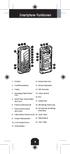 Smartphone-Funktionen 1 2 3 4 15 1 1 14 13 12 5 8 9 10 11 22 21 20 18 19 1. Ohrhörer 2. Kopfhöreranschluss 3. Display 12. Senden/Antworten 13. Menü/Linksauswahl 14. USB-Anschluss 4. Messaging/Menü Bildlauf
Teknoloji Servisleri; (Technology Services)
 Antalya International University Teknoloji Servisleri; (Technology Services) Microsoft Ofis Yazılımları (Microsoft Office Software), How to Update Office 365 User Details How to forward email in Office
Kurzbedienungsanleitung T-Sinus 154 Komfort
 T-Sinus 154 Komfort / deutsch / A31008-E505-A100-1-D1 / QIG_154_Komfort.fm / 21.10.2003 Kurzbedienungsanleitung T-Sinus 154 Komfort Die ausführliche Anleitung in Deutsch finden Sie auf der im Lieferumfang
Virtualmin'e Yeni Web Sitesi Host Etmek - Domain Eklemek
 Yeni bir web sitesi tanımlamak, FTP ve Email ayarlarını ayarlamak için yapılması gerekenler Öncelikle Sol Menüden Create Virtual Server(Burdaki Virtual server ifadesi sizi yanıltmasın Reseller gibi düşünün
İş E-Posta. E-Posta - Giriş. Son derece resmi, alıcının ismi yerine kullanılabilecek bir ünvanı var ise. Resmi, erkek alıcı, bilinmeyen isim
 - Giriş Türkçe Almanca Sayın Başkan, Sehr geehrter Herr Präsident, Son derece resmi, alıcının ismi yerine kullanılabilecek bir ünvanı var ise Sayın yetkili, Resmi, erkek alıcı, bilinmeyen isim Sayın yetkili,
T-Sinus 154 XR. Kurzbedienungsanleitung Quick Start Guide Kısa kullanım kılavuzu
 = =!" = = Com= T-Sinus 154 XR Kurzbedienungsanleitung Quick Start Guide Kısa kullanım kılavuzu Kurzbedienungsanleitung T-Sinus 154 XR Die ausführliche Anleitung in Deutsch finden Sie auf der im Lieferumfang
Kurzbedienungsanleitung Sinus 154 DSL Basic SE
 Sinus 154 DSL Basic SE / deutsch / A31008-E515-A105-2-7K19 / QIG_154_DSL_BasicSE.fm / 12.07.2004 Kurzbedienungsanleitung Sinus 154 DSL Basic SE Die ausführliche Anleitung in Deutsch finden Sie auf der
Datenblatt für Joysticks
 oder Hall-Sensoren Schutzart IP5 Federrückstellung auf Mittellage oder Reibungsbremse Optional bis zu Mikroschalter (Mitte-, Endlage etc.) Taster oder Schaltwippe im Knauf Joysticks der Serie 890 finden
CNC MACH breakout board user manual V8 type
 CNC MACH breakout board user manual V8 type 1 Catalogue CNC Router breakout board V8 type user manual... Hata! Yer işareti tanımlanmamış. 1) Brief introduction:...3 2) Breakout board drawing:...4 3) Wiring:...5
Kurzbedienungsanleitung T-Sinus 154card
 T-Sinus 154card / deutsch / A31008-E505-A101-1-D1 / QIG_154_card.fm / 21.10.2003 Kurzbedienungsanleitung T-Sinus 154card Die ausführliche Anleitung in Deutsch finden Sie auf der im Lieferumfang enthaltenen
Z-N626 CİHAZ HIZLI BAŞLANGIÇ KILAVUZU
 Z-N626 CİHAZ HIZLI BAŞLANGIÇ KILAVUZU TR İÇİNDEKİLER GENEL BAKIŞ BU KILAVUZ HAKKINDA... S. 02 EMNİYET TALİMATLARI... S. 02 İLK KULLANIMDAN ÖNCE... S. 02 CİHAZA GENEL BAKIŞ ZENEC SİSTEMİ... S. 03 ÇOK FONKSİYONLU
K12NET ÖĞRENCİ-VELİ PORTALI KULLANIMI USE OF K12NET STUDENT-PARENT PORTAL
 K12NET ÖĞRENCİ-VELİ PORTALI KULLANIMI USE OF K12NET STUDENT-PARENT PORTAL 1. K12NET i İnternet Explorer 7, 8 ya da 9 sürümlerinde kullanınız. Firefox, Google Chrome vb. tarayıcılarda açmayınız. Use K12NET
Seri kablo bağlantısında Windows95/98/ME'ten Windows 2000'e bağlantı Windows95/98/ME - NT4 bağlantısına çok benzer.
 Seri kablo bağlantısında Windows95/98/ME'ten Windows 2000'e bağlantı Windows95/98/ME NT4 bağlantısına çok benzer. Direkt Kablo desteğini Windows95/98'e yükledikten sonra, Windows95 for Direct Cable Client
Tavsiyeniz için 60, EUR ya varan primler. Arkadaşınıza tavsiye edin ve primlerden faydalanın
 Tavsiyeniz için 60, ya varan primler Arkadaşınıza tavsiye edin ve primlerden faydalanın 2 3 Dost tavsiyesi Dosta tavsiye size prim Size tavsiyemiz: Bizi tavsiye edin. Eş, dost, akraba, arkadaş ve iş arkadaşlarınıza
SK 2385B SU ISITICI (KETTLE)
 SK 2385B SU ISITICI (KETTLE) DE De erli Müflterimiz, Ürün seçiminde S NBO'yu tercih etti iniz için teflekkür ederiz. Uzun ve verimli bir kullan m için cihaz kullanmadan önce bu k lavuzu özellikle güvenlik
Clear omegle ban on puffin
 Clear omegle ban on puffin How to Get Unbanned from Omegle. Omegle can be a rowdy place, but bans can come when you least expect them. If you don't have the patience to wait out. You can use Unban Omee
e-tartı LTR3 Firmware Upgrade Yazılım Güncelleme Moduler Connection LTR3 Firmware Upgrade / LTR3 Yazılım Güncelleme v1.0.
 e-tartı LTR3 Firmware Upgrade Yazılım Güncelleme Moduler Connection www.etarti.com LTR3 Firmware Upgrade / LTR3 Yazılım Güncelleme v1.0.0 1 LTR3 Firmware Upgrade / LTR3 Yazılım Güncelleme v1.0.0 2 Contents
Montaj Talimati. Eurorient GmbH., An der Weide 15B, Weyhe,
 Montaj Talimati www.eurorient.de Eurorient GmbH., An der Weide 15B, 28844 Weyhe, [email protected] Turkish A) Paket içeriği: 1- Schataf Dual 2-1 Adet 3/8 Pirinç T-Bağlantısı 3-1,5 m Beyaz PU Boru 4-20
Learn how to get started with Dropbox: Take your stuff anywhere. Send large files. Keep your files safe. Work on files together. Welcome to Dropbox!
 Learn how to get started with Dropbox: 1 2 3 4 Keep your files safe Take your stuff anywhere Send large files Work on files together Welcome to Dropbox! 1 Keep your files safe Dropbox lets you save photos,
3. Neujahrsball der Deutsch-Türkischen Wirtschaft. Alman- Türk Ekonomisinin 3. Yeni Yıl Balosu
 3. Neujahrsball der Deutsch-Türkischen Wirtschaft Alman- Türk Ekonomisinin 3. Yeni Yıl Balosu 14.01.2012 3. Neujahrsball der Deutsch-Türksichen Wirtschaft am 14.01.2012 / Türk-Alman Ekonomisi nin 3. Yeni
Z-E3726 CİHAZ HIZLI BAŞLANGIÇ KILAVUZU
 Z-E3726 CİHAZ HIZLI BAŞLANGIÇ KILAVUZU TR İÇİNDEKİLER GENEL BAKIŞ BU KILAVUZ HAKKINDA... S. 02 GÜVENLİK TALİMATLARI... S. 02 İLK KULLANMDAN ÖNCE... S. 02 CİHAZA GENEL BAKIŞ ZENEC SİSTEMİ... S. 03 ÇOK FONKSİYONLU
AKE Bulaşık Yıkama Makinası Kontrol Kartı Kullanım Kılavuzu Dishwasher Controller User Manual TR EN
 Bulaşık Yıkama Makinası Kontrol Kartı Kullanım Kılavuzu Dishwasher Controller User Manual Bulaşık Yıkama Makinası Kontrol Kartı Kullanım Kılavuzu (7 SEG SIMPLE YATAY TİP) AKE-BYM-102 Lütfen bu kullanım
Pratik Kullanma Klavuzu WOLLEX. ibaby Bebek İzleme Güvenlik Kamerası
 Pratik Kullanma Klavuzu WOLLEX ibaby Bebek İzleme Güvenlik Kamerası Önsöz Wollex ibaby bebek izleme ve güvenlik kamerası, network ortamı ve güçlü bir web server sayesinde ipod Touch, iphone and ipad yada
IDENTITY MANAGEMENT FOR EXTERNAL USERS
 1/11 Sürüm Numarası Değişiklik Tarihi Değişikliği Yapan Erman Ulusoy Açıklama İlk Sürüm IDENTITY MANAGEMENT FOR EXTERNAL USERS You can connect EXTERNAL Identity Management System (IDM) with https://selfservice.tai.com.tr/
Bald komm ich in die Schule. Anregungen zur Vorbereitung auf die Schule für Kinder und Eltern
 Bald komm ich in die Schule Anregungen zur Vorbereitung auf die Schule für Kinder und Eltern 1 Liebes Kind, Anna und ihre Freunde freuen sich auf die Schule! Sie zeigen dir hier, was sie schon alles können.
Delta Pulse 3 Montaj ve Çalıstırma Kılavuzu. www.teknolojiekibi.com
 Delta Pulse 3 Montaj ve Çalıstırma Kılavuzu http:/// Bu kılavuz, montajı eksiksiz olarak yapılmış devrenin kontrolü ve çalıştırılması içindir. İçeriğinde montajı tamamlanmış devrede çalıştırma öncesinde
Sonderwerbeformen Gültig ab Januar 2011
 Sonderwerbeformen Gültig ab Januar 2011 Titelseite unten rechts 1. Sayfa sağ alt köşe 1 x 50, 2 x 50, 3 x 50, 4 x 50, 5 x 50 10,- 3 x 50 1x50 3x55 Titelkopf-Anzeige 1. Sayfa sağ üst köşe 3 x 55 12,- TV-Seiten
WI-FI USB ADAPTER. Televizyon için kablosuz USB dongle Wireless USB dongle for TV. www.vestel.com.tr
 WI-FI USB ADAPTER Televizyon için kablosuz USB dongle Wireless USB dongle for TV www.vestel.com.tr Güvenlik Bilgileri Bu ürünün küçük parçaları, bebekler veya çocuklar tarafında yutulabilir. Bu küçük parçaları,
Mission Berlin. Deutsch lernen und unterrichten Arbeitsmaterialien. Bölüm 22 Harekete Geç
 Bölüm 22 Harekete Geç Anna 1989 yılınin Berlin ine gönderilir. Orada duvar yıkıldığı için büyük sevinç yaşanıyordur. Anna insan kalabalıklarının arasından geçerek kutuyu almak zorundadır. Bunu başarabilecek
Mission Berlin. Deutsch lernen und unterrichten Arbeitsmaterialien. Bölüm 26 Zaman Deneyleri
 Bölüm 26 Zaman Deneyleri Anna şimdiki zamana dönünce Paul ile birlikte zaman makinesini bloke etmeye çalışır. Ama bunun için gerekli şifreyi bilmiyordur. Anna müziği takip eder ve kırmızılı kadın ortaya
Deutsche Botschaftsschule Ankara Zweigstelle Istanbul Sicherheitskonzept Informationen für Familien / Notfallsinformation Acil Durum Planı - Karte
 Informationen für amilien / Notfallsinformation Acil Durum Planı - Karte Notfalldaten Hinweise: Bitte füllen Sie die Abschnitte A - E sehr sorgfältig und in Druckschrift aus. Im Notfall kann das Leben
Bebek Hamağı Kullanım Kılavuzu Baby Hammock User Guide
 Türk Patent Enstitüsü Tasarım Tescilli 5 Dakikada Kurulum Alman TÜV Rheinland Tarafından Güvenlik Onaylı Bebek Hamağı Kullanım Kılavuzu Baby Hammock User Guide Ürünün kurulum ve kullanımından önce kılavuzu
COMPUTER: Mission Berlin. 9 Kasım 1989, akşam saat Görevini tamamlamak için 15 dakikan kaldı. Ama hala dikkatli olmak zorundasın.
 Bölüm 24 Zaman Geçiyor Anna 1961 yılında sakladığı metal kutuyu bulur ama kutu paslandığı için açamaz. Açmayı başardığında içinde eski bir anahtar bulur. Bu, sırrın anahtarı mıdır? Zaman su gibi akıp gider
ZTM112 BİLGİSAYAR DESTETEKLİ ÇİZİM TEKNİĞİ
 ZTM112 BİLGİSAYAR DESTETEKLİ ÇİZİM TEKNİĞİ Yrd.Doç.Dr.Caner KOÇ Ankara Üniversitesi Ziraat Fakültesi Tarım Makinaları ve Teknolojileri Mühendisliği Bölümü [email protected] Teknik çizim nedir? Bir çizim
Kontakt / Temas. Interkulturelles Netzwerk für Krebstherapie: - Türkisch / Deutsch Kültürler arası kanser tedavi ağı. - Türkçe / Almanca -
 Parkplätze im Parkhaus O10 vorhanden. Sie erreichen uns mit den Buslinien 281, 20, 25 und 5 (Verbindung zu den Bahnhöfen Dammtor und Hauptbahnhof). Park yerleri park binası O10 da mevcuttur. 281, 20, 25
If you have any issue in outlook mail account like spam mail, mail send or receive issues, mail delivery problem, mail sending too late and.
 Sign in oturum aç If you have any issue in outlook mail account like spam mail, mail send or receive issues, mail delivery problem, mail sending too late Sign in others oturum problem aç then call our
GENİŞLEYEN GÜVENLİK KAPISI EXPANDING SAFETY GATE
 GENİŞLEYEN GÜVENLİK KAPISI EXPANDING SAFETY GATE www.odabu.com.tr UYARI MONTAJ VE KULLANIM ÖNCESİ KILAVUZ İÇİNDEKİ TÜM TALİMATLARI OKUYUNUZ KILAVUZU İHTİYAÇ DURUMUNDA KULLANMAK ÜZERE SAKLAYINIZ Güvenlik
Reisen Unterkunft. Unterkunft - Finden. Unterkunft - Buchen. Nach dem Weg zur Unterkunft fragen
 - Finden Wo kann ich finden? Nach dem Weg zur fragen Nereden bulabilirim?... ein Zimmer zu vermieten? kiralamak için... oda? Art der... ein Hostel?... bir hostel? Art der... ein Hotel?... bir otel? Art
Lenovo A369i. Quick Start Guide v1.0. English/Türkçe
 Lenovo A369i Quick Start Guide v1.0 English/Türkçe English Read this guide carefully before using your smartphone. Electronic emission notices European Union conformity Radio and Telecommunications Terminal
12. Sommerfest der Deutschen Wirtschaft Alman Ekonomisinin 12. Yaz Partisi
 12. Sommerfest der Deutschen Wirtschaft Alman Ekonomisinin 12. Yaz Partisi LAGEPLAN / ALAN KROKİSİ AUTOSHOW SPONSORENTISCH / SPONSOR MASASI STAND BANNER / ROLL-UP SONSTIGE / DİĞER *TERAS LOUNGE / TERASSENLOUNGE
!" ==Eumex 724PC DSL=
 !" ==Eumex 724PC DSL= Kurzbedienungsanleitung Leistungsmerkmal Intern anrufen bei autom. Intern anrufen bei manueller Extern anrufen bei autom. Extern anrufen bei manueller Gespräch annehmen Gespräch mit
COMPUTER: Mission Berlin. 9 Kasım, sabah saat 10 u 10 geçiyor. Almanya yı kurtarmak için 120 dakikan ve üç canın var. Komisere güvenebilir misin?
 Bölum 03 Kant Sokağı na giderken Anna Kant Sokağı na doğru yola çıkar, ancak yolu bilmediği için adresi sormak zorunda kalır. Siyah kasklı motosikletliler yeniden ortaya çıktığında ve ona ateş ettiklerinde
ÖPÜCÜK OLMAZ ZORLA. Marion Mebes / Lydia Sandrock Kein Küsschen auf Kommando Ausmalbuch 2015 verlag mebes & noack
 ZORLA ÖPÜCÜK OLMAZ 1 Diese Kopiervorlage basiert auf dem Buch Kein Küsschen auf Kommando von Marion Mebes und Lydia Sandrock, erschienen im Verlag mebes & noack. Alle Rechte liegen beim Verlag. Diese Kopiervorlage
USB 2.0 Harici Disk Koruncağı 2.5" (6.35 cm)
 USB 2.0 Harici Disk Koruncağı 2.5" (6.35 cm) Kullanım Kılavuzu DA-71001 DA-71002 Önsöz Ürünümüzü satın aldığınız için tebrik ederiz! Güvenilir ve sağlam yeni depolama konseptini göstereceğiz. HDD kapasitenizi
İçindekiler. Çözüm Anahtarı... 102 Sözcük Listesi... 103. Copyright 2002 Max Hueber Verlag. ISBN 3 19 007470 4, 1. Auflage 1.
 1 Guten Tag oder Hallo!... 6 Merhaba! 2 Wer ist der Herr da rechts?... 10 Sağdaki bey kim? 3 Kennen Sie unsere Familie?... 14 Ailemizi tanıyor musunuz? 4 Haben Sie kein Auto?... 21 Arabanız yok mu? 5 Wie
Mehrsprachiger Elternabend
 Mehrsprachiger Elternabend zum Zweitspracherwerb Ein Beispiel aus dem Regionalen Bildungs- und Beratungszentrum Hamburg Wilhelmsburg Standort Krieterstraße 1 Wie helfe ich meinem Kind dabei, in der deutschen
ADSL USB Router Geniş Bantlı Internet Erişimi ADSL Modem NAT Router USB Ağ Portu Hızlı Kurulum Rehberi
 ADSL USB Router Geniş Bantlı Internet Erişimi ADSL Modem NAT Router USB Ağ Portu Hızlı Kurulum Rehberi Bu rehber yalnızca en sık rastlanan durumları kapsamaktadır. Eğer LAN ınızda aşağıdakilerden herhangi
KULLANMA KLAVUZU / USER'S GUIDE GTİP/HS Code:
 MOTORLU ÇOKLU ASTAR KESME MAKİNESİ MOTOR DRIVEN LINING CUTTING MACHINE KULLANMA KLAVUZU / USER'S GUIDE GTİP/HS Code: 8461.90.00.00.00 Çelik Kuyumculuk Kalıp Makine San. Ve Tic. Ltd. Şti. Adres: Atatürk
MPID MPID MOISTURE PROBE INDICATOR NEM PROBU İNDİKATÖR EKRANI DISPLAY NEM PROBU İNDİKATÖR EKRANI MOISTURE PROBE INDICATOR DISPLAY
 MPID MPID NEM PROBU İNDİKATÖR NEM PROBU İNDİKATÖR EKRANI EKRANI MOISTURE PROBE INDICATOR MOISTURE PROBE INDICATOR DISPLAY DISPLAY Döküman Kodu: Document Code: OZB.M.MPID Revizyon No-Tarih: Revision No-Date:
VORSCHAU. Önsöz. zur Vollversion
 Önsöz Bu kitap, Almanca dersinin yanı sıra gramer açıklamaları ve alıştırmalarına ihtiyaç duyan temel seviyedeki Almanca öğrencileri için hazırlanmıştır. Kitaptaki örnek ve alıştırmalarda kullanılan kelimeler
T.C. MİLLÎ EĞİTİM BAKANLIĞI ÖLÇME, DEĞERLENDİRME VE SINAV HİZMETLERİ GENEL MÜDÜRLÜĞÜ 8. SINIF 1. DÖNEM ALMANCA DERSİ MERKEZÎ ORTAK SINAVI (MAZERET)
 ALMANCA 2016 A SORU SAYISI : 20 T.C. MİLLÎ EĞİTİM BAKANLIĞI ÖLÇME, DEĞERLENDİRME VE SINAV HİZMETLERİ GENEL MÜDÜRLÜĞÜ 8. SINIF 1. DÖNEM ALMANCA DERSİ MERKEZÎ ORTAK SINAVI (MAZERET) 18 ARALIK 2016 Saat:
Bu dersimizde Bayan Graf bir eğitim kursuna gitmek istiyor. Bu konuyu bir arkadaşıyla görüşüyor.
 Der Computer-Kurs Bu dersimizde Bayan Graf bir eğitim kursuna gitmek istiyor. Bu konuyu bir arkadaşıyla görüşüyor. 2/5 Frau Graf: Ist das Ihre Zeitung? Könnte ich die kurz haben? Herr Müller: Ja, gern.
SC 86 W When using electrical appliance. Basic safety precautions should always be followed including the following:
 English SC 86 W When using electrical appliance. Basic safety precautions should always be followed including the following: Household use only SAFETY INSTRUCTIONS 1. Check that the power supply voltage
AKE.ZR Yıkama Durulama Zaman Rölesi Kullanım Kılavuzu Washing and Rinse Time Relay User Manual TR EN
 Yıkama Durulama Zaman Rölesi Kullanım Kılavuzu Washing and Rinse Time Relay User Manual YIKAMA DURULAMA ZAMAN RÖLESİ Kullanım Kılavuzu Lütfen bu kullanım kılavuzunu cihazın montajını yapmadan ve cihazı
Auswandern Studieren. Studieren - Universität. Angeben, dass man sich einschreiben will. ders almak istiyorum.
 - Universität Ich möchte mich an der Universität einschreiben. Angeben, dass man sich einschreiben will Bir üniversiteye kaydolmak istiyorum. Ich möchte mich für den anmelden. Angeben, dass man sich für
Schuljahr. Herkunftssprache Türkisch
 / Schule / Name Schuljahr Allgemeine Arbeitshinweise Trage bitte auf diesem Blatt und auf deinen Arbeitspapieren deine Schule und deinen Namen ein. Kennzeichne bitte deine Entwurfsblätter (Kladde) und
Kurzbedienungsanleitung T-Sinus 154pcicard
 T-Sinus 154pcicard / deutsch / A31008-E505-A102-1-D1 / QIG_154_pcicard.fm / 21.10.2003 Kurzbedienungsanleitung T-Sinus 154pcicard Die ausführliche Anleitung in Deutsch finden Sie auf der im Lieferumfang
PCC 6505 PROFILE CUTTING LINE
 PCC 6505 PROFILE CUTTING LINE 1.DESCRIPTION PCC 6505 is a servo controlled machine which is specifically designed for the serial cutting of any kind of PVC and aluminum s in the market. The machine is
Webseiten-Bericht für kredikartihesapsorgulama.com
 Webseiten-Bericht für kredikartihesapsorgulama.com Generiert am 09 Oktober 2015 18:53 PM Der Wert ist 76/100 SEO Inhalte Seitentitel Kredi Kartı Borç Sorgulama Ve Öğrenme Länge : 37 Perfekt, denn Ihr Seitentitel
COMPUTER: Mission Berlin. 9 Kasım, sabah, saat dakikan ve iki canın kaldı. Ayrıca sana yardım
 Bölüm 07 Meçhul Düşman Anna motosikletlilerden kurtulmak için bir variété tiyatrosuna saklanır. Orada Heidrun la karşılaşır ve Komiser Ogur dan RATAVA nın kendisini takip ettiğini öğrenir. Oyuncu Anna
A20 KULLANIM KILAVUZU
 1. Kullanım Kılavuzu 1:Montaj ve Besleme Fingerprint Access Control A20 KULLANIM KILAVUZU 2:Yönetici Şifresi doğrulama ve değiştirme. Kullanıcı parmakizi, kart ve şifre kaydı 3: Erişim ( access control)
Get started with Google Drive
 Get started with Google Drive 1 Store any file Use Drive s 15GB of free Google storage to keep anything you want. Learn how to add a file Share files and folders Everyone can see and edit files at the
Çelik Kuyumculuk Kalıp Makine San. Ve Tic. Ltd. Şti.
 Çelik Kuyumculuk Kalıp Makine San. Ve Tic. Ltd. Şti. Fabrika Adres: Atatürk Mahallesi Marmara Sanayi Sitesi L Blok No: 3 İkitelli / İstanbul Türkiye Telefon: +90 212 494 44 60 Fax: +90 212 494 44 61 E-mail
T.C. MİLLÎ EĞİTİM BAKANLIĞI ÖLÇME, DEĞERLENDİRME VE SINAV HİZMETLERİ GENEL MÜDÜRLÜĞÜ 8. SINIF 1. DÖNEM ALMANCA DERSİ MERKEZÎ ORTAK SINAVI
 ALMANCA 2016 A SORU SAYISI : 20 T.C. MİLLÎ EĞİTİM BAKANLIĞI ÖLÇME, DEĞERLENDİRME VE SINAV HİZMETLERİ GENEL MÜDÜRLÜĞÜ 8. SINIF 1. DÖNEM ALMANCA DERSİ MERKEZÎ ORTAK SINAVI 24 KASIM 2016 Saat: 11.20 Adı ve
SVC 3464 ELEKTR KL SÜPÜRGE
 SVC 3464 ELEKTR KL SÜPÜRGE DE Children being supervised not to play with the appliance. This appliance is not intended for use by persons (including children) with reduced physical, sensory or mental capabilities,
Kişisel hesap müşterek hesap Çocuk hesabı döviz hesabı kurumsal hesap öğrenci hesabı Aylık kesintiler var mı? Fragen, ob für das Konto monatliche Gebü
 - Allgemeines [ülke] sınırları içinde para çekersem komisyon ücreti öder miyim? Fragen, ob Gebühren anfallen, wenn man in einem bestimmten Land Geld abhebt Başka bankamatikleri kullanırsam ne kadar komisyon
Okul öncesi Almanca dil gelişimi
 TÜRKÇE TÜRKISCH Okul öncesi Almanca dil gelişimi Deutschkenntnisse von Vorschulkindern Veliler için anket (soru) formu Elternfragebogen Wünschen Sie den Fragebogen in einer anderen Sprache, können Sie
Erstinstallation. Speedport W 100 Stick Installationsanleitung
 Speedport W 100 Stick Installationsanleitung Beachten Sie unbedingt auch die Sicherheitshinweise für den Umgang mit diesem Produkt, wie sie in der Bedienungsanleitung auf der CD-ROM des Lieferumfangs aufgeführt
TÜM ÖĞRENCİ DEĞİŞİM PROGRAMLARI (ERASMUS-MEVLANA-FARABİ) BAŞVURU AŞAMALARI AYNI SÜRECİ TAKİP ETMEKTEDİR.
 TÜM ÖĞRENCİ DEĞİŞİM PROGRAMLARI (ERASMUS-MEVLANA-FARABİ) BAŞVURU AŞAMALARI AYNI SÜRECİ TAKİP ETMEKTEDİR. ELİNİZDEKİ KLAVUZDA ÖRNEK OLARAK ERASMUS+ BAŞVURU SÜRECİ BELİRTİLMİŞTİR. ALL STUDENT WHO WILL APPLY
FAVORIT56529IM0 DE Benutzerinformation 2 TR Kullanma Kılavuzu 18
 FAVORIT56529IM0 DE Benutzerinformation 2 TR Kullanma Kılavuzu 18 2 www.aeg.com INHALT 1. SICHERHEITSHINWEISE...................................................... 3 2. GERÄTEBESCHREIBUNG.....................................................
Zubehör. Sicherheitshinweise. Netzspannung. Lesen Sie bitte zu Ihrer eigenen Sicherheit die folgenden Sicherheitshinweise sorgfältig durch.
 Inhalt Zubehör...2 Funktionen...2 Einleitung...2 Vorbereitung...2 Sicherheitshinweise...2 Netzspannung...2 Netzkabel...3 Feuchtigkeit und Wasser...3 Reinigung...3 Hitze und offenes Feuer...3 Gewitter...3
[ülke] sınırları içinde para çekersem komisyon ücreti öder miyim? Fragen, ob Gebühren anfallen, wenn man in einem bestimmten Land Geld abhebt
![[ülke] sınırları içinde para çekersem komisyon ücreti öder miyim? Fragen, ob Gebühren anfallen, wenn man in einem bestimmten Land Geld abhebt](/thumbs/93/114266536.jpg "[ülke] sınırları içinde para çekersem komisyon ücreti öder miyim? Fragen, ob Gebühren anfallen, wenn man in einem bestimmten Land Geld abhebt") - Allgemeines [ülke] sınırları içinde para çekersem komisyon ücreti öder miyim? Fragen, ob Gebühren anfallen, wenn man in einem bestimmten Land Geld abhebt Başka bankamatikleri kullanırsam ne kadar komisyon
- Allgemeines [ülke] sınırları içinde para çekersem komisyon ücreti öder miyim? Fragen, ob Gebühren anfallen, wenn man in einem bestimmten Land Geld abhebt Başka bankamatikleri kullanırsam ne kadar komisyon
ERASMUS+ ÖĞRENCİ DEĞİŞİM PROGRAMI BAŞVURU SİSTEMİ KULLANIM KILAVUZU USERS GUIDE FOR THE ERASMUS+ STUDENT EXCHANGE PROGRAM APPLICATION SYSTEM
 ERASMUS+ ÖĞRENCİ DEĞİŞİM PROGRAMI BAŞVURU SİSTEMİ KULLANIM KILAVUZU USERS GUIDE FOR THE ERASMUS+ STUDENT EXCHANGE PROGRAM APPLICATION SYSTEM GİRİŞ YAPABİLMENİZ İÇİN ÜYE OLMALISINIZ! / YOU HAVE TO FIRST
Bedienungsanleitung Kullanım Talimatları
 _GER.book 1 ページ 2007 年 2 月 15 日 木 曜 日 Bedienungsanleitung Kullanım Talimatları SD Card/Hard Disk Video Camera Model No.SDR-H250EG SDR-H20EG Die Abbildung zeigt SDR-H250. SDR-H20 verfügt nicht über ein
Yüz Tanımaya Dayalı Uygulamalar. (Özet)
 4 Yüz Tanımaya Dayalı Uygulamalar (Özet) Günümüzde, teknolojinin gelişmesi ile yüz tanımaya dayalı bir çok yöntem artık uygulama alanı bulabilmekte ve gittikçe de önem kazanmaktadır. Bir çok farklı uygulama
Yurt dışı eki tarihli Alman çocuk parası başvurusu için Anlage Ausland zum Antrag auf deutsches Kindergeld vom
 Başvuran kişinin soyadı ve adı Name und Vorname der antragstellenden Person Çocuk parası No. F K Kindergeld-Nr. Yurt dışı eki tarihli Alman çocuk parası başvurusu için Anlage Ausland zum Antrag auf deutsches
Auswandern Studieren. Studieren - Universität. Bir üniversiteye kaydolmak istiyorum. Angeben, dass man sich einschreiben will
 - Universität Bir üniversiteye kaydolmak istiyorum. Angeben, dass man sich einschreiben will ders almak istiyorum. Angeben, dass man sich für einen anmelden möchte lisans seviyesinde lisans üstü seviyesinde
BABY WATCH G-BCAM-01 AUS GUTEM GRUND
 BABY WATCH G-BCAM-01 DE EN TR AUS GUTEM GRUND DEUTSCH 03-18 ENGLISH 19-34 TURKÇE 35-51 2 DEUTSCH SICHERHEIT UND INFORMATIONEN Sicherheit 7 Dieses Gerät ersetzt nicht die Aufsicht der Eltern über die Kinder.
HIGH SPEED PVC DOOR INSTALLATION BOOK
 HIGH SPEED PVC DOOR INSTALLATION BOOK HIZLI PVC KAPI MONTAJ KLAVUZU MODEL FUD 2015.01 MONTAJ KLAVUZU/INSTALLATION BOOK INTRODUCTION The information contained in this manual will allow you to install your
SMS. www.turktelekommobile.de. /Turk TelekomMobile
 1. Q SMS n Die neue rife Ta Prepaid- www.turktelekommobile.de /Turk TelekomMobile C Für jeden das Richtige. Mit den neuen - und Minuten-Paketen passen Sie Ihren Türk Telekom Mobile Tarif genau an Ihre
User s Manual Care and Safety Information
 User s Manual Care and Safety Information 1. Keep the device and packaging materials out of the reach of infants and children. 2. Avoid subjecting the power adapter and other contacts to dripping or splashing
Antrag auf Erteilung/Verlängerung einer/eines İlk izin / Uzatma başvurusu
 Der Antrag ist auf Deutsch und leserlich auszufüllen: Başvuru Almanca ve okunaklı olarak doldurulmalıdır: Antrag auf Erteilung/Verlängerung einer/eines İlk izin / Uzatma başvurusu Aufenthaltserlaubnis
COMPUTER: Mission Berlin. 9 Kasım, sabah saat 11 e 20 var. 70 dakikan ve bir canın kaldı. Acele etmen gerekiyor. Seni kim takip ediyor?
 Bölüm 09 Eksik Đpuçları Anna tiyatrodan kaçar ama kırmızılı kadın onu Paul un dükkanına kadar takip eder. Heidrun un yardımı sayesinde Anna tekrar kaçabilir. Şimdi elinde yapbozun bir parçası vardır, ama
Die alttürkische Xuanzang-Biographie V
 VERÖFFENTLICHUNGEN DER SOCIETAS URALO-ALTAICA Herausgegeben von Cornelius Hasselblatt und Klaus Röhrborn Band 34 Xuanzangs Leben und Werk Herausgegeben von Alexander Leonhard Mayer und Klaus Röhrborn Teil
TÜRKISCH. NIE MEHR SPRACHLOS! Zeigebilder: praktisch beim Einkaufen Umgangssprache: extra Slang-Kapitel Tipps: Fettnäpfchen vermeiden
 SPRACHFÜHRER TÜRKISCH NIE MEHR SPRACHLOS! Zeigebilder: praktisch beim Einkaufen Umgangssprache: extra Slang-Kapitel Tipps: Fettnäpfchen vermeiden Mit SPICKZETTEL für den Geldbeutel In Zusammenarbeit mit
Geschäftskorrespondenz
 - Einleitung Deutsch Türkisch Sehr geehrter Herr Präsident, Sayın Başkan, Sehr formell, Empfänger hat einen besonderen Titel, der anstelle seines Namens benutzt wird Sehr geehrter Herr, Formell, männlicher
Doro PhoneEasy. 100w/105wr
 Doro PhoneEasy 100w/105wr 1 2 3 4 5 6 M1 M2 R w 0 C O a1 3 2A B C 4 7 r 5 8 L D E F 6 G H I J K L M N O 9 P Q R S T U V W X Y Z * L 0 # 13 12 11 10 9 8 7 PhoneEasy 105wr 14 J 16 15 Deutsch 1. Hörverstärkung
DVB-T Stick Terres droid
 DVB-T Stick Terres droid TR INDEX TR 45 b KULLANMA KILAVUZU TrekStor DVB-T Stick Terres droid cihazından memnun kalmanızı dileriz. Bu ürünün işlevleri ve kullanımı hakkında bilgi almak için lütfen aşağıdaki
PNR-5332/3TB Ürün numarası: 213336 Network Video Recorder, 32xIP, 1920x1080, 800fps, 3TB, H.264, HDMI, VGA
 Ürün numarası: 213336 Network Video Recorder, 32xIP, 1920x1080, 800fps, 3TB, H.264, HDMI, VGA Genel özellikler 32 channel Full HD Real Time NVR Video compression H.264 Full HD 1920x1080 HDMI/VGA main output
Mission Berlin. Deutsch lernen und unterrichten Arbeitsmaterialien. Bölüm 17 Barikat Đnşası
 Bölüm 17 Barikat Đnşası 50 dakika vardır: Oyuncu herşeyi tehlikeye atarak kasiyere güvenmeye karar verir. Radyoda doğu alman askerlerin barikatlarından söz edilir. RATAVA nin silmek istediği olay bu mudur?
Montaj ve Kullanım Kılavuzu Installation and Operating Instructions
 Electronics 32 F-12, 40-8, 40-10, 40-12, 40-18, 50-6, 50-8, 50-12, 50-18, 65-8, 65-12, 65-15, 80-8, 80-12, 100-12 Montaj ve Kullanım Kılavuzu nstallation and Operating nstructions Pompadan Daha Dazlası
Biral Arayüz Modülü BIM A2 Biral Interface Modul BIM A2
 Biral Arayüz Modülü BIM A2 Biral Interface Modul BIM A2 Sinyal modülü Signal module Montaj ve Kullanım Kılavuzu (sayfa 2) Installation and Operating Instructions (page 16) Pompadan Daha Fazlası www.masgrup.com
COMPUTER: Mission Berlin. 9 Kasım, sabah saat dakikan ve bir canın kaldı.
 Bölüm 12 Kilise Müziği Anna nın 65 dakikası vardır. Kilisede müzik kutusunun, orga ait eksik bir parça olduğunu keşfeder. Kırmızılı kadın gelir ve ondan bir anahtar ister. Ama nasıl bir anahtar? Kilise
econn (Supplier Portal) of the MANN+HUMMEL Group
 econn (Supplier Portal) of the MANN+HUMMEL Group October 2016 1 econn CONNECTED FOR SUCCESS Support If you have any questions or technical issues during the registration please contact: Teknik sorularınız
Forum Demenz / Alzheimer Wie gehe ich damit um? Sylvia Kern, Geschäftsführerin 1
 Forum Demenz / Alzheimer Wie gehe ich damit um? Sylvia Kern, Geschäftsführerin 1 Sylvia Kern, Geschäftsführerin 2 Bakım uygun olmalı herkes için Kültüre uygun yaşlılar bakımı ile ilgili bilgilendirme günü