
MagicInfo Express 2. Kullanıcı Kılavuzu. MagicInfo Express 2
|
|
|
- Hande Tekeli
- 10 yıl önce
- İzleme sayısı:
Transkript
1 MagicInfo Express 2 MagicInfo Express 2 Kullanıcı Kılavuzu MagicInfo Express 2 çeşitli düzenleri kullanarak kolayca içerik oluşturmanıza olanak sağlar. MagicInfo Express 2 sayesinde, Samsung görüntü aygıtlarında belirli bir zamanda içerik yürütmek üzere programlar oluşturup bunları yönetebilirsiniz.
2 MagicInfo Express 2 İçerik Başlamadan önce 3 MagicInfo Express 2 hakkında Yükleme gereksinimleri 4 Programı yükleme/kaldırma Yükleme Uninstall İlk ayarları yapılandırma 6 Mağazanızı kaydetme 9 Ekran modeli seçme İçerik oluşturma 11 MagicInfo Express 2 hakkında daha fazla 12 Hızlı Başlat modunu kullanarak içerik oluşturma Düzen türü seçme Elemanları seçme Düzeni düzenleme İçeriği kaydetme Program oluşturma Program gönderme Ek özellikleri kullanma 64 Ayrıntılı MagicInfo Express 2 ayarlarını yapılandırma Ekran modelini değiştirme Zamanlayıcıyı ayarlama Görüntü aygıtı yazılımını güncelleme Mağaza ayarlarını değiştirme Yazı tipi ekleme Hedef klasörü ayarlama Yazılım ayrıntılarını görüntüleme 68 Eğitsel videoyu görüntüleme Open Source Announcement 69 Windows GNU LESSER GENERAL PUBLIC LICENSE Apache License, Version Mac GNU LESSER GENERAL PUBLIC LICENSE Apache License, Version Özel Tasarım modunu kullanarak içerik oluşturma Düzen oluşturma İçeriği kaydetme Program oluşturma Program gönderme 63 İçerik ve programları yönetme 2
3 MagicInfo Express 2 01 Başlamadan önce MagicInfo Express 2 hakkında MagicInfo Express 2 çeşitli düzenleri kullanarak kolayca içerik oluşturmanıza olanak sağlar. MagicInfo Express 2 sayesinde, Samsung görüntü aygıtlarında belirli bir zamanda içerik yürütmek üzere programlar oluşturup bunları yönetebilirsiniz. Yükleme gereksinimleri HDD: En az 800 MB boş alan RAM: En az 1 GB boş alan İşletim sistemi: Windows 7 SP1 ve üzeri veya Mac OS X 10.8 (Mountain Lion) ve üzeri Çözünürlük: 1280x960 ve üzeri önerilir < < Not Program yükleme dosyasını yönetici olarak çalıştırdığınızdan emin olun. 3

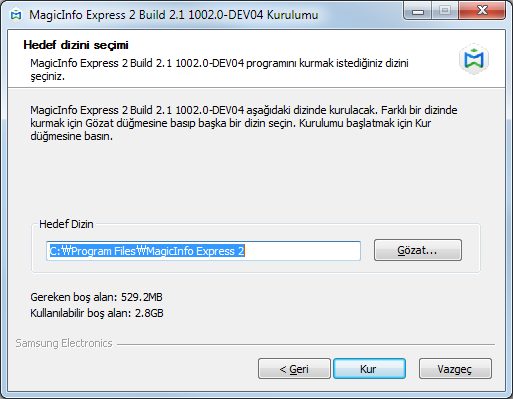
4 Başlamadan önce Programı yükleme/kaldırma Yükleme 1 Program yükleme dosyasını çalıştırın. Bir dil seçip OK'ı tıklatın. 2 Yönergeleri okuyun ve İleri'yi tıklatın. 3 Lisans anlaşması sayfası görüntülendiğinde, Kabul Ediyorum öğesini tıklatın. 4 Yükleme klasörünü ayarlayın ve Kur düğmesini tıklatın. 4
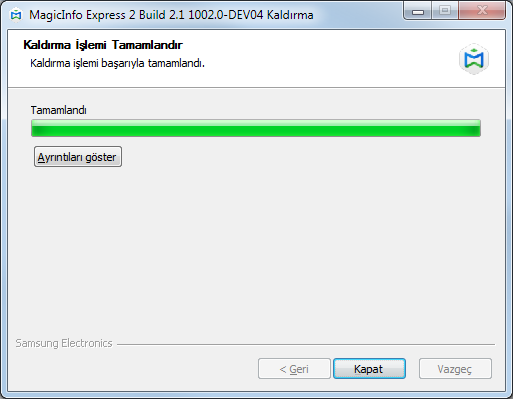

5 Başlamadan önce 5 Program yüklendiğinde Bitir seçeneğine tıklayın. Yüklenen programı hemen çalıştırmak için Programı Çalıştır onay kutusunu seçin. Program ayrıca masaüstündeki program simgesine çift tıklanarak da çalıştırılabilir. Uninstall Programı kullanırken bir sorunla karşılaşırsanız, aşağıdaki yönergeleri izleyerek programı kaldırın: < < Not Program kullanılıyorsa düzgün şekilde kaldırılamaz. Kaldırmadan önce programı kapatmayı unutmayın. 1 Denetim masasını veya başlangıç programları listesini kullanarak kaldırma sayfasını açın ve Kaldır öğesini tıklatın. 2 İçeriği ve daha önce oluşturulmuş programları silmek isteyip istemediğinizi belirleyin. 3 Program kaldırıldığında Kapat seçeneğine tıklayın. 5
6 MagicInfo Express 2 02 İlk ayarları yapılandırma MagicInfo Express 2 yazılımını kullanmak için, önce mağazanızı kaydedin ve bir ekran modeli seçin. Kaydedilen mağaza adı şablona otomatik olarak girilir. Kayıtlı iş saatleri, bir içerik programı oluşturduğunuzda varsayılan iş saatleri olarak ayarlanır. Mağazanızı kaydetme < < Not Mağaza kayıt sayfası yalnızca, program ilk kez başlatıldığında görüntülenir. Ayarlar menüsünü kullanarak mağazaları düzenleyebilir veya ekleyebilirsiniz. Daha ayrıntılı bilgi için aşağıdakilere bakın: Mağaza ayarlarını değiştirme 1 Mağazanızın adını girin ve ardından İleri seçeneğine veya öğesine tıklayın. < < Not Bir mağaza adı girmeden sonraki adıma geçemezsiniz. 6
7 İlk ayarları yapılandırma 2 İş saatlerini ve günlerini ayarlayın ve ardından İleri seçeneğine veya öğesine tıklayın. < < Not Gün seçmeden sonraki adıma geçemezsiniz Mağaza adını ayarladığınız adıma geri dönün. 2 İşletmenin açık olacağı günleri ayarlayın. Haftanın istediğiniz günlerine ait onay kutularını seçin. 3 4 İş saatlerini ayarlamak istediğiniz günü seçin. Bir gün seçmek için / öğelerine tıklayın. Gerekirse her güne farklı iş saatleri atayabilirsiniz. Seçili gün için açılış ve kapanış saatlerini ayarlayın. Saat giriş alanına tıklayın ve listeden bir süre seçin. Ayrıca dakika cinsinden manüel olarak da süre girebilirsiniz. 5 Seçili günde mağazanın 24 saat açık olmasını istiyorsanız onay kutusunu işaretleyin. 7
8 İlk ayarları yapılandırma 3 Kaydedilen mağaza bilgilerini doğrulayın ve Bitti seçeneğine tıklayın Kaydedilen mağaza bilgilerini düzenleyin. 2 Yeni bir mağaza kaydedin. 3 Birden fazla mağaza kayıtlıysa başka bir mağazayla ilgili bilgileri görüntüleyin. 8
9 İlk ayarları yapılandırma Ekran modeli seçme İçerik ve program göndermek istediğiniz bir Samsung ekran modeli seçin. İçerik oluştururken kullanılabilecek ekran ve işlevleri seçilen modele göre değişir. < < Not Ekran modeli seçme sayfası yalnızca, program ilk kez başlatıldığında görüntülenir. Ayarlar menüsünü kullanarak ekran modelini değiştirebilirsiniz. Daha ayrıntılı bilgi için aşağıdakilere bakın: Ekran modelini değiştirme Görüntülenen yönergeleri izleyerek ekran modelinizi kontrol edin ve modeli tıklatın. 9
10 MagicInfo Express 2 03 İçerik oluşturma Aşağıdaki adımlara göre içerik oluşturabilirsiniz. < < Not Hızlı Başlat: Bu mod, seçili elemana göre düzeni otomatik olarak yapılandırır. Yeni başlayanlar bile bu modu kullanarak kolayca içerik oluşturabilir. Özel Tasarım: Bu mod profesyonel ve ileri düzey kullanıcıların özel düzenleri kullanarak içerik oluşturmasına olanak tanır. Hızlı Başlat Düzen türü seçme Elemanları seçme Düzeni düzenleme Program oluşturma İçerik gönderme Özel Tasarım Bir düzen oluşturma Program oluşturma İçerik gönderme 10
11 MagicInfo Express 2 hakkında daha fazla Bir mağaza kaydedildiğinde aşağıda görülen giriş ekranı görüntülenir. Hızlı Başlat ya da Özel Tasarım modunu seçtikten sonra, içerik ve programları oluşturun ve yönetin Hızlı Başlat modunu kullanarak içerik oluşturun. Yeni başlayanlar bile bu modu kullanarak kolayca içerik düzenleyebilir. Daha ayrıntılı bilgi için aşağıdakilere bakın: Hızlı Başlat modunu kullanarak içerik oluşturma Özel Tasarım modunu kullanarak gereksinimlerinize göre içerik oluşturun ve organize edin. Daha ayrıntılı bilgi için aşağıdakilere bakın: Özel Tasarım modunu kullanarak içerik oluşturma MagicInfo Express 2 yazılımını nasıl kullanacağınızı öğrenmek için görüntülü eğitseli kullanın. Daha ayrıntılı bilgi için aşağıdakilere bakın: Eğitsel videoyu görüntüleme 4 Giriş ekranında görüntülemek üzere bir USB aygıta içerik aktarın veya kaydedilmiş dosyaları programlayın. 5 Zamanlayıcı ve mağaza ayrıntıları gibi ayrıntılı MagicInfo Express 2 ayarlarını yapılandırın. Daha ayrıntılı bilgi için aşağıdakilere bakın: Ayrıntılı MagicInfo Express 2 ayarlarını yapılandırma 11
12 Hızlı Başlat modunu kullanarak içerik oluşturma Hızlı Başlat modu, yeni başlayanlar da dahil olmak üzere tüm kullanıcıların içerikleri kolayca organize etmesine olanak sağlar. < < Not Bu kıllanıcı kılavuzunda Premium Model kullandığınız varsayılmaktadır. Düzen türü seçme İstediğiniz düzene dayalı olarak yeni bir içerik dosyası oluşturun. 1 Giriş ekranında Hızlı Başlat seçeneğine tıklayın. 12
13 2 Bir düzen türü seçin. Seçili türde bir düzen otomatik olarak yapılandırılır Bir restoran için yiyecek ve fiyat menüsü oluşturun. 2 Mağaza içi reklam için video oluşturun. 3 Mağaza içi reklam için tam ekran slayt gösterisi oluşturun. 4 Resimlerden oluşan bir promosyon içeriği oluşturun. 5 Bilgi sunmak için kullanılabilecek bir içerik oluşturun. 13
14 Elemanları seçme Bir giriş kaynağı ve multimedya elemanları seçmeden önce düzen yönünü seçmeniz gerekir. Bir düzen yönü seçme Bir düzen yönü seçin. < < Not Düzen yönü seçme ekranı yalnızca bir kez görüntülenir Görüntüleme aygıtınız dikey yönde kurulmuşsa bu dikey düzeni seçin. 2 Görüntüleme aygıtınız yatay yönde kurulmuşsa bu yatay düzeni seçin. 14
15 Multimedya elemanları seçme İçeriğe uygulamak üzere resim veya video dosyaları seçin. < < Not İçerikleri düzenlemek için resim ve video elemanlarını yalnızca düzen türü Canlı TV ve Videolar olarak ayarlandığında kullanabilirsiniz. Diğer dört düzen türünden biri seçildiğinde yalnızca resim elemanları kullanılabilir. Her düzen için gereken minimum ve maksimum multimedya elemanları sayısı seçili düzen türüne ve yöne göre değişir. Her düzen türü için seçilebilir eleman sayısı aşağıda gösterilmiştir: Standart Model --Menü Panosu: Resim (0-9 eleman) -- Canlı TV ve Videolar: Resimler (yalnızca yatay düzende 0-8 resim) ve video veya giriş kaynağı (yalnızca yatay düzende 0-1 video). Ekran modeli Standart Model olarak ayarlanırsa dikey düzen kullanılamaz --Slayt Gösterisi: Resim (2-20 eleman) --Promosyon: Resim (1-9 eleman) --Bilgi: Resim (0-5 eleman) Premium Model --Menü Panosu: Resim (0-9 eleman) --Canlı TV ve Videolar: Resim (yatay düzen için 0-8 eleman), resim (dikey düzen için 0-2 eleman), video veya giriş kaynağı (0-1 eleman) --Slayt Gösterisi: Resim (2-100 eleman) --Promosyon: Resim (1-9 eleman) --Bilgi: Resim (0-5 eleman) Yalnızca 4096x4096 veya daha düşük çözünürlüklü resim dosyaları seçilebilir. Dosya boyutlarının 20 MB veya altında olmasına dikkat edin. Yalnızca 1920x1080 veya daha düşük çözünürlüklü video dosyaları seçilebilir. 15
16 1 Ekranın solundaki öğesine tıklayın. 2 Multimedya elemanları listesinden, içeriğe uygulanacak elemanların onay kutularını işaretleyin Listeyi sıralamak üzere bir multimedya elemanı türü seçin. Bu seçenek, düzen türü Canlı TV ve Videolar olarak ayarlandığında kullanılabilir. Açılır listeden bir multimedya elemanı türü seçin. 2 Adına göre multimedya elemanı arayın. 3 Multimedya elemanının aktarılacağı klasörü ayarlayın. 4 Multimedya elemanlarının listesi için görünüm modunu değiştirin. Multimedya elemanları dosya adına göre veya seçili görünüm moduna göre küçük resimler halinde yeniden düzenlenir. 3 Multimedya elemanlarını seçtikten sonra öğesine tıklayın. Öğeleri ekleyebileceğiniz bir sonraki adıma yönlendirilirsiniz. Düzen türü Canlı TV ve Videolar olarak ayarlanmışsa, sonraki adıma geçmeden önce giriş kaynağını ayarlamayı unutmayın. Daha ayrıntılı bilgi için aşağıdakilere bakın: Giriş kaynağını ayarlama 16
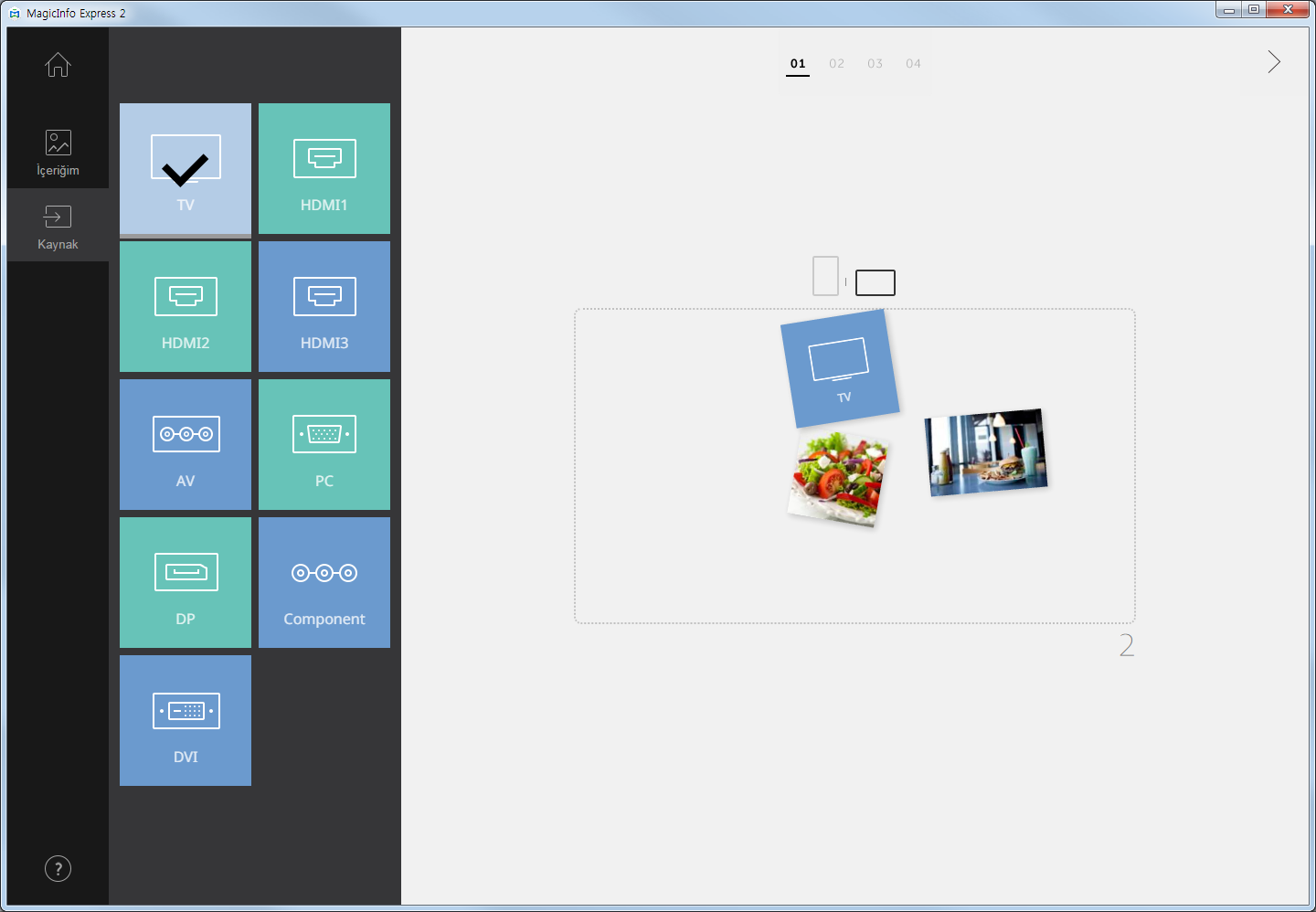
17 Giriş kaynağını ayarlama Düzen türü Canlı TV ve Videolar olarak ayarlanmışsa, görüntü aygıtına bağlı bir giriş kaynağı ekleyerek içeriği düzenleyebilirsiniz. < < Not Ekran modeli Standart Model olarak ayarlanmışsa, giriş kaynağı seçebileceğiniz bir ülke seçebilirsiniz. Kullanılabilir giriş kaynakları seçili ülkeye göre değişir. Giriş kaynağı seçmeden sonraki adıma geçerseniz giriş kaynağı otomatik olarak TV'ye (varsayılan giriş kaynağı) ayarlanır. 1 Ekranın solundaki öğesine tıklayın. 2 İçeriğe uygulanacak giriş kaynağının onay kutusunu seçin. < < Not Yalnızca bir giriş kaynağı seçebilirsiniz. 3 Giriş kaynağı seçtikten sonra, öğesine tıklayın. Öğeleri ekleyebileceğiniz bir sonraki adıma yönlendirilirsiniz. 17
18 Düzeni düzenleme Düzen türüne göre çeşitli elemanlar ekleyerek içeriği organize edebilirsiniz. Ekranı bölme ayarlarını yapılandırma Seçilen düzen türüne ve eklenen elemanların yönüne ve sayısına bağlı olarak çeşitli bölünmüş ekran modları kullanılabilir. Ekranın altındaki Karışık seçeneğine tıklayın. Düğmeye her tıklandığında farklı bir bölünmüş ekran modu görüntülenir. 18
19 Öğe ekleme Çeşitli türde elemanlar kullanarak düzeni yapılandırın. Aşağıdaki elemanları ve işlevleri kullanarak düzeni düzenleyin: < < Not Ekran modeli Standart Model olarak ayarlanmışsa, eleman türü ne olursa olsun elemanlar bir biri üzerine yerleştirilemez Giriş ekranına dönün. 2 Öğe sekmesini kapatın. 3 : İçeriği değiştirir veya slayt gösterisi halinde resimler ekler. : Metin ekler. : Çıkartma ekler. Ekran modeli Standart Model olarak ayarlanırsa bu işlev kullanılamaz. : Giriş kaynağı ekler. : Arka plan ayarlarını yapılandırır. 4 Düzeni görüntüleyin ve eklenen elemanları düzenleyin. 19
20 5 : Ses ayarlarını yapılandırır. Sesi kapatmak için simgesini etkinleştirin. Karışık: Düzendeki bölünmüş ekran ayarlarını değiştirir. Kullanılabilecek bölünmüş ekran modlarının sayısı, seçilen düzen türüne ve elemanların yönüne ve sayısına bağlı olarak değişir. : Ön izleme ekranını görüntüler. 6 Düzen içinde zoom veya uzaklaştırma yapın. Zoom düzeyini özelleştirmek için kaydırma çubuğunu kullanın. 7 : Düzen bölümünün boyutunu ve konumunu program penceresinin boyutuna göre ayarlar. : Düzen bölümünü taşır. Öğeleri düzenleme Düzene eklenen elemanları düzenleyin. < < Not Öğelerin nasıl düzenleneceği konusunda ayrıntılı bilgi için her elemanla ilgili ayrıntılara bakın. Bir elemanın boyutunu ve konumunu ayarlama Bir eleman seçin ve elemanın boyutunu ve konumunu aşağıdaki gibi ayarlayın: Elemanı taşımak için elemanın içine tıklayın ve başka bir konuma sürükleyin. Belirli bir eleman içeren düzeni yeniden boyutlandırmak için eleman çevresindeki öğesine tıklayın ve dikey veya yatay olarak sürükleyin. Eleman silme Bir elemanı seçin ve öğesine tıklayın. Silinen elemanlar geri yüklenemez. 20
21 Multimedya elemanlarını organize etme Resim veya videoları değiştirin. Ayrıca bir slayt gösterisi için resimler ekleyebilirsiniz. Multimedya elemanlarını değiştirme 1 Öğe sekmesinden öğesine tıklayın. 2 Multimedya elemanları listesinden, bir elemana tıklayın ve düzenleme bölümünde değiştirmek istediğiniz multimedya elemanı üzerine sürükleyin. 3 Elemanı değiştirmek istediğinizi doğrulamanız istendiğinde, Değiştir seçeneğine tıklayın. Multimedya elemanı değiştirilir. 21
22 Multimedya elemanı slaytlar ekleme Resim veya video elemanlarını slayt gösterisi olarak ayarlar. 1 Öğe sekmesinden öğesine tıklayın. 2 Multimedya elemanları listesinde bir elemana tıklayın ve düzenleme bölümünde varsayılan elemanın üzerine sürükleyin. 3 Öğeyi eklemek istediğinizi onaylamanız istendiğinde, Ekle seçeneğine tıklayın. Eleman bir slayt gösterisine eklenir. < < Not Slayt gösterisine başka elemanlar eklenirken yeni doğrulama istemleri görüntülenmez. 4 Düzenleme bölümünden bir slayda tıklayın ve slayda efektler uygulayın
23 1 Öğe görüntüleme süresini ayarlayın. Süre 5 ila 60 saniye aralığında ayarlanabilir. 2 Slayt elemanları listesini görüntüleyin. Bir elemanı düzenleme bölümünde temsilci eleman olarak ayarlamak için elemanı seçin. Bir onay işareti belirir. Bir elemanı oynatma sırasını değiştirmek için elemana tıklayın ve başka bir konuma sürükleyin. Bir elemanı silmek için fare işaretçisini eleman üzerine yerleştirin ve öğesine tıklayın. Bir slayt geçiş efekti ekleyin. Bir geçiş efekti seçin. 3 < < Not Ekran modeli Standart Model olarak ayarlanırsa bu işlev kullanılamaz. Multimedya elemanlarını düzenleme 1 Düzenleme bölümünden bir multimedya elemanına tıklayın. 2 Aşağıdaki işlevleri kullanarak multimedya elemanını düzenleyin:
24 1 2 Resim elemanını döndürün. Simgeye tıklayın ve istediğiniz yönde sürükleyin. Resim elemanı bir kerede 90 derece döndürülebilir. (90º/180º/270º/360º) Düzen boyutunu sabit tutarken yalnızca içerik üzerinde zoom veya uzaklaştırma yapın. Zoom düzeyini özelleştirmek için kaydırma çubuğunu kullanın. Zoom düzeyini geri almak için öğesine tıklayın. 3 Bir multimedya elemanını silin. 4 Düzenleme çubuğunu kapatın. Metni organize etme Metin kutusu ekleyin veya varsayılan metni düzenleyin. < < Not Bir giriş kaynağı veya video elemanı üzerine metim elemanı eklenemez. Ekran modeli Standart Model olarak ayarlanmışsa, eleman türü ne olursa olsun bir metin elemanı başka eleman üzerine eklenemez. Metin ekleme 1 Öğe sekmesinden öğesine tıklayın. 2 İstediğiniz metin kutusuna tıklayın ve düzenleme bölümüne sürükleyin. 3 Düzenleme bölümünde metin kutusunun konumunu ayarlayın ve metin girin. 24
25 4 Metni düzenlemek için metin düzenleme çubuğunu kullanın Bir metin yazı tipi seçin. 2 Metin boyutunu belirtin. Metin boyutu 20 ila 200 punto aralığında ayarlanabilir. 3 4 Bir metin rengi seçin. Metin renginin nasıl ayarlanacağı konusunda ayrıntılı bilgi için aşağıdakilere bakın: Metin rengini/metin arka plan rengini ayarlama Bir metin arka plan rengi seçin. Metin arka plan renginin nasıl ayarlanacağı konusunda ayrıntılı bilgi için aşağıdakilere bakın: Metin rengini/metin arka plan rengini ayarlama 5 Bir yatay metin hizalama modu seçin. 6 Bir dikey metin hizalama modu seçin. 7 Birden fazla metin kutusu kullanılıyorsa metin kutularının sırasını ayarlayın. 8 Bir metin kutusunu silin. 9 Düzenleme çubuğunu kapatın. 25
26 Metni değiştirme 1 Varsayılan metne tıklayın ve yeni metni girin. 2 Metni düzenlemek için metin düzenleme çubuğunu kullanın. Metin rengini/metin arka plan rengini ayarlama 1 Metin düzenleme çubuğunda, veya öğesine tıklayın. 2 Rengi özelleştirmek için renk çubuğunu kullanın Oluşturulan renk listesi. Bir renge tıklayın. 2 Oluşturulmakta olan renk. 3 Yeni renk oluşturma. Metin arka plan rengini saydam olarak ayarlayın. 4 < < Not Metin rengi saydam olamaz. 5 Bir varsayılan renk seçin. 6 Bir renk seçin. Renk seçmek için kaydırma çubuğunu kullanın. 7 Seçili rengin parlaklığını ayarlayın. 26
27 Çıkartma ekleme Düzene çeşitli tasarımlarda çıkartmalar ekleyin. < < Not Ekran modeli Standart Model olarak ayarlanırsa bu işlev kullanılamaz. Giriş kaynağı veya video elemanları üzerine çıkartma elemanları eklemek mümkün değildir. 1 Öğe sekmesinden öğesine tıklayın. 2 Çıkartmalar listesinden, bir çıkartmaya tıklayıp düzenleme bölümüne sürükleyin. Çıkartma düzene eklenir. Çıkartma üzerine metin kutusu ekleyebilirsiniz. Ayrıca birden fazla çıkartmayı üst üste yerleştirebilirsiniz. 27
28 3 Çıkartmaya tıklayın ve çıkartmayı düzenlemek için düzenleme çubuğunu kullanın Çıkartmayı kopyalayın. 2 Birden fazla çıkartma kullanılıyorsa çıkarmaları düzenlemek üzere sırasını ayarlayın. 3 Çıkartmayı silin. 4 Düzenleme çubuğunu kapatın. 28
29 Giriş kaynağı ekleme Düzene, görüntüleme aygıtına bağlı bir giriş kaynağı ekleyerek, içerikleri organize edin. < < Not Ekran modeli Standart Model olarak ayarlanmışsa, giriş kaynağı seçebileceğiniz bir ülke seçebilirsiniz. Kullanılabilir giriş kaynakları seçili ülkeye göre değişir. Giriş kaynağı eklenen bir bölümde metin, çıkartma veya resim elemanı kullanılamaz. 1 Öğe sekmesinden öğesine tıklayın. 2 Giriş kaynakları listesinden, bir giriş kaynağına tıklayıp düzenleme bölümüne sürükleyin. Giriş kaynağı düzene eklenir. 29
30 Arka plan ayarları 1 Öğe sekmesinden öğesine tıklayın. 2 Arka plan için bir renge veya desene tıklayın. Tıklanan renk veya desen düzenin arka planına uygulanır. Arka plan rengini özelleştirmek için öğesine tıklayın. Arka plan renginin nasıl ayarlanacağı konusunda ayrıntılı bilgi için aşağıdakilere bakın: Arka plan rengini ayarlama Arka plan rengi veya deseni uygulamak istemiyorsanız YOK seçeneğine tıklayın. Arka plan rengini ayarlama 1 Arka plan sekmesinde öğesine tıklayın. 2 Arka plan rengini özelleştirmek için renk çubuğunu kullanın Oluşturulan renk listesi. Bir renge tıklayın. 2 Oluşturulmakta olan renk. 3 Yeni renk oluşturma. 30
31 4 Bir varsayılan renk seçin. 5 Bir renk seçin. Renk seçmek için kaydırma çubuğunu kullanın. 6 Seçili rengin parlaklığını ayarlayın. 7 Seçili rengi arka plan renkleri listesine ekleyin. İçeriği kaydetme 1 İçeriği organize ettikten sonra, ekranın en üstündeki öğesine tıklayın. 2 Bir içerik adı girip Kaydet seçeneğine tıklayın. 31
32 Program oluşturma Belirli zamanlarda Samsung görüntüleme aygıtlarında içerik oynatmak için programlar oluşturun. Haftanın her günü için farklı bir saatte oynatmak üzere farklı bir içerik öğesi atayabilirsiniz. Program ayarları sayfası İçerik kaydedildikten sonra program oluşturma ekranı görüntülenir. Oluşturulan son içerik, içerik listesinin en başına eklenir. İçerik otomatik olarak, kayıtlı iş saatlerine uygun şekilde bir programa atanır Birden fazla içeriği belirtilen süre boyunca tekrar tekrar oynatabilecek bir çalma listesi oluşturun. Çalma listesinin nasıl oluşturulacağı konusunda ayrıntılı bilgi için aşağıdakilere bakın: Çalma listesi oluşturma 2 İçerikleri yönüne göre sıralayın veya görüntüleyin. 3 Programlara eklenebilecek içerik ve çalma listelerinin listesini görüntüleyin. Oluşturulan son içerik, listenin en başına yerleştirilir. İçeriğin ayrıntılarını düzenlemek için içeriğe tıklayın. Çalma listesi düzenleme bölümünü açmak veya kapatmak için bir oynatma listesine tıklayın. Çalma listeleri listesini yönetmek için istediğiniz oynatma listesi küçük resmindeki öğesine tıklayın. Çalma listesini kopyalayabilir veya silebilirsiniz. 32
33 4 Program oluşturma ve içerik ekleme. 5 6 Bir program seçin. Daha önce saklanan bir programı, içerik veya zaman ayarlarını düzenlemek üzere içeri aktarın. Bu bölümdeki programları düzenleyin. Haftanın her günü için programları düzenleyebilirsiniz. Oluşturulan içerik çalınmak üzere otomatik olarak programlanır. Program yapılandırma Haftanın belirli bir gününde belirli bir saatte içerik veya çalma listesi çalmak üzere bir program oluşturun. 1 İçerik listesinden, bir çalma listesini veya içeriği seçin ve programı düzenleme bölümünde haftanın istediğiniz gününe sürükleyin. İçerik programı seçili güne eklenir. < < Not Her bir program dosyası en fazla 28 içerik programı içerebilir. 33
34 2 Eklenen içerik programına tıklayın ve aşağıdaki işlevleri kullanarak programı düzenleyin: Tıklanan güne atanan programları devre dışı bırakın. Bir günü etkinleştirmek için güne tıklayın veya güne içerik ekleyin. Seçili programa atanan içeriğin oynatılmaya başlanacağı ve oynatmanın sonlandırılacağı saatleri görüntüleyin. Başlangıç veya bitiş saatini değiştirmek için saat listesinden bir saat seçin veya manüel olarak bir saat girin. Seçili programa atanan içeriğin oynatma süresini ayarlayın. 3 4 Süreyi değiştirmek için programın kenarlıklarını yukarı veya aşağı sürükleyin. Süreyi en fazla 24 saat olarak ayarlayabilirsiniz. Seçili programa atanan içeriği 24 saat durmaksızın oynatılacak şekilde ayarlamak için programa çift tıklayın. Aynı zaman dilimine atanan programların içerik sürelerini eş zamanlı olarak ayarlayın. Süreyi değiştirmek için programın kenarlıklarını yukarı veya aşağı sürükleyin. 5 Seçili içerik programını kopyalayın. 6 Seçili içerik programını silin. 3 Bir program oluşturduktan sonra, öğesine tıklayın. 4 Program adını girip Kaydet seçeneğine tıklayın. Programı gönderebileceğiniz sonraki adıma yönlendirilirsiniz. 34
35 Çalma listesi oluşturma Birden fazla içeriği belirtilen süre boyunca tekrar tekrar oynatabilecek bir çalma listesi oluşturun. 1 Ekranın en üstündeki Çalma Listesi Oluştur seçeneğine tıklayın. Programı düzenleme bölümünün altında çalma listesi düzenleme bölümü görüntülenir. 2 İçerik listesinden, bir içeriği seçip çalma listesi düzenleme bölümüne sürükleyin. 35
36 3 Aşağıdaki işlevleri kullanarak çalma listesini düzenleyin: Eklenen içerikleri küçük resim olarak görüntüleyin. Bir içeriğin oynatma sırasını değiştirmek için içeriğe tıklayıp başka bir konuma sürükleyin. İçerik silmek için fare işaretçisini içerik üzerine yerleştirin ve öğesine tıklayın. 2 Her içerik öğesinin süresini ayarlayın. Saat listesinden bir saat seçin veya manüel olarak saat girin. 4 Çalma listesini düzenledikten sonra, çalma listeleri listesinde çalma listesine tıklayın. Çalma listesi düzenleme bölümünü kapatabilirsiniz. 36
37 Program gönderme Bir programı bir Samsung görüntüleme aygıtına veya bir USB aygıtına gönderin. 1 Programın gönderileceği aygıtı seçin ve Gönder seçeneğine tıklayın Görüntüleme aygıtları veya USB aygıtları listesini yenileyin. 2 Aynı ağa bağlı olan Samsung görüntüleme aygıtlarına program gönderin. 3 Bilgisayara bağlı olan USB aygıtlarına program gönderin. Görüntüleme aygıtları veya USB aygıtları listesini görüntüleyin. Manüel olarak eklenen bir görüntüleme aygıtını listeden silmek için öğesine tıklayın. < < Not 4 Bir aygıt adı altında aygıt kapasitesi yerine aygıtın durumu görüntüleniyorsa aşağıdakileri okuyun: Güncelleme Gerekiyor: Bağlantılı aygıtın yazılım sürümü programla uyumlu değildir. Güncelleme doğrulama penceresinde, Şimdi güncelle'yi tıklatın ve Ayarlar menüsünü kullanarak yazılım güncellemesi yapın. Daha ayrıntılı bilgi için aşağıdakilere bakın: Görüntü aygıtı yazılımını güncelleme Desteklenmiyor: Seçili ekran modeli bağlı aygıt için uygun değildir. Ekran modelini uygun modelle değiştirmek için Ayarlar menüsünü kullanın. Daha ayrıntılı bilgi için aşağıdakilere bakın: Ekran modelini değiştirme 37
38 5 Manüel olarak bir görüntüleme aygıtı ekleyin. Daha ayrıntılı bilgi için aşağıdakilere bakın: Görüntüleme aygıtı ekleme 6 Programı seçili aygıtlara gönderin. 2 Program gönderildikten sonra, programı yeniden gönderebilir veya giriş ekranına dönebilirsiniz Programı alamayan veya programın hiç gönderilmediği aygıta programı yeniden gönderin. Bir aygıt seçin ve yeniden gönderme düğmesine tıklayın. 2 Giriş ekranına gidin. Görüntüleme aygıtı ekleme 1 Görüntüleme aygıtları listesinden Signage TV ekle'ye tıklayın. 2 Eklenecek görüntüleme aygıtının IP adresini girin ve öğesine tıklayın. 38
39 Özel Tasarım modunu kullanarak içerik oluşturma Özel Tasarım modu bir düzeni tercihlerinize uygun şekilde organize etmenize olanak sağlar. < < Not Bu kıllanıcı kılavuzunda Premium Model kullandığınız varsayılmaktadır. Giriş ekranında Özel Tasarım seçeneğine tıklayın. 39
40 Düzen oluşturma Şablon türüne göre çeşitli elemanlar ekleyerek içeriği organize edebilirsiniz Giriş ekranına dönün. 2 Öğe sekmesini kapatın. 3 4 : Boş bir ekranı veya istediğiniz bölüm yapılandırmasının bulunduğu bir şablonu seçin. : İçerik ekleyin. : Metin ekler. : Çıkartma ekler. Ekran modeli Standart Model olarak ayarlanırsa bu işlev kullanılamaz. : Giriş kaynağı ekler. : Arka plan ayarlarını yapılandırır. : İçerik oluşturun. : Düzenlenen içeriği kaydedin. : İçerik göndermek üzere program oluşturun. 5 Düzeni görüntüleyin ve eklenen elemanları düzenleyin. 40
41 6 : Ses ayarlarını yapılandırır. Sesi kapatmak için simgesini etkinleştirin. : Ön izleme ekranını görüntüler. 7 Düzen içinde zoom veya uzaklaştırma yapın. Zoom düzeyini özelleştirmek için kaydırma çubuğunu kullanın. 8 : Düzen bölümünün boyutunu ve konumunu program penceresinin boyutuna göre ayarlar. : Düzen bölümünü taşır. Düzen seçme 1 Öğe sekmesinden öğesine tıklayın. 2 Şablon yönünü ayarlayın ve bir şablon türü seçin
42 1 Şablonları türlerine göre sıralayın. Menü Panosu: Restoran menüleri oluşturmak için uygun şablonlar listesini görüntüleyin. Canlı TV ve Videolar: Mağaza içi bir reklama uygun video oluşturmak için uygun şablonlar listesini görüntüleyin. Slayt Gösterisi: Mağaza içi bir reklama uygun tam ekran slayt gösterisi oluşturmak için uygun şablonlar listesini görüntüleyin. Promosyon: Promosyon resimleri oluşturmak için uygun şablonlar listesini görüntüleyin. Bilgi: Bilgilendirme resimleri oluşturmak için uygun şablonlar listesini görüntüleyin. 2 / : Şablon yönünü görüntüleme aygıtının yönüne uygun şekilde dikey veya yatay olarak ayarlayın. Şablonlar listesini görüntüleyin. < < Not 3 Aşağıda görülen şablonlar sağlanır: Boş sayfa: Bu boş sayfa şablonu, tercihlerinize uygun şekilde serbestçe elemanlar eklemenize olanak sağlar. Menü panosu şablonu: Bu kategorideki şablonlar restoran menüleri için uygundur. Bölünmüş şablon: Bu kategorideki şablonlarda çeşitli bölüm yapılandırmaları bulunmaktadır. Serbest stil şablonu: Bu kategorideki şablonlarda tanımlı tasarımlar bulunmaktadır. Bu şablonların bölünmüş bölümlerinin taşınması veya yeniden boyutlandırılmasıyla ilgili sınırlamalar söz konusudur. 42
43 Düzeni düzenleme Çeşitli türde elemanlar kullanarak düzeni yapılandırın. < < Not Ekran modeli Standart Model olarak ayarlanmışsa, eleman türü ne olursa olsun elemanlar bir biri üzerine yerleştirilemez. Öğeleri düzenleme Düzene eklenen elemanları düzenleyin. < < Not Öğelerin nasıl düzenleneceği konusunda ayrıntılı bilgi için her elemanla ilgili ayrıntılara bakın. Bir elemanın boyutunu ve konumunu ayarlama Bir eleman seçin ve elemanın boyutunu ve konumunu aşağıdaki gibi ayarlayın: Elemanı taşımak için elemanın içine tıklayın ve başka bir konuma sürükleyin. Belirli bir eleman içeren düzeni yeniden boyutlandırmak için eleman çevresindeki öğesine tıklayın ve dikey veya yatay olarak sürükleyin. Eleman silme Bir elemanı seçin ve öğesine tıklayın. Silinen elemanlar geri yüklenemez. 43
44 Multimedya elemanlarını organize etme Resimler ve videolar gibi multimedya elemanları ekleyin veya değiştirin. Ayrıca bir slayt gösterisine de multimedya elemanları ekleyebilirsiniz. Gerekirse multimedya elemanlarını yeniden boyutlandırın, yeniden konumlandırın veya silin. < < Not Desteklenen multimedya elemanı türleri resim, video, ses ve PPT dosyalarını kapsar. PPT belgesi veya video elemanı eklenen bir bölümde metin, çıkartma veya resim elemanı kullanılamaz. Ekran modeli Standart Model olarak ayarlanırsa ses ve belge elemanları kullanılamaz. Multimedya elemanları ekleme 1 Öğe sekmesinden öğesine tıklayın Listeyi sıralamak üzere bir multimedya elemanı türü seçin. Açılır listeden bir multimedya elemanı türü seçin. 2 Adına göre multimedya elemanı arayın. 3 Multimedya elemanının aktarılacağı klasörü ayarlayın. 4 Multimedya elemanlarının listesi için görünüm modunu değiştirin. Multimedya elemanları dosya adına göre veya seçili görünüm moduna göre küçük resimler halinde yeniden düzenlenir. 44
45 2 Multimedya elemanları listesinden, bir elemana tıklayıp düzenleme bölümüne sürükleyin. Multimedya elemanı, düzenleme bölümüne eklenir. Ses elemanı eklerseniz, ekranın en altında ses dosyaları listelenir. Multimedya elemanlarını değiştirme 1 Öğe sekmesinden öğesine tıklayın. 2 Multimedya elemanları listesinden, bir elemana tıklayın ve düzenleme bölümünde değiştirmek istediğiniz multimedya elemanı üzerine sürükleyin. 3 Elemanı değiştirmek istediğinizi doğrulamanız istendiğinde, Değiştir seçeneğine tıklayın. Multimedya elemanı değiştirilir. Multimedya elemanı slaytlar ekleme Resim veya video elemanlarını slayt gösterisi olarak ayarlar. 1 Öğe sekmesinden öğesine tıklayın. 2 Multimedya elemanları listesinde bir elemana tıklayın ve düzenleme bölümünde varsayılan elemanın üzerine sürükleyin. 3 Öğeyi eklemek istediğinizi onaylamanız istendiğinde, Ekle seçeneğine tıklayın. Eleman bir slayt gösterisine eklenir. < < Not Slayt gösterisine başka elemanlar eklenirken yeni doğrulama istemleri görüntülenmez. 4 Düzenleme bölümünden bir slayda tıklayın ve slayda efektler uygulayın
46 1 Öğe görüntüleme süresini ayarlayın. Süre 5 ila 60 saniye aralığında ayarlanabilir. 2 Slayt elemanları listesini görüntüleyin. Bir elemanı düzenleme bölümünde temsilci eleman olarak ayarlamak için elemanı seçin. Bir onay işareti belirir. Bir elemanı oynatma sırasını değiştirmek için elemana tıklayın ve başka bir konuma sürükleyin. Bir elemanı silmek için fare işaretçisini eleman üzerine yerleştirin ve öğesine tıklayın. Bir slayt geçiş efekti ekleyin. Bir geçiş efekti seçin. 3 < < Not Ekran modeli Standart Model olarak ayarlanırsa bu işlev kullanılamaz. Ses elemanı ayarlarını yapılandırma Ses elemanlarının veya videolar ve giriş kaynakları gibi ses özelliklerine sahip elemanların listesini yönetin. Ayrıca sesi kapatabilirsiniz. 1 Düzene ses elemanları ekleyin. Multimedya elemanları eklemeyle aynı yöntemi kullanabilirsiniz. Daha ayrıntılı bilgi için aşağıdakilere bakın: Multimedya elemanları ekleme Ekranın altında ses dosyaları listelenir. < < Not Yalnızca bir ses dosyası (*.mp3) ekleyebilirsiniz. Yeni dosya eklendiğinde mevcut dosyanın yerini alır. Ekran modeli Standart Model olarak ayarlanırsa ses elemanları kullanılamaz. 2 Aşağıdaki işlevleri kullanarak ses elemanı ayarlarını yapılandırın:
47 1 2 Listede bulunan tüm elemanların sesini kapatın veya yeniden açın. Sesi kapatmak için simgesini etkinleştirin. Sesi yeniden açmak için simgesini etkinleştirin. Düzende yer alan tüm ses özelliklerine sahip elemanların listesini görüntüleyin. Bir ses elemanını silmek için fare işaretçisini eleman üzerine yerleştirin ve öğesine tıklayın. Ses elemanları dışındaki elemanları silmek için multimedya elemanlarını silerken kullandığınız yöntemi kullanın. Daha ayrıntılı bilgi için aşağıdakilere bakın: Multimedya elemanlarını düzenleme Belirli bir öğeyi oynatmaya öncelik vermek için öğeyi seçin. Multimedya elemanlarını düzenleme 1 Düzenleme bölümünden bir multimedya elemanına tıklayın. 2 Aşağıdaki işlevleri kullanarak multimedya elemanını düzenleyin: Resim elemanını döndürün. Simgeye tıklayın ve istediğiniz yönde sürükleyin. Resim elemanı bir kerede 90 derece döndürülebilir. (90º/180º/270º/360º) < < Not şablonu seçilirse resim elemanını döndürmek mümkün olmaz. 2 Düzen boyutunu sabit tutarken yalnızca multimedya elemanı üzerinde zoom veya uzaklaştırma yapın. Zoom düzeyini özelleştirmek için kaydırma çubuğunu kullanın. Zoom düzeyini geri almak için öğesine tıklayın. 47
48 3 Bir multimedya elemanını silin. 4 Düzenleme çubuğunu kapatın. Metni organize etme Metin kutusu ekleyin veya varsayılan metni düzenleyin. < < Not Bir giriş kaynağı veya video elemanı üzerine metim elemanı eklenemez. Ekran modeli Standart Model olarak ayarlanmışsa, eleman türü ne olursa olsun bir metin elemanı başka eleman üzerine eklenemez. Metin ekleme 1 Öğe sekmesinden öğesine tıklayın. 2 İstediğiniz metin kutusuna tıklayın ve düzenleme bölümüne sürükleyin. 3 Metin kutusunu sürükleyip yeniden konumlandırın ve metin girin. 48
49 4 Metni düzenlemek için metin düzenleme çubuğunu kullanın Bir metin yazı tipi seçin. 2 Metin boyutunu belirtin. Metin boyutu 20 ila 200 punto aralığında ayarlanabilir. 3 4 Bir metin rengi seçin. Metin renginin nasıl ayarlanacağı konusunda ayrıntılı bilgi için aşağıdakilere bakın: Metin rengini/metin arka plan rengini ayarlama Bir metin arka plan rengi seçin. Metin arka plan renginin nasıl ayarlanacağı konusunda ayrıntılı bilgi için aşağıdakilere bakın: Metin rengini/metin arka plan rengini ayarlama 5 Bir yatay metin hizalama modu seçin. 6 Bir dikey metin hizalama modu seçin. 7 Birden fazla metin kutusu kullanılıyorsa metin kutularının sırasını ayarlayın. 8 Bir metin kutusunu silin. 9 Düzenleme çubuğunu kapatın. 49
50 Metni değiştirme 1 Varsayılan metne tıklayın ve yeni metni girin. 2 Metni düzenlemek için metin düzenleme çubuğunu kullanın. Metin rengini/metin arka plan rengini ayarlama 1 Metin düzenleme çubuğunda, veya öğesine tıklayın. 2 Rengi özelleştirmek için renk çubuğunu kullanın Oluşturulan renk listesi. Bir renge tıklayın. 2 Oluşturulmakta olan renk. 3 Yeni renk oluşturma. Metin arka plan rengini saydam olarak ayarlayın. 4 < < Not Metin rengi saydam olamaz. 5 Bir varsayılan renk seçin. 6 Bir renk seçin. Renk seçmek için kaydırma çubuğunu kullanın. 7 Seçili rengin parlaklığını ayarlayın. 50
51 Çıkartma ekleme Düzene çeşitli tasarımlarda çıkartmalar ekleyin. < < Not Ekran modeli Standart Model olarak ayarlanırsa bu işlev kullanılamaz. Giriş kaynağı, video veya PPT elemanları üzerine çıkartma elemanları eklenemez. 1 Öğe sekmesinden öğesine tıklayın. 2 Çıkartmalar listesinden, bir çıkartmaya tıklayıp düzenleme bölümüne sürükleyin. Çıkartma düzene eklenir. Çıkartma üzerine metin kutusu ekleyebilirsiniz. Ayrıca birden fazla çıkartmayı üst üste yerleştirebilirsiniz. 51
52 3 Çıkartmaya tıklayın ve çıkartmayı düzenlemek için düzenleme çubuğunu kullanın Çıkartmayı kopyalayın. 2 Birden fazla çıkartma kullanılıyorsa çıkarmaları düzenlemek üzere sırasını ayarlayın. 3 Çıkartmayı silin. 4 Düzenleme çubuğunu kapatın. 52
53 Giriş kaynağını ayarlama < < Not Ekran modeli Standart Model olarak ayarlanmışsa, giriş kaynağı seçebileceğiniz bir ülke seçebilirsiniz. Kullanılabilir giriş kaynakları seçili ülkeye göre değişir. Giriş kaynağı eklenen bir bölümde metin, çıkartma veya resim elemanı kullanılamaz. 1 Öğe sekmesinden öğesine tıklayın. 2 Giriş kaynakları listesinden, bir giriş kaynağına tıklayıp düzenleme bölümüne sürükleyin. 3 Giriş kaynağını değiştirmek istediğinizi onaylamanız istendiğinde, Değiştir seçeneğine tıklayın. Giriş kaynağı düzene eklenir. 53
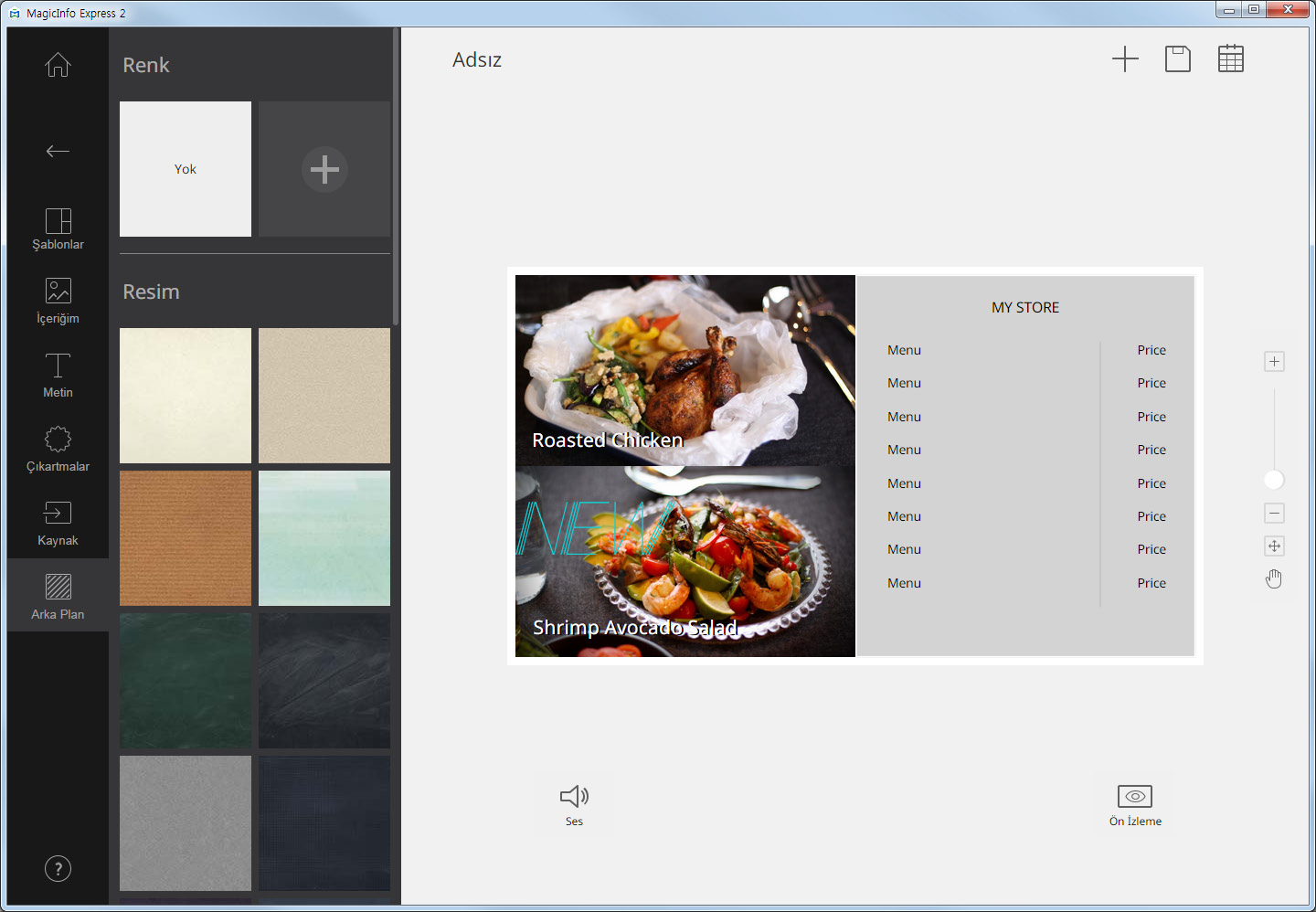
54 Giriş kaynağını değiştirme 1 Düzenleme bölümünden bir giriş kaynağına tıklayın. 2 Giriş kaynağı düzenleme çubuğundan öğesine tıklayın ve başka bir giriş kaynağı seçin. Arka plan ayarları 1 Öğe sekmesinden öğesine tıklayın. 2 Arka plan için bir renge veya desene tıklayın. Arka plan rengini özelleştirmek için öğesine tıklayın. Arka plan renginin nasıl ayarlanacağı konusunda ayrıntılı bilgi için aşağıdakilere bakın: Arka plan rengini ayarlama Arka plan rengi veya deseni uygulamak istemiyorsanız YOK seçeneğine tıklayın. 54
55 Arka plan rengini ayarlama 1 Arka plan sekmesinde öğesine tıklayın. 2 Arka plan rengini özelleştirmek için renk çubuğunu kullanın Oluşturulan renk listesi. Bir renge tıklayın. 2 Oluşturulmakta olan renk. 3 Yeni renk oluşturma. 4 Bir varsayılan renk seçin. 5 Bir renk seçin. Renk seçmek için kaydırma çubuğunu kullanın. 6 Seçili rengin parlaklığını ayarlayın. 7 Seçili rengi arka plan renkleri listesine ekleyin. İçeriği kaydetme İçeriği bilgisayarınıza dosya olarak kaydedin. 1 Ekranın en üstündeki > öğelerine tıklayın. 2 Bir içerik adı girip Kaydet seçeneğine tıklayın. 55
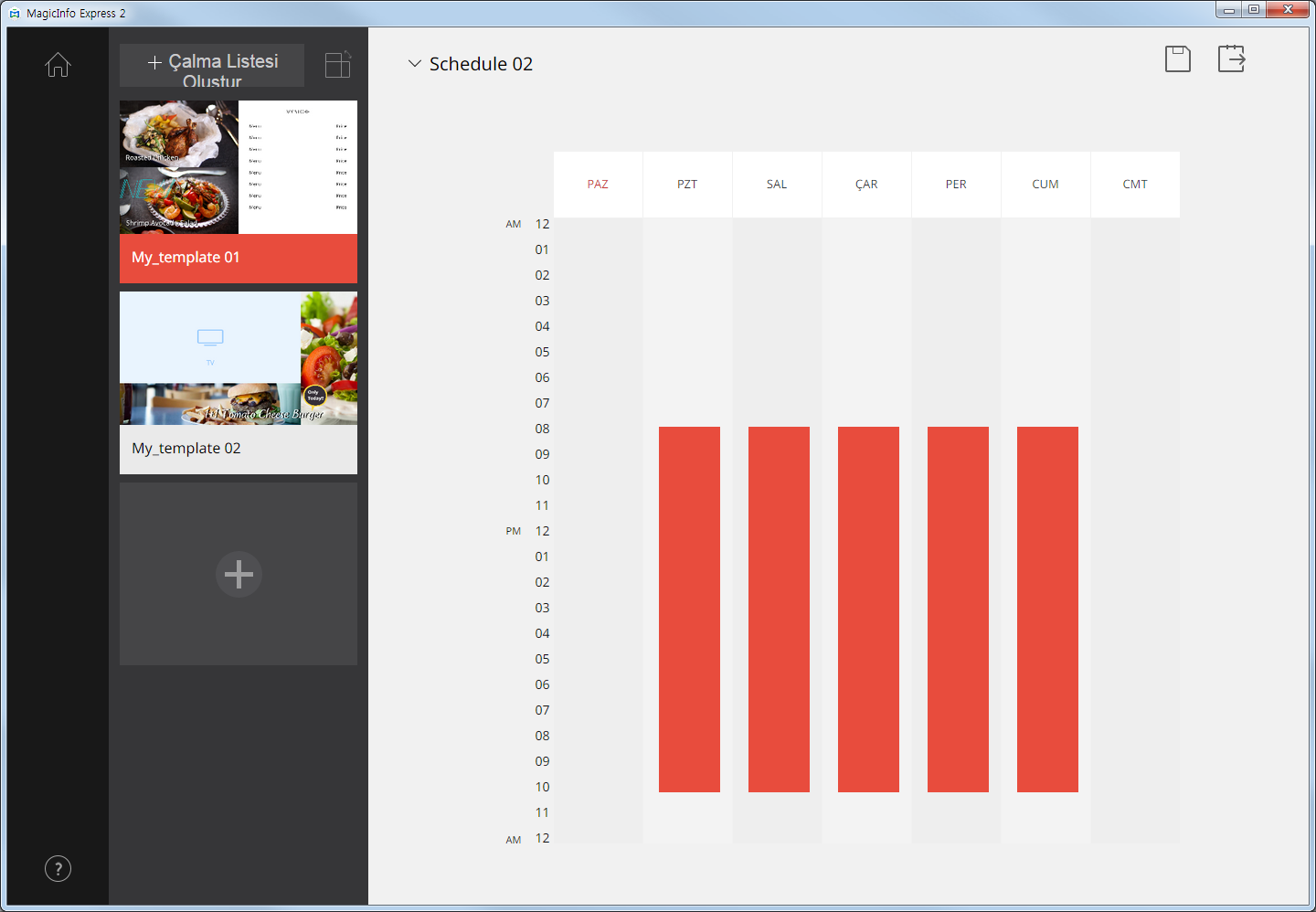
56 Program oluşturma Belirli zamanlarda Samsung görüntüleme aygıtlarında içerik oynatmak için programlar oluşturun. Haftanın her günü için farklı bir saatte oynatmak üzere farklı bir içerik öğesi atayabilirsiniz. İçerik göndermek üzere program oluşturmak için ekranın en üstündeki öğesine tıklayın. < < Not Kaydedilmemiş içerik bulunuyorsa kaydetmeyi doğrulamanızı isteyen bir istem görüntülenir. Programı kaydedin ve bir program oluşturun. Program ayarları sayfası İçerik kaydedildikten sonra program oluşturma ekranı görüntülenir. Oluşturulan son içerik, içerik listesinin en başına eklenir. İçerik otomatik olarak, kayıtlı iş saatlerine uygun şekilde bir programa atanır Birden fazla içeriği belirtilen süre boyunca tekrar tekrar oynatabilecek bir çalma listesi oluşturun. Çalma listesinin nasıl oluşturulacağı konusunda ayrıntılı bilgi için aşağıdakilere bakın: Çalma listesi oluşturma 2 İçerikleri yönüne göre sıralayın veya görüntüleyin. 56
57 3 Programlara eklenebilecek içerik ve çalma listelerinin listesini görüntüleyin. Oluşturulan son içerik, listenin en başına yerleştirilir. İçeriğin ayrıntılarını düzenlemek için içeriğe tıklayın. Çalma listesi düzenleme bölümünü açmak veya kapatmak için bir oynatma listesine tıklayın. Listeyi yönetmek için bir içerik veya çalma listesi küçük resminde öğesine tıklayın. İçeriği veya çalma listesini kopyalayabilir veya silebilirsiniz. 4 Program oluşturma ve içerik ekleme. 5 Bir program seçin. Daha önce saklanan bir programı, içerik veya zaman ayarlarını düzenlemek üzere içeri aktarın. 6 Bir programı bilgisayarınıza kaydedin. 7 8 Bir görüntüleme aygıtına program gönderin. Daha ayrıntılı bilgi için aşağıdakilere bakın: Program gönderme Bu bölümdeki programları düzenleyin. Haftanın her günü için programları düzenleyebilirsiniz. Oluşturulan içerik çalınmak üzere otomatik olarak programlanır. Program yapılandırma Haftanın belirli bir gününde belirli bir saatte içerik veya çalma listesi çalmak üzere bir program oluşturun. 1 İçerik listesinden, bir çalma listesini veya içeriği seçin ve programı düzenleme bölümünde haftanın istediğiniz gününe sürükleyin. İçerik programı seçili güne eklenir. < < Not Her bir program dosyası en fazla 28 içerik programı içerebilir. 57
58 2 Eklenen içerik programına tıklayın ve aşağıdaki işlevleri kullanarak programı düzenleyin: Tıklanan güne atanan programları devre dışı bırakın. Bir günü etkinleştirmek için güne tıklayın veya güne içerik ekleyin. Seçili programa atanan içeriğin oynatılmaya başlanacağı ve oynatmanın sonlandırılacağı saatleri görüntüleyin. Başlangıç veya bitiş saatini değiştirmek için saat listesinden bir saat seçin veya manüel olarak bir saat girin. Seçili programa atanan içeriğin oynatma süresini ayarlayın. Süreyi değiştirmek için programın kenarlıklarını yukarı veya aşağı sürükleyin. Süreyi en fazla 24 saat olarak ayarlayabilirsiniz. Seçili programa atanan içeriği 24 saat durmaksızın oynatılacak şekilde ayarlamak için programa çift tıklayın. Aynı zaman dilimine atanan programların içerik sürelerini eş zamanlı olarak ayarlayın. Süreyi değiştirmek için programın kenarlıklarını yukarı veya aşağı sürükleyin. 5 Seçili içerik programını kopyalayın. 6 Seçili içerik programını silin. 58
59 3 Bir program oluşturduktan sonra, öğesine tıklayın. 4 Program adını girip Kaydet seçeneğine tıklayın. Program kaydedildikten sonra, programı gönderebileceğiniz sonraki adıma yönlendirilirsiniz. Çalma listesi oluşturma Birden fazla içeriği belirtilen süre boyunca tekrar tekrar oynatabilecek bir çalma listesi oluşturun. 1 Ekranın en üstündeki Çalma Listesi Oluştur seçeneğine tıklayın. Programı düzenleme bölümünün altında çalma listesi düzenleme bölümü görüntülenir. 2 İçerik listesinden, bir içeriği seçip çalma listesi düzenleme bölümüne sürükleyin. 59
60 3 Aşağıdaki işlevleri kullanarak çalma listesini düzenleyin: Eklenen içerikleri küçük resim olarak görüntüleyin. Bir içeriğin oynatma sırasını değiştirmek için içeriğe tıklayıp başka bir konuma sürükleyin. İçerik silmek için fare işaretçisini içerik üzerine yerleştirin ve öğesine tıklayın. 2 Her içerik öğesinin süresini ayarlayın. Saat listesinden bir saat seçin veya manüel olarak saat girin. 4 Çalma listesini düzenledikten sonra, çalma listeleri listesinde çalma listesine tıklayın. Çalma listesi düzenleme bölümünü kapatabilirsiniz. 60
61 Program gönderme Bir programı bir Samsung görüntüleme aygıtına veya bir USB aygıtına gönderin. 1 Programın gönderileceği aygıtı seçin ve Gönder seçeneğine tıklayın Görüntüleme aygıtları veya USB aygıtları listesini yenileyin. 2 Aynı ağa bağlı olan Samsung görüntüleme aygıtlarına program gönderin. 3 Bilgisayara bağlı olan USB aygıtlarına program gönderin. Görüntüleme aygıtları veya USB aygıtları listesini görüntüleyin. Manüel olarak eklenen bir görüntüleme aygıtını listeden silmek için öğesine tıklayın. < < Not 4 Bir aygıt adı altında aygıt kapasitesi yerine aygıtın durumu görüntüleniyorsa aşağıdakileri okuyun: Güncelleme Gerekiyor: Bağlantılı aygıtın yazılım sürümü programla uyumlu değildir. Güncelleme doğrulama penceresinde, Şimdi güncelle'yi tıklatın ve Ayarlar menüsünü kullanarak yazılım güncellemesi yapın. Daha ayrıntılı bilgi için aşağıdakilere bakın: Görüntü aygıtı yazılımını güncelleme Desteklenmiyor: Seçili ekran modeli bağlı aygıt için uygun değildir. Ekran modelini uygun modelle değiştirmek için Ayarlar menüsünü kullanın. Daha ayrıntılı bilgi için aşağıdakilere bakın: Ekran modelini değiştirme 61
62 5 Manüel olarak bir görüntüleme aygıtı ekleyin. Daha ayrıntılı bilgi için aşağıdakilere bakın: Görüntüleme aygıtı ekleme 6 Programı seçili aygıtlara gönderin. 2 Program gönderildikten sonra, programı yeniden gönderebilir veya giriş ekranına dönebilirsiniz Programı alamayan veya programın hiç gönderilmediği aygıta programı yeniden gönderin. Bir aygıt seçin ve yeniden gönderme düğmesine tıklayın. 2 Giriş ekranına gidin. Görüntüleme aygıtı ekleme 1 Görüntüleme aygıtları listesinden Signage TV ekle'ye tıklayın. 2 Eklenecek görüntüleme aygıtının IP adresini girin ve öğesine tıklayın. 62
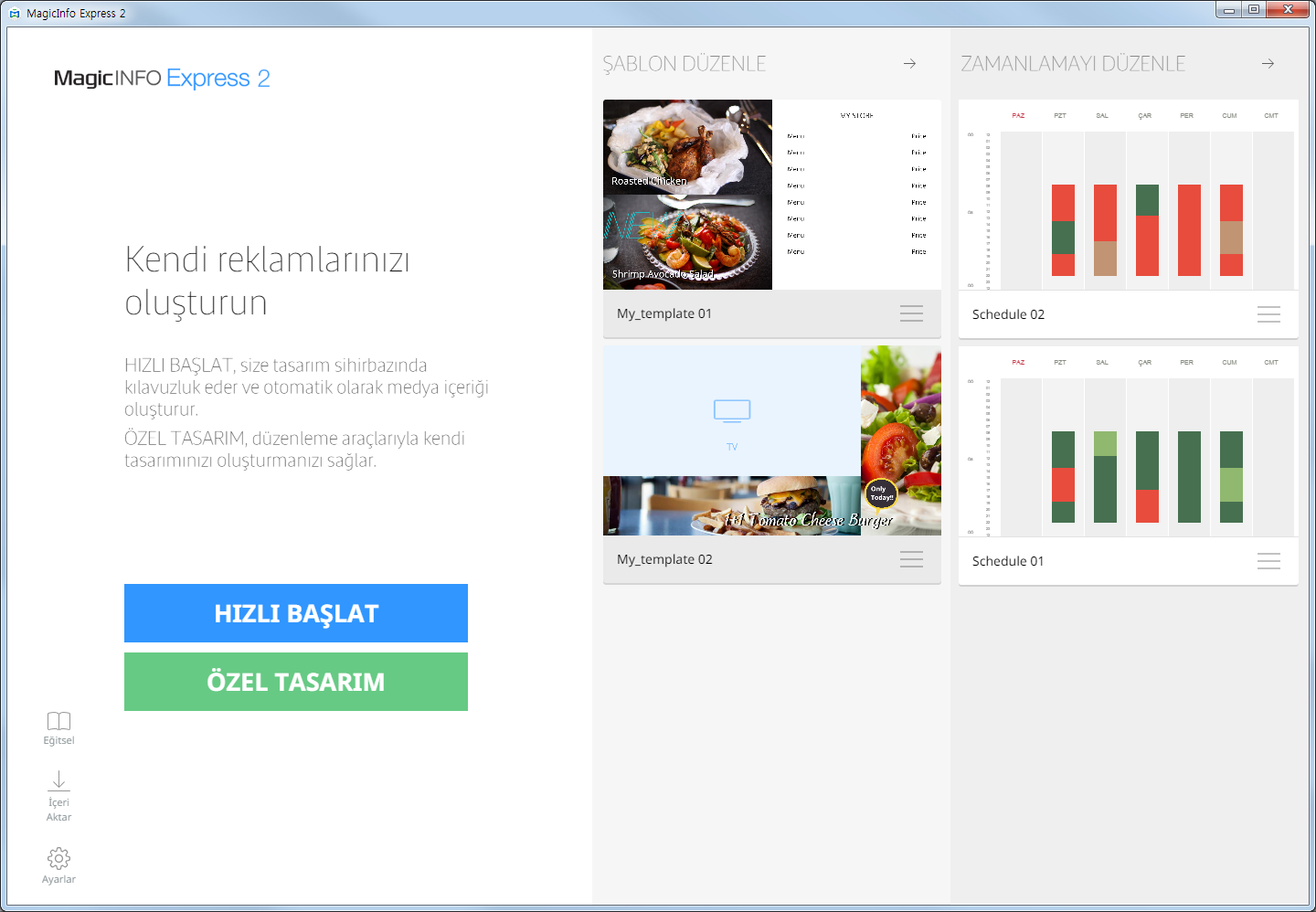
63 İçerik ve programları yönetme Oluşturulan içerik ve programlar giriş ekranında gösterilir. İçerik veya programları düzenleyebilirsiniz. Ayrıca içerik veya programlar listesini de yönetebilirsiniz Özel Tasarım modunu kullanarak gereksinimlerinize göre içerik oluşturun ve organize edin. Daha ayrıntılı bilgi için aşağıdakilere bakın: Özel Tasarım modunu kullanarak içerik oluşturma İçerik göndermek üzere program ekleyin veya düzenleyin. Daha ayrıntılı bilgi için aşağıdakilere bakın: Program oluşturma Eklenen içerik ve programlar listesini görüntüleyin ve düzenleyin. Bir program veya içeriği düzenlemek için program veya içeriğe tıklayın. Listeyi yönetmek için bir içerik veya program öğesinde öğesine tıklayın. İçeriği veya programı kopyalayabilir veya silebilirsiniz. Göndermeyi başaramadığınız veya hiç göndermediğiniz programlar simgesiyle gösterilir. Gerekirse bu programlar da görüntüleme aygıtlarına gönderilebilir. Daha ayrıntılı bilgi için aşağıdakilere bakın: Program gönderme 63
64 MagicInfo Express 2 04 Ek özellikleri kullanma Ayrıntılı MagicInfo Express 2 ayarlarını yapılandırma Zamanlayıcı ve mağaza ayrıntıları gibi ayrıntılı MagicInfo Express 2 ayarlarını yapılandırın. 1 Giriş ekranında öğesine tıklayın. Ayrıntılı ayarlar penceresi görüntülenir. 2 Ayarları istediğiniz şekilde yapılandırın. Ekran modelini değiştirme 1 Ayrıntılı ayarlar penceresinden Model sekmesine tıklayın. Ekran modelleri listesi görüntülenir. 2 Listeden bir ekran modelini tıklatın. Program yenilendikten sonra, ekran modelinin değiştirilmesi tamamlanmamış olur. 64
65 Ek özellikleri kullanma Zamanlayıcıyı ayarlama İçerik oynatacak bir görüntüleme aygıtını açmak ve kapatmak üzere zamanlayıcıyı ayarlayın. Ayrıca aygıt için tatil ayarlarını da yapılandırabilirsiniz. Yapılandırılan ayarları aygıta uygulayın. Açma/kapatma zamanlayıcısını ayarlama < < Not En fazla yedi zamanlayıcı ekleyebilirsiniz. 1 Ayrıntılı ayarlar penceresinden Açma/Kapatma Zamanlayıcısı sekmesine tıklayın. Zamanlayıcılar listelenir. 2 Bir zamanlayıcı seçin. 3 Açılma zamanını ayarlayın, Açma Zamanlayıcı onay kutusunu seçin ve açılma gününü ve saatini ayarlayın. 4 Kapanma zamanını ayarlayın, Kapanma Zamanlayıcı onay kutusunu seçin ve kapanma gününü ve saatini ayarlayın. 5 Zamanlayıcıyı ayarladıktan sonra, Uygula seçeneğine tıklayın. Zamanlayıcı ayarlarını görüntüleme aygıtına uygulayabileceğiniz sonraki adıma yönlendirilirsiniz. Daha ayrıntılı bilgi için aşağıdakilere bakın: Bir zamanlayıcıyı uygulama Tatilleri ayarlama < < Not En fazla 20 tatil ekleyebilirsiniz. 1 Ayrıntılı ayarlar penceresinden Açma/Kapatma Zamanlayıcısı sekmesine tıklayın. Zamanlayıcılar listelenir. 2 Zamanlayıcılar listesinin son satırından Tatil Ekle seçeneğine tıklayın. 3 Tatilin başlangıç ve bitiş tarihlerini girin. Bir tatili silmek için öğesine tıklayın. 4 Zamanlayıcıyı ayarladıktan sonra, Uygula seçeneğine tıklayın. Zamanlayıcı ayarlarını görüntüleme aygıtına uygulayabileceğiniz sonraki adıma yönlendirilirsiniz. Daha ayrıntılı bilgi için aşağıdakilere bakın: Bir zamanlayıcıyı uygulama 65
66 Ek özellikleri kullanma Bir zamanlayıcıyı uygulama 1 Görüntüleme aygıtları listesinden, zamanlayıcı ayarlarının uygulanacağı bir aygıt seçin. Görüntüleme aygıtları listesini yenilemek için öğesine tıklayın. 2 Gönder'e tıklayın. Görüntüleme aygıtını kaydetme 1 Görüntüleme aygıtları listesinden Signage TV ekle'ye tıklayın. 2 Eklenecek görüntüleme aygıtının IP adresini girin ve öğesine tıklayın. Görüntü aygıtı yazılımını güncelleme 1 Ayrıntılı ayarlar penceresinden Yazılım Güncelleme sekmesine tıklayın. Kayıtlı görüntüleme aygıtları listelenir. Görüntüleme aygıtları listesini yenilemek için öğesine tıklayın. 2 Bir görüntüleme aygıtı seçin. Görüntüleme aygıtının sürümü görüntülenir. 3 Güncelle seçeneğine tıklayın. Görüntüleme aygıtını kaydetme 1 Görüntüleme aygıtları listesinden Signage TV ekle'ye tıklayın. 2 Eklenecek görüntüleme aygıtının IP adresini girin ve öğesine tıklayın. 66
67 Ek özellikleri kullanma Mağaza ayarlarını değiştirme 1 Ayrıntılı ayarlar penceresinden Kayıt sekmesine tıklayın. Kayıtlı mağazalar listelenir. 2 Ayrıntılarını değiştirmek istediğiniz mağaza için öğesine tıklayın. Mağazayı silmek için öğesine tıklayın. 3 Görüntülenen yönergeleri izleyerek mağaza ayrıntılarını değiştirin. Mağaza eklerken kullandığınız yöntemi kullanarak ayrıntıları değiştirebilirsiniz. Daha ayrıntılı bilgi için aşağıdakilere bakın: Mağazanızı kaydetme Mağaza ekleme < < Not En fazla on mağaza ekleyebilirsiniz. 1 Mağaza listesinden Mağaza Ekle seçeneğine tıklayın. 2 Görüntülenen yönergeleri izleyerek mağaza ekleyin. Daha ayrıntılı bilgi için aşağıdakilere bakın: Mağazanızı kaydetme Yazı tipi ekleme < < Not Satış noktasında üründe önceden yüklenmiş olarak yer alan varsayılan yazı tipleri dışında yazı tipleri ( Standart Dışı Yazı Tipleri ) yüklenmesi/kullanılması lisans ihlali iddialarına yol açabilir. PC/tablet/mobil aygıt ekranında göründüğü şekilde girilen herhangi bir yazı tipi, Samsung Smart Signage ekranında görüntülenen yazı tipinden farklı görünebilir. Samsung, Standart Dışı Yazı Tipi yüklenmesi/ kullanılmasıyla ilgili olarak üçüncü taraflarca ileri sürülen iddialar için sorumlu tutulamaz ve Samsung tarafından verilen garantiler Standart Dışı Yazı Tipi yüklenmesi/kullanımı durumunda uygulanmaz. 1 Ayrıntılı ayarlar penceresinden Yazı Tipi sekmesine tıklayın. 2 Yazı tipi eklemek için Yazı Tipi Ekle seçeneğine tıklayın. 3 Bir yazı tipi dosyası seçin ve Aç'a tıklayın. 4 Doğrulama penceresinde Tamam seçeneğine tıklayın. Program yenilendikten sonra, yazı tipi eklenmesi tamamlanmamış olur. 67
68 Ek özellikleri kullanma Hedef klasörü ayarlama 1 Ayrıntılı ayarlar penceresinden Depolama Konumu sekmesine tıklayın. 2 Kaydetme konumunu değiştirmek için, Depolama Konumunu Değiştir'i tıklatın. Hedef klasörü sıfırlamak için Varsayılan Program seçeneğine tıklayın. 3 Hedef klasörü değiştirin ve Tamam'a tıklayın. Yazılım ayrıntılarını görüntüleme Ayrıntılı ayarlar penceresinden Yazılım Hakkında sekmesine tıklayın. Mevcut yazılım sürümünün ve açık kaynak lisansının ayrıntılarını görüntüleyebilirsiniz. Eğitsel videoyu görüntüleme MagicInfo Express 2 yazılımını nasıl kullanacağınızı öğrenmek için görüntülü eğitseli kullanın. 1 Giriş ekranında öğesine tıklayın. 2 Yazılımın nasıl kullanılacağını öğrenmek için belirli bir adıma ait videoya tıklayın. 68
69 MagicInfo Express 2 05 Open Source Announcement Windows To send inquiries and requests for questions regarding open sources, contact Samsung via ([email protected]). This product uses some software programs which are distributed under the LGPL. LGPL software: FFmpeg, VIPS, WebChimera GNU LESSER GENERAL PUBLIC LICENSE Version 2.1, February 1999 Copyright (C) 1991, 1999 Free Software Foundation, Inc. 51 Franklin Street, Fifth Floor, Boston, MA USA Everyone is permitted to copy and distribute verbatim copies of this license document, but changing it is not allowed. [This is the first released version of the Lesser GPL. It also counts as the successor of the GNU Library Public License, version 2, hence the version number 2.1.] Preamble The licenses for most software are designed to take away your freedom to share and change it. By contrast, the GNU General Public Licenses are intended to guarantee your freedom to share and change free software--to make sure the software is free for all its users. This license, the Lesser General Public License, applies to some specially designated software packages--typically libraries--of the Free Software Foundation and other authors who decide to use it. You can use it too, but we suggest you first think carefully about whether this license or the ordinary General Public License is the better strategy to use in any particular case, based on the explanations below. 69
70 Open Source Announcement When we speak of free software, we are referring to freedom of use, not price. Our General Public Licenses are designed to make sure that you have the freedom to distribute copies of free software (and charge for this service if you wish); that you receive source code or can get it if you want it; that you can change the software and use pieces of it in new free programs; and that you are informed that you can do these things. To protect your rights, we need to make restrictions that forbid distributors to deny you these rights or to ask you to surrender these rights. These restrictions translate to certain responsibilities for you if you distribute copies of the library or if you modify it. For example, if you distribute copies of the library, whether gratis or for a fee, you must give the recipients all the rights that we gave you. You must make sure that they, too, receive or can get the source code. If you link other code with the library, you must provide complete object files to the recipients, so that they can relink them with the library after making changes to the library and recompiling it. And you must show them these terms so they know their rights. We protect your rights with a two-step method: (1) we copyright the library, and (2) we offer you this license, which gives you legal permission to copy, distribute and/or modify the library. To protect each distributor, we want to make it very clear that there is no warranty for the free library. Also, if the library is modified by someone else and passed on, the recipients should know that what they have is not the original version, so that the original author's reputation will not be affected by problems that might be introduced by others. Finally, software patents pose a constant threat to the existence of any free program. We wish to make sure that a company cannot effectively restrict the users of a free program by obtaining a restrictive license from a patent holder. Therefore, we insist that any patent license obtained for a version of the library must be consistent with the full freedom of use specified in this license. Most GNU software, including some libraries, is covered by the ordinary GNU General Public License. This license, the GNU Lesser General Public License, applies to certain designated libraries, and is quite different from the ordinary General Public License. We use this license for certain libraries in order to permit linking those libraries into non-free programs. When a program is linked with a library, whether statically or using a shared library, the combination of the two is legally speaking a combined work, a derivative of the original library. The ordinary General Public License therefore permits such linking only if the entire combination fits its criteria of freedom. The Lesser General Public License permits more lax criteria for linking other code with the library. We call this license the Lesser General Public License because it does Less to protect the user's freedom than the ordinary General Public License. It also provides other free software developers Less of an advantage over competing non-free programs. These disadvantages are the reason we use the ordinary General Public License for many libraries. However, the Lesser license provides advantages in certain special circumstances. For example, on rare occasions, there may be a special need to encourage the widest possible use of a certain library, so that it becomes a de-facto standard. To achieve this, non-free programs must be allowed to use the library. A more frequent case is that a free library does the same job as widely used non-free libraries. In this case, there is little to gain by limiting the free library to free software only, so we use the Lesser General Public License. 70
71 Open Source Announcement In other cases, permission to use a particular library in non-free programs enables a greater number of people to use a large body of free software. For example, permission to use the GNU C Library in non-free programs enables many more people to use the whole GNU operating system, as well as its variant, the GNU/Linux operating system. Although the Lesser General Public License is Less protective of the users freedom, it does ensure that the user of a program that is linked with the Library has the freedom and the wherewithal to run that program using a modified version of the Library. The precise terms and conditions for copying, distribution and modification follow. Pay close attention to the difference between a work based on the library and a work that uses the library. The former contains code derived from the library, whereas the latter must be combined with the library in order to run. TERMS AND CONDITIONS FOR COPYING, DISTRIBUTION AND MODIFICATION 0) This License Agreement applies to any software library or other program which contains a notice placed by the copyright holder or other authorized party saying it may be distributed under the terms of this Lesser General Public License (also called this License ). Each licensee is addressed as you. A library means a collection of software functions and/or data prepared so as to be conveniently linked with application programs (which use some of those functions and data) to form executables. The Library, below, refers to any such software library or work which has been distributed under these terms. A work based on the Library means either the Library or any derivative work under copyright law: that is to say, a work containing the Library or a portion of it, either verbatim or with modifications and/or translated straightforwardly into another language. (Hereinafter, translation is included without limitation in the term modification.) Source code for a work means the preferred form of the work for making modifications to it. For a library, complete source code means all the source code for all modules it contains, plus any associated interface definition files, plus the scripts used to control compilation and installation of the library. Activities other than copying, distribution and modification are not covered by this License; they are outside its scope. The act of running a program using the Library is not restricted, and output from such a program is covered only if its contents constitute a work based on the Library (independent of the use of the Library in a tool for writing it). Whether that is true depends on what the Library does and what the program that uses the Library does. 1) You may copy and distribute verbatim copies of the Library s complete source code as you receive it, in any medium, provided that you conspicuously and appropriately publish on each copy an appropriate copyright notice and disclaimer of warranty; keep intact all the notices that refer to this License and to the absence of any warranty; and distribute a copy of this License along with the Library. You may charge a fee for the physical act of transferring a copy, and you may at your option offer warranty protection in exchange for a fee. 71
72 Open Source Announcement 2) You may modify your copy or copies of the Library or any portion of it, thus forming a work based on the Library, and copy and distribute such modifications or work under the terms of Section 1 above, provided that you also meet all of these conditions: a) The modified work must itself be a software library. b) You must cause the files modified to carry prominent notices stating that you changed the files and the date of any change. c) You must cause the whole of the work to be licensed at no charge to all third parties under the terms of this License. d) If a facility in the modified Library refers to a function or a table of data to be supplied by an application program that uses the facility, other than as an argument passed when the facility is invoked, then you must make a good faith effort to ensure that, in the event an application does not supply such function or table, the facility still operates, and performs whatever part of its purpose remains meaningful. (For example, a function in a library to compute square roots has a purpose that is entirely well-defined independent of the application. Therefore, Subsection 2d requires that any application-supplied function or table used by this function must be optional: if the application does not supply it, the square root function must still compute square roots.) These requirements apply to the modified work as a whole. If identifiable sections of that work are not derived from the Library, and can be reasonably considered independent and separate works in themselves, then this License, and its terms, do not apply to those sections when you distribute them as separate works. But when you distribute the same sections as part of a whole which is a work based on the Library, the distribution of the whole must be on the terms of this License, whose permissions for other licensees extend to the entire whole, and thus to each and every part regardless of who wrote it. Thus, it is not the intent of this section to claim rights or contest your rights to work written entirely by you; rather, the intent is to exercise the right to control the distribution of derivative or collective works based on the Library. In addition, mere aggregation of another work not based on the Library with the Library (or with a work based on the Library) on a volume of a storage or distribution medium does not bring the other work under the scope of this License. 3) You may opt to apply the terms of the ordinary GNU General Public License instead of this License to a given copy of the Library. To do this, you must alter all the notices that refer to this License, so that they refer to the ordinary GNU General Public License, version 2, instead of to this License. (If a newer version than version 2 of the ordinary GNU General Public License has appeared, then you can specify that version instead if you wish.) Do not make any other change in these notices. Once this change is made in a given copy, it is irreversible for that copy, so the ordinary GNU General Public License applies to all subsequent copies and derivative works made from that copy. This option is useful when you wish to copy part of the code of the Library into a program that is not a library. 4) You may copy and distribute the Library (or a portion or derivative of it, under Section 2) in object code or executable form under the terms of Sections 1 and 2 above provided that you accompany it with the complete corresponding machinereadable source code, which must be distributed under the terms of Sections 1 and 2 above on a medium customarily used for software interchange. If distribution of object code is made by offering access to copy from a designated place, then offering equivalent access to copy the source code from the same place satisfies the requirement to distribute the source code, even though third parties are not compelled to copy the source along with the object code. 72
73 Open Source Announcement 5) A program that contains no derivative of any portion of the Library, but is designed to work with the Library by being compiled or linked with it, is called a work that uses the Library. Such a work, in isolation, is not a derivative work of the Library, and therefore falls outside the scope of this License. However, linking a work that uses the Library with the Library creates an executable that is a derivative of the Library (because it contains portions of the Library), rather than a work that uses the library. The executable is therefore covered by this License. Section 6 states terms for distribution of such executables. When a work that uses the Library uses material from a header file that is part of the Library, the object code for the work may be a derivative work of the Library even though the source code is not. Whether this is true is especially significant if the work can be linked without the Library, or if the work is itself a library. The threshold for this to be true is not precisely defined by law. If such an object file uses only numerical parameters, data structure layouts and accessors, and small macros and small inline functions (ten lines or less in length), then the use of the object file is unrestricted, regardless of whether it is legally a derivative work. (Executables containing this object code plus portions of the Library will still fall under Section 6.) Otherwise, if the work is a derivative of the Library, you may distribute the object code for the work under the terms of Section 6. Any executables containing that work also fall under Section 6, whether or not they are linked directly with the Library itself. 6) As an exception to the Sections above, you may also combine or link a work that uses the Library with the Library to produce a work containing portions of the Library, and distribute that work under terms of your choice, provided that the terms permit modification of the work for the customer s own use and reverse engineering for debugging such modifications. You must give prominent notice with each copy of the work that the Library is used in it and that the Library and its use are covered by this License. You must supply a copy of this License. If the work during execution displays copyright notices, you must include the copyright notice for the Library among them, as well as a reference directing the user to the copy of this License. Also, you must do one of these things: a) Accompany the work with the complete corresponding machine-readable source code for the Library including whatever changes were used in the work (which must be distributed under Sections 1 and 2 above); and, if the work is an executable linked with the Library, with the complete machine-readable work that uses the Library, as object code and/or source code, so that the user can modify the Library and then relink to produce a modified executable containing the modified Library. (It is understood that the user who changes the contents of definitions files in the Library will not necessarily be able to recompile the application to use the modified definitions.) b) Use a suitable shared library mechanism for linking with the Library. A suitable mechanism is one that (1) uses at run time a copy of the library already present on the user s computer system, rather than copying library functions into the executable, and (2) will operate properly with a modified version of the library, if the user installs one, as long as the modified version is interface-compatible with the version that the work was made with. c) Accompany the work with a written offer, valid for at least three years, to give the same user the materials specified in Subsection 6a, above, for a charge no more than the cost of performing this distribution. d) If distribution of the work is made by offering access to copy from a designated place, offer equivalent access to copy the above specified materials from the same place. 73
74 Open Source Announcement e) Verify that the user has already received a copy of these materials or that you have already sent this user a copy. For an executable, the required form of the work that uses the Library must include any data and utility programs needed for reproducing the executable from it. However, as a special exception, the materials to be distributed need not include anything that is normally distributed (in either source or binary form) with the major components (compiler, kernel, and so on) of the operating system on which the executable runs, unless that component itself accompanies the executable. It may happen that this requirement contradicts the license restrictions of other proprietary libraries that do not normally accompany the operating system. Such a contradiction means you cannot use both them and the Library together in an executable that you distribute. 7) You may place library facilities that are a work based on the Library side-by-side in a single library together with other library facilities not covered by this License, and distribute such a combined library, provided that the separate distribution of the work based on the Library and of the other library facilities is otherwise permitted, and provided that you do these two things: a) Accompany the combined library with a copy of the same work based on the Library, uncombined with any other library facilities. This must be distributed under the terms of the Sections above. b) Give prominent notice with the combined library of the fact that part of it is a work based on the Library, and explaining where to find the accompanying uncombined form of the same work. 8) You may not copy, modify, sublicense, link with, or distribute the Library except as expressly provided under this License. Any attempt otherwise to copy, modify, sublicense, link with, or distribute the Library is void, and will automatically terminate your rights under this License. However, parties who have received copies, or rights, from you under this License will not have their licenses terminated so long as such parties remain in full compliance. 9) You are not required to accept this License, since you have not signed it. However, nothing else grants you permission to modify or distribute the Library or its derivative works. These actions are prohibited by law if you do not accept this License. Therefore, by modifying or distributing the Library (or any work based on the Library), you indicate your acceptance of this License to do so, and all its terms and conditions for copying, distributing or modifying the Library or works based on it. 10) Each time you redistribute the Library (or any work based on the Library), the recipient automatically receives a license from the original licensor to copy, distribute, link with or modify the Library subject to these terms and conditions. You may not impose any further restrictions on the recipients exercise of the rights granted herein. You are not responsible for enforcing compliance by third parties with this License. 74
75 Open Source Announcement 11) If, as a consequence of a court judgment or allegation of patent infringement or for any other reason (not limited to patent issues), conditions are imposed on you (whether by court order, agreement or otherwise) that contradict the conditions of this License, they do not excuse you from the conditions of this License. If you cannot distribute so as to satisfy simultaneously your obligations under this License and any other pertinent obligations, then as a consequence you may not distribute the Library at all. For example, if a patent license would not permit royalty-free redistribution of the Library by all those who receive copies directly or indirectly through you, then the only way you could satisfy both it and this License would be to refrain entirely from distribution of the Library. If any portion of this section is held invalid or unenforceable under any particular circumstance, the balance of the section is intended to apply, and the section as a whole is intended to apply in other circumstances. It is not the purpose of this section to induce you to infringe any patents or other property right claims or to contest validity of any such claims; this section has the sole purpose of protecting the integrity of the free software distribution system which is implemented by public license practices. Many people have made generous contributions to the wide range of software distributed through that system in reliance on consistent application of that system; it is up to the author/donor to decide if he or she is willing to distribute software through any other system and a licensee cannot impose that choice. This section is intended to make thoroughly clear what is believed to be a consequence of the rest of this License. 12) If the distribution and/or use of the Library is restricted in certain countries either by patents or by copyrighted interfaces, the original copyright holder who places the Library under this License may add an explicit geographical distribution limitation excluding those countries, so that distribution is permitted only in or among countries not thus excluded. In such case, this License incorporates the limitation as if written in the body of this License. 13) The Free Software Foundation may publish revised and/or new versions of the Lesser General Public License from time to time. Such new versions will be similar in spirit to the present version, but may differ in detail to address new problems or concerns. Each version is given a distinguishing version number. If the Library specifies a version number of this License which applies to it and any later version, you have the option of following the terms and conditions either of that version or of any later version published by the Free Software Foundation. If the Library does not specify a license version number, you may choose any version ever published by the Free Software Foundation. 14) If you wish to incorporate parts of the Library into other free programs whose distribution conditions are incompatible with these, write to the author to ask for permission. For software which is copyrighted by the Free Software Foundation, write to the Free Software Foundation; we sometimes make exceptions for this. Our decision will be guided by the two goals of preserving the free status of all derivatives of our free software and of promoting the sharing and reuse of software generally. 75
76 Open Source Announcement NO WARRANTY 15) BECAUSE THE LIBRARY IS LICENSED FREE OF CHARGE, THERE IS NO WARRANTY FOR THE LIBRARY, TO THE EXTENT PERMITTED BY APPLICABLE LAW. EXCEPT WHEN OTHERWISE STATED IN WRITING THE COPYRIGHT HOLDERS AND/OR OTHER PARTIES PROVIDE THE LIBRARY AS IS WITHOUT WARRANTY OF ANY KIND, EITHER EXPRESSED OR IMPLIED, INCLUDING, BUT NOT LIMITED TO, THE IMPLIED WARRANTIES OF MERCHANTABILITY AND FITNESS FOR A PARTICULAR PURPOSE. THE ENTIRE RISK AS TO THE QUALITY AND PERFORMANCE OF THE LIBRARY IS WITH YOU. SHOULD THE LIBRARY PROVE DEFECTIVE, YOU ASSUME THE COST OF ALL NECESSARY SERVICING, REPAIR OR CORRECTION. 16) IN NO EVENT UNLESS REQUIRED BY APPLICABLE LAW OR AGREED TO IN WRITING WILL ANY COPYRIGHT HOLDER, OR ANY OTHER PARTY WHO MAY MODIFY AND/OR REDISTRIBUTE THE LIBRARY AS PERMITTED ABOVE, BE LIABLE TO YOU FOR DAMAGES, INCLUDING ANY GENERAL, SPECIAL, INCIDENTAL OR CONSEQUENTIAL DAMAGES ARISING OUT OF THE USE OR INABILITY TO USE THE LIBRARY (INCLUDING BUT NOT LIMITED TO LOSS OF DATA OR DATA BEING RENDERED INACCURATE OR LOSSES SUSTAINED BY YOU OR THIRD PARTIES OR A FAILURE OF THE LIBRARY TO OPERATE WITH ANY OTHER SOFTWARE), EVEN IF SUCH HOLDER OR OTHER PARTY HAS BEEN ADVISED OF THE POSSIBILITY OF SUCH DAMAGES. END OF TERMS AND CONDITIONS How to Apply These Terms to Your New Libraries If you develop a new library, and you want it to be of the greatest possible use to the public, we recommend making it free software that everyone can redistribute and change. You can do so by permitting redistribution under these terms (or, alternatively, under the terms of the ordinary General Public License). To apply these terms, attach the following notices to the library. It is safest to attach them to the start of each source file to most effectively convey the exclusion of warranty; and each file should have at least the copyright line and a pointer to where the full notice is found. one line to give the library s name and an idea of what it does. Copyright (C) year name of author This library is free software; you can redistribute it and/or modify it under the terms of the GNU Lesser General Public License as published by the Free Software Foundation; either version 2.1 of the License, or (at your option) any later version. This library is distributed in the hope that it will be useful, but WITHOUT ANY WARRANTY; without even the implied warranty of MERCHANTABILITY or FITNESS FOR A PARTICULAR PURPOSE. See the GNU Lesser General Public License for more details. You should have received a copy of the GNU Lesser General Public License along with this library; if not, write to the Free Software Foundation, Inc., 51 Franklin Street, Fifth Floor, Boston, MA USA. 76
77 Open Source Announcement Also add information on how to contact you by electronic and paper mail. You should also get your employer (if you work as a programmer) or your school, if any, to sign a copyright disclaimer for the library, if necessary. Here is a sample; alter the names: Yoyodyne, Inc., hereby disclaims all copyright interest in the library Frob (a library for tweaking knobs) written by James Random Hacker. Signature of Ty Coon, 1 April 1990 Ty Coon, President of Vice That s all there is to it! Apache License, Version 2.0 Foundation Projects People Get Involved Download Support Apache Home» Licenses Apache License Version 2.0, January TERMS AND CONDITIONS FOR USE, REPRODUCTION, AND DISTRIBUTION 1. Definitions. "License" shall mean the terms and conditions for use, reproduction, and distribution as defined by Sections 1 through 9 of this document. "Licensor" shall mean the copyright owner or entity authorized by the copyright owner that is granting the License. "Legal Entity" shall mean the union of the acting entity and all other entities that control, are controlled by, or are under common control with that entity. For the purposes of this definition, "control" means (i) the power, direct or indirect, to cause the direction or management of such entity, whether by contract or otherwise, or (ii) ownership of fifty percent (50%) or more of the outstanding shares, or (iii) beneficial ownership of such entity. "You" (or "Your") shall mean an individual or Legal Entity exercising permissions granted by this License. "Source" form shall mean the preferred form for making modifications, including but not limited to software source code, documentation source, and configuration files. 77
78 Open Source Announcement "Object" form shall mean any form resulting from mechanical transformation or translation of a Source form, including but not limited to compiled object code, generated documentation, and conversions to other media types. "Work" shall mean the work of authorship, whether in Source or Object form, made available under the License, as indicated by a copyright notice that is included in or attached to the work (an example is provided in the Appendix below). "Derivative Works" shall mean any work, whether in Source or Object form, that is based on (or derived from) the Work and for which the editorial revisions, annotations, elaborations, or other modifications represent, as a whole, an original work of authorship. For the purposes of this License, Derivative Works shall not include works that remain separable from, or merely link (or bind by name) to the interfaces of, the Work and Derivative Works thereof. "Contribution" shall mean any work of authorship, including the original version of the Work and any modifications or additions to that Work or Derivative Works thereof, that is intentionally submitted to Licensor for inclusion in the Work by the copyright owner or by an individual or Legal Entity authorized to submit on behalf of the copyright owner. For the purposes of this definition, "submitted" means any form of electronic, verbal, or written communication sent to the Licensor or its representatives, including but not limited to communication on electronic mailing lists, source code control systems, and issue tracking systems that are managed by, or on behalf of, the Licensor for the purpose of discussing and improving the Work, but excluding communication that is conspicuously marked or otherwise designated in writing by the copyright owner as "Not a Contribution." "Contributor" shall mean Licensor and any individual or Legal Entity on behalf of whom a Contribution has been received by Licensor and subsequently incorporated within the Work. 2. Grant of Copyright License. Subject to the terms and conditions of this License, each Contributor hereby grants to You a perpetual, worldwide, non-exclusive, no-charge, royalty-free, irrevocable copyright license to reproduce, prepare Derivative Works of, publicly display, publicly perform, sublicense, and distribute the Work and such Derivative Works in Source or Object form. 3. Grant of Patent License. Subject to the terms and conditions of this License, each Contributor hereby grants to You a perpetual, worldwide, non-exclusive, no-charge, royalty-free, irrevocable (except as stated in this section) patent license to make, have made, use, offer to sell, sell, import, and otherwise transfer the Work, where such license applies only to those patent claims licensable by such Contributor that are necessarily infringed by their Contribution(s) alone or by combination of their Contribution(s) with the Work to which such Contribution(s) was submitted. If You institute patent litigation against any entity (including a cross-claim or counterclaim in a lawsuit) alleging that the Work or a Contribution incorporated within the Work constitutes direct or contributory patent infringement, then any patent licenses granted to You under this License for that Work shall terminate as of the date such litigation is filed. 78
79 Open Source Announcement 4. Redistribution. You may reproduce and distribute copies of the Work or Derivative Works thereof in any medium, with or without modifications, and in Source or Object form, provided that You meet the following conditions: You must give any other recipients of the Work or Derivative Works a copy of this License; and You must cause any modified files to carry prominent notices stating that You changed the files; and You must retain, in the Source form of any Derivative Works that You distribute, all copyright, patent, trademark, and attribution notices from the Source form of the Work, excluding those notices that do not pertain to any part of the Derivative Works; and If the Work includes a "NOTICE" text file as part of its distribution, then any Derivative Works that You distribute must include a readable copy of the attribution notices contained within such NOTICE file, excluding those notices that do not pertain to any part of the Derivative Works, in at least one of the following places: within a NOTICE text file distributed as part of the Derivative Works; within the Source form or documentation, if provided along with the Derivative Works; or, within a display generated by the Derivative Works, if and wherever such third-party notices normally appear. The contents of the NOTICE file are for informational purposes only and do not modify the License. You may add Your own attribution notices within Derivative Works that You distribute, alongside or as an addendum to the NOTICE text from the Work, provided that such additional attribution notices cannot be construed as modifying the License. You may add Your own copyright statement to Your modifications and may provide additional or different license terms and conditions for use, reproduction, or distribution of Your modifications, or for any such Derivative Works as a whole, provided Your use, reproduction, and distribution of the Work otherwise complies with the conditions stated in this License. 5. Submission of Contributions. Unless You explicitly state otherwise, any Contribution intentionally submitted for inclusion in the Work by You to the Licensor shall be under the terms and conditions of this License, without any additional terms or conditions. Notwithstanding the above, nothing herein shall supersede or modify the terms of any separate license agreement you may have executed with Licensor regarding such Contributions. 6. Trademarks. This License does not grant permission to use the trade names, trademarks, service marks, or product names of the Licensor, except as required for reasonable and customary use in describing the origin of the Work and reproducing the content of the NOTICE file. 7. Disclaimer of Warranty. Unless required by applicable law or agreed to in writing, Licensor provides the Work (and each Contributor provides its Contributions) on an "AS IS" BASIS, WITHOUT WARRANTIES OR CONDITIONS OF ANY KIND, either express or implied, including, without limitation, any warranties or conditions of TITLE, NON-INFRINGEMENT, MERCHANTABILITY, or FITNESS FOR A PARTICULAR PURPOSE. You are solely responsible for determining the appropriateness of using or redistributing the Work and assume any risks associated with Your exercise of permissions under this License. 79
80 Open Source Announcement 8. Limitation of Liability. In no event and under no legal theory, whether in tort (including negligence), contract, or otherwise, unless required by applicable law (such as deliberate and grossly negligent acts) or agreed to in writing, shall any Contributor be liable to You for damages, including any direct, indirect, special, incidental, or consequential damages of any character arising as a result of this License or out of the use or inability to use the Work (including but not limited to damages for loss of goodwill, work stoppage, computer failure or malfunction, or any and all other commercial damages or losses), even if such Contributor has been advised of the possibility of such damages. 9. Accepting Warranty or Additional Liability. While redistributing the Work or Derivative Works thereof, You may choose to offer, and charge a fee for, acceptance of support, warranty, indemnity, or other liability obligations and/or rights consistent with this License. However, in accepting such obligations, You may act only on Your own behalf and on Your sole responsibility, not on behalf of any other Contributor, and only if You agree to indemnify, defend, and hold each Contributor harmless for any liability incurred by, or claims asserted against, such Contributor by reason of your accepting any such warranty or additional liability. END OF TERMS AND CONDITIONS APPENDIX: How to apply the Apache License to your work To apply the Apache License to your work, attach the following boilerplate notice, with the fields enclosed by brackets "[]" replaced with your own identifying information. (Don't include the brackets!) The text should be enclosed in the appropriate comment syntax for the file format. We also recommend that a file or class name and description of purpose be included on the same "printed page" as the copyright notice for easier identification within third-party archives. Copyright [yyyy] [name of copyright owner] Licensed under the Apache License, Version 2.0 (the "License"); you may not use this file except in compliance with the License. You may obtain a copy of the License at Unless required by applicable law or agreed to in writing, software distributed under the License is distributed on an "AS IS" BASIS, WITHOUT WARRANTIES OR CONDITIONS OF ANY KIND, either express or implied. See the License for the specific language governing permissions and limitations under the License. 80
81 Open Source Announcement Mac To send inquiries and requests for questions regarding open sources, contact Samsung via This product uses some software programs which are distributed under the LGPL. LGPL software: FFmpeg, VIPS, WebChimera GNU LESSER GENERAL PUBLIC LICENSE Version 2.1, February 1999 Copyright (C) 1991, 1999 Free Software Foundation, Inc. 51 Franklin Street, Fifth Floor, Boston, MA USA Everyone is permitted to copy and distribute verbatim copies of this license document, but changing it is not allowed. [This is the first released version of the Lesser GPL. It also counts as the successor of the GNU Library Public License, version 2, hence the version number 2.1.] Preamble The licenses for most software are designed to take away your freedom to share and change it. By contrast, the GNU General Public Licenses are intended to guarantee your freedom to share and change free software--to make sure the software is free for all its users. This license, the Lesser General Public License, applies to some specially designated software packages--typically libraries--of the Free Software Foundation and other authors who decide to use it. You can use it too, but we suggest you first think carefully about whether this license or the ordinary General Public License is the better strategy to use in any particular case, based on the explanations below. When we speak of free software, we are referring to freedom of use, not price. Our General Public Licenses are designed to make sure that you have the freedom to distribute copies of free software (and charge for this service if you wish); that you receive source code or can get it if you want it; that you can change the software and use pieces of it in new free programs; and that you are informed that you can do these things. To protect your rights, we need to make restrictions that forbid distributors to deny you these rights or to ask you to surrender these rights. These restrictions translate to certain responsibilities for you if you distribute copies of the library or if you modify it. For example, if you distribute copies of the library, whether gratis or for a fee, you must give the recipients all the rights that we gave you. You must make sure that they, too, receive or can get the source code. 81
82 Open Source Announcement If you link other code with the library, you must provide complete object files to the recipients, so that they can relink them with the library after making changes to the library and recompiling it. And you must show them these terms so they know their rights. We protect your rights with a two-step method: (1) we copyright the library, and (2) we offer you this license, which gives you legal permission to copy, distribute and/or modify the library. To protect each distributor, we want to make it very clear that there is no warranty for the free library. Also, if the library is modified by someone else and passed on, the recipients should know that what they have is not the original version, so that the original author's reputation will not be affected by problems that might be introduced by others. Finally, software patents pose a constant threat to the existence of any free program. We wish to make sure that a company cannot effectively restrict the users of a free program by obtaining a restrictive license from a patent holder. Therefore, we insist that any patent license obtained for a version of the library must be consistent with the full freedom of use specified in this license. Most GNU software, including some libraries, is covered by the ordinary GNU General Public License. This license, the GNU Lesser General Public License, applies to certain designated libraries, and is quite different from the ordinary General Public License. We use this license for certain libraries in order to permit linking those libraries into non-free programs. When a program is linked with a library, whether statically or using a shared library, the combination of the two is legally speaking a combined work, a derivative of the original library. The ordinary General Public License therefore permits such linking only if the entire combination fits its criteria of freedom. The Lesser General Public License permits more lax criteria for linking other code with the library. We call this license the Lesser General Public License because it does Less to protect the user's freedom than the ordinary General Public License. It also provides other free software developers Less of an advantage over competing non-free programs. These disadvantages are the reason we use the ordinary General Public License for many libraries. However, the Lesser license provides advantages in certain special circumstances. For example, on rare occasions, there may be a special need to encourage the widest possible use of a certain library, so that it becomes a de-facto standard. To achieve this, non-free programs must be allowed to use the library. A more frequent case is that a free library does the same job as widely used non-free libraries. In this case, there is little to gain by limiting the free library to free software only, so we use the Lesser General Public License. In other cases, permission to use a particular library in non-free programs enables a greater number of people to use a large body of free software. For example, permission to use the GNU C Library in non-free programs enables many more people to use the whole GNU operating system, as well as its variant, the GNU/Linux operating system. Although the Lesser General Public License is Less protective of the users freedom, it does ensure that the user of a program that is linked with the Library has the freedom and the wherewithal to run that program using a modified version of the Library. The precise terms and conditions for copying, distribution and modification follow. Pay close attention to the difference between a work based on the library and a work that uses the library. The former contains code derived from the library, whereas the latter must be combined with the library in order to run. 82
83 Open Source Announcement TERMS AND CONDITIONS FOR COPYING, DISTRIBUTION AND MODIFICATION 0) This License Agreement applies to any software library or other program which contains a notice placed by the copyright holder or other authorized party saying it may be distributed under the terms of this Lesser General Public License (also called this License ). Each licensee is addressed as you. A library means a collection of software functions and/or data prepared so as to be conveniently linked with application programs (which use some of those functions and data) to form executables. The Library, below, refers to any such software library or work which has been distributed under these terms. A work based on the Library means either the Library or any derivative work under copyright law: that is to say, a work containing the Library or a portion of it, either verbatim or with modifications and/or translated straightforwardly into another language. (Hereinafter, translation is included without limitation in the term modification.) Source code for a work means the preferred form of the work for making modifications to it. For a library, complete source code means all the source code for all modules it contains, plus any associated interface definition files, plus the scripts used to control compilation and installation of the library. Activities other than copying, distribution and modification are not covered by this License; they are outside its scope. The act of running a program using the Library is not restricted, and output from such a program is covered only if its contents constitute a work based on the Library (independent of the use of the Library in a tool for writing it). Whether that is true depends on what the Library does and what the program that uses the Library does. 1) You may copy and distribute verbatim copies of the Library s complete source code as you receive it, in any medium, provided that you conspicuously and appropriately publish on each copy an appropriate copyright notice and disclaimer of warranty; keep intact all the notices that refer to this License and to the absence of any warranty; and distribute a copy of this License along with the Library. You may charge a fee for the physical act of transferring a copy, and you may at your option offer warranty protection in exchange for a fee. 2) You may modify your copy or copies of the Library or any portion of it, thus forming a work based on the Library, and copy and distribute such modifications or work under the terms of Section 1 above, provided that you also meet all of these conditions: a) The modified work must itself be a software library. b) You must cause the files modified to carry prominent notices stating that you changed the files and the date of any change. c) You must cause the whole of the work to be licensed at no charge to all third parties under the terms of this License. 83
84 Open Source Announcement d) If a facility in the modified Library refers to a function or a table of data to be supplied by an application program that uses the facility, other than as an argument passed when the facility is invoked, then you must make a good faith effort to ensure that, in the event an application does not supply such function or table, the facility still operates, and performs whatever part of its purpose remains meaningful. (For example, a function in a library to compute square roots has a purpose that is entirely well-defined independent of the application. Therefore, Subsection 2d requires that any application-supplied function or table used by this function must be optional: if the application does not supply it, the square root function must still compute square roots.) These requirements apply to the modified work as a whole. If identifiable sections of that work are not derived from the Library, and can be reasonably considered independent and separate works in themselves, then this License, and its terms, do not apply to those sections when you distribute them as separate works. But when you distribute the same sections as part of a whole which is a work based on the Library, the distribution of the whole must be on the terms of this License, whose permissions for other licensees extend to the entire whole, and thus to each and every part regardless of who wrote it. Thus, it is not the intent of this section to claim rights or contest your rights to work written entirely by you; rather, the intent is to exercise the right to control the distribution of derivative or collective works based on the Library. In addition, mere aggregation of another work not based on the Library with the Library (or with a work based on the Library) on a volume of a storage or distribution medium does not bring the other work under the scope of this License. 3) You may opt to apply the terms of the ordinary GNU General Public License instead of this License to a given copy of the Library. To do this, you must alter all the notices that refer to this License, so that they refer to the ordinary GNU General Public License, version 2, instead of to this License. (If a newer version than version 2 of the ordinary GNU General Public License has appeared, then you can specify that version instead if you wish.) Do not make any other change in these notices. Once this change is made in a given copy, it is irreversible for that copy, so the ordinary GNU General Public License applies to all subsequent copies and derivative works made from that copy. This option is useful when you wish to copy part of the code of the Library into a program that is not a library. 4) You may copy and distribute the Library (or a portion or derivative of it, under Section 2) in object code or executable form under the terms of Sections 1 and 2 above provided that you accompany it with the complete corresponding machinereadable source code, which must be distributed under the terms of Sections 1 and 2 above on a medium customarily used for software interchange. If distribution of object code is made by offering access to copy from a designated place, then offering equivalent access to copy the source code from the same place satisfies the requirement to distribute the source code, even though third parties are not compelled to copy the source along with the object code. 84
85 Open Source Announcement 5) A program that contains no derivative of any portion of the Library, but is designed to work with the Library by being compiled or linked with it, is called a work that uses the Library. Such a work, in isolation, is not a derivative work of the Library, and therefore falls outside the scope of this License. However, linking a work that uses the Library with the Library creates an executable that is a derivative of the Library (because it contains portions of the Library), rather than a work that uses the library. The executable is therefore covered by this License. Section 6 states terms for distribution of such executables. When a work that uses the Library uses material from a header file that is part of the Library, the object code for the work may be a derivative work of the Library even though the source code is not. Whether this is true is especially significant if the work can be linked without the Library, or if the work is itself a library. The threshold for this to be true is not precisely defined by law. If such an object file uses only numerical parameters, data structure layouts and accessors, and small macros and small inline functions (ten lines or less in length), then the use of the object file is unrestricted, regardless of whether it is legally a derivative work. (Executables containing this object code plus portions of the Library will still fall under Section 6.) Otherwise, if the work is a derivative of the Library, you may distribute the object code for the work under the terms of Section 6. Any executables containing that work also fall under Section 6, whether or not they are linked directly with the Library itself. 6) As an exception to the Sections above, you may also combine or link a work that uses the Library with the Library to produce a work containing portions of the Library, and distribute that work under terms of your choice, provided that the terms permit modification of the work for the customer s own use and reverse engineering for debugging such modifications. You must give prominent notice with each copy of the work that the Library is used in it and that the Library and its use are covered by this License. You must supply a copy of this License. If the work during execution displays copyright notices, you must include the copyright notice for the Library among them, as well as a reference directing the user to the copy of this License. Also, you must do one of these things: a) Accompany the work with the complete corresponding machine-readable source code for the Library including whatever changes were used in the work (which must be distributed under Sections 1 and 2 above); and, if the work is an executable linked with the Library, with the complete machine-readable work that uses the Library, as object code and/or source code, so that the user can modify the Library and then relink to produce a modified executable containing the modified Library. (It is understood that the user who changes the contents of definitions files in the Library will not necessarily be able to recompile the application to use the modified definitions.) b) Use a suitable shared library mechanism for linking with the Library. A suitable mechanism is one that (1) uses at run time a copy of the library already present on the user s computer system, rather than copying library functions into the executable, and (2) will operate properly with a modified version of the library, if the user installs one, as long as the modified version is interface-compatible with the version that the work was made with. c) Accompany the work with a written offer, valid for at least three years, to give the same user the materials specified in Subsection 6a, above, for a charge no more than the cost of performing this distribution. d) If distribution of the work is made by offering access to copy from a designated place, offer equivalent access to copy the above specified materials from the same place. 85
86 Open Source Announcement e) Verify that the user has already received a copy of these materials or that you have already sent this user a copy. For an executable, the required form of the work that uses the Library must include any data and utility programs needed for reproducing the executable from it. However, as a special exception, the materials to be distributed need not include anything that is normally distributed (in either source or binary form) with the major components (compiler, kernel, and so on) of the operating system on which the executable runs, unless that component itself accompanies the executable. It may happen that this requirement contradicts the license restrictions of other proprietary libraries that do not normally accompany the operating system. Such a contradiction means you cannot use both them and the Library together in an executable that you distribute. 7) You may place library facilities that are a work based on the Library side-by-side in a single library together with other library facilities not covered by this License, and distribute such a combined library, provided that the separate distribution of the work based on the Library and of the other library facilities is otherwise permitted, and provided that you do these two things: a) Accompany the combined library with a copy of the same work based on the Library, uncombined with any other library facilities. This must be distributed under the terms of the Sections above. b) Give prominent notice with the combined library of the fact that part of it is a work based on the Library, and explaining where to find the accompanying uncombined form of the same work. 8) You may not copy, modify, sublicense, link with, or distribute the Library except as expressly provided under this License. Any attempt otherwise to copy, modify, sublicense, link with, or distribute the Library is void, and will automatically terminate your rights under this License. However, parties who have received copies, or rights, from you under this License will not have their licenses terminated so long as such parties remain in full compliance. 9) You are not required to accept this License, since you have not signed it. However, nothing else grants you permission to modify or distribute the Library or its derivative works. These actions are prohibited by law if you do not accept this License. Therefore, by modifying or distributing the Library (or any work based on the Library), you indicate your acceptance of this License to do so, and all its terms and conditions for copying, distributing or modifying the Library or works based on it. 10) Each time you redistribute the Library (or any work based on the Library), the recipient automatically receives a license from the original licensor to copy, distribute, link with or modify the Library subject to these terms and conditions. You may not impose any further restrictions on the recipients exercise of the rights granted herein. You are not responsible for enforcing compliance by third parties with this License. 86
87 Open Source Announcement 11) If, as a consequence of a court judgment or allegation of patent infringement or for any other reason (not limited to patent issues), conditions are imposed on you (whether by court order, agreement or otherwise) that contradict the conditions of this License, they do not excuse you from the conditions of this License. If you cannot distribute so as to satisfy simultaneously your obligations under this License and any other pertinent obligations, then as a consequence you may not distribute the Library at all. For example, if a patent license would not permit royalty-free redistribution of the Library by all those who receive copies directly or indirectly through you, then the only way you could satisfy both it and this License would be to refrain entirely from distribution of the Library. If any portion of this section is held invalid or unenforceable under any particular circumstance, the balance of the section is intended to apply, and the section as a whole is intended to apply in other circumstances. It is not the purpose of this section to induce you to infringe any patents or other property right claims or to contest validity of any such claims; this section has the sole purpose of protecting the integrity of the free software distribution system which is implemented by public license practices. Many people have made generous contributions to the wide range of software distributed through that system in reliance on consistent application of that system; it is up to the author/donor to decide if he or she is willing to distribute software through any other system and a licensee cannot impose that choice. This section is intended to make thoroughly clear what is believed to be a consequence of the rest of this License. 12) If the distribution and/or use of the Library is restricted in certain countries either by patents or by copyrighted interfaces, the original copyright holder who places the Library under this License may add an explicit geographical distribution limitation excluding those countries, so that distribution is permitted only in or among countries not thus excluded. In such case, this License incorporates the limitation as if written in the body of this License. 13) The Free Software Foundation may publish revised and/or new versions of the Lesser General Public License from time to time. Such new versions will be similar in spirit to the present version, but may differ in detail to address new problems or concerns. Each version is given a distinguishing version number. If the Library specifies a version number of this License which applies to it and any later version, you have the option of following the terms and conditions either of that version or of any later version published by the Free Software Foundation. If the Library does not specify a license version number, you may choose any version ever published by the Free Software Foundation. 14) If you wish to incorporate parts of the Library into other free programs whose distribution conditions are incompatible with these, write to the author to ask for permission. For software which is copyrighted by the Free Software Foundation, write to the Free Software Foundation; we sometimes make exceptions for this. Our decision will be guided by the two goals of preserving the free status of all derivatives of our free software and of promoting the sharing and reuse of software generally. 87
88 Open Source Announcement NO WARRANTY 15) BECAUSE THE LIBRARY IS LICENSED FREE OF CHARGE, THERE IS NO WARRANTY FOR THE LIBRARY, TO THE EXTENT PERMITTED BY APPLICABLE LAW. EXCEPT WHEN OTHERWISE STATED IN WRITING THE COPYRIGHT HOLDERS AND/OR OTHER PARTIES PROVIDE THE LIBRARY AS IS WITHOUT WARRANTY OF ANY KIND, EITHER EXPRESSED OR IMPLIED, INCLUDING, BUT NOT LIMITED TO, THE IMPLIED WARRANTIES OF MERCHANTABILITY AND FITNESS FOR A PARTICULAR PURPOSE. THE ENTIRE RISK AS TO THE QUALITY AND PERFORMANCE OF THE LIBRARY IS WITH YOU. SHOULD THE LIBRARY PROVE DEFECTIVE, YOU ASSUME THE COST OF ALL NECESSARY SERVICING, REPAIR OR CORRECTION. 16) IN NO EVENT UNLESS REQUIRED BY APPLICABLE LAW OR AGREED TO IN WRITING WILL ANY COPYRIGHT HOLDER, OR ANY OTHER PARTY WHO MAY MODIFY AND/OR REDISTRIBUTE THE LIBRARY AS PERMITTED ABOVE, BE LIABLE TO YOU FOR DAMAGES, INCLUDING ANY GENERAL, SPECIAL, INCIDENTAL OR CONSEQUENTIAL DAMAGES ARISING OUT OF THE USE OR INABILITY TO USE THE LIBRARY (INCLUDING BUT NOT LIMITED TO LOSS OF DATA OR DATA BEING RENDERED INACCURATE OR LOSSES SUSTAINED BY YOU OR THIRD PARTIES OR A FAILURE OF THE LIBRARY TO OPERATE WITH ANY OTHER SOFTWARE), EVEN IF SUCH HOLDER OR OTHER PARTY HAS BEEN ADVISED OF THE POSSIBILITY OF SUCH DAMAGES. END OF TERMS AND CONDITIONS How to Apply These Terms to Your New Libraries If you develop a new library, and you want it to be of the greatest possible use to the public, we recommend making it free software that everyone can redistribute and change. You can do so by permitting redistribution under these terms (or, alternatively, under the terms of the ordinary General Public License). To apply these terms, attach the following notices to the library. It is safest to attach them to the start of each source file to most effectively convey the exclusion of warranty; and each file should have at least the copyright line and a pointer to where the full notice is found. one line to give the library s name and an idea of what it does. Copyright (C) year name of author This library is free software; you can redistribute it and/or modify it under the terms of the GNU Lesser General Public License as published by the Free Software Foundation; either version 2.1 of the License, or (at your option) any later version. This library is distributed in the hope that it will be useful, but WITHOUT ANY WARRANTY; without even the implied warranty of MERCHANTABILITY or FITNESS FOR A PARTICULAR PURPOSE. See the GNU Lesser General Public License for more details. You should have received a copy of the GNU Lesser General Public License along with this library; if not, write to the Free Software Foundation, Inc., 51 Franklin Street, Fifth Floor, Boston, MA USA. 88
89 Open Source Announcement Also add information on how to contact you by electronic and paper mail. You should also get your employer (if you work as a programmer) or your school, if any, to sign a copyright disclaimer for the library, if necessary. Here is a sample; alter the names: Yoyodyne, Inc., hereby disclaims all copyright interest in the library Frob (a library for tweaking knobs) written by James Random Hacker. Signature of Ty Coon, 1 April 1990 Ty Coon, President of Vice That s all there is to it! Apache License, Version 2.0 Foundation Projects People Get Involved Download Support Apache Home» Licenses Apache License Version 2.0, January TERMS AND CONDITIONS FOR USE, REPRODUCTION, AND DISTRIBUTION 1. Definitions. "License" shall mean the terms and conditions for use, reproduction, and distribution as defined by Sections 1 through 9 of this document. "Licensor" shall mean the copyright owner or entity authorized by the copyright owner that is granting the License. "Legal Entity" shall mean the union of the acting entity and all other entities that control, are controlled by, or are under common control with that entity. For the purposes of this definition, "control" means (i) the power, direct or indirect, to cause the direction or management of such entity, whether by contract or otherwise, or (ii) ownership of fifty percent (50%) or more of the outstanding shares, or (iii) beneficial ownership of such entity. "You" (or "Your") shall mean an individual or Legal Entity exercising permissions granted by this License. "Source" form shall mean the preferred form for making modifications, including but not limited to software source code, documentation source, and configuration files. 89
90 Open Source Announcement "Object" form shall mean any form resulting from mechanical transformation or translation of a Source form, including but not limited to compiled object code, generated documentation, and conversions to other media types. "Work" shall mean the work of authorship, whether in Source or Object form, made available under the License, as indicated by a copyright notice that is included in or attached to the work (an example is provided in the Appendix below). "Derivative Works" shall mean any work, whether in Source or Object form, that is based on (or derived from) the Work and for which the editorial revisions, annotations, elaborations, or other modifications represent, as a whole, an original work of authorship. For the purposes of this License, Derivative Works shall not include works that remain separable from, or merely link (or bind by name) to the interfaces of, the Work and Derivative Works thereof. "Contribution" shall mean any work of authorship, including the original version of the Work and any modifications or additions to that Work or Derivative Works thereof, that is intentionally submitted to Licensor for inclusion in the Work by the copyright owner or by an individual or Legal Entity authorized to submit on behalf of the copyright owner. For the purposes of this definition, "submitted" means any form of electronic, verbal, or written communication sent to the Licensor or its representatives, including but not limited to communication on electronic mailing lists, source code control systems, and issue tracking systems that are managed by, or on behalf of, the Licensor for the purpose of discussing and improving the Work, but excluding communication that is conspicuously marked or otherwise designated in writing by the copyright owner as "Not a Contribution." "Contributor" shall mean Licensor and any individual or Legal Entity on behalf of whom a Contribution has been received by Licensor and subsequently incorporated within the Work. 2. Grant of Copyright License. Subject to the terms and conditions of this License, each Contributor hereby grants to You a perpetual, worldwide, non-exclusive, no-charge, royalty-free, irrevocable copyright license to reproduce, prepare Derivative Works of, publicly display, publicly perform, sublicense, and distribute the Work and such Derivative Works in Source or Object form. 3. Grant of Patent License. Subject to the terms and conditions of this License, each Contributor hereby grants to You a perpetual, worldwide, non-exclusive, no-charge, royalty-free, irrevocable (except as stated in this section) patent license to make, have made, use, offer to sell, sell, import, and otherwise transfer the Work, where such license applies only to those patent claims licensable by such Contributor that are necessarily infringed by their Contribution(s) alone or by combination of their Contribution(s) with the Work to which such Contribution(s) was submitted. If You institute patent litigation against any entity (including a cross-claim or counterclaim in a lawsuit) alleging that the Work or a Contribution incorporated within the Work constitutes direct or contributory patent infringement, then any patent licenses granted to You under this License for that Work shall terminate as of the date such litigation is filed. 90
91 Open Source Announcement 4. Redistribution. You may reproduce and distribute copies of the Work or Derivative Works thereof in any medium, with or without modifications, and in Source or Object form, provided that You meet the following conditions: You must give any other recipients of the Work or Derivative Works a copy of this License; and You must cause any modified files to carry prominent notices stating that You changed the files; and You must retain, in the Source form of any Derivative Works that You distribute, all copyright, patent, trademark, and attribution notices from the Source form of the Work, excluding those notices that do not pertain to any part of the Derivative Works; and If the Work includes a "NOTICE" text file as part of its distribution, then any Derivative Works that You distribute must include a readable copy of the attribution notices contained within such NOTICE file, excluding those notices that do not pertain to any part of the Derivative Works, in at least one of the following places: within a NOTICE text file distributed as part of the Derivative Works; within the Source form or documentation, if provided along with the Derivative Works; or, within a display generated by the Derivative Works, if and wherever such third-party notices normally appear. The contents of the NOTICE file are for informational purposes only and do not modify the License. You may add Your own attribution notices within Derivative Works that You distribute, alongside or as an addendum to the NOTICE text from the Work, provided that such additional attribution notices cannot be construed as modifying the License. You may add Your own copyright statement to Your modifications and may provide additional or different license terms and conditions for use, reproduction, or distribution of Your modifications, or for any such Derivative Works as a whole, provided Your use, reproduction, and distribution of the Work otherwise complies with the conditions stated in this License. 5. Submission of Contributions. Unless You explicitly state otherwise, any Contribution intentionally submitted for inclusion in the Work by You to the Licensor shall be under the terms and conditions of this License, without any additional terms or conditions. Notwithstanding the above, nothing herein shall supersede or modify the terms of any separate license agreement you may have executed with Licensor regarding such Contributions. 6. Trademarks. This License does not grant permission to use the trade names, trademarks, service marks, or product names of the Licensor, except as required for reasonable and customary use in describing the origin of the Work and reproducing the content of the NOTICE file. 7. Disclaimer of Warranty. Unless required by applicable law or agreed to in writing, Licensor provides the Work (and each Contributor provides its Contributions) on an "AS IS" BASIS, WITHOUT WARRANTIES OR CONDITIONS OF ANY KIND, either express or implied, including, without limitation, any warranties or conditions of TITLE, NON-INFRINGEMENT, MERCHANTABILITY, or FITNESS FOR A PARTICULAR PURPOSE. You are solely responsible for determining the appropriateness of using or redistributing the Work and assume any risks associated with Your exercise of permissions under this License. 91
92 Open Source Announcement 8. Limitation of Liability. In no event and under no legal theory, whether in tort (including negligence), contract, or otherwise, unless required by applicable law (such as deliberate and grossly negligent acts) or agreed to in writing, shall any Contributor be liable to You for damages, including any direct, indirect, special, incidental, or consequential damages of any character arising as a result of this License or out of the use or inability to use the Work (including but not limited to damages for loss of goodwill, work stoppage, computer failure or malfunction, or any and all other commercial damages or losses), even if such Contributor has been advised of the possibility of such damages. 9. Accepting Warranty or Additional Liability. While redistributing the Work or Derivative Works thereof, You may choose to offer, and charge a fee for, acceptance of support, warranty, indemnity, or other liability obligations and/or rights consistent with this License. However, in accepting such obligations, You may act only on Your own behalf and on Your sole responsibility, not on behalf of any other Contributor, and only if You agree to indemnify, defend, and hold each Contributor harmless for any liability incurred by, or claims asserted against, such Contributor by reason of your accepting any such warranty or additional liability. END OF TERMS AND CONDITIONS APPENDIX: How to apply the Apache License to your work To apply the Apache License to your work, attach the following boilerplate notice, with the fields enclosed by brackets "[]" replaced with your own identifying information. (Don't include the brackets!) The text should be enclosed in the appropriate comment syntax for the file format. We also recommend that a file or class name and description of purpose be included on the same "printed page" as the copyright notice for easier identification within third-party archives. Copyright [yyyy] [name of copyright owner] Licensed under the Apache License, Version 2.0 (the "License"); you may not use this file except in compliance with the License. You may obtain a copy of the License at Unless required by applicable law or agreed to in writing, software distributed under the License is distributed on an "AS IS" BASIS, WITHOUT WARRANTIES OR CONDITIONS OF ANY KIND, either express or implied. See the License for the specific language governing permissions and limitations under the License. 92
93
MagicInfo Express 2. Kullanıcı Kılavuzu. MagicInfo Express 2
 MagicInfo Express 2 MagicInfo Express 2 Kullanıcı Kılavuzu MagicInfo Express 2 çeşitli düzenler kullanarak kolayca içerik oluşturmanıza olanak sağlar. MagicInfo Express 2'ı kullanarak, Samsung görüntü
ÖĞRENME FAALİYETİ 1 ÖĞRENME FAALİYETİ 1
 ÖĞRENME FAALİYETİ 1 ÖĞRENME FAALİYETİ 1 AMAÇ Bilgisayar ve elektronik tablolama yazılımı sağlandığında elektronik tablolama yazılımı çalışma alanı düzenlemelerini yapabileceksiniz. ARAŞTIRMA Güncel olarak
ÜNİTE ÜNİTE MICROSOFT POWER POINT - I TEMEL BİLGİ TEKNOLOJİLERİ İÇİNDEKİLER HEDEFLER
 ÜNİTE 11 MICROSOFT POWER POINT - I İÇİNDEKİLER BAYBURT ÜNİVERSİTESİ UZAKTAN EĞİTİM MERKEZİ Genel bilgiler PowerPoint penceresinin tanıtımı Sekmelerin genel tanıtımı Sunular ile ilgili işlemler Boş sunu
ÖĞRENME FAALİYETİ 3 ÖĞRENME FAALİYETİ 3
 ÖĞRENME FAALİYETİ 3 ÖĞRENME FAALİYETİ 3 AMAÇ Bu öğrenme faaliyeti ile tasarım düzenlemelerini yapabileceksiniz. ARAŞTIRMA Tema ne demektir? Temayı oluşturan ögeler nelerdir? Araştırınız. Arka plan ne demektir?
Açılan programın pencere görünümü aşağıdaki gibidir. 2. Araç Çubuğundan kaydet düğmesi ile
 POWERPOINT PROGRAMI Powerpoint bir sunu hazırlama programıdır. Belirli bir konu hakkında bilgi vermek için, derslerle ilgili bir etkinlik hazırlamak için, dinleyicilere görsel ortamda sunum yapmak için
TEMEL BİLGİSAYAR. Ders Notları. Yrd. Doç. Dr. Seyit Okan KARA
 TEMEL BİLGİSAYAR Ders Notları Yrd. Doç. Dr. Seyit Okan KARA Pencerenin ortasında bulunan beyaz sayfa, slayt tasarımında kullanacağımız sayfamızdır. Sol panelde bu slayt sayfasının küçültülmüş halde bir
ÜNİTE TEMEL BİLGİ TEKNOLOJİLERİ İÇİNDEKİLER HEDEFLER POWERPOINT 2010. Asıl Slayt ile Çalışma Animasyonlar Geçişler Eylemler
 HEDEFLER İÇİNDEKİLER POWERPOINT 2010 Asıl Slayt ile Çalışma Animasyonlar Geçişler Eylemler TEMEL BİLGİ TEKNOLOJİLERİ Bu üniteyi çalıştıktan sonra; Asıl Slayt özelliğini kullanabilecek, Nesnelere animasyon
Temel Bilgi Teknolojileri - II Ayrıntılı Ders İçerikleri
 Temel Bilgi Teknolojileri - II Ayrıntılı Ders İçerikleri Hesap Tabloları(Excel 2007) HAFTA 1 1. Hesap Tablolarına Giriş 1.1. Hesap tablosu tanımı, kullanım amacı ve yerleri 1.2. MS Excel Uygulamasına giriş
BÖLÜM 8 B- SUNU PROGRAMI 1. MICROSOFT POWERPOINT NEDİR? 2. POWERPOINT PROGRAMININ BAŞLATILMASI
 BÖLÜM 8 B- SUNU PROGRAMI 1. MICROSOFT POWERPOINT NEDİR? Microsoft Office Paketi ile birlikte kullanıcıya sunulan Powerpoint Programı, etkileşimli sunular (Presentation) hazırlamaya yarayan metin tabanlı
RightFax'e Tara. Yönetici Kılavuzu
 RightFax'e Tara Yönetici Kılavuzu Haziran 2017 www.lexmark.com İçerikler 2 İçerikler Genel Bakış...3 Dağıtıma hazır olma denetim listesi... 4 Uygulamayı yapılandırma... 5 Uygulamanın yapılandırma sayfasına
Label Editor. Windows için. Türkçe. Kullanım Kılavuzu. Bu kullanım kılavuzunu dikkatle okuyarak ürünü doğru ve güvenli bir şekilde kullanın.
 Label Editor Windows için Kullanım Kılavuzu Bu kullanım kılavuzunu dikkatle okuyarak ürünü doğru ve güvenli bir şekilde kullanın. Türkçe 2015 Seiko Epson Corporation. Tüm hakları saklıdır. Giriş Bu ürünü
Copyright 2017 HP Development Company, L.P.
 Kullanıcı Kılavuzu Copyright 2017 HP Development Company, L.P. Bu belgede yer alan bilgiler önceden bildirilmeden değiştirilebilir. HP ürünleri ve hizmetlerine ilişkin garantiler, bu ürünler ve hizmetlerle
Fiery Command WorkStation 5.8 ile Fiery Extended Applications 4.4
 Fiery Command WorkStation 5.8 ile Fiery Extended Applications 4.4 Fiery Extended Applications (FEA) 4.4 sürümü, Fiery Server kullanımıyla görevlerin gerçekleştirilmesi için gerekli Fiery software i içerir.
Modü l 8: Sünü Hazırlama
 Modü l 8: Sünü Hazırlama Hazırlayan: H.Hakan Çetinkaya Bu konu bittiğinde Ms. PowerPoint programında; Fotoğraf albümü oluşturabilecek, Hazırlamış olduğunuz fotoğraf albümüne ses, video, eylem düğmesi ekleyebilecek,
Donatlar-NotePad DONATILAR
 Donatlar-NotePad DONATILAR Donatılar işletim sistemiyle birlikte gelen programların yer aldığı bölümdür. Bu programlara Başlat-Tüm Programlar- Donatılar adımlarıyla ulaşılır. Not Defteri (Notepad) Sadece
LASERJET ENTERPRISE M4555 MFP SERIES. Yazılım Yükleme Kılavuzu
 LASERJET ENTERPRISE M4555 MFP SERIES Yazılım Yükleme Kılavuzu HP LaserJet Enterprise M4555 MFP Series Yazılım Yükleme Kılavuzu Telif Hakkı ve Lisans 2011 Copyright Hewlett-Packard Development Company,
2014-2015 EĞİTİM-ÖĞRETİM YILI BİLİŞİM TEKNOLOJİLERİ VE YAZILIM DERSİ 6. SINIF 2. DÖNEM 2. SINAV ÇALIŞMA NOTLARI
 2014-2015 EĞİTİM-ÖĞRETİM YILI BİLİŞİM TEKNOLOJİLERİ VE YAZILIM DERSİ 6. SINIF 2. DÖNEM 2. SINAV ÇALIŞMA NOTLARI İşletim Sisteminde Yapılan Uygulamalar Bir Bilgisayarda Hangi İşletim Sistemi Yüklü Olduğunu
NOT: BU BELGEYİ OKUMADAN LÜTFEN YAZILIMI YÜKLEMEYE ÇALIŞMAYIN.
 INSITE YÜKLEME BÜLTENİ Sayfa 2: INSITE programını yükleme Sayfa 8: INSITE programını kaldırma NOT: BU BELGEYİ OKUMADAN LÜTFEN YAZILIMI YÜKLEMEYE ÇALIŞMAYIN. AÇABİLİR. HATALI YÜKLEME VEYA KULLANIM HATALI
Bö lü m 6: Kelime İ şlemciler
 Bö lü m 6: Kelime İ şlemciler Könü 3: Tablö ve Resim Ekleme ve Dü zeltme Hazırlayan: Serdar Engin Koç Bü könü bittiğinde; Belgeye resim, küçük resim, şekil ve SmartArt ekleme Metin kutusu ekleme ve biçimlendirme
Quick Installation Guide. Central Management Software
 Quick Installation Guide English 繁 中 簡 中 日 本 語 Français Español Deutsch Português Italiano Türkçe Polski Русский Česky Svenska Central Management Software Ambalajın İçindekileri Kontrol Edin Yazılım CD
ÖĞRENME FAALİYETİ 5 ÖĞRENME FAALİYETİ 5 5. TABLO İŞLEMLERİ
 ÖĞRENME FAALİYETİ 5 AMAÇ ÖĞRENME FAALİYETİ 5 Bu faaliyette verilen bilgiler ile hazırlanan belgeye uygun tablo oluşturacak, tablo biçimlendirme işlemlerini hatasız yapabileceksiniz. ARAŞTIRMA 5.1. Tablo
Fiery seçenekleri 1.3 yardımı (istemci)
 2015 Electronics For Imaging. Bu yayın içerisinde yer alan tüm bilgiler, bu ürüne ilişkin Yasal Bildirimler kapsamında korunmaktadır. 29 Ocak 2015 İçindekiler 3 İçindekiler...5 Bir Fiery seçeneğini etkinleştirme...6
POWER POİNT 2007 DERS NOTLARI
 POWER POİNT 2007 DERS NOTLARI Power Point sunu yapmak için kullanılan bir programdır. İçerisindeki slaytlar çoğaltıltıp düzenlenerek sunu gerçekleştirilir. Bir Power Point 2007 programının dosya uzantısı
POWERPOINT KULLANIMI
 TEMEL SUNUM İŞLEMLERİ SUNUMA SES, VIDEO EKLEME SUNUM TASARIMI ANİMASYONLAR SLAYT GEÇİŞİ KÖPRÜ KAYDETME SUNUM TASARIM TEKNİKLERİ ETKİNLİKLER Powerpoint 2003 Uzantısı.doc Powerpoint 2007/2010 Uzantısı.docx
Yazdırma Yayınlama Ayarları Kılavuzu
 Yazdırma Yayınlama Ayarları Kılavuzu İÇİNDEKİLER BU KILAVUZ HAKKINDA............................................................................... 2 YAZDIRMA YAYINLAMA İŞLEVİ.........................................................................
Web sayfalarında yapılan her çalışma ve düzenleme tablolar aracılığı ile yapılır. Dolayısıyla çoğu web sayfalarında tablo kullanmak zorunluluktur.
 Yazı Tipi Stili HTML kodları 47 Kalın İtalik Altı Çizili 9.2.6 Metin yükseltme veya alçaltma 1. Sayfa görünümünde, belge penceresinin altındaki Tasarla düğmesini tıklatın. 2.
MODÜL BİLGİ SAYFASI KODU :
 MODÜL BİLGİ SAYFASI KODU : ALAN : ORTAK MODÜL : DOKÜMAN HAZIRLAMA SÜRE : 40 /32 ÖN KOŞUL : Ön koşulu yoktur. AÇIKLAMA : Bu modül bilgisayar ve donanımlarının sağlandığı ortamda uygulamalı olarak işlenmelidir.
AKILLI KÜRSÜ KULLANIM KILAVUZU
 Sayfa 1/11 AKILLI KÜRSÜ KULLANIM KILAVUZU 26.01.2017 Sayfa 2/11 Akıllı Kürsüleri Çalıştırmak Akıllı kürsüleri çalıştırabilmek için her bir kürsünün hemen yan tarafında bulunan şifre giriş panelinden yararlanılır.
ÖĞRENME FAALİYETİ 1 ÖĞRENME FAALİYETİ 1 AMAÇ
 ÖĞRENME FAALİYETİ 1 AMAÇ ÖĞRENME FAALİYETİ 1 Bu öğrenme faaliyeti içerisinde, sizlere gerekli ortam sağlandığında çalışma alanı düzenlemelerini yapabileceksiniz. ARAŞTIRMA Günümüzde sıkça kullanılan sunu
Akıllı Mürekkep Tasarrufları Kılavuzu
 Akıllı Mürekkep Tasarrufları Kılavuzu Fiery proserver, her zaman mümkün olan en düşük mürekkep hacmini kullanır ve dolayısıyla son derece düşük maliyetlidir. Varsayılan ayar bile ICC profilleri kullanarak
Lync Toplantısı Zamanlama Görünümler arasında geçiş yapma Takviminizi paylaşma Hava durumuna göre plan yapma Geçerli saat işaretçisi
 Takvim Hızlı Başlangıç Kılavuzu Lync Toplantısı Zamanlama Lync 2013 sayesinde çevrimiçi buluşarak yüz yüze görüşebilir veya yol yapmaktan kurtulabilirsiniz. Görünümler arasında geçiş yapma İş akışınıza
DENEME SINAVI CEVAP ANAHTARI
 DENEME SINAVI CEVAP ANAHTARI ECDL BAŞLANGIÇ Bilgisayarı Kullanmak ve Dosyaları Yönetmek 1) Bilgisayar ı doğru şekilde kapatıp, açmak için uygun metodu uygulayınız.(bilgisayarı kapatın ve tekrar açın.)
Ürün Kutusu. Kargoyla teslim edilen ürün kutusu. Ürün kutusundaki temel bileşenler
 Kurulum Sunumu Ürün Kutusu Kargoyla teslim edilen ürün kutusu Ürün kutusundaki temel bileşenler Not: Kutu içerisindeki tüm bileşenlerin eksiksiz teslim edildiğinden emin olunmalıdır. Ürün Kutusundaki Bileşenler
MİCROSOFT OFFİCE 2007-2010 POWER POİNT SORULARI. 1) Power Point e yeni slayt hangi kısayol tuşu ile eklenir? a) Ctrl+N b) Ctrl+M c) Ctrl+C d) Ctrl+E
 MİCROSOFT OFFİCE 2007-2010 POWER POİNT SORULARI 1) Power Point e yeni slayt hangi kısayol tuşu ile eklenir? a) Ctrl+N b) Ctrl+M c) Ctrl+C d) Ctrl+E 2) Aşağıdaki uzantılardan hangisi Power point programının
HP Ortam Uzaktan Kumandası (Yalnızca Belirli Modellerde) Kullanıcı Kılavuzu
 HP Ortam Uzaktan Kumandası (Yalnızca Belirli Modellerde) Kullanıcı Kılavuzu Copyright 2008 Hewlett-Packard Development Company, L.P. Windows ve Windows Vista, Microsoft Corporation şirketinin ABD'de kayıtlı
MS Publisher Kullanım Hatırlatmaları
 MS Publisher Kullanım Hatırlatmaları Publisher bültenler, broşürler, Web siteleri, kartvizitler, kartpostallar, tebrik kartları, ortam etiketleri ve daha fazlasıyla ilgili tasarımlar içerir. Yayına başlamak
Metin Tabanlı İçerik Oluşturma Araçları
 Metin Tabanlı İçerik Oluşturma Araçları Microsoft Office Word Kelime işlemci, görsel nesnelerin veya çizimlerin resim ya da arka plan olarak kullanıldığı metinler oluşturabilen, harita ve tablo gibi şekiller
TEMEL SUNUM İŞLEMLERİ SUNUMA SES, VIDEO EKLEME SUNUM TASARIMI ANİMASYONLAR SLAYT GEÇİŞİ KÖPRÜ KAYDETME SUNUM TASARIM TEKNİKLERİ ETKİNLİKLER
 1 TEMEL SUNUM İŞLEMLERİ SUNUMA SES, VIDEO EKLEME SUNUM TASARIMI ANİMASYONLAR SLAYT GEÇİŞİ KÖPRÜ KAYDETME SUNUM TASARIM TEKNİKLERİ ETKİNLİKLER 2 Sunu: Belli bir konunun resim, grafik, metin, ses ve görüntüler
Hızlı Tarama Özellikleri Kurulum Kılavuzu. E-postaya Tarama Kurulumu
 Hızlı Tarama Özellikleri Kurulum Kılavuzu XE3024TR0-2 Bu kılavuzda aşağıdaki işlemlerle ilgili yönergeler bulunmaktadır: E-postaya Tarama Kurulumu sayfa 1 Posta Kutusuna Tarama Kurulumu sayfa 6 Ağ Tarama
Temel Bilgisayar Dersi
 ENFORMATİK BÖLÜM BAŞKANLIĞI Temel Bilgisayar Dersi Bölüm 10-11: Microsoft PowePoint Genel Bilgiler Microsoft PowerPoint 2010, güçlü bir sunu programıdır. PowerPoint ile herhangi bir konu hakkında etkili
P-touch Transfer Manager Kullanmı
 P-touch Transfer Manager Kullanmı Sürüm 0 TUR Giriş Önemli Not Bu belgenin içindekiler ve bu ürünün özellikleri önceden bildirilmeksizin değişikliğe tabidir. Brother, burada bulunan teknik özellikler ve
Archive Player Divar Series. Kullanım kılavuzu
 Archive Player Divar Series tr Kullanım kılavuzu Archive Player İçindekiler tr 3 İçindekiler 1 Giriş 4 2 Çalışma 5 2.1 Programın başlatılması 5 2.2 Ana pencere tanıtımı 6 2.3 Açma düğmesi 6 2.4 Kamera
MİCROSOFT POWER POINT 2007 DERS NOTLARI GİRİŞ SEKMESİ
 MİCROSOFT POWER POINT 2007 DERS NOTLARI GİRİŞ SEKMESİ Seçili metni yada şekli keser (CTRL+X) Seçili metni yada şekli kopyalar (CTRL+C) Kopyalanmış bilgilerin yapıştırılmasını Özel yapıştır komutu kullanılırsa
Temel Bilgisayar Dersi
 ENFORMATİK BÖLÜM BAŞKANLIĞI Temel Bilgisayar Dersi Bölüm 10-11: Microsoft PowePoint PowerPoint Sekmelerinin Tanıtımı Dosya Sekmesi Giriş Sekmesi Ekle Sekmesi Tasarım Sekmesi Geçişler Sekmesi Animasyonlar
GELİŞMİŞ AĞ İZLEME KUBBE KAMERASI KURULUM KILAVUZU
 GELİŞMİŞ AĞ İZLEME KUBBE KAMERASI KURULUM KILAVUZU Lütfen çalıştırmadan önce talimatları dikkatle okuyunuz ve ileride başvuru kaynağı olarak bu talimatları saklayınız. 1. GENEL BAKIŞ 1.1 Ambalajın İçindekiler
Hızlı Başlangıç Kılavuzu
 Hızlı Başlangıç Kılavuzu Microsoft Access 2013 önceki sürümlerden farklı görünmektedir, dolayısıyla öğrenme eğrisini en aza indirmenize yardımcı olmak üzere bu kılavuzu hazırladık. Ekran boyutunu değiştirme
POWERPOINT 2003. MENÜLER: PowerPoint de birçok işlem menüler kullanılarak yapılır. Şimdi bu menülerin ve seçeneklerin nasıl kullanılacağına bakalım.
 POWERPOINT 2003 Microsoft PowerPoint, bilgisayar ortamında etkili sunumlar yapmak için sunular oluşturabilen bir programdır. Sunular, slayt adı verdiğimiz sahnelerin arka arkaya gösterilmesiyle oluşturulur.
Excel 2007 Çalışma Soruları
 Excel 2007 Çalışma Soruları 1) Çalışma sayfasının sekme rengi hangisi ile değiştirilir? a) Ekranın altında yer alan sayfa adı sekmesi çift tıklanarak b) Sayfa adı sekmesi üzerinde farenin sağ tuşu-sekme
POWERPOINT 2010 KULLANIMI
 Modül 7 MODÜL 7 POWERPOINT 2010 KULLANIMI TEMEL SUNUM İŞLEMLERİ SUNUMA SES, VIDEO EKLEME SUNUM TASARIMI ANİMASYONLAR SLAYT GEÇİŞİ KÖPRÜ KAYDETME SUNUM TASARIM TEKNİKLERİ ETKİNLİKLER Powerpoint 2003 Uzantısı.doc
1. Kurulum. Tam ekranda iken MENU tuşuna. Başlat sekmesine gelin ve sonra [ / ] basın ve menüye girin. [ / ]
![1. Kurulum. Tam ekranda iken MENU tuşuna. Başlat sekmesine gelin ve sonra [ / ] basın ve menüye girin. [ / ]](/thumbs/26/7302274.jpg "1. Kurulum. Tam ekranda iken MENU tuşuna. Başlat sekmesine gelin ve sonra [ / ] basın ve menüye girin. [ / ]") 1. Kurulum Tam ekranda iken MENU tuşuna basın ve menüye girin. [ / ] tuşlarına basarak Kurulum, Kanal Düzenleme, Sistem Ayarları ve Medya Merkezi menülerine geçiş yapabilirsiniz. Kurulum menüsü altından
1. Kurulum Tam ekranda iken MENU tuşuna basın ve menüye girin. [ / ] tuşlarına basarak Kurulum, Kanal Düzenleme, Sistem Ayarları ve Medya Merkezi menülerine geçiş yapabilirsiniz. Kurulum menüsü altından
BİLİŞİM TEKNOLOJİLERİ DERSİ WORD 2007 SORULARI
 1-) Word nedir? Hesap Programıdır Tablo - Grafik Programıdır Kelime İşlem Programıdır İşletim Sistemidir BİLİŞİM TEKNOLOJİLERİ DERSİ WORD 2007 SORULARI 9-) Yandaki butonun görevi nedir? Kes Kopyala Yapıştır
4.1. Grafik Sihirbazını kullanarak grafik oluşturma
 BÖLÜM14 4. EXCEL DE GRAFİK Excel programının en üstün özelliklerinden bir diğeri de grafik çizim özelliğinin mükemmel olmasıdır. Excel grafik işlemleri için kullanıcıya çok geniş seçenekler sunar. Excel
Mac için Outlook 2016
 Mac için Outlook 2016 Hızlı Başlangıç Kılavuzu Outlook'un bu yeni sürümü Mac bilgisayarınız için özenle tasarlandı. Temel bilgileri öğrenmek için bu kılavuzu kullanın. Araçlara ve komutlara hızlı erişim
RightFax'e Tara. Yönetici Kılavuzu
 RightFax'e Tara Yönetici Kılavuzu Kasım 2016 www.lexmark.com İçerikler 2 İçerikler Genel Bakış...3 Dağıtıma hazır olma denetim listesi... 4 Uygulamayı yapılandırma... 5 Uygulamanın yapılandırma sayfasına
Ağınız üzerinde tarama yapmak için Web Hizmetleri'ni kullanma (Windows Vista SP2 veya üzeri, Windows 7 ve Windows 8)
 Ağınız üzerinde tarama yapmak için Web Hizmetleri'ni kullanma (Windows Vista SP2 veya üzeri, Windows 7 ve Windows 8) Web Hizmetleri protokolü, Windows Vista (SP2 veya üstü), Windows 7 ve Windows 8 kullanıcılarının,
Modu l 8: Sunu Hazırlama
 Modu l 8: Sunu Hazırlama Hazırlayan: H.Hakan Çetinkaya Bu konu bittiğinde; Ms. PowerPoint programı hakkında kısaca bilgi edinecek, Ms. PowerPoint dosyalarını nasıl oluşturacağınızı ve nasıl kaydedeceğinizi
Kart Kimlik Doğrulaması. Yönetici Kılavuzu
 Kart Kimlik Doğrulaması Yönetici Kılavuzu Eylül 2014 www.lexmark.com İçindekiler 2 İçindekiler Genel Bakış...4 Ön şartların ayarlanması...5 Kullanıcı hesabı ekleme...5 iç hesaplar için güvenlik şablonu
USB 2.0 DAN HDMI A VİDEO ADAPTÖRÜ. Hızlı Kurulum Kılavuzu DA-70851
 USB 2.0 DAN HDMI A VİDEO ADAPTÖRÜ Hızlı Kurulum Kılavuzu DA-70851 1. Sürücüyü Yükleme İkaz: Verilen sürücüyü bağlamadan adaptörü bilgisayarınıza BAĞLAMAYIN. Verilen CD yi disk sürücünüze yerleştirin ve
ÜNİTE 8 ÜNİTE 8 MICROSOFT EXCEL - I. TEMEL BİLGİ TEKNOLOJİLERİ Rabia KURNAZ İÇİNDEKİLER HEDEFLER
 MICROSOFT EXCEL - I İÇİNDEKİLER BAYBURT ÜNİVERSİTESİ UZAKTAN EĞİTİM MERKEZİ Genel Bilgiler Excel penceresinin tanıtımı Sekmelerin tanıtımı Temel Kavramlar Çalışma kitabı ile ilgili işlemler Çalışma sayfası
Microsoft PowerPoint 2010
 Microsoft PowerPoint 2010 İÇERİK Genel bilgiler PowerPoint penceresinin tanıtımı Sekmelerin genel tanıtımı Sunular ile ilgili işlemler Yeni bir sunu oluşturmak Bir sunuyu kaydetmek Varolan bir sunuyu açmak
TC BİECİK İL MİLLİ HALK YIL
 TC BİECİK İL MİLLİ HALK YIL halk a saa yeri Sö bi Ilimiz fgffhfhfgh fhfhfghfgh Microsoft Power Point programını çalıştırınız. Slaytın zemin rengini yeşil yapınız. Otomatik şekil kullanarak gri
MICROSOFT POWERPOINT 2007 DERS NOTLARI
 MICROSOFT POWERPOINT 2007 DERS NOTLARI BAŞLARKEN Sunu ile ilgili konuşurken karşımıza 3 kavram çıkmaktadır. Bu kavramlar; SLAYT: Seyirciye göstermek için hazırlanan her sayfaya verilen isimdir. Her slayt
15 /19 /22 LED Reklam-Bilgi Ekranı
 1 15 /19 /22 LED Reklam-Bilgi Ekranı Kızıl Ötesi Göz USB Bellek Girişi Power 2x2W Hoparlör KUMANDA 1 Ekrana Medya Yüklemek POWER Tuşu Ekrana enerji verildiğinde veya POWER tuşuna bastığınızda dahili kartta
Türkçe. Giriş. Özelliklere Genel Bakış
 Özelliklere Genel Bakış Giriş 7-inç TFT LCD Görüntü çözünürlüğü: 480(En) x 234(Boy) Görüntü modu: 4:3 ve 16:9 Desteklenen dosya biçimleri: JPEG & Hareketli-JPEG (320x240 QVGA 15 fps; 640x480 VGA 6 fps.)
2- Kontrol Sil... 17. 3-En Öne Getir... 13 4-En Arkaya Gönder... 13 4.5.8.2 Resim... 14. 1-Özellikler:... 18 Genel Özellikler...
 i İçindekiler Kullanıcı Giriş Ekranı... 1 Ana Sayfa... 2 1-Projeler... 3 1.1 Yeni Proje... 3 1.2 Proje Düzenle... 3 1.3 Proje Sil... 3 1.4 Listeyi Güncelle.... 3 2-Gruplar... 4 2.1.1 Grup Adı.... 5 2.1.2
MICROSOFT OFFICE PUBLISHER. MS Publisher bir masaüstü yayıncılık programıdır.
 MICROSOFT OFFICE PUBLISHER. MS Publisher bir masaüstü yayıncılık programıdır. Publisher afişler, bültenler, broşürler, web siteleri, kartvizitler, kartpostallar, tebrik kartları ve daha fazlasıyla ilgili
MICROSOFT OFFİCE WORD PROGRAMI DOSYA İŞLEMLERİ
 MICROSOFT OFFİCE WORD PROGRAMI Ms Word bir kelime işlemci programıdır. İçinde bulunan detaylı metin biçimlendirme seçenekleri, ayrıntılı tablo, şekil ve grafik oluşturma başarıları nedeniyle, kendi türünde
Mac için Kullanım Kılavuzu
 Mac için Kullanım Kılavuzu İçindekiler Başlangıç... 1 Mac Reformatting Tool'u (Mac Yeniden Biçimlendirme Aracı) Kullanma... 1 FreeAgent Yazılımını Yükleme... 4 Sürücüleri Güvenli Şekilde Çıkarma... 9 Sürücülerinizi
Yazılım Arayüzünün Tanıtılması
 İçindekiler Yazılım arayüzünün tanıtılması Sunu tasarımı ilkeleri Sunu şablonlarını kullanma Slayt işlemleri (Yeni slayt ekleme, slaytı çoğaltma kopyalama taşıma, slayta metin ekleme) Slaytlar arası geçişler
HIZLI BAşVURU KILAVUZU
 HIZLI BAşVURU KILAVUZU Windows Vista için İçindekiler Bölüm 1: Sistem Gereksinimleri...1 Bölüm 2:...2 Yerel Yazdırma Yazılımını Yükleme... 2 Ağdan Yazdırma Yazılımını Yükleme... 5 Bölüm 3: WIA Sürücüsünü
BİLİŞİM TEKNOLOJİLERİ VE YAZILIM DERSİ MICROSOFT POWERPOINT ve MICROSOFTPOWERPOINT ÇALIŞMA SORULARI
 BİLİŞİM TEKNOLOJİLERİ VE YAZILIM DERSİ MICROSOFT POWERPOINT ve MICROSOFTPOWERPOINT ÇALIŞMA SORULARI 1. Powerpoint ne tür bir programdır? a) Sunu Tasarım Programıdır b) Tablo - Grafik Programıdır c) Kelime
Bağlantı Kılavuzu. Desteklenen işletim sistemleri. Yazıcıyı Yazılım ve Belgeler CD'sini kullanarak kurma. Bağlantı Kılavuzu
 Sayfa 1 / 6 Bağlantı Kılavuzu Desteklenen işletim sistemleri Yazılım ve Belgeler CD'sini kullanarak, yazıcıyı aşağıdaki işletim sistemlerine kurabilirsiniz: Windows 7 Windows Server 2008 R2 Windows Server
1 MICROSOF T OFFICE 2010 A GİRİŞ
 İÇİNDEKİLER V İÇİNDEKİLER 1 MICROSOFT OFFICE 2010 A GİRİŞ 1 Microsoft Office 2010 ile Gelen Yenilikler 1 Metin Efektleri 2 Akıllı Kopyala - Yapıştır Fonksiyonu 2 Fikirlerimizi Daha Görsel Olarak İfade
İÇİNDEKİLER. 3.1 Ana Pencere...7 3.2 Menü Çubuğu... 10. 3.2.1 Dosya... 11 3.2.2 Düzen... 17. 3.2.3 Görünüm... 19. 3.2.4 Resim İşleme...
 İÇİNDEKİLER BÖLÜM I TEMEL ÖZELLİKLER...2 1.1 Ambalaj...2 1.2 Görünüm...2 1.3 Önerilen Sistem Özellikleri...2 1.4 Başlıca Özellikler ve Kullanım Alanları...3 BÖLÜM II PROGRAM KURULUMU...5 BÖLÜM III YAZILIM...7
Google Cloud Print Kılavuzu
 Google Cloud Print Kılavuzu Sürüm 0 TUR ların açıklamaları Bu kullanıcı kılavuzunda aşağıdaki simgeyi kullanıyoruz: lar ortaya çıkabilecek durumu nasıl çözmeniz gerektiğini size bildirir veya işlemin diğer
Fiery seçenekleri 1.3 yardımı (sunucu)
 2015 Electronics For Imaging. Bu yayın içerisinde yer alan tüm bilgiler, bu ürüne ilişkin Yasal Bildirimler kapsamında korunmaktadır. 29 Ocak 2015 İçindekiler 3 İçindekiler...5 Bir Fiery seçeneğini etkinleştirme...5
PAKET PROGRAMLAR DERSİ
 PAKET PROGRAMLAR DERSİ Dersin Modülleri Kelime İşlemci Programı Elektronik Tablolama Programı Sunu Hazırlama Programı Internet ve e-posta Yönetimi Kazandırılan Yeterlikler Kelime işlem programını kullanmak
Hızlı Kullanım Kılavuzu
 GDR-1100S Serisi 4/8 Kanal H.264 DVR Hızlı Kullanım Kılavuzu Her hakkı saklıdır. 4/8 Kanal DVR Hızlı Kullanım Kılavuzu 1. Sabit Disk Kurulumu Uyarı: 1. Bir adet SATA disk destekler. Lütfen üretici firmanın
ÖĞRENME FAALĠYETĠ 3 ÖĞRENME FAALĠYETĠ 3
 ÖĞRENME FAALĠYETĠ 3 ÖĞRENME FAALĠYETĠ 3 AMAÇ Bu öğrenme faaliyeti ile tasarım düzenlemelerini yapabileceksiniz. ARAġTIRMA Tema ne demektir? Temayı oluģturan ögeler nelerdir? AraĢtırınız. Arka plan ne demektir?
http://www.fatihbasaran.com.tr
 http://www.fatihbasaran.com.tr FmB Network Tools Kurulum ve Kullanım Rehberi 1) Kurulum a) Hazırlık Eğer indirmediyseniz, yazılımın bir kopyasını aşağıdaki adresten edinebilirsiniz. Kurulum öncesinde tüm
Video Hazırlama Programı ile Öğretim Materyali Oluşturulması
 Öğretim Teknolojileri Destek Ofisi Instructional Technology Support Office Video Hazırlama Programı ile Öğretim Materyali Oluşturulması Orta Doğu Teknik Üniversitesi Middle East Technical University İletişim
Bu ürün WinXP, 2000, ME, Win98 de çalıştırılmak için tasarlanmıştır. Her işletim sistemi için yükleme yordamı yaklaşık olarak aynıdır.
 78 Türkçe Hızlı Yükleme Kılavuzu Bu yükleme kılavuzu GW-7100U ve yazılımının yüklenmesinde size yol gösterecektir. Kablosuz ağ bağlantınızı kurmak için, aşağıdaki işlemleri sırayla uygulayın. 1. Yükleme
BİLGİSAYAR İŞLETMENLİĞİ (MEB ONAYLI)
 BİLGİSAYAR İŞLETMENLİĞİ (MEB ONAYLI) WİNDOWS İŞLETİM SİSTEMİ Genel Konu Başlıkları :Bilgisayar kavramı, Farenin kullanılması, Masa üstü kavramı, Klavye kullanımı, Bir uygulama penceresi özellikleri, Dosya
TEMEL BİLGİSAYAR DERSİ
 TEMEL BİLGİSAYAR DERSİ Bölüm 4 BÖLÜM 4 MICROSOFT WORD 2010 Doç. Dr. Mehmet ERTAŞ Fen Fakültesi, Fizik Bölümü [email protected] 1 1. BAŞLANĞIÇ WORD, Microsoft firması tarafından geliştirilmiş Office
Hızlı Başlangıç Kılavuzu
 Hızlı Başlangıç Kılavuzu Microsoft Publisher 2013 önceki sürümlerden farklı görünüyor, bu nedenle öğrenmenizi kolaylaştırmak için bu kılavuzu oluşturduk. Hızlı Erişim Araç Çubuğu En sevdiğiniz komutları
Google Cloud Print Kılavuzu
 Google Cloud Print Kılavuzu Sürüm A TUR Notların açıklamaları Bu kullanıcı kılavuzunda aşağıdaki not stilini kullanıyoruz: Notlar, ortaya çıkabilecek bir duruma nasıl yanıt vermeniz gerektiğini size söyler
Görev Çubuğu Özellikleri
 Görev Çubuğu Özellikleri Görev Çubuğu Ekranın altını yatay olarak kaplayan yatay Görev Çubuğu aktif olan pencereleri ve programları gösterir. Çalıştırılan her programın ve pencerenin simgesi işletim sistemi
2. Belgeye Metin Ekleme
 METİN İŞLEMLERİ Flashta 2 çeşit metin vardır:1)tlf metni 2)Klasik metin 1)TLF Metni : CS5 ile başlayan metin türü. TLF metni FLA dosyanızın yayınlama ayarlarında ActionScript 3.0 ve Flash Player 10 veya
Quick Installation Guide ST7501. Video Management Software
 Quick Installation Guide English 繁 中 簡 中 日 本 語 Français Español Deutsch Português Italiano Türkçe Polski Русский Česky Svenska ST7501 Video Management Software İçindekiler Tablosu ST7501 Kurulumu 92 ST7501
Güvenlik. Kullanıcı Kılavuzu
 Güvenlik Kullanıcı Kılavuzu Copyright 2006 Hewlett-Packard Development Company, L.P. Microsoft ve Windows, Microsoft Corporation kuruluşunun ABD'de tescilli ticari markalarıdır. Bu belgede yer alan bilgiler
Yedekleme ve Kurtarma Kullanıcı Kılavuzu
 Yedekleme ve Kurtarma Kullanıcı Kılavuzu Copyright 2007-2009 Hewlett-Packard Development Company, L.P. Windows, Microsoft Corporation kuruluşunun ABD'de tescilli ticari markasıdır. Ürünle ilgili not Bu
Q-Biz İş Zekası 5.1. Versiyon Yenilikleri
 Q-Biz İş Zekası 5.1 Versiyon Yenilikleri İçindekiler Q-Biz İş Zekası 5.1 Versiyon Yenilikleri... 1 1. Performans Gösterim Sahası... 3 2. Anahtar Performans Tanımları (KPI)... 5 3. Dashboard Özellikleri...
HDD Password Tool. Kullanıcı Elkitabı. Türkçe
 HDD Password Tool Kullanıcı Elkitabı Türkçe 1 İçindekiler Bölüm 1: Giriş... 3 Ticâri markalar... 4 Bölüm 2: Gereken İşletim Sistemi... 5 - HDD Password Tool for Windows... 5 - HDD Password Tool for Mac...
Modem ve Yerel Ağlar. Belge Parça Numarası: 383057-142. Ekim 2005
 ve Yerel Ağlar Belge Parça Numarası: 383057-142 Ekim 2005 İçindekiler 1 Modem Modem kablosu kullanma.......................... 2 Ülkeye/bölgeye özgü modem kablosu adaptörü kullanma................................
Capture Pro Yazılımı. Başvuru Kılavuzu. A-61640_tr
 Capture Pro Yazılımı Başvuru Kılavuzu A-61640_tr Kodak Capture Pro Yazılımı'na Başlarken Bu kılavuz, kısa sürede başlamak için, Kodak Capture Pro Yazılımı'nın yüklenmesi ve başlatılmasına yönelik basit
PowerPoint 2010 Sunu Hazırlama Programı
 1 PowerPoint 2010 Sunu Hazırlama Programı 1-PowerPoint i Tanıyalım 2-PowerPoint programını açmak 3-Slayt Kavramı ve yeni slaytlar ekleme 4-Slayt Düzeni işlemleri 5-Slayt Tasarımı 6-Slayt geçişleri 7-Animasyonlar
Yandex mail ve disk kullanım rehberi
 Yandex mail ve disk kullanım rehberi Tüm personelin ortak bir platformda uyumlu çalışmasını destekleyecek bilgi teknolojisi ücretsiz bir şekilde kurumunuz için hayata geçirildi. Sistem ve sunucu yatırımı
Hızlı Kullanım Kılavuzu
 GDR-1100E Serisi 4/8/16 Kanal H.264 DVR Hızlı Kullanım Kılavuzu Her hakkı saklıdır. 1. Sabit Disk Kurulumu Uyarı: 1. Bir adet SATA disk destekler. Lütfen üretici firmanın uyumluluk listesinde bulunan
MENÜLER. Powerpoint 2007 de yedi temel menü vardır. Bunlar;
 MENÜLER Powerpoint 2007 de yedi temel menü vardır. Bunlar; GİRİŞ MENÜSÜ EKLE MENÜSÜ Slayt a görüntü eklemek için; Ekle menüsünden Resim ya da Küçük Resim Örneğin; Atatürk ile ilgili internetten 30 tane